WordPress products
 Joomla products
 Support
 News
 Login
How to Sync Your WP File Download Library with Dropbox for Seamless Cloud Management

Your team updates a product guide in Dropbox, but customers still download last month's PDF from your WordPress site. It's an easy mistake to make when every revision needs a separate upload. With WP File Download, you can connect Dropbox to your WordPress download library and keep files and folders in sync. This guide shows you how to set up the connection, test it in both directions, and make sure readers get the right version.
The integration gives each team a familiar place to work. Contributors can maintain documents in Dropbox, while website editors organize how those documents appear in WordPress. Start by connecting one folder, then follow a sample document from its first upload to the download your visitors receive.
Looking for a powerful file management solution for client websites?
WP File Download is the answer. With advanced features like file categories, access
restrictions, and intuitive UI.
Impress your clients with top-notch file organization!
Table of content
- Why Teams End Up Publishing Outdated Files
- How WP File Download Syncs Dropbox Files and Folders
- One-Way vs. Two-Way Synchronization
- Step 1. Connect WP File Download to Dropbox
- Step 2. Create a Dropbox Category and Test Both Directions
- Step 3. Set the Sync Schedule and Publish Your Category
- How to Update Dropbox Files and Restore Earlier Versions
- Ways Teams Can Use a Shared Dropbox Download Library
- Keep Your WordPress Downloads in Sync with Dropbox
Why Teams End Up Publishing Outdated Files

When a document lives in two places, updating one copy leaves someone responsible for updating the other. A designer replaces a brochure in Dropbox, a marketing editor misses the message, and the old file stays on the website. A week later, support is answering questions about a product detail that has already changed.
The same problem shows up with file names. A Dropbox folder might contain three PDFs named "final," "final revised," and "final for website." If all three reach the download library, visitors have to guess which one to use. A dedicated folder for approved website downloads gives contributors a clear place to put the current file.
Sync also helps when the people who maintain documents rarely use WordPress. A trainer can replace a handout in Dropbox, and a website editor can keep that training category in the right place on the site. The team can update the document without rebuilding the page that lists it.
How WP File Download Syncs Dropbox Files and Folders
The WP File Download Cloud Addon connects your WordPress file manager to Dropbox. Within the connected folder structure, Dropbox folders appear as categories in WP File Download. Subfolders can appear as subcategories, so a collection such as Product Manuals can keep its organization across both platforms. The integration also handles changes such as renaming or removing a connected folder.
You can also check more info here.
Your team can work from Dropbox in a browser or through the Dropbox desktop app. For example, a colleague can save a document to the connected folder in Finder or File Explorer. Once Dropbox finishes uploading it, WP File Download can pick up the change on its next sync.
One-Way vs. Two-Way Synchronization
One-way synchronization sends changes in a single direction. In a Dropbox-to-WordPress workflow, the team publishes updates from Dropbox, and the website reflects those updates. A file added on the WordPress side would stay there in a system that only syncs in that direction.
WP File Download's Dropbox integration supports two-way synchronization. A file added to the connected Dropbox folder can appear in WordPress. A file uploaded to the connected category in WP File Download can also appear in Dropbox. Both teams can contribute from the tools they already use.
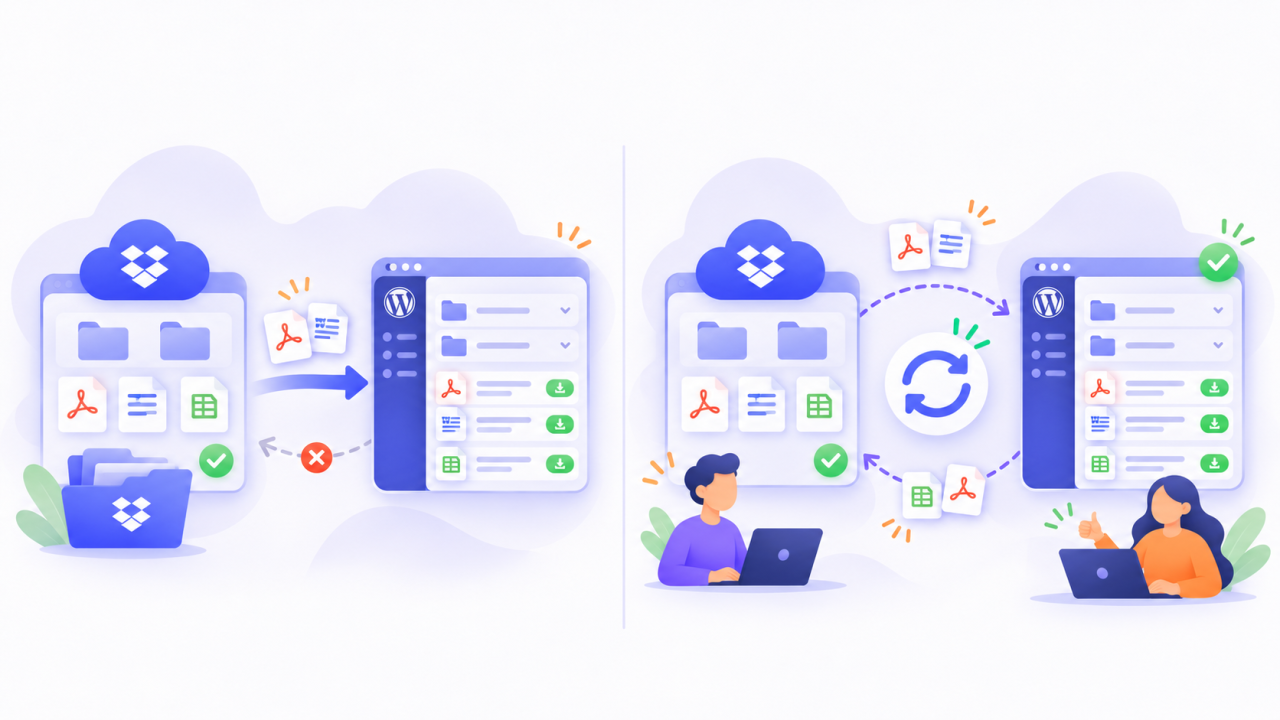
You can still give Dropbox the lead in your day-to-day workflow. If marketing owns the product brochures, for instance, have that team make revisions in Dropbox and let website editors manage the display and access settings in WordPress. That division of work gives everyone a clear place to update files while keeping two-way sync available.
Step 1. Connect WP File Download to Dropbox
Install and activate both WP File Download and the Cloud Addon. Sign in to the Dropbox account that holds the files you want to connect.
- In your WordPress dashboard, open WP File Download > Configuration > Cloud Connection.
- Select Dropbox, then click Connect Dropbox.
- Follow the Dropbox prompts and review the requested access. Confirm that you're using the intended Dropbox account before authorizing the connection.
- Return to WordPress and confirm the connection in the Dropbox settings.
The automatic method handles the connection without requiring you to create a Dropbox app. If your team uses its own app, follow the manual setup in JoomUnited's documentation. That route uses an app key and secret and requires the redirect address shown in the plugin settings. See the complete guide here.
Step 2. Create a Dropbox Category and Test Both Directions
Open the WP File Download file manager. Under New, choose New Dropbox Folder and give the category a name such as Website Downloads Test. This creates a Dropbox category you can use to check the connection before adding documents your visitors rely on. See how to create and display a Dropbox category in WordPress.
Open Dropbox and locate the corresponding folder under the connected root. Upload a sample PDF there, then check whether it appears in the category in WP File Download. To test the reverse direction, upload a different PDF from WordPress while that Dropbox category is selected. Check Dropbox for the second file.
If you already have a WordPress download library, start with one collection. Copy a few approved documents into the connected Dropbox folder; you will see everything working properly. If a WordPress page already lists the old category, update the page to display the new Dropbox category and test the downloads before removing the old copies.
Use the test folder to try a rename or removal with disposable files. Folder changes can sync too, so check both Dropbox and WordPress before reorganizing a collection that your team already uses.
Step 3. Set the Sync Schedule and Publish Your Category
The Dropbox settings under Cloud Connection include a setting called Sync periodicity. It controls how often WP File Download checks for cloud changes. JoomUnited documents a default delay of 30 minutes. To check a change sooner, right-click the connected category in the WP File Download file manager and choose Synchronize. See the WP File Download synchronization settings.
If you use the manual Dropbox app connection, JoomUnited also documents a Watch changes from Dropbox option. It uses a Dropbox notification to tell WordPress when files or folders have changed. The setup guide shows where to add the notification address to your Dropbox app and enable the option in WordPress. See the manual Dropbox setup instructions.
Once your test files appear, open the WordPress page where readers should find them. In the WordPress block editor, add a WP File Download Category block and select the connected Dropbox category. Preview the page, save it, and download a sample file from the page itself. This confirms that the file is available to readers as well as visible in the file manager. See the WP File Download blocks for WordPress.
Set access for the intended audience in WP File Download. Dropbox sharing permissions control access in Dropbox, and WordPress access settings control who can get the files through your site. For a restricted collection, check the page and try the download with both an authorized account and a logged-out browser. See WP File Download's file access controls.
How to Update Dropbox Files and Restore Earlier Versions
For a recurring download, keep a stable name such as Product Guide.pdf in the connected Dropbox folder. When a revision is approved, replace the existing file in that same location. If you upload Product Guide Final v3.pdf alongside it, both files may appear in the download category, leaving readers to decide which one they need.
After Dropbox finishes uploading the replacement, wait for the scheduled sync or run Synchronize on the category. Download the PDF from the WordPress page and look for a specific change, such as the updated revision date or a corrected specification. The file name will look the same, so opening the document is the quickest way to verify which version readers receive.
For files stored in Dropbox, use Dropbox Version history to review or recover an earlier version. On dropbox.com, open the file's menu, go to Activity > Version history, and preview the version you want. Select Roll back to this version and confirm. How far back you can go depends on your Dropbox plan. See how to restore an earlier file version in Dropbox.
After restoring the file, sync the category and verify the download again. For example, if a revised brochure accidentally contains the wrong specifications, roll back to the last accurate PDF and check that the site serves it. When the corrected brochure is ready, update the same file and repeat the check.
Ways Teams Can Use a Shared Dropbox Download Library
Keep Product Manuals and Sales Materials Current
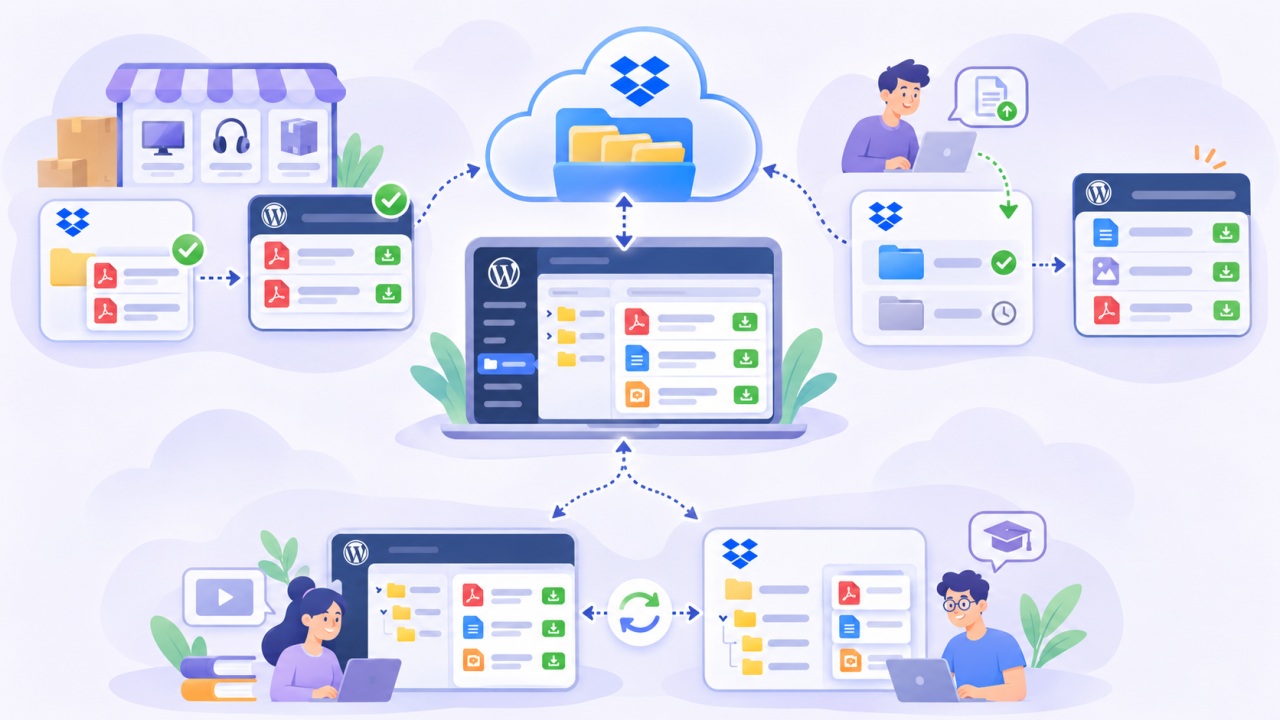
A product team can maintain approved manuals and specification sheets in Dropbox, while marketing displays them in a Product Downloads category on WordPress. When a specification changes, the team updates the PDF in Dropbox and checks the download after sync. The website editor can leave the category in place while the material inside it evolves.
Collect Files from Contributors Without WordPress Access
An agency can give a client access to a designated Dropbox folder for approved assets. The client can add a press kit or brand guide from Dropbox, and the agency can display that connected category on a WordPress resource page. Use a separate folder for drafts so a file still under review stays out of the published collection.
Maintain an Internal Training Library
A training coordinator who works mostly in Dropbox can update handouts from the desktop app. A colleague who manages the WordPress employee portal can add a new handout from WP File Download, where it syncs back to Dropbox for the coordinator to find. Use folders by topic or course so employees can find the right material without searching through past email attachments.
Calling all webmasters!
Enhance your client websites with WP File Download. Create secure and customizable file
repositories, allowing clients
to easily access and manage their files.
Upgrade your web design services today!
Keep Your WordPress Downloads in Sync with Dropbox
When your team updates a product guide or replaces a brochure in Dropbox, you can make the latest version available on your WordPress site without uploading it twice. Your contributors keep working in Dropbox, and your website editors control how readers find and access those files. Get WP File Download with the Cloud Addon to connect your Dropbox account and keep your WordPress download library up to date.
When you subscribe to the blog, we will send you an e-mail when there are new updates on the site so you wouldn't miss them.