WordPress products
 Joomla products
 Support
 News
 Login
Manage Files in Multiple Categories with WP File Download: A Complete Guide

Managing files in multiple categories helps WordPress website owners organize downloads without duplicating files across folders. Instead of keeping each file in a single location, you can assign it to several relevant categories, making documents easier to organize and helping visitors find the resources they need.
Whether you manage product documents, user guides, reports, or downloadable resources, a clear category structure improves file navigation and the overall user experience. In this guide, you will learn how to organize files into multiple categories, improve frontend navigation, and maintain an organized file library as it grows.
- Organize one file across multiple categories: Assign a single file to multiple categories in WP File Download without uploading duplicate copies, making file management more efficient and keeping your download library organized.
- Improve file discovery and navigation: Display categorized downloads on your website using customizable layouts, shortcodes, search, and sorting options, helping visitors find relevant documents more easily.
- Maintain a structured and scalable file library: Build clear category hierarchies, use tags and consistent file naming conventions, and regularly review file assignments to keep large file collections organized and accessible.
Table of content
Why File Categorization Matters for WordPress Websites
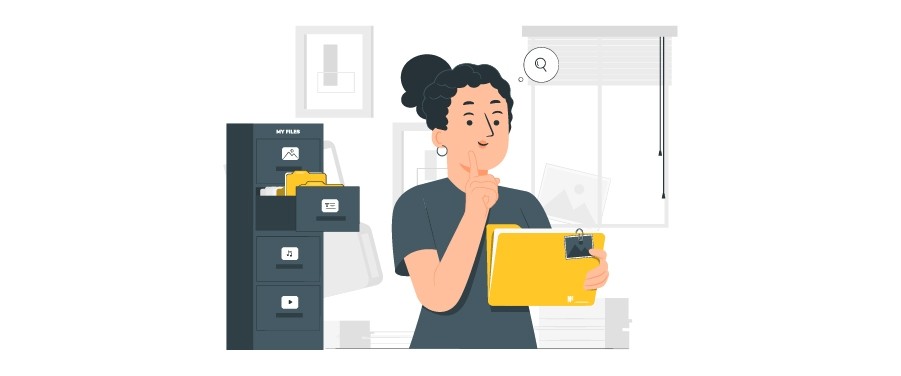
File categorization matters for WordPress websites because it creates a structured way to store, manage, and retrieve downloadable resources. Instead of displaying all files in one long list, categories group related documents together, helping administrators maintain an organized library and helping visitors find the right files faster. Key benefits of file categorization include:
- Easier file management: Group related documents by topic, purpose, or content type.
- Faster file discovery: Help visitors locate relevant downloads without browsing unrelated files.
- Better website navigation: Provide a clear structure that makes large file collections easier to explore.
- Reduced file duplication: Organize the same resource under relevant categories without uploading multiple copies.
- Improved user experience: Make downloadable resources more accessible and easier to navigate.
How to Organize Files into Multiple Categories with WP File Download
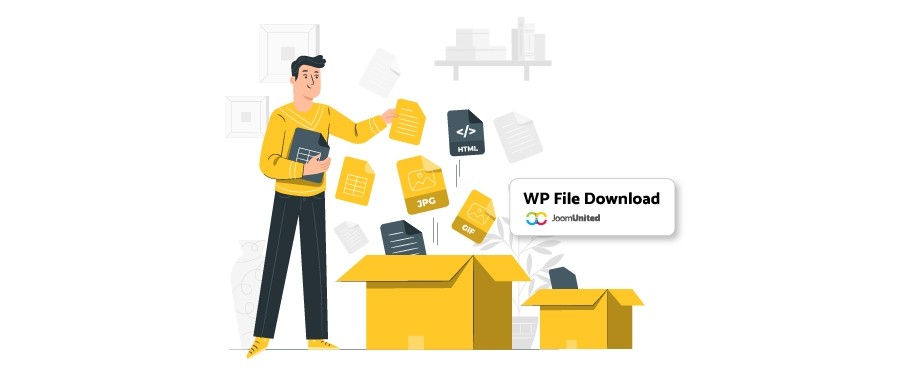
Organizing files into multiple categories allows you to group the same resource under different topics without uploading duplicate copies. This makes file management more efficient and helps visitors find relevant documents through different category paths.
WP File Download simplifies this process through its built-in file manager, which lets you create categories, organize files, and assign a single file to multiple categories. You can manage these assignments directly from the WordPress dashboard using the file settings or the multi-category option.
Follow these steps to organize your files using WP File Download.
Access the WP File Download File Manager
First, log in to your WordPress dashboard and navigate to WP File Download from the admin sidebar. Click the menu to open the file manager, where you can manage existing files and categories.
You can also access the file manager through the WP File Download button in the WordPress editor or a supported page builder. Both options let you work with your file library, while opening the manager from the admin sidebar provides a dedicated workspace for organizing files.
Create and Organize File Categories
Before assigning files to multiple categories, make sure you have created the categories you need. In the WP File Download file manager, click the + New button in the top-left corner to create a new category. Enter a category name to organize your downloadable resources based on their topics or purposes.
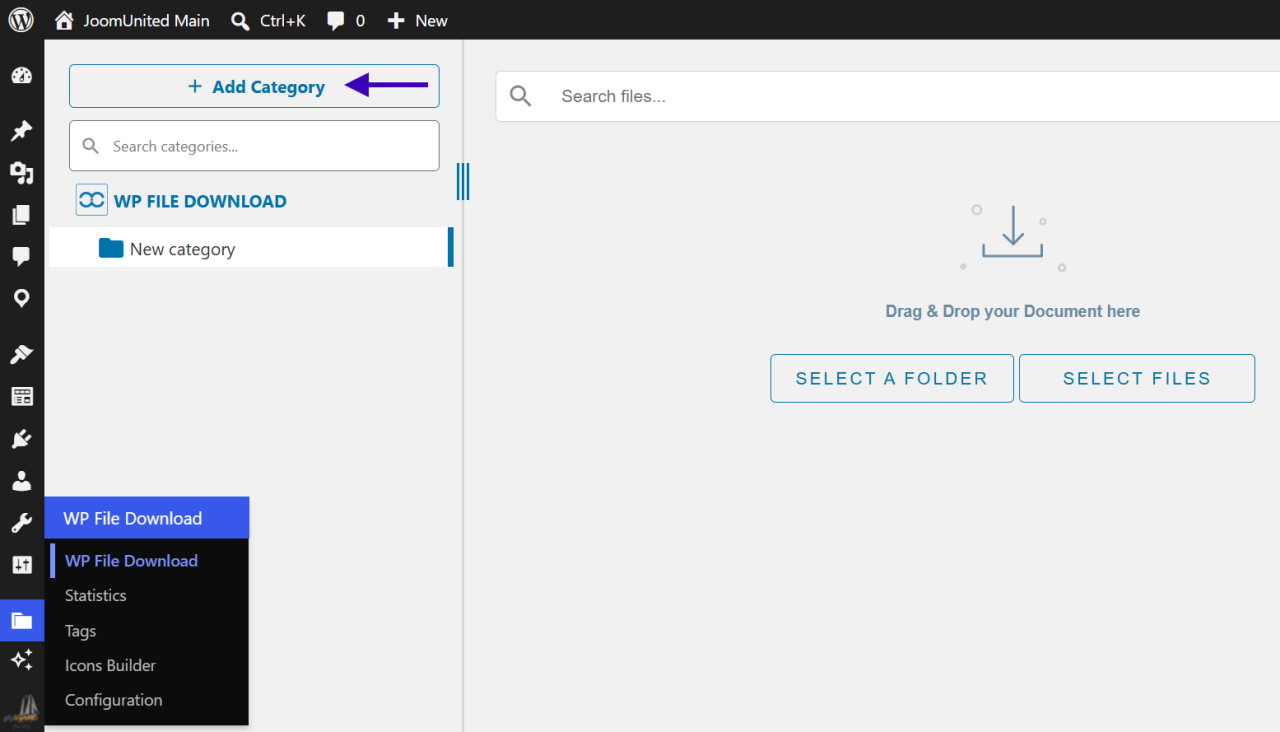
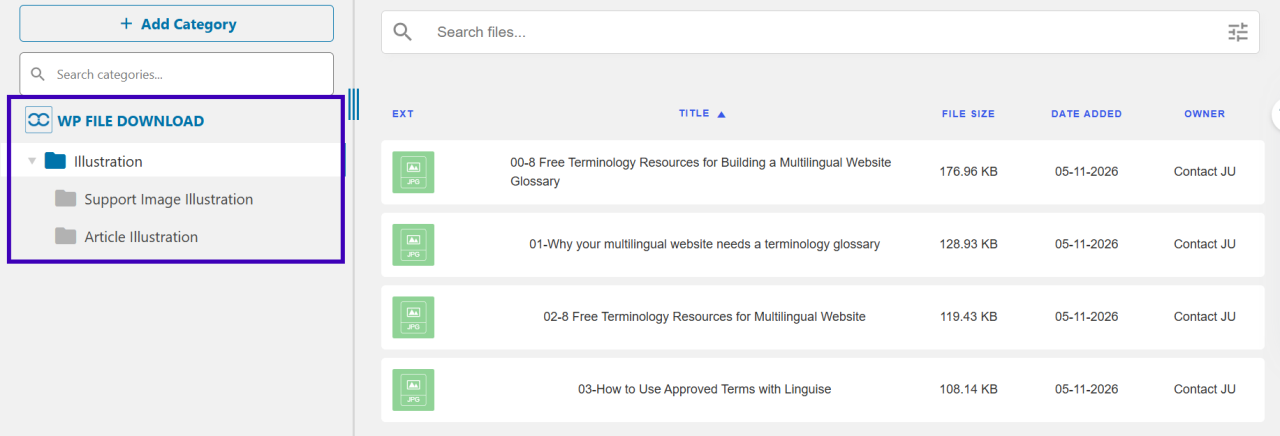
After creating the main categories, you can organize them into parent and subcategory levels using drag-and-drop. Move a category horizontally to place it under another category as a subcategory. You can also move categories vertically to adjust their display order within the file manager.
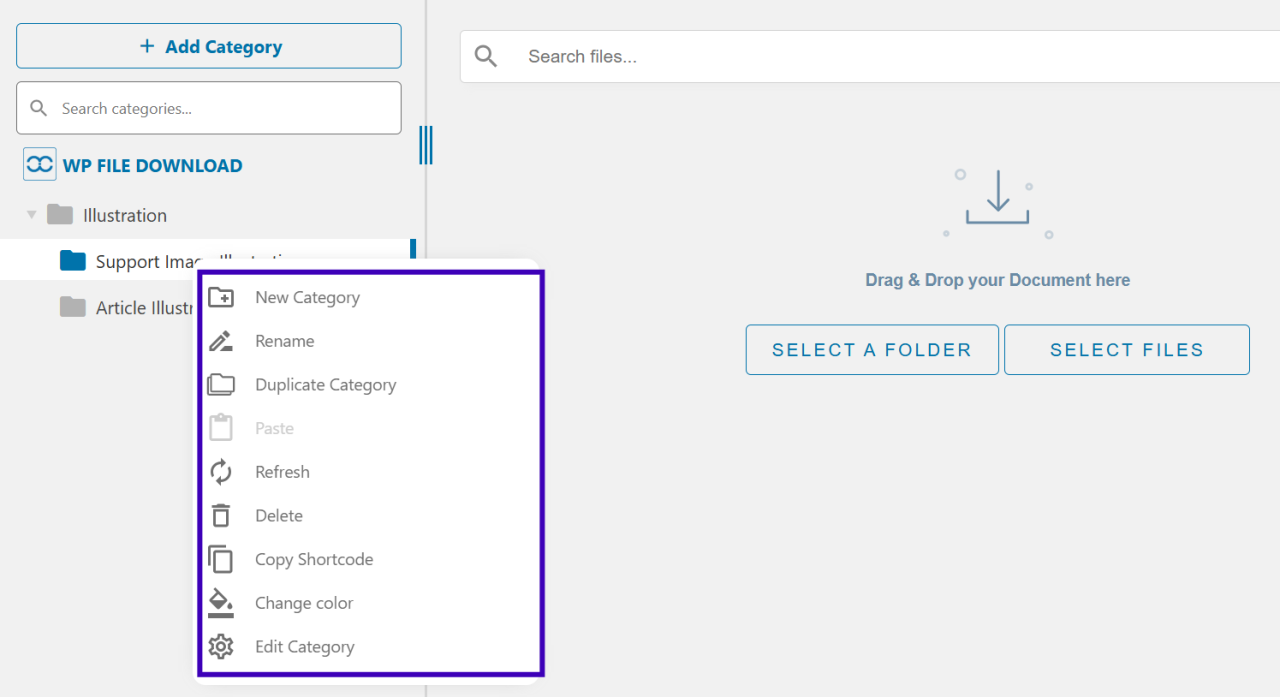
To manage your category structure, use the category context menu. It provides several options:
- Rename: Change the category name.
- Duplicate: Create a copy of the selected category.
- Delete: Remove the selected category.
- Copy Shortcode: Copy the category shortcode to display it on a website page.
- Change Color: Change the category color to make it easier to identify.
- Edit Category: Modify the category settings.
These options help you adjust your file library as your collection of downloadable resources grows.
Organizing categories into a clear hierarchy makes it easier to assign files to relevant groups and maintain a consistent structure across your file library. You can also group resources based on different attributes, such as topics, document types, departments, or user needs, giving visitors more ways to find relevant files.
Organizing categories into a clear hierarchy makes it easier to assign files to relevant groups and maintain a consistent structure across your file library.
Upload and Assign Files to Multiple Categories
Once your categories are ready, you can add files to the appropriate locations. WP File Download supports uploading files through drag-and-drop or the Select Files button in the file manager. First, select the category where you want to store the file, then upload it using either method.
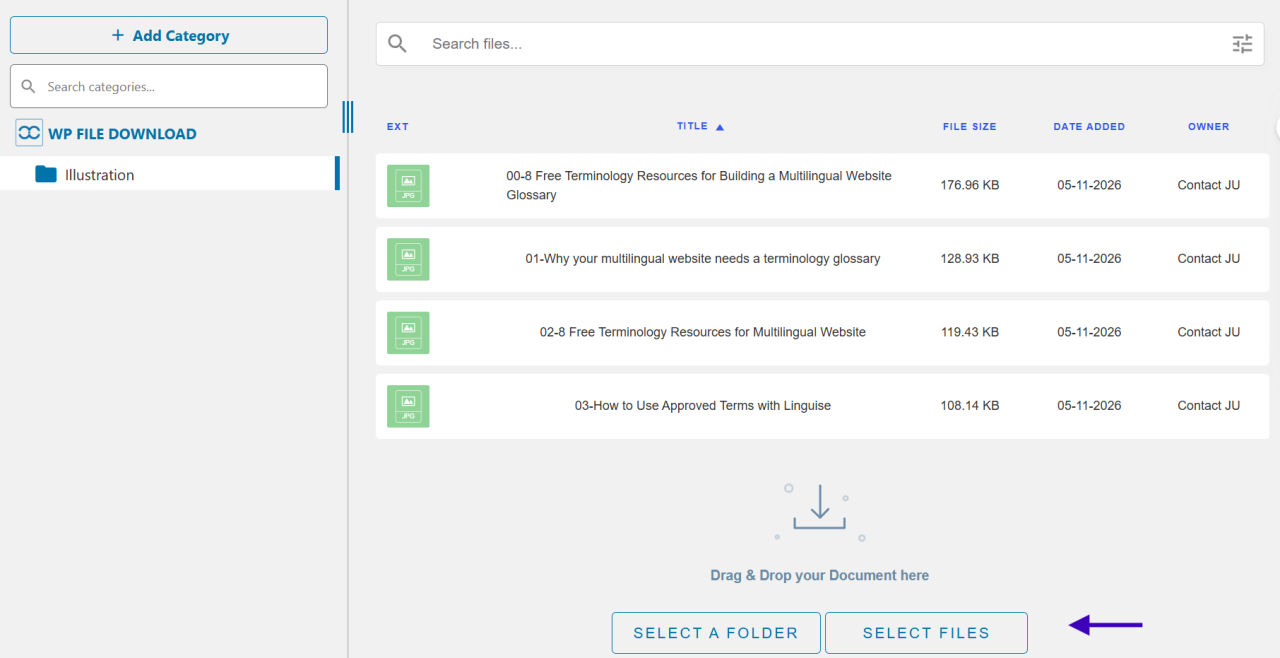
After uploading, locate the file you want to organize in the file manager. You do not need to upload the same file again to make it available in other categories. Instead, WP File Download provides a built-in multi-category feature that lets you assign the existing file to additional categories. This keeps file management centralized, as you only need to manage one file instead of maintaining separate copies in different categories.
To assign a file to multiple categories, right-click the uploaded file in the file manager and select Set multi category from the context menu. A pop-up window will appear, allowing you to choose additional categories from the available dropdown fields.
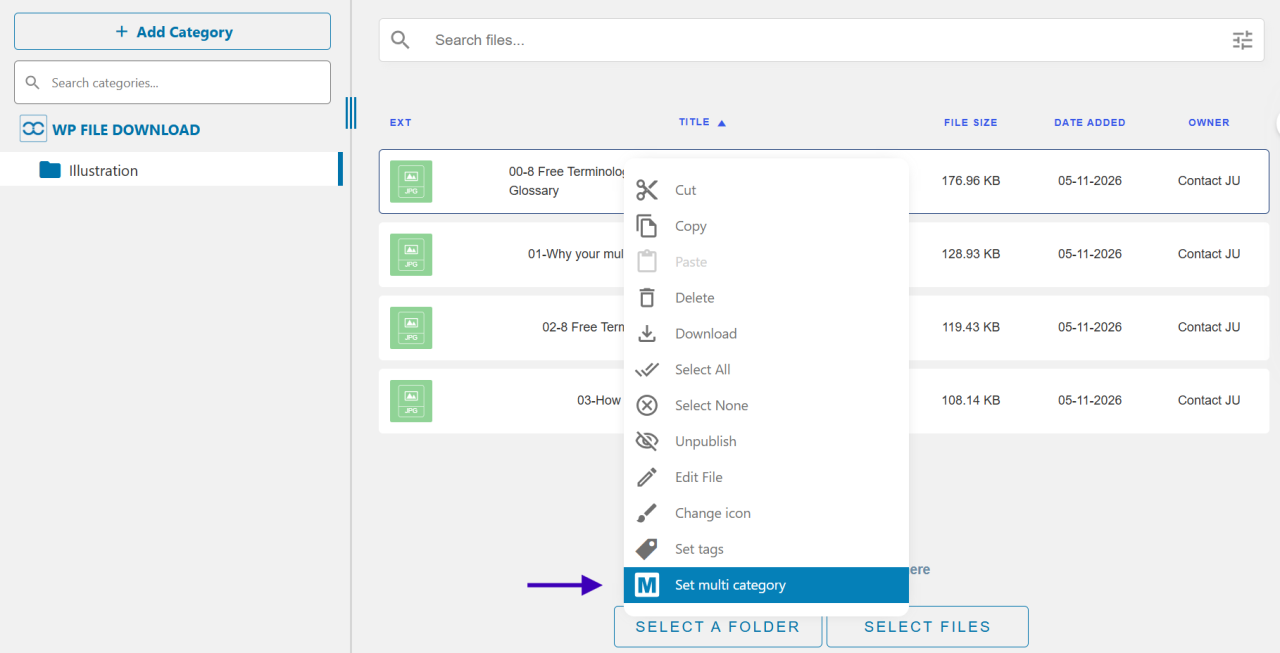
You can select one or more additional categories where you want the file to appear.
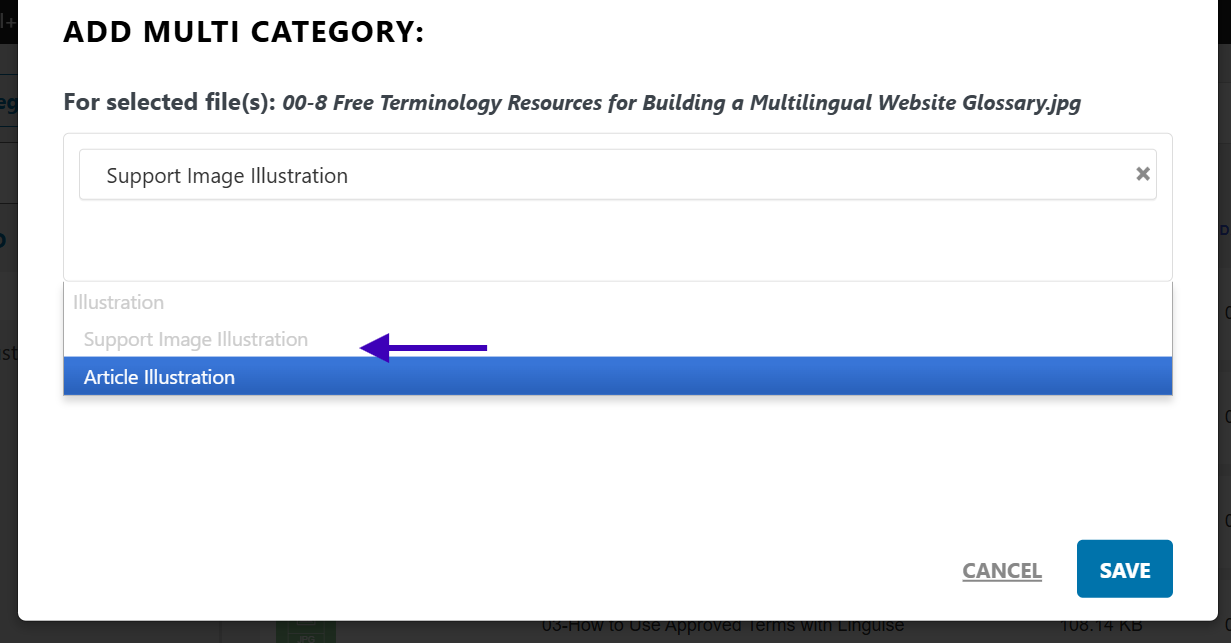
Once you save your selections, the file will be available in both its original category and the newly assigned categories. This lets visitors find the same resource through different category paths without creating duplicate uploads.
After selecting the additional categories, make sure to save your changes. If you use the context menu, click Save in the multi-category pop-up.
To verify the changes, reopen the file settings and check the Multi category field to confirm that your selected categories are listed. You can also open each assigned category in the file manager to check whether the file appears in the expected locations.
Once the assignments are correct, the same file can be accessed through multiple category paths without storing duplicate copies.
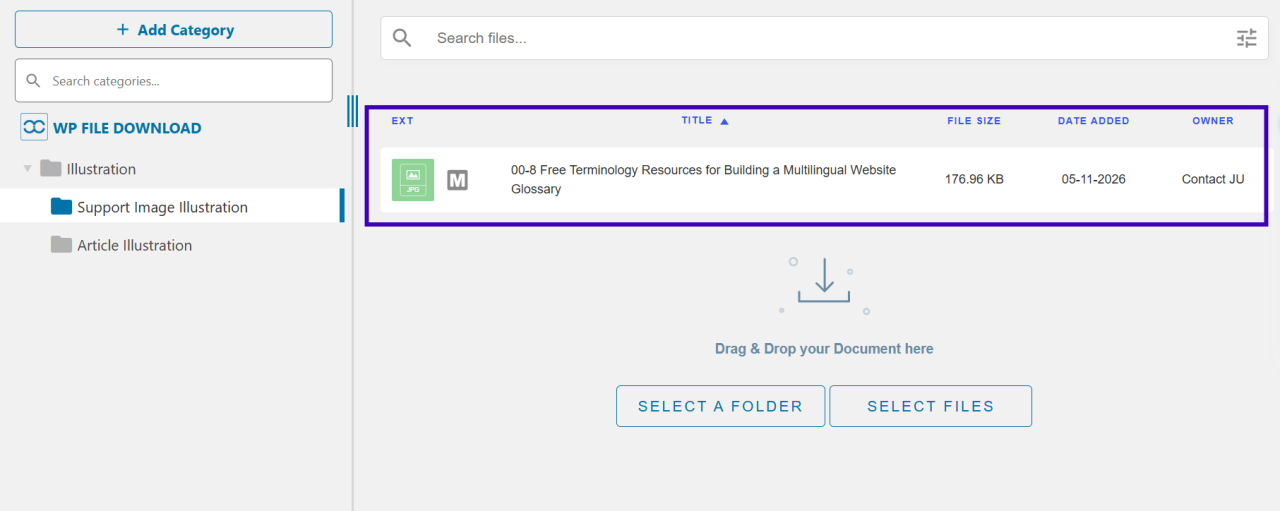
This also avoids maintaining separate versions of the same resource across categories, making your file library easier to manage as it grows.
Looking for a powerful file management solution for client websites?
WP File Download is the answer. With advanced features like file categories, access
restrictions, and intuitive UI.
Impress your clients with top-notch file organization!
Improve File Navigation, SEO, and User Experience
Organizing files into clear categories can improve website navigation, support SEO, and enhance the user experience. When visitors can easily browse, search, and download relevant resources, they spend less time looking for information and can interact with your website more efficiently.
Display Categories on the Frontend
Displaying file categories on the frontend lets visitors browse available downloads directly on your website. Instead of accessing the WordPress dashboard or searching through a long list of files, they can select a relevant category to find documents based on their interests or needs.
With WP File Download, you can display file categories on website pages using shortcodes or the available integration options. This makes downloadable resources accessible from relevant pages, such as documentation sections, resource libraries, or customer support pages.
Customize Category Layouts
Customizing category layouts helps present downloadable resources in a way that matches your website structure and makes content easier to browse. For example, a list layout works well for document-heavy libraries, while a tree view can help visitors navigate categories and subcategories.
WP File Download provides different frontend layouts and customization options to control how categories and files appear. You can choose a suitable display style and adjust its appearance to create a consistent browsing experience across your website.
Optimize File Categories for SEO
A well-organized file category structure can also support website SEO by making downloadable resources easier to understand and navigate. Clear category names, relevant descriptions, and logical hierarchies provide context about the content available on each page. To make your file categories more search-friendly, consider these practices:
- Use descriptive category names: Choose names that clearly represent the documents they contain. For example, use Product Manuals instead of generic labels such as Documents or Files.
- Add relevant category descriptions: Include a short introduction explaining what visitors can find in each category. This provides additional context for both visitors and search engines.
- Maintain a logical category hierarchy: Organize related resources under appropriate parent categories and subcategories. A clear structure helps visitors navigate your content and makes relationships between different topics easier to understand.
- Use descriptive file names: Name downloadable files based on their actual content instead of generic labels. For example, product-installation-guide.pdf is more informative than document-final-01.pdf.
These practices help create a more meaningful structure for downloadable resources. However, category organization alone does not guarantee higher search rankings. The actual SEO impact also depends on factors such as page content, crawlability, indexing, and overall website optimization.
Improve File Search and Sorting
Search and sorting features help visitors find specific documents without manually browsing every category. A search function can narrow results by file name or keywords, while sorting options let users organize files by name, date, or other available criteria.
WP File Download includes frontend search and sorting capabilities that make large file collections easier to navigate. These options are particularly useful for websites with frequently updated documents, product resources, or extensive downloadable libraries.
Simplify File Access and Downloads
Making file access straightforward helps visitors download the resources they need without unnecessary steps. Clear file names, visible download links, and well-organized categories reduce confusion and make the process more convenient, especially for users accessing your website from different devices.
WP File Download allows you to display downloadable files directly on the frontend, so visitors can access resources without entering the WordPress dashboard. You can also configure file display options to provide relevant information and make download links easier to identify.
Best Practices for Managing Large WordPress File Libraries
Managing large WordPress file libraries requires a consistent organization system, effective search options, and regular maintenance. These practices help prevent clutter, reduce duplicate files, and ensure visitors can find the resources they need as your collection grows.
Build a Clear Category Structure
Create categories based on the type, purpose, or topic of your files. For example, an educational website might organize downloads into categories such as course materials, assignments, worksheets, and reference documents. A clear structure helps administrators manage files and gives visitors a predictable way to browse resources.
Avoid creating too many overlapping categories, as this can confuse navigation. Instead, use main categories and relevant subcategories to group related content. If a file belongs to more than one topic, assign it to multiple categories rather than uploading duplicate copies.
Use Tags and Search Filters
Tags provide another way to organize files based on specific keywords or attributes that may not fit into a single category. For example, you can tag documents by year, language, department, or file type. This gives visitors additional ways to identify relevant resources without changing the main category structure.
Combine tags with search and sorting filters to make large file collections easier to explore. Visitors can search for specific file names or use available filters to narrow down results. This is particularly helpful when your website contains hundreds or thousands of downloadable resources.
Establish Consistent File Naming Conventions
Consistent file naming conventions make it easier to identify, search for, and maintain documents in a large file library. When multiple administrators manage downloadable resources, standardized names also reduce confusion and help everyone follow the same organization system. Consider these practices when naming your files:
- Use descriptive names: Choose file names that clearly indicate their content, such as employee-handbook.pdf instead of document-final.pdf.
- Include relevant dates or versions: Add dates or version numbers when managing documents that receive regular updates, such as product-manual-v2.pdf.
- Maintain a consistent format: Use a similar naming pattern across related documents to make files easier to identify.
- Avoid unnecessary characters: Use simple names and separators, such as hyphens, instead of complicated combinations of symbols or spaces.
A consistent naming system makes it easier to locate specific documents and spot outdated versions without opening every file.
Review and Maintain Category Assignments
As your file library grows, some documents may become outdated, move to different departments, or no longer belong to their original categories. Regularly reviewing category assignments helps keep your organization system accurate and prevents visitors from finding irrelevant resources. During these reviews, consider the following actions:
- Check category relevance: Make sure each file still belongs to its assigned categories and remove assignments that are no longer appropriate.
- Identify overlapping categories: Review categories with similar purposes and consider consolidating them when they create unnecessary complexity.
- Check unused categories: Identify categories that no longer contain relevant files and reorganize or remove them when appropriate.
- Verify file placement: Ensure important documents appear in the categories where visitors would reasonably expect to find them.
These checks help maintain a logical category structure and make it easier to manage files as new resources are added.
Keep File Libraries Updated
Regularly review your file library to remove outdated documents, replace incorrect versions, and check for broken download links. Keeping files updated ensures visitors access accurate information instead of outdated resources. It also prevents unnecessary files from accumulating over time.
Establish a maintenance schedule to review categories, file names, and download links. For frequently updated resources, keep track of the latest versions and remove obsolete documents when they are no longer needed. You can also assign responsibility for reviewing specific categories to make maintenance more manageable.
These practices help keep your WordPress file library organized, accurate, and easier to maintain as the number of downloadable resources increases.
Calling all webmasters!
Enhance your client websites with WP File Download. Create secure and customizable file
repositories, allowing clients
to easily access and manage their files.
Upgrade your web design services today!
Conclusion
Managing files in multiple categories helps keep your WordPress file library organized, reduces duplicate uploads, and makes downloadable resources easier to find. With a clear category structure, intuitive navigation, and regular maintenance, you can manage and share resources more efficiently with website visitors.
WP File Download makes file organization easier with its multi-category feature, frontend display options, and built-in search and sorting capabilities. If you want to simplify file management while improving how visitors access your downloads, try WP File Download and explore its features for organizing your WordPress file library.
When you subscribe to the blog, we will send you an e-mail when there are new updates on the site so you wouldn't miss them.