WordPress products
 Joomla products
 Support
 News
News Login
LoginStep-by-Step: Sync Your OwnCloud Files into WordPress Media Using WP Media Folder

Managing files across different platforms can become challenging as your WordPress website grows. While public cloud storage offers convenience, OwnCloud provides greater control over where your files are stored and how they are accessed. By connecting OwnCloud with WordPress, you can keep your files in your own cloud environment while still managing them through your WordPress media library.
In this guide, we'll walk you through how to sync OwnCloud files with WordPress, from setting up the connection to mapping folders, managing permissions, and keeping files synchronized. Keep reading to learn how to create a more flexible and organized WordPress media workflow without giving up control of your cloud storage.
- Connect ownCloud directly to the WordPress Media Library: WP Media Folder lets you link an ownCloud account from WordPress, so your cloud folders become accessible from the native Media Library.
- Keep ownCloud and WordPress media synchronized both ways: Files added in ownCloud appear in WordPress, while WordPress uploads can be stored in the selected ownCloud folder—keeping media organized in one shared structure.
- Import or embed cloud files while reducing server storage: Choose whether to import ownCloud files into WordPress or embed them directly from ownCloud; background synchronization keeps file changes and folders up to date.
Table of content
OwnCloud vs. Public Cloud Storage
OwnCloud and public cloud storage are both used to store, manage, and access files online, but they work differently. OwnCloud is a cloud storage solution that can be hosted on your own server, giving users or organizations greater control over their data and its management. In contrast, public cloud storage services such as Google Drive or Dropbox are managed by third-party providers, so users can simply create an account and use the available storage without managing the underlying server.
The main difference lies in control, management, and responsibility. With OwnCloud, users can decide how their data is stored, who can access it, and how the system is configured. However, they are also responsible for server maintenance, security, backups, and updates. Public cloud storage is more convenient because the provider handles the infrastructure and maintenance, but users have less control over how their data and infrastructure are managed.
In simple terms, OwnCloud is better suited for users or organizations that need greater control and flexibility over their data, while public cloud storage is ideal for those who prioritize convenience and ease of use. The right choice depends on factors such as security requirements, budget, technical expertise, and the level of control needed over the data.
How OwnCloud and WordPress Media Sync Works
Integrating OwnCloud with WordPress allows you to store website media, such as images, videos, and documents, externally instead of relying entirely on WordPress hosting. This can help reduce storage usage and centralize media management while WordPress continues to manage website content.
The synchronization typically works through a plugin, integration, or compatible storage protocol. When a file is uploaded via the WordPress Media Library, it can be synced to OwnCloud, while WordPress retains the necessary file metadata and URL. A typical setup works as follows:
- Upload: A media file is added through WordPress.
- Storage: The file is transferred and stored in OwnCloud.
- Reference: WordPress keeps the file URL or attachment information.
- Display: When visitors access the content, the media is retrieved from OwnCloud.
Depending on the integration, files can also be synchronized from OwnCloud to WordPress. However, different setups may handle files differently, so it is important to check how uploads, updates, deletions, permissions, and file URLs are managed to prevent broken media or synchronization conflicts.
How to Sync OwnCloud Files with WordPress Using WP Media Folder
WP Media Folder provides OwnCloud integration, allowing you to connect your WordPress Media Library to your OwnCloud storage. Instead of switching between platforms, you can access, organize, and manage OwnCloud files directly from the WordPress dashboard.
The integration supports two-way synchronization, enabling management of files from either platform while keeping them in sync. Files uploaded to OwnCloud can appear in the WordPress Media Library, while files uploaded through WordPress can be stored in the connected OwnCloud folder. This creates a more centralized and efficient workflow for organizing WordPress media.
Step 1: Connect OwnCloud to WordPress
Start by connecting your OwnCloud account to WP Media Folder from the WordPress dashboard. Go to Settings > WP Media Folder > Cloud & Media Offload > Cloud Connectors, then select the OwnCloud connector and enable the connection option.
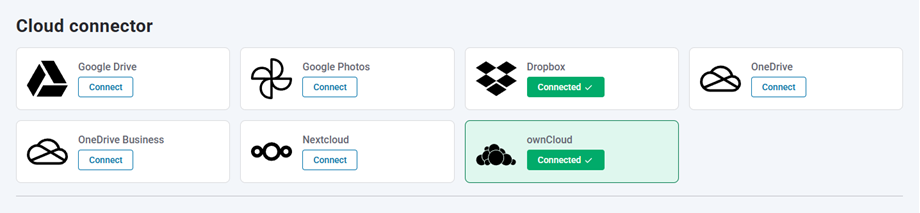
Enter the required OwnCloud details, including:
- Username: Your OwnCloud username without spaces or special characters.
- Password: Your OwnCloud account password.
- OwnCloud URL: The URL of your OwnCloud installation.
- Root folder name: The OwnCloud folder that will be connected to WordPress.
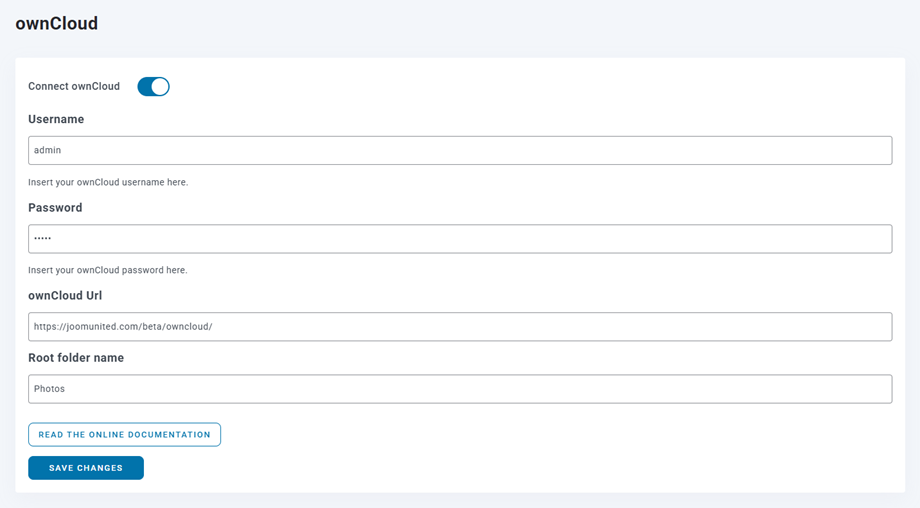
Save the settings once all details have been entered. If the connection is successful, you can open the WordPress Media Library to start using your OwnCloud files.
Step 2: Choose the OwnCloud root folder
The root folder determines which part of your OwnCloud storage will be connected to WordPress. Once the connection is established, the folders and subfolders inside this root folder can be synchronized with the WP Media Folder.
Using a dedicated root folder for WordPress media can help keep your files organized. It also prevents unrelated OwnCloud files from being included in the WordPress media workflow.
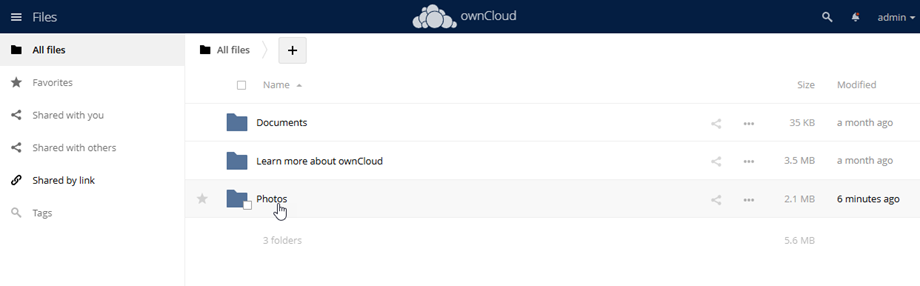
For example, you could create a dedicated folder for your website media and use it as the root folder. This makes it easier to separate WordPress assets from other files stored in OwnCloud.
Step 3: Synchronize files between OwnCloud and WordPress
After the connection is active, WP Media Folder synchronizes the folders and files inside the selected root folder with your WordPress Media Library. The synchronization works in both directions, so you can manage your media from either platform. The basic workflow is:
- OwnCloud > WordPress: Files added to the connected OwnCloud folder appear in the WP Media Folder.
- WordPress > OwnCloud: Files added through the WP Media Folder are synchronized back to OwnCloud.
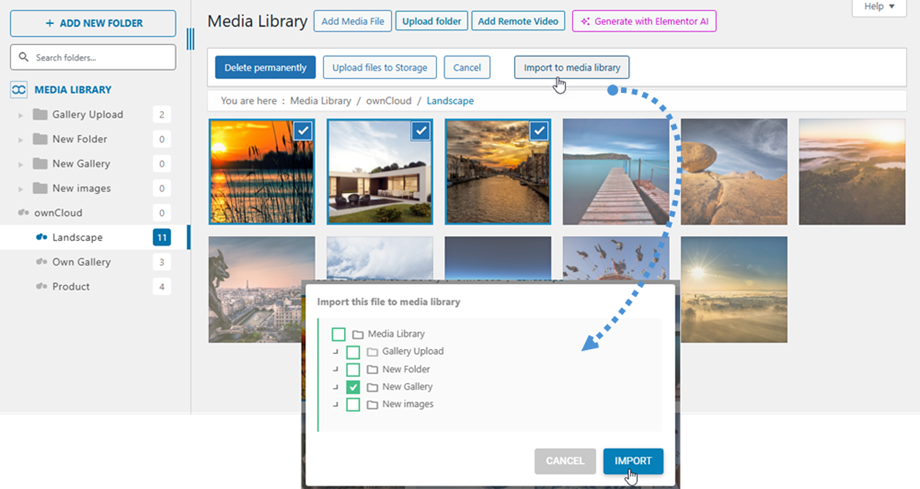
This two-way synchronization also means you can manage WordPress media from your desktop using the OwnCloud synchronization software, while keeping the files connected to your WordPress Media Library.
Step 4: Import or embed OwnCloud media
WP Media Folder provides two ways to use OwnCloud media in your WordPress content. The first option is to import OwnCloud media into WP Media Folder by selecting the folders or files you want to use.
The second option is to embed OwnCloud media directly into your content. With this method, the media is loaded from OwnCloud rather than stored on your WordPress server. This can be useful when you want to keep the original media centralized in OwnCloud while still displaying it on your website. You can choose the option that best fits your workflow:
- Import: Add selected OwnCloud media to the WP Media Folder.
- Embed: Load the media directly from OwnCloud in your WordPress content.
Say goodbye to messy media library.
WP Media Folder lets you categorize files, sync folders with
cloud storage, create amazing galleries and even
replace images without breaking links.
Optimize your media workflow today
Best Practices for Managing Synced OwnCloud Files in WordPress
Managing synced files between OwnCloud and WordPress requires a clear structure and consistent workflow. By following a few best practices, you can keep your media organized, accessible, and less prone to broken links or synchronization issues.
Keep a clear folder structure
Organize files in OwnCloud using folders that match how media is used in WordPress. A consistent structure makes files easier to find and reduces the risk of accidentally moving or deleting files that WordPress still references.
For example, you can organize files by content type, project, or year. Keep the structure simple and avoid frequently changing folder names or locations.
- Use descriptive folder names.
- Avoid unnecessary nested folders.
- Keep frequently used media in stable locations.
Maintain consistent file names
Use simple and consistent file names for media synchronized between OwnCloud and WordPress. Clear filenames make files easier to identify and can also help prevent confusion when managing large media libraries.
Avoid frequently renaming files after they have been synchronized. Depending on the integration, changing a filename or location may cause WordPress to lose track of the original file.
- Use descriptive filenames.
- Avoid special characters and unnecessary spaces.
- Keep filenames consistent after synchronization.
Manage permissions and access carefully
Make sure WordPress has the correct permissions to access the required OwnCloud files. At the same time, avoid giving WordPress more access than necessary, especially when OwnCloud contains private or sensitive files.
You should also review who can modify or delete synchronized files. Limiting access helps prevent accidental changes that could result in missing media or broken links in WordPress.
- Give WordPress only the required permissions.
- Restrict access to private folders.
- Review user permissions regularly.
Monitor synchronization and backup files
Regularly check whether files are synchronizing correctly between OwnCloud and WordPress. Pay attention to missing images, broken links, failed uploads, or files that appear in one system but not the other.
A backup is also important because synchronization does not replace backup protection. Keep a separate backup of important OwnCloud files and WordPress data so you can restore them if files are accidentally deleted or synchronization fails.
- Check synchronization logs and errors.
- Test important media after major changes.
- Maintain regular backups of both systems.
Calling all webmasters!
Save time and boost productivity with WP Media Folder. Effortlessly organize client media
files, create custom
galleries, and provide a seamless user experience.
Upgrade your website projects now!
Conclusion
Syncing OwnCloud files with WordPress provides a flexible way to manage website media while keeping greater control over where files are stored. With the right setup, you can connect OwnCloud to WordPress, organize files efficiently, manage permissions, and keep media synchronized without relying entirely on WordPress hosting.
Using a solution like WP Media Folder can make this process easier by providing a more organized way to manage and access synced files directly from WordPress. By maintaining a clear folder structure, consistent filenames, proper permissions, and regular backups, you can create a more reliable and efficient media management workflow.
When you subscribe to the blog, we will send you an e-mail when there are new updates on the site so you wouldn't miss them.