WordPress products
 Joomla products
 Support
 News
 Login
Step-by-Step Guide to Connect WP File Download to OneDrive Business

Keeping business documents organized becomes harder when your team works in Microsoft 365 while customers, partners, or employees download files from your WordPress website. Every manual upload creates another task and another opportunity to publish an outdated document. Connecting WP File Download to OneDrive Business helps bring these activities together. In this guide, you will learn how to establish the connection, organize your documents, and plan access controls for everyday business use.
For organizations already using OneDrive for Business, a connected document workflow gives website publishing a clearer place in daily operations. Your team can establish where approved documents belong, who maintains them, and which audiences should receive them. The following steps cover the connection process and the decisions that make a business document library easier to maintain.
Looking for a powerful file management solution for client websites?
WP File Download is the answer. With advanced features like file categories, access
restrictions, and intuitive UI.
Impress your clients with top-notch file organization!
Table of content
- Why Connect OneDrive Business to WP File Download?
- Put Your OneDrive Business Integration to Work
- Connect Your Microsoft 365 Documents to WordPress
Why Connect OneDrive Business to WP File Download?
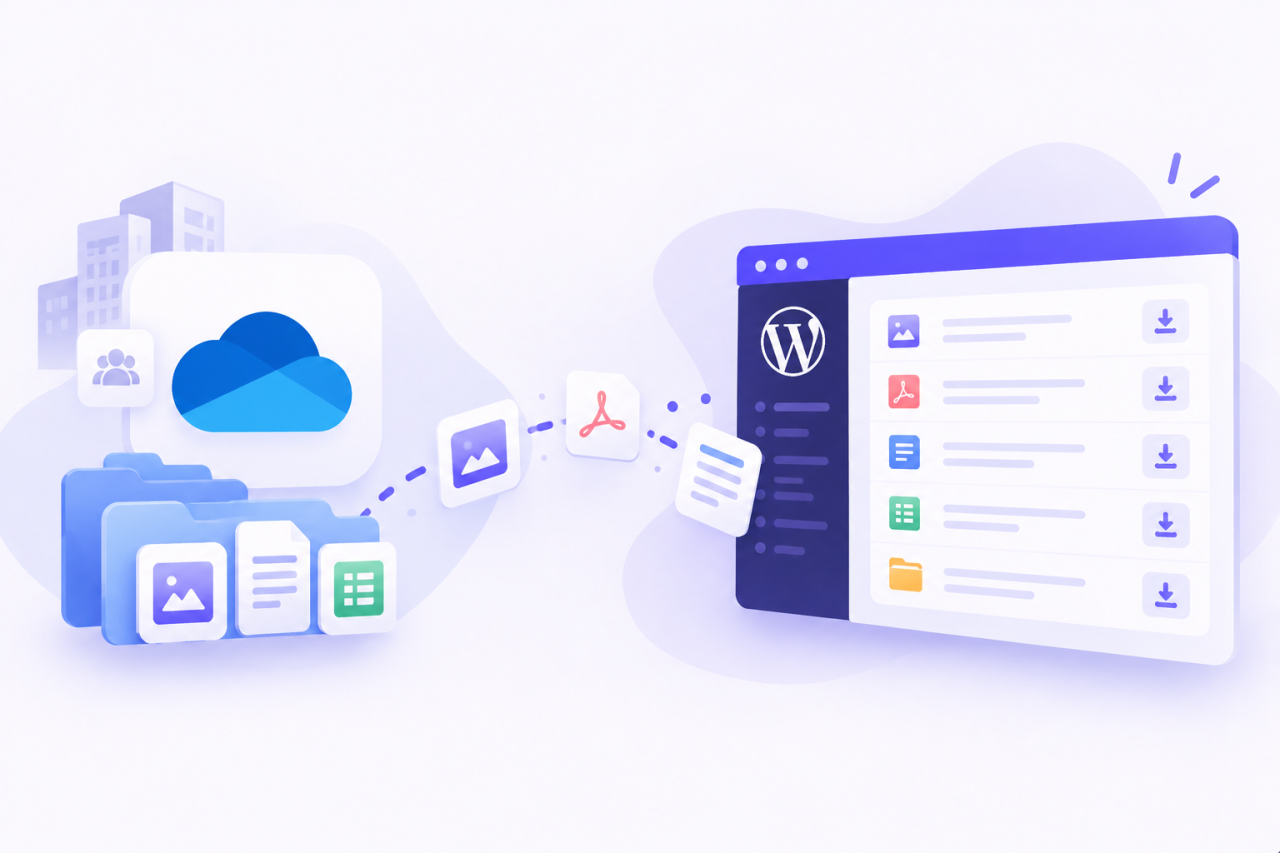
JoomUnited's OneDrive Business integration for WP File Download supports synchronization in both directions between the connected cloud folders and WordPress. Teams can manage documents through either environment, including through folders synchronized with the OneDrive desktop application.
This flexibility is useful when document owners and website administrators have different responsibilities. A sales coordinator may prepare product information, while a website manager controls how visitors find it. Connecting their workflows can reduce repeated handoffs.
Consider a company that updates installation guides every month. A useful publishing process would give each guide an owner, an agreed location, and a review date. The website team could then focus on presentation and audience access, while the product team remains responsible for accuracy.
Centralized document management starts with these practical decisions. Before connecting anything, identify the documents you want to distribute and the people responsible for keeping them current.
Step 1: Prepare Your Website and Business Account
Install and activate WP File Download and its separate cloud integration add-on. Have your OneDrive Business account ready, along with access to the plugin configuration in WordPress.
Step 2: Connect OneDrive Business Using Automatic Mode
In WordPress, open WP File Download > Configuration > Cloud Connection > OneDrive Personal/Business. Choose Connect OneDrive Business, then complete the sign-in and authorization prompts.
Use the work account intended for this connection. If your browser has several Microsoft accounts open, check the selected account carefully before continuing.
Your organization may require administrator approval. Microsoft explains that application consent depends on the permissions requested and the organization's consent policies. If approval is required, ask your Microsoft 365 administrator to review the application and requested access. See Microsoft's overview of user and administrator consent.
For a business rollout, record who approved the connection and who will maintain it. This simple ownership record becomes useful when staff responsibilities change, or the website moves to a new administrator.
Optional: Connect Through Your Own Microsoft Application
Organizations managing their own application registrations can use the manual connection route.
In Microsoft Entra, open App registrations, create a registration, and give it a recognizable name. Microsoft's application registration guide explains the registration interface, application identifiers, and credentials.
For plugin compatibility, follow JoomUnited's documented account-type selection: organizational directories plus personal Microsoft accounts. Use your website's HTTPS address ending in /wp-admin/admin.php as the redirect URL.
Copy the application's client ID. Under Certificates & secrets, create a client secret and securely record its value. Microsoft displays that value only when it is created, so capture it before leaving the page.
In the plugin's manual connection settings, enter the client ID and secret value, save, and authorize the connection. The JoomUnited OneDrive integration documentation provides the plugin-specific setup reference.
Ask IT to confirm that this configuration fits your organization's application policies. Record the secret's expiration date and assign responsibility for renewal.
Step 3: Enable Change Tracking and Locate the Connected Folder
After connecting, enable Watch Changes to support prompt synchronization from OneDrive Business. Locate the generated WP File Download - {sitename} root folder; connected files and categories synchronize beneath it. These behaviors are described in the integration documentation.
Treat this location as a defined publishing area. Give contributors a short explanation of its purpose and make clear which documents belong there.
A useful internal instruction might be: "Place reviewed customer documents in the publishing folder after the document owner approves them."
That rule creates a deliberate transition from preparation to distribution. It also helps prevent colleagues from treating a website-connected folder as a general workspace for unfinished drafts.
Step 4: Organize a Centralized Document Library
Now you can build a structure that matches how people look for information.
Start with a small number of clear categories, such as Product Documentation, Customer Resources, Partner Materials, and Training. Within those categories, use subfolders only when they make navigation easier.
Prefer descriptive names over internal shorthand. "Installation Guides" tells a new employee more than an unexplained department code. Document titles should also communicate their purpose without requiring someone to download them first.
Assign an owner to each collection. That person should know when documents need review, who approves replacements, and when outdated material should be withdrawn.
For an initial rollout, a simple ownership list is enough:
- Collection name.
- Responsible department.
- Document owner.
- Intended audience.
- Review schedule.
This structure supports centralized management by making responsibility visible. A connected library is easier to maintain when everyone knows who decides what belongs in it.
Step 5: Align WordPress Permissions with Your Intended Audience
WP File Download provides controls for file access and management. Its file access management features let administrators plan who can access documents and who can manage them.
Treat Microsoft 365 access and WordPress access as separate configuration tasks. The integration documentation describes file synchronization; it does not establish automatic mapping between Microsoft groups and WordPress roles.
For each collection, answer two questions: who should maintain these documents, and who should download them?
A public brochure library might allow broad readership while limiting changes to a small publishing team. A customer resource area may require a narrower audience. Internal operating procedures may need their own restricted distribution process.
Translate those decisions into the available WordPress controls, then test them with representative accounts. Use an authorized reader, a user who should have no access, and a logged-out browser session.
Check actual downloads as well as page visibility. Seeing the correct navigation menu does not, by itself, demonstrate that every document is protected as intended.
Repeat these checks whenever you change audience rules or reorganize restricted collections.
Put Your OneDrive Business Integration to Work
With the connection tested and access configured, you can start using WP File Download to bring Microsoft 365 documents into your everyday WordPress workflow. Here are three practical ways businesses can use the integration.
Keep Sales and Partner Documents Updated

Sales teams often manage brochures, product specifications, and presentation materials in OneDrive Business. Connecting these documents to WordPress gives partners and customers a dedicated place to find them.
For example, your team can update a product brochure in the connected OneDrive folder and let synchronization carry the change to WP File Download. This reduces the need to upload the same document separately through WordPress.
Use public access for materials intended for everyone, and configure restricted categories for resources reserved for selected partners. Your team can maintain the documents through its familiar Microsoft 365 workflow while managing their website availability through WordPress.
Build an Employee Resource Library
An employee portal can bring together training guides, reference documents, and company resources in organized download categories.
With the OneDrive Business integration, connected folders and their files synchronize with WP File Download. Contributors can also work through the OneDrive desktop application, making document management convenient for teams already using it.
Organize resources by department or topic, then configure WordPress access for the intended audience. Keep in mind that Microsoft 365 permissions and WordPress access settings need separate attention; file synchronization should not be treated as automatic permission synchronization.
Share Documents with Clients
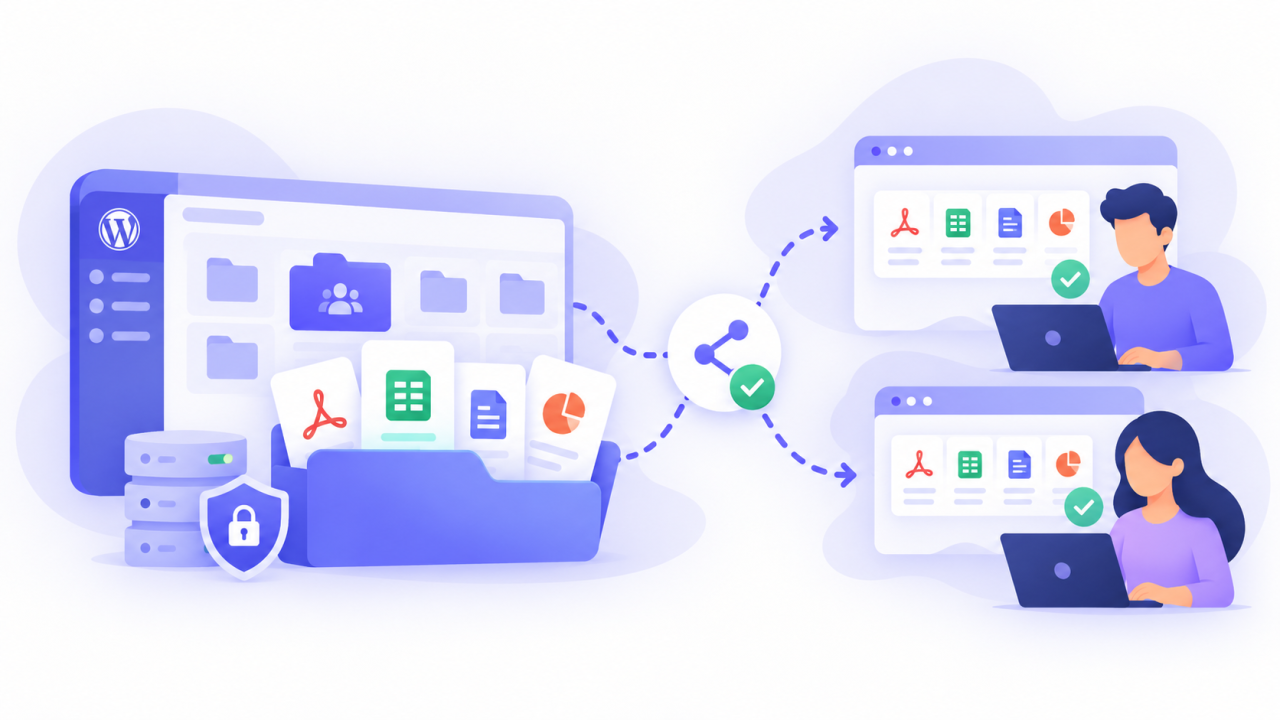
For agencies, consultancies, and service providers, a document area can make client deliverables easier to find than a long email conversation.
Create a clear collection for each client's resources and use WP File Download's access controls to restrict availability to the appropriate WordPress users. Test those restrictions before adding private documents.
Your team can manage files in the connected OneDrive location while clients access the resources through your website. This approach gives document contributors a familiar workspace and provides recipients with an organized download experience.
Calling all webmasters!
Enhance your client websites with WP File Download. Create secure and customizable file
repositories, allowing clients
to easily access and manage their files.
Upgrade your web design services today!
Connect Your Microsoft 365 Documents to WordPress
Connecting WP File Download to OneDrive Business helps your team maintain a centralized document workflow and reduce repeated uploads. Two-way synchronization connects file management across both platforms, while WordPress access controls help you organize delivery for customers, partners, and employees.
Start with a small collection, verify synchronization, and check access from the intended user's perspective. Once those steps are complete, expand the library around your business needs.
Explore WP File Download to bring your OneDrive Business documents into an organized WordPress download library.
When you subscribe to the blog, we will send you an e-mail when there are new updates on the site so you wouldn't miss them.