WordPress products
 Joomla products
 Support
 News
News Login
LoginHow to Combine WebP Auto-Conversion and AI Metadata Generation in WP Media Folder for Maximum Performance & SEO

Web performance optimization is no longer just about design or content quality, but also about how efficiently images are processed and delivered to speed up website performance. One of the most effective approaches is WebP auto conversion for SEO, which helps websites load faster while improving search engine visibility.
With this method, every uploaded image is automatically converted into the lightweight WebP format and enriched with AI-generated SEO metadata such as optimized filenames, alt text, and contextual language settings. In this article, we will explore how to implement this setup step by step and apply best practices to maximize both performance and indexing results, so make sure to read until the end.
- This guide explains how to activate automatic WebP generation in WP Media Folder so your WordPress site serves lighter images and improves Core Web Vitals without changing your media workflow.
- The article shows how to configure WP Media Folder's AI tools to bulk-generate SEO‑ready image titles, alt text, captions, and descriptions that match your content and target keywords.
- You'll learn how to pair WebP auto conversion with AI‑generated metadata to speed up page loads, boost image search visibility, and create a repeatable workflow for ongoing media optimization.
Table of content
Why WebP and AI metadata improve SEO?

When someone visits a website, loading speed often decides whether they stay or leave. WebP helps solve this by compressing images into a much smaller size without losing visual quality, making pages load faster and feel smoother for users.
But SEO is not only about speed. Search engines also need to understand what each image represents. AI metadata helps by automatically generating relevant filenames, alt text, and descriptions, so images are easier to index and more aligned with page content.
When WebP and AI metadata are used together, they create a strong balance between performance and discoverability. The website becomes faster for users and clearer for search engines, which can ultimately improve rankings and visibility.
Setting up WebP auto-conversion in WP Media Folder
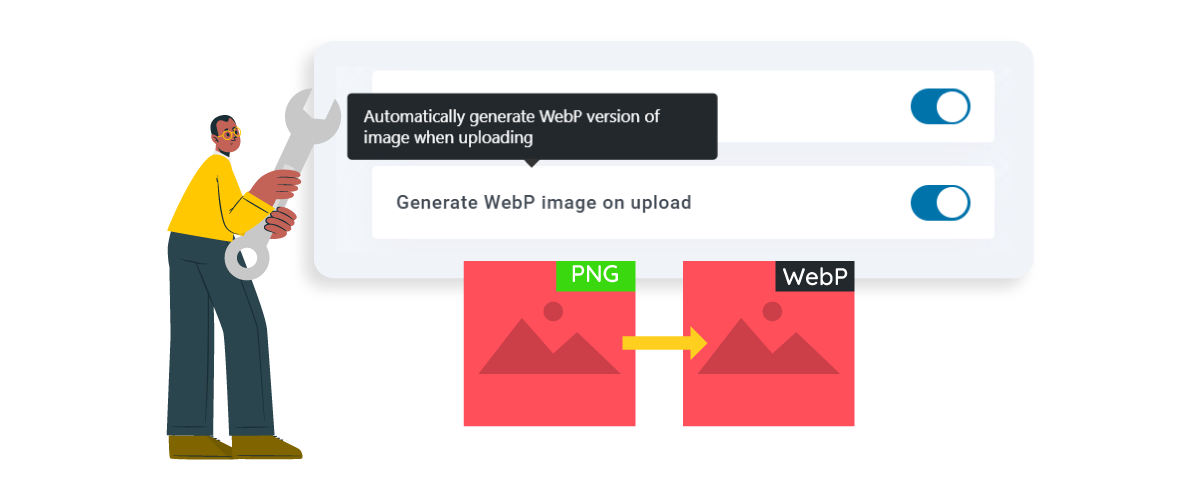
WP Media Folder is designed to simplify how you manage and optimize images inside WordPress. It supports automatic WebP auto-conversion from JPG or PNG formats and also includes AI-powered metadata generation to create SEO-friendly file names and image descriptions. This helps improve both website speed and search visibility without requiring manual work.
Beyond automation, it keeps your media library consistent by applying structured optimization rules to every uploaded image. Suitable for both beginners and advanced users, WP Media Folder makes WordPress media management easier while enhancing it with powerful features and AI tools to boost overall performance.
Enabling automatic WebP generation
The first step is to install and activate the WP Media Folder plugin in your WordPress dashboard before accessing its features. Once installed, go to the plugin settings panel and find the performance or image optimization section. From there, enable the automatic WebP generation option so every JPG or PNG uploaded to your media library is automatically converted into WebP format.
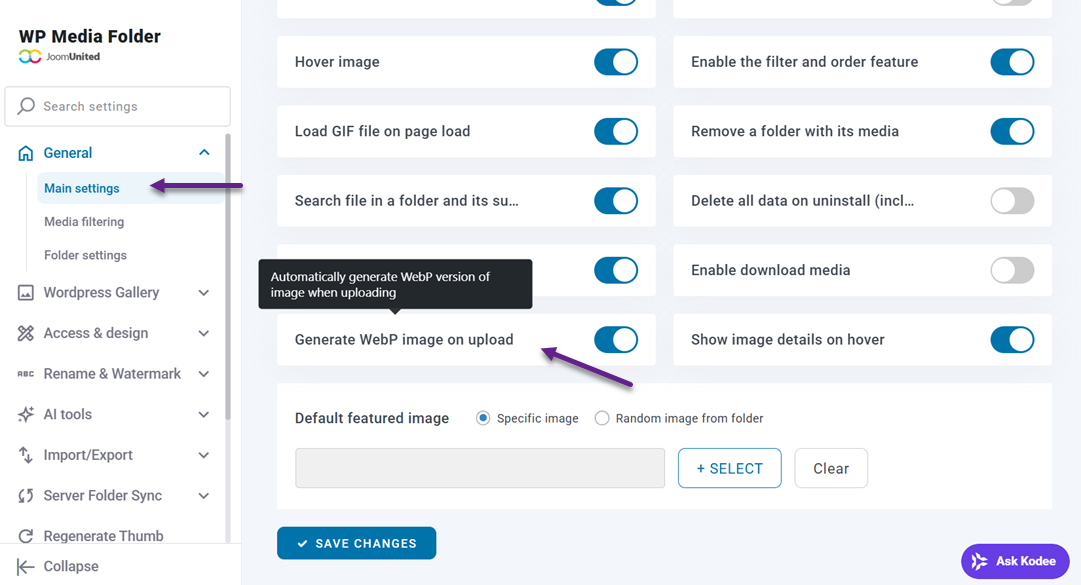
After enabling it, the system will run automatically in the background, converting images to WebP whenever new files are uploaded without requiring any manual process.
Uploading images with automatic WebP conversion
After setup, uploading images becomes much simpler. You can drag and drop images directly into the WordPress media library as usual. Once uploaded, WP Media Folder will automatically generate a WebP version of each image without requiring any additional steps.
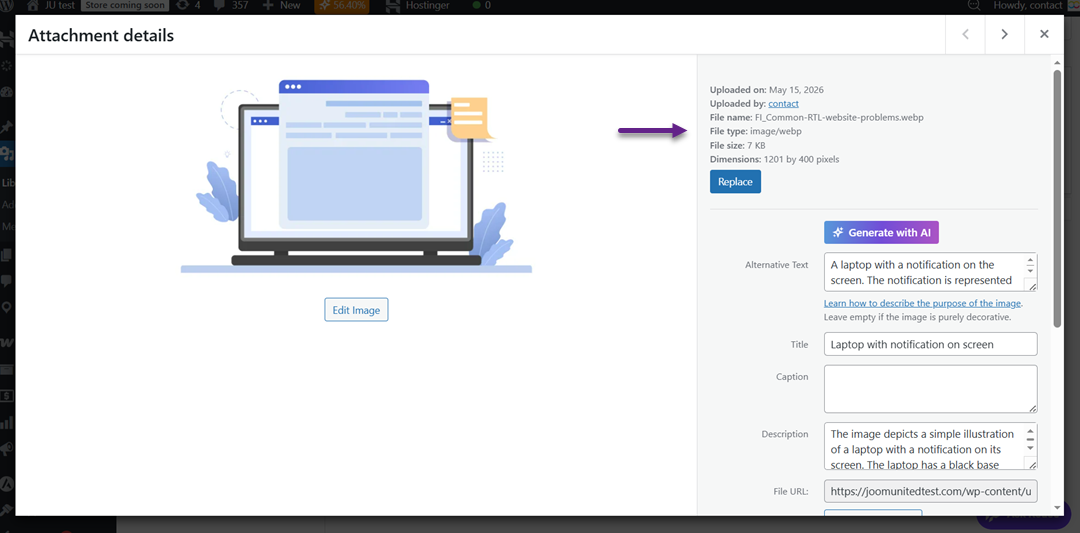
During this process, the original image is no longer used for delivery because it is immediately replaced by the WebP version for supported browsers, meaning the system serves the optimized format directly to visitors while the PNG or JPG file is kept only as a backup in the background. This ensures full compatibility while still delivering faster loading performance across your website.
Managing WebP images in the media library
Inside the media library, you will now see both the original and converted WebP versions of your images. WP Media Folder organizes them so you can easily track which files have been optimized. This helps you maintain better control over your media assets without confusion.
You can also update, replace, or regenerate WebP versions if needed, especially when optimizing older images. This makes ongoing maintenance easier, ensuring your website stays fast and SEO-friendly as your content grows.
Optimizing image metadata with AI
After WebP conversion is enabled, the next step is making sure your images are not only optimized in size but also properly structured for SEO. This is where AI-powered metadata optimization in WP Media Folder helps you automatically generate SEO-friendly image metadata filenames and improve how search engines understand your media files.
Enabling AI-generated filenames
To start, go to your WordPress dashboard and open Settings > WP Media Folder > AI Tools. This is the main control panel where all AI features are managed after your WebP setup.
Inside this section, enable all available AI optimization options. First, activate "Rename image files on upload" and ensure "Image names" is checked so every uploaded image is automatically renamed into an SEO-friendly format instead of default names like IMG_05152026.jpg.
Next, enable the Image SEO Information section. This activates automatic metadata generation for all images, including:
- AI image titles: Automatically generated SEO title for images
- AI image alt text: Alternative text for SEO & accessibility
- AI image description: Short description of the image content
- AI image caption: Caption displayed on the frontend
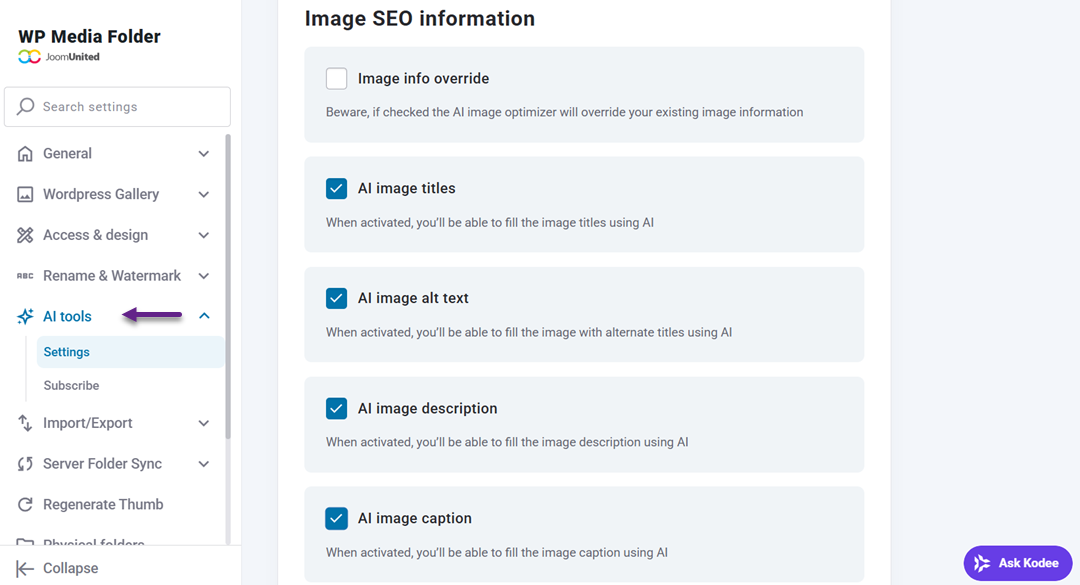
Once all settings are enabled, every uploaded image will automatically be optimized both in filename and metadata, making your media library more structured and SEO-friendly without any manual work.
Setting language and content context
After enabling filename generation, the next step is improving AI accuracy by setting the right language and SEO context. In the same AI Tools panel, you can choose the language used for generating SEO-friendly filenames based on your target audience.
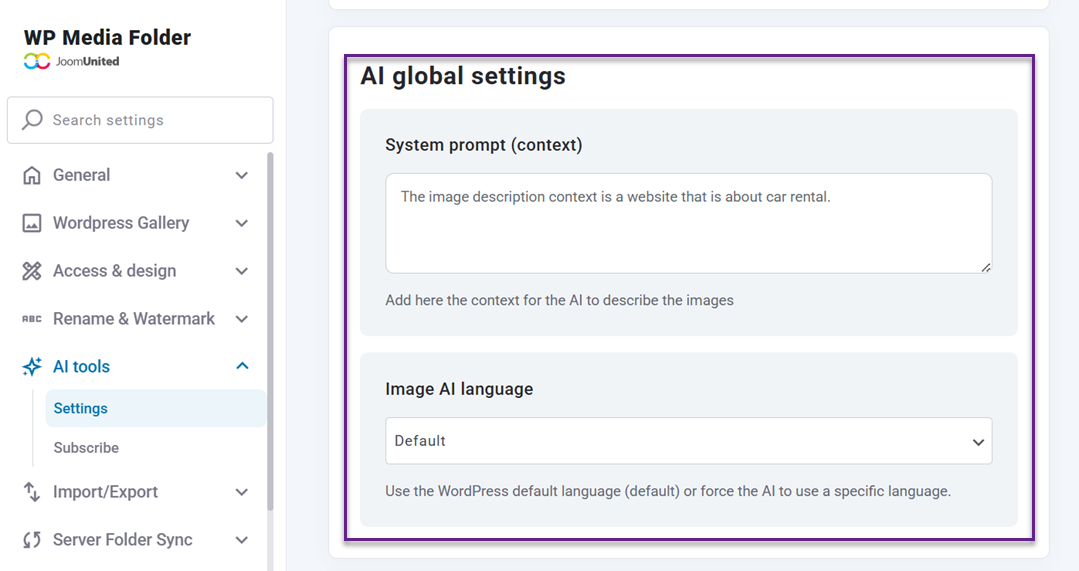
Adding context is also important because it helps the AI understand your website's niche and SEO focus. For example, a travel blog will generate descriptive, keyword-rich filenames like sunset-in-bali-beach.jpg, while an online store may produce product-focused SEO names like black-running-shoes-men.jpg. With clear context, the generated filenames become more relevant, structured, and aligned with your overall SEO strategy.
Uploading images with automatic SEO naming
Once everything is configured, you can simply upload images to your Media Library as usual. There is no additional step required during upload.
After the upload, the AI will automatically process the file and replace generic names with SEO-friendly ones based on the image content. For example, instead of IMG_20260219.jpg, it might become man-working-on-laptop-data-chart.jpg. This process runs in the background and only takes a few seconds.
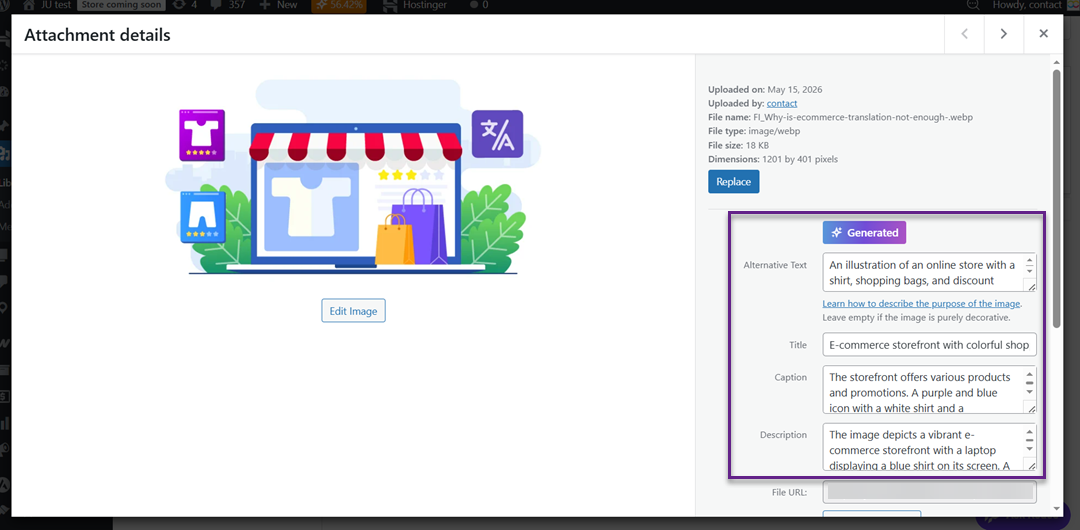
From this point on, every image you upload is not just stored properly but also optimized for search engines, helping improve consistency, discoverability, and overall SEO performance without extra manual work.
Supercharge your WordPress images with AI.
WP Media Folder Image AI helps you optimize images automatically, generate alt texts, improve SEO, and compress files in one click.
Upgrade your media workflow with intelligent automation.
Best practices for performance and indexing

After setting up WebP conversion and AI metadata, the final step is making sure everything works together to support both performance and search engine indexing. These best practices help ensure your images load faster, stay well-structured, and are easier for search engines to understand and rank.
Descriptive AI filenames
Using descriptive AI-generated filenames helps search engines quickly understand what an image is about without relying only on surrounding text. Instead of generic names like IMG_1234.jpg, AI can generate keyword-rich filenames that reflect the actual content of the image, improving relevance in search results.
This practice also helps keep your media library organized and scalable. When filenames are clear and structured, it becomes easier to manage assets, especially for large websites with hundreds or thousands of images. It also improves consistency across your SEO strategy.
Combining WebP with AI metadata
WebP and AI metadata work best when used together because they solve two different problems. WebP focuses on performance by reducing file size, while AI metadata improves SEO by adding context such as titles, alt text, and descriptions.
When both are properly implemented, your website becomes faster and more search-friendly at the same time. Search engines can load your pages efficiently thanks to WebP, while also understanding your images better through enriched metadata, leading to improved visibility in image search results.
Lightweight image sizes
Even with WebP enabled, it is still important to ensure your images are optimized in terms of dimensions and quality. Uploading unnecessarily large images can slow down page performance, even if they are compressed.
By using appropriately sized images for each use case—such as thumbnails, banners, or product images—you reduce unnecessary load on the browser. This improves user experience, especially on mobile devices, and contributes positively to overall SEO performance.
Monitoring image indexing
After optimization, it is important to monitor how your images are being indexed by search engines. This helps you understand whether your WebP and AI metadata setup is working effectively.
You can check indexing through tools like Google Search Console to see if images are appearing in search results. If some images are not indexed properly, you may need to adjust metadata, filenames, or ensure they are accessible for crawling.
Calling all webmasters!
Save time and boost productivity with WP Media Folder. Effortlessly organize client media
files, create custom
galleries, and provide a seamless user experience.
Upgrade your website projects now!
Conclusion
Combining WebP auto-conversion and AI metadata generation is a powerful strategy to improve both website performance and SEO. With WebP, your images are automatically optimized into lightweight formats for faster loading, while AI-generated metadata such as SEO-friendly filenames, alt text, and descriptions ensures your images are properly understood and indexed by search engines.
By implementing this setup, you create a website that is not only faster but also more discoverable in search results. If you want to streamline image optimization, improve indexing, and boost overall SEO performance, start using WP Media Folder and take full advantage of its WebP and AI automation features.
When you subscribe to the blog, we will send you an e-mail when there are new updates on the site so you wouldn't miss them.