WordPress products
 Joomla products
 Support
 News
 Login
Use ZIP Bulk Download & Multi‑File Selection in WP File Download for User Convenience

ZIP bulk download makes it easier for users to download multiple files at once instead of saving each file individually. Whether they need several documents, images, or other resources, combining files into a single ZIP archive saves time, reduces repetitive actions, and makes downloaded content easier to manage.
However, a convenient download experience also depends on how files are selected, grouped, and organized. In this guide, you'll learn how to select multiple files, create ZIP archives, organize downloads with categories, and apply best practices to simplify the process. Keep reading to discover how to make downloading multiple files easier for your website visitors.
- Enable multi-file selection for easier downloads: WP File Download allows website visitors to select multiple files directly from the frontend using checkboxes, making it easier to download several resources without repeating the process for each file.
- Download selected files together as a ZIP archive: Visitors can select the files they need and download them in a single ZIP package, reducing download steps and keeping related resources organized.
- Allow visitors to download entire file categories: WP File Download also supports bulk downloading an entire category, including its files and subcategories, making large file collections easier to access and manage.
Table of content
Why Bulk File Downloads Improve User Experience

Bulk file downloads improve the user experience by letting visitors retrieve multiple files in one action instead of downloading each file individually. This is especially useful for websites that provide collections of documents, templates, images, or other downloadable resources. With WP File Download, visitors can select specific files or download an entire category as a ZIP archive, making the process faster and more convenient. The main benefits of bulk file downloads include:
- Save time and effort: Visitors can download several files at once without repeating the download process for each item.
- Simplify file management: Combining selected files into a single ZIP archive keeps related resources together and makes them easier to store and organize.
- Improve file accessibility: Categories and subcategories help visitors navigate large file collections and locate relevant resources more easily.
- Reduce repetitive actions: Visitors can select multiple files or download an entire category instead of clicking each download button individually.
- Provide a better user experience: A more convenient download process reduces unnecessary steps and makes websites with multiple downloadable resources easier to use.
How to Select Multiple Files in WP File Download
WP File Download provides a convenient way to manage downloadable files and make them easier for visitors to access. Its bulk download features allow website owners to let visitors select multiple files or download entire categories as ZIP archives, reducing the need for individual downloads. To get started, you can enable multi-file selection so visitors can choose the resources they need directly from your website's frontend. Here's how to set it up.
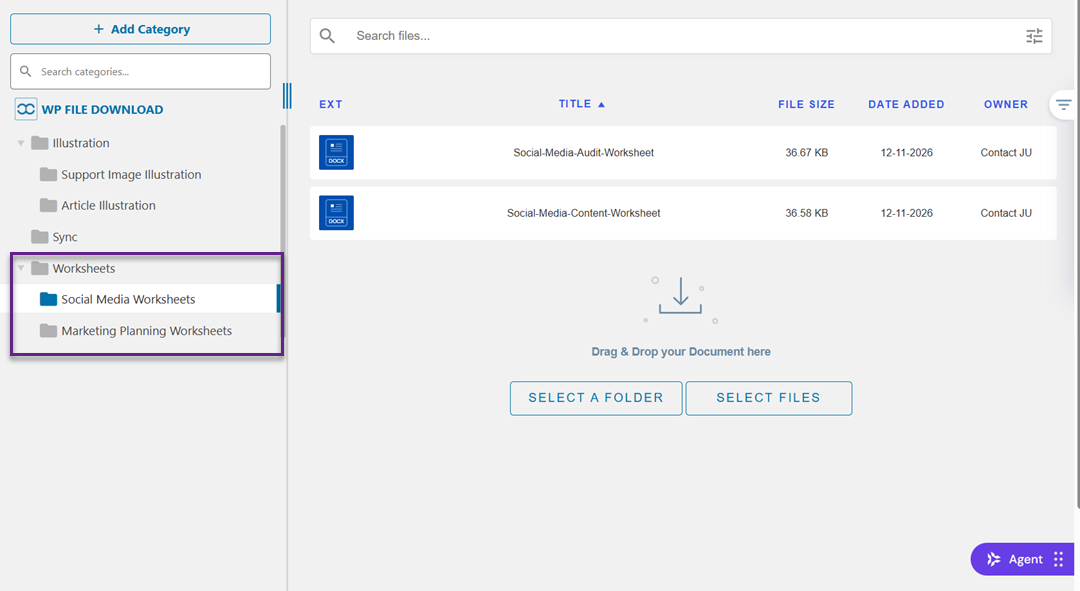
Before enabling multiple file selection, make sure you have uploaded the files you want visitors to download into a category in WP File Download.
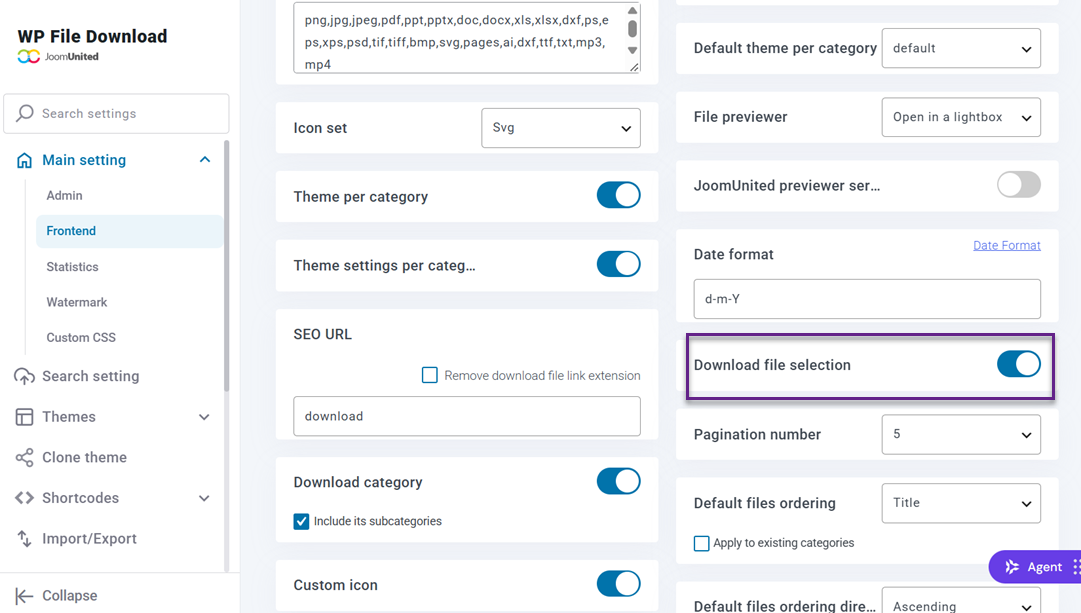
Then, open WP File Download → Configuration from your WordPress dashboard and navigate to the Frontend settings. Find the Download file selection option and enable it so visitors can select multiple files from the frontend.
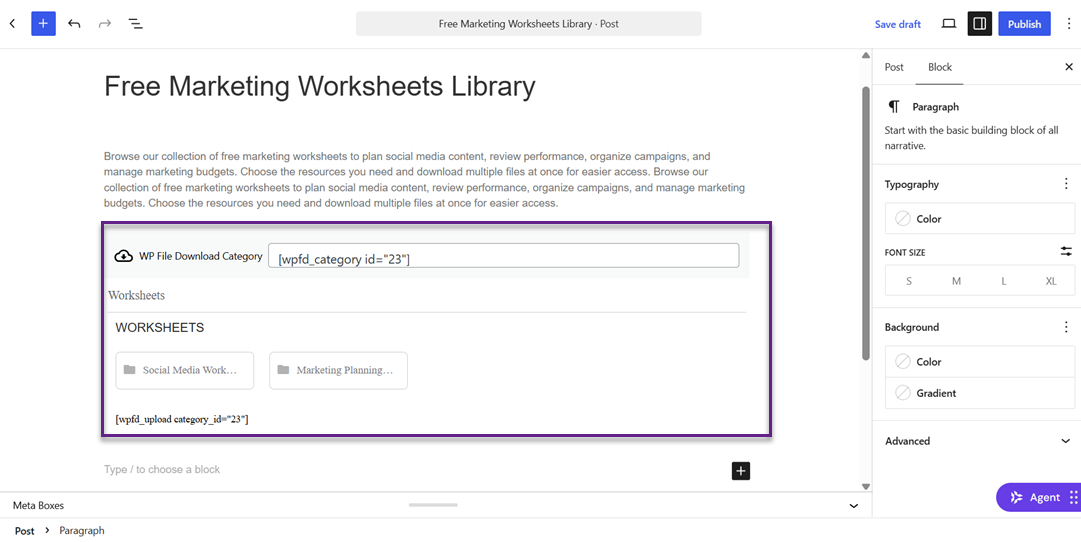
Next, create a new WordPress post or open an existing one where you want to display the downloadable files. Click the + button in the editor, search for the WP File Download block, and insert it into your post. Select the category containing the files you want to display, then publish or preview the post to check the result.
On the frontend, visitors will see a checkbox next to each file. They can select multiple files by checking the corresponding boxes, then click Download selected to download their chosen files together as a ZIP archive.
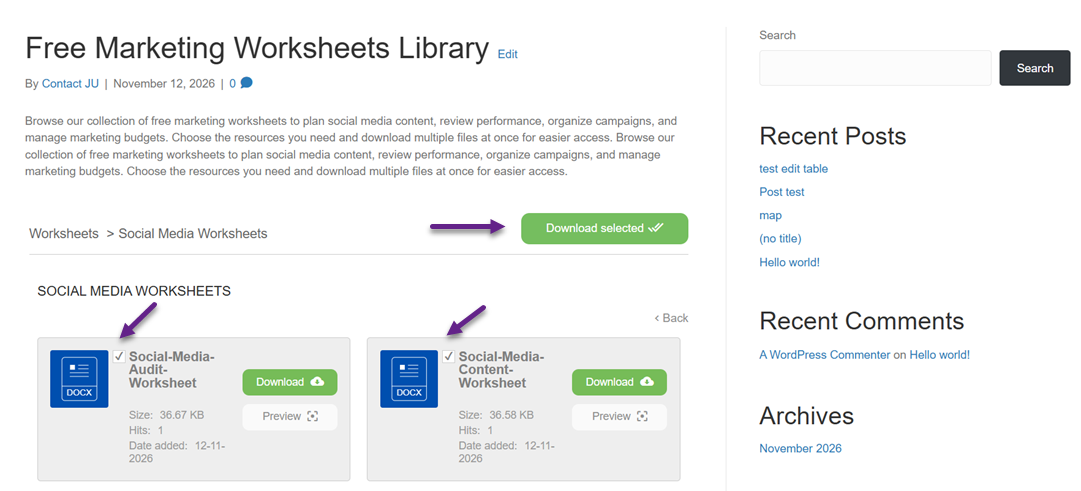
This allows visitors to retrieve several resources in one action instead of downloading each file individually.
How to Make Bulk File Downloads Easier with Categories
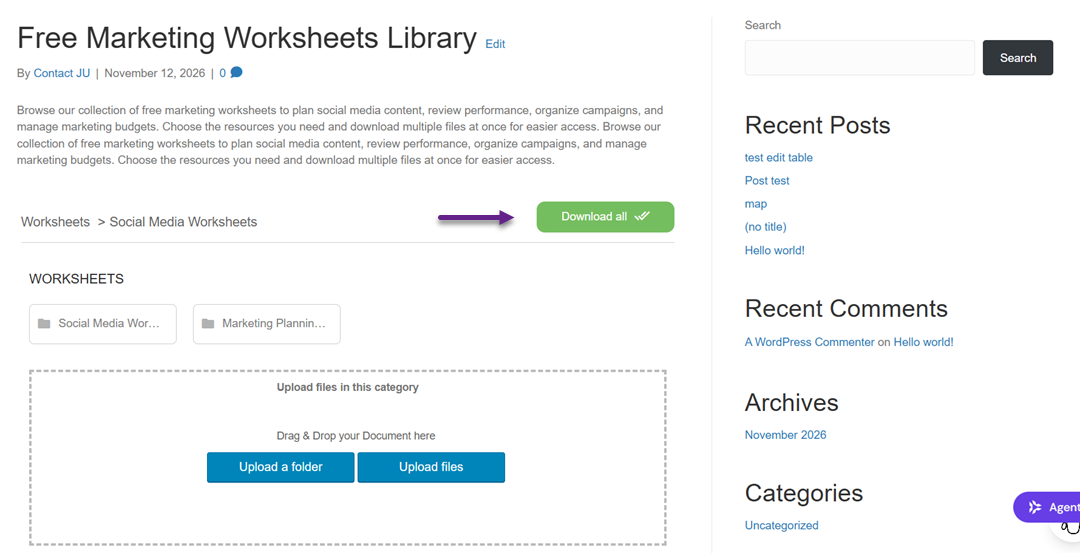
Creating categories and subcategories helps organize downloadable files into groups that visitors can browse and download more easily. Open the WP File Download file manager from your WordPress dashboard and click + New to create a main category. For example, create a category called "Worksheets" and add subcategories such as "Social Media Worksheets" and "Marketing Planning Worksheets."
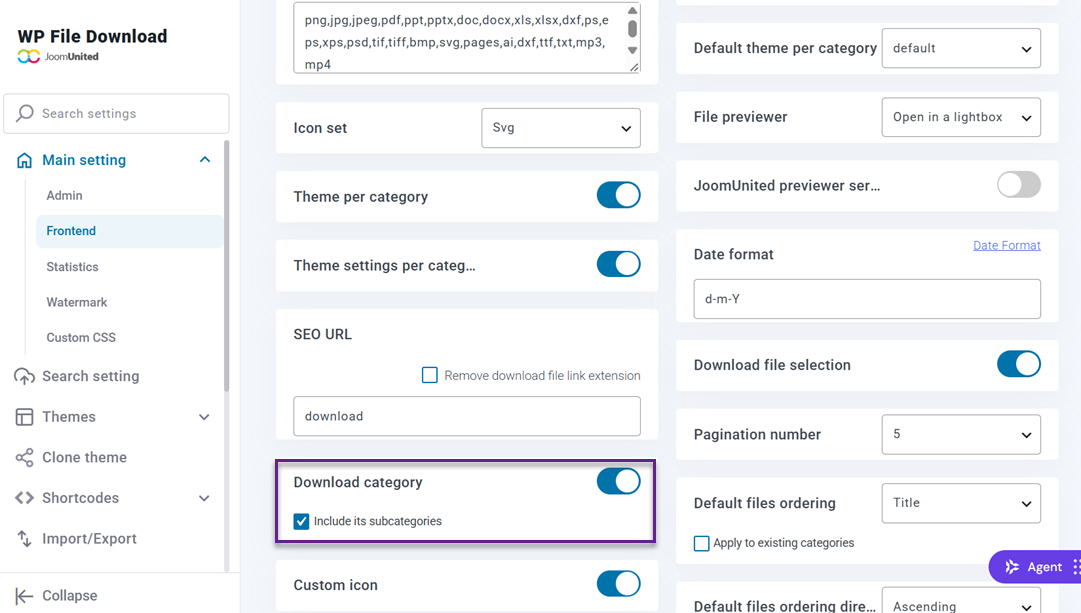
Once your categories are ready, open WP File Download → Configuration and navigate to the Frontend settings. Enable the Download category option to allow visitors to download an entire category as a ZIP archive. You can also enable Include subcategories so that files stored in the category's subcategories are included in the download.
To display the organized file library, create a new WordPress post and insert the WP File Download block using the editor's block inserter.
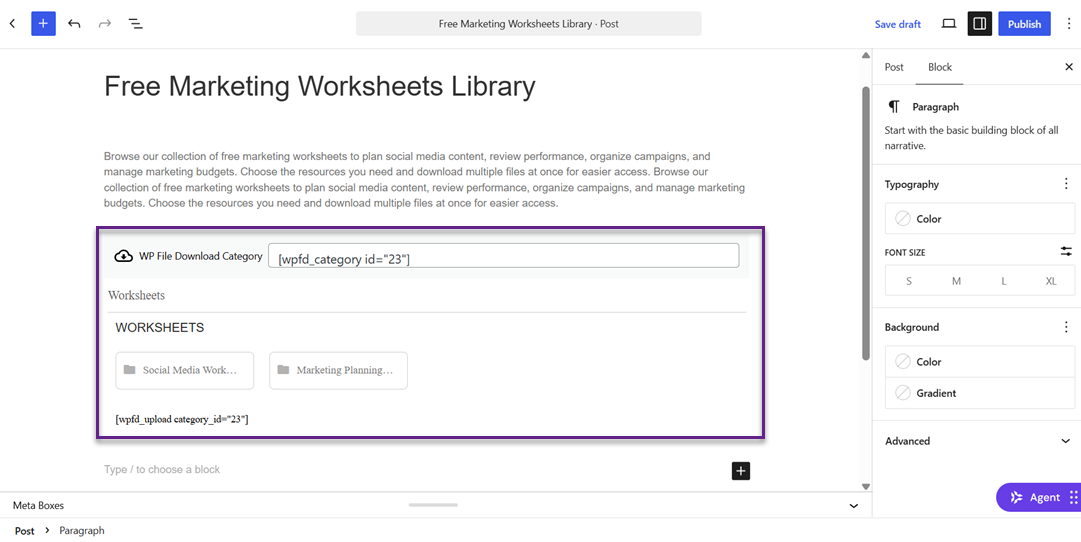
Select the main "Worksheets" category and publish or preview the post to see how the categories and subcategories appear on the frontend. Visitors can then browse the displayed category structure and navigate to the subcategory containing the resources they need. They can also use the category download option to download the available files as a ZIP archive, making it easier to access multiple related resources without downloading them one by one.
Looking for a powerful file management solution for client websites?
WP File Download is the answer. With advanced features like file categories, access
restrictions, and intuitive UI.
Impress your clients with top-notch file organization!
Best Practices for a Better File Download Experiences
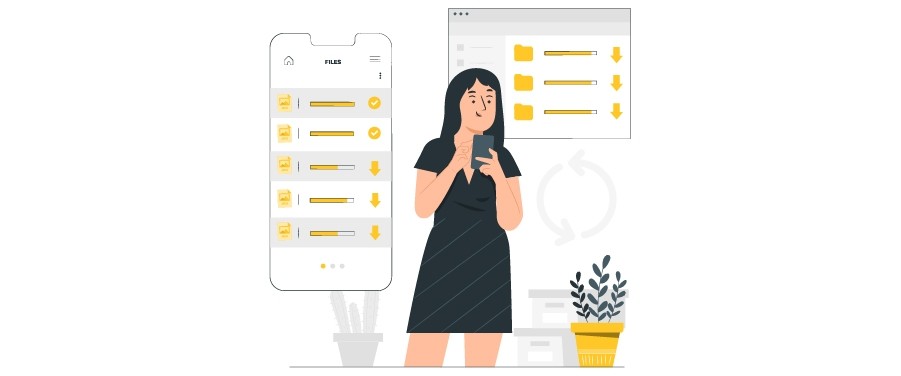
A convenient bulk download experience also depends on how well files are named, organized, and maintained. Following a few simple practices helps visitors identify the resources they need, download the correct files, and navigate your file library more easily.
Use Clear and Descriptive File Names
Use descriptive file names that explain what each file contains. Avoid generic names such as "document1" or "final-version" because they do not give visitors enough information before downloading.
Include relevant details such as the document title, topic, or version when necessary. For example, "Social-Media-Content-Worksheet.docx" is more informative than "file123.docx" and makes downloaded files easier to identify.
Keep File Categories Organized
Group related files into categories and subcategories based on their content or purpose. For example, a marketing resource library can use "Worksheets" as its main category, with "Social Media Worksheets" and "Marketing Planning Worksheets" as subcategories.
Keep the category structure simple and consistent. Avoid creating too many overlapping categories, as this can confuse navigation. A clear hierarchy also makes it easier for visitors to download an entire collection of related files.
Provide Consistent File Formats
Choose file formats that suit the type of content you provide. For example, use PDF for documents that should maintain their layout across devices, XLSX for editable spreadsheets, and JPG or PNG for images.
Familiar, consistent formats help visitors understand what they are downloading and which applications they need to open the files. When preparing ZIP archives, check that the included files use formats appropriate for their intended purpose.
Keep Downloadable Files Up to Date
Review your downloadable files periodically to ensure they contain accurate and relevant information. Outdated documents, broken resources, or expired versions can confuse visitors and reduce their trust in your website.
When uploading a new version, replace or remove outdated files to prevent visitors from downloading the wrong resources. You can also include version numbers or update dates in file names to help visitors identify the latest versions. Regular maintenance keeps your file library reliable and useful.
Calling all webmasters!
Enhance your client websites with WP File Download. Create secure and customizable file
repositories, allowing clients
to easily access and manage their files.
Upgrade your web design services today!
Conclusion
Bulk file downloads make it easier for website visitors to access multiple resources without downloading each file individually. With WP File Download, you can enable multi-file selection, allow visitors to download selected files as ZIP archives, and organize downloadable resources into categories and subcategories for easier navigation.
A well-organized file library combined with convenient download options improves accessibility and saves visitors time. Follow the steps in this guide to simplify file management and create a better download experience using WP File Download.
When you subscribe to the blog, we will send you an e-mail when there are new updates on the site so you wouldn't miss them.