WordPress products
 Joomla products
 Support
 News
News Login
LoginWP Location Finder: Map API Configuration
1. How to create map API?
1.1 Get Google Maps API key and API Services
Each time you use the Google Maps APIs, if you domain has been created after June 22 2016, you must include a key, to validate your request.
Get a key and enable API: https://developers.google.com/maps/documentation/javascript/get-api-key
More information: https://developers.google.com/maps/documentation/javascript/usage?hl=en
First, you should navigate to Google Cloud console, select a project, or create a new one. Then click on "+ Create credentials" button, select "API key"option.
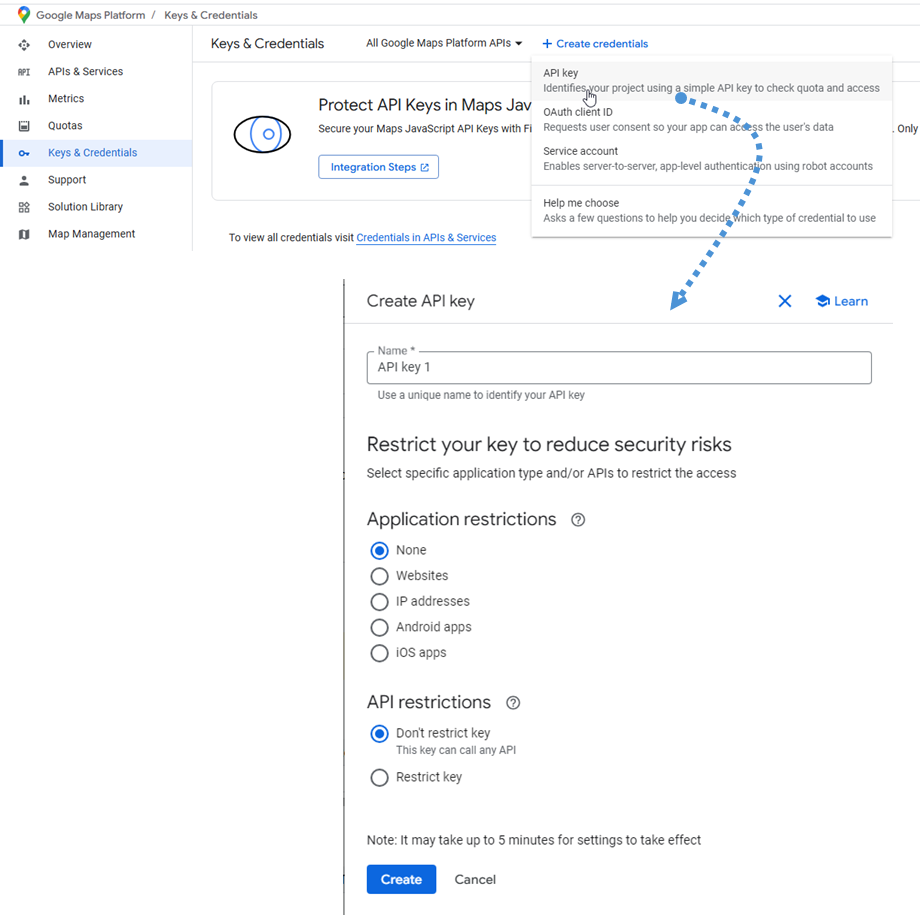
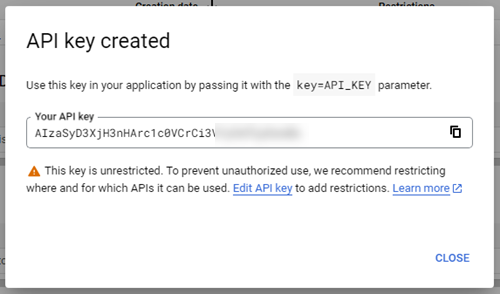
Then follow the next step and click Create button to get a new API key. Save it for the next step.
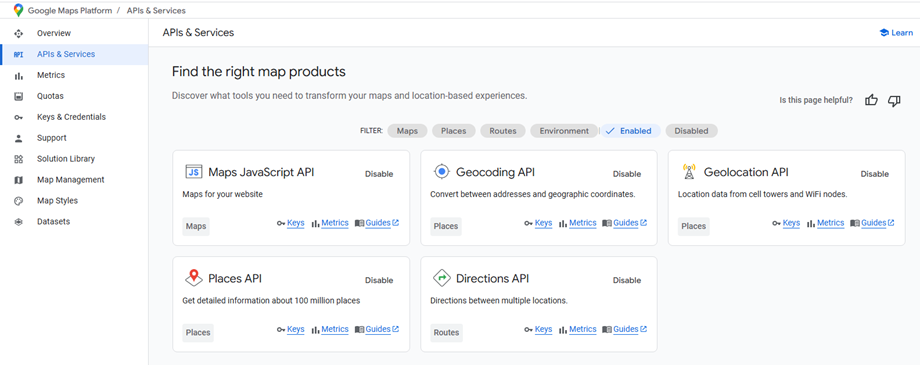
Additionally, certain required API services need to be enabled. In the Google Console, go to APIs & Services and find them as shown below:
- Maps JavaScript API
- Geocoding API
- Geolocation API
- Places API
- Directions API
1.2 How to create Google Map ID?
In order to create a map ID, please navigate to Maps management page. Click on Create map ID button.
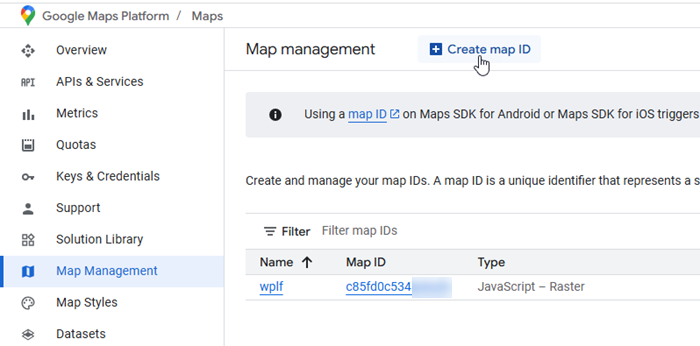
Then on the Create new map ID page, do the following:
- Name: input the map ID name.
- Description: describe what the map ID is used for (Optional)
- Map type: select JavaScript, and also choose a Raster (the default) or Vector map type.
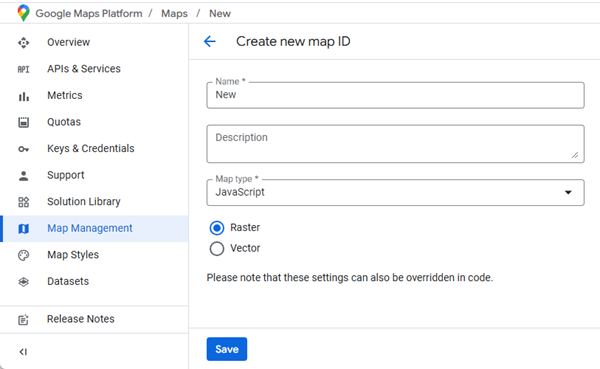
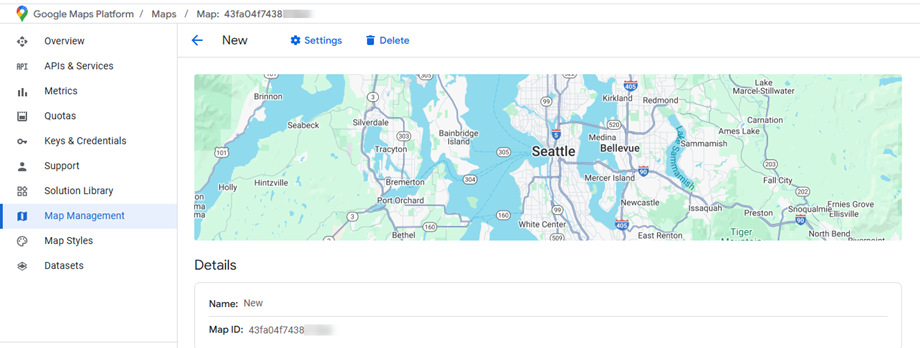
Remember to click Save button to show your new map ID. Please keep it for the setting.
1.3 How to create OpenStreetMap token?
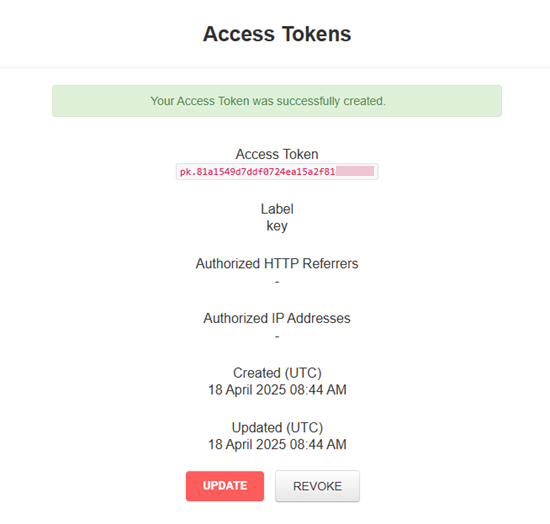
Begin by visiting here to either register for a new account or sign into your existing one. This step is essential before you can generate any access tokens.
Once you've successfully signed in, look for the "Access Tokens" option in your user settings or account menu and select it. Within the Access Tokens area, locate and select the "Create Access Token" option to start the token generation process. All the token creation fields will be visible directly on the Access Tokens page. To create your token:
- Enter a descriptive name in the "Label" field to help you identify this token later
- Leave the two additional fields below empty (default settings are sufficient for most users)
- Click the "Create" button to generate your new access token
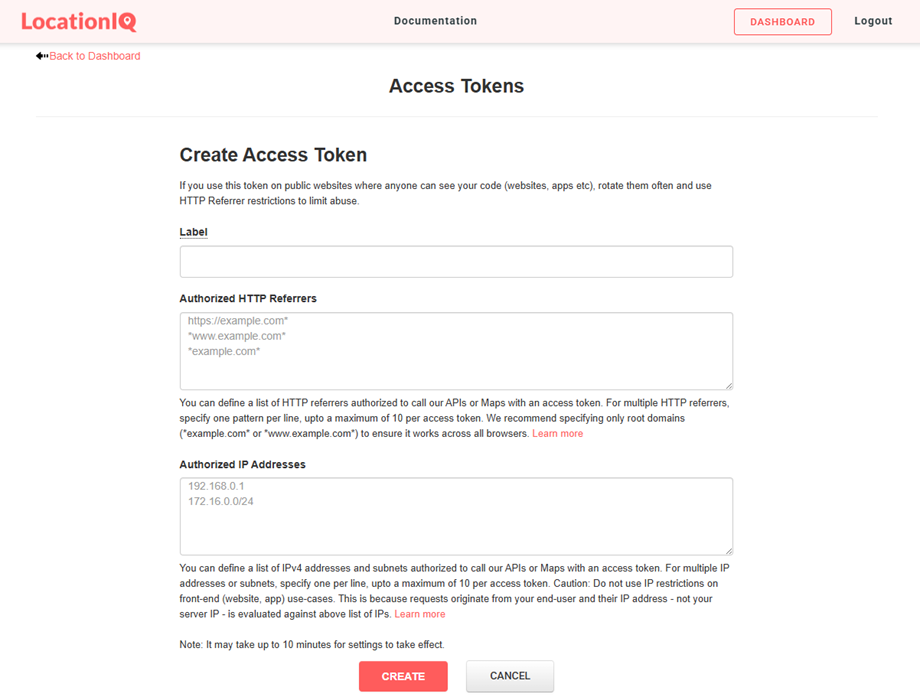
Your new access token will be displayed once created. Make sure to copy this token and store it safely, as you'll use it in subsequent configuration steps.
2. Main settings section
Map provider
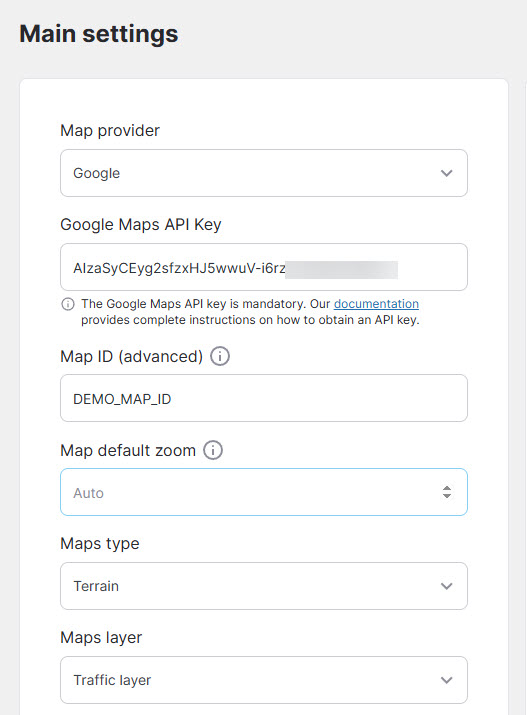
Navigate to Menu Location Finder > Settings > Main settings to configure your map provider preferences. You'll find two available map provider options: Google and OpenStreetMap.
If you choose Google Maps as your provider, you'll need to configure the following required fields with credentials from the previous setup steps:
- Google Maps API Key: The Google Maps API key is mandatory. Please roll back to Step 1.1 if you do not know how to create a new API key
- Map ID: A map ID is a unique identifier that represents Google Map styling and configuration settings that are stored in Google Cloud.
This is mandatory to have one, you can keep the default one (DEMO_MAP_ID) if you don't need it. - Map default zoom: Default zoom level on the map on first load (set auto zoom to 0)
- Maps type: Roadmap, Satellite, Hybrid, Terrain.
- Maps layer: KML, Traffic, Transit, Bicycling.
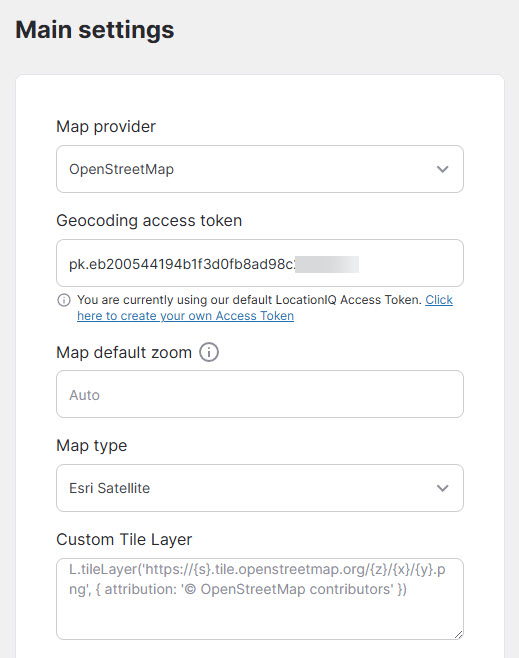
If you select OpenStreetMap as your provider, you'll need to enter the access token you obtained in Step 1.3:
- Geocoding access token: The LocationIQ Access Token is required for address autocomplete functionality.
- Map default zoom: Default zoom level on the map on first load (set auto zoom to 0)
- Map type: Default, OpenStreetMap HOT, Carto Light, Carto Dark,...
- Custom Tile Layer: Input your custom layer.
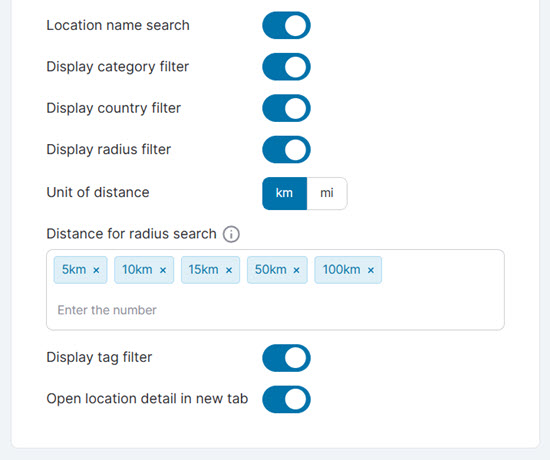
After configuring your map provider settings, you'll discover several customization features that work with both Google Maps and OpenStreetMap to enhance your map's functionality and user experience:
- Location name search
- Display category filter
- Display country filter
- Display radius filter
- Unit of distance: km/mi
- Distance for radius search: Distance in the radius search tool
- Display tag filter
- Open location detail in new tab
Map display
The locations you’ve created will be displayed on the map in the Settings section.
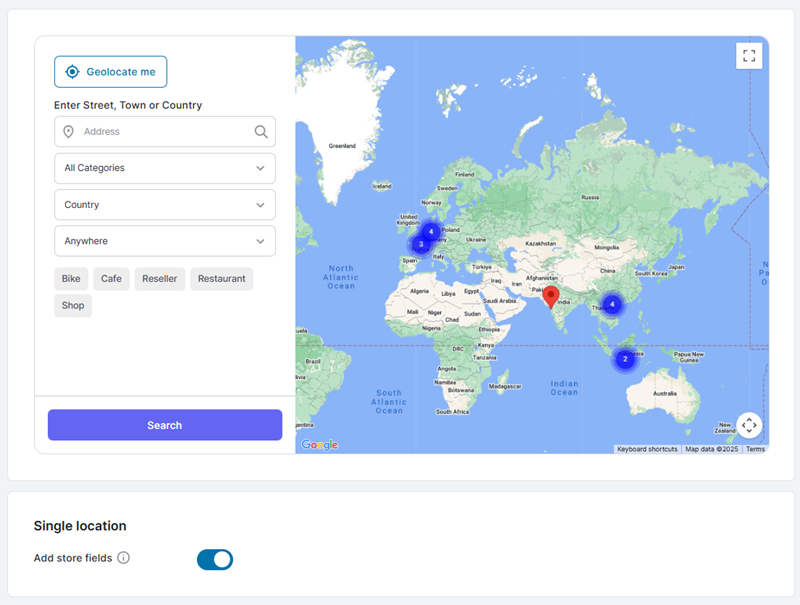
Single location
- Add store fields: Add some specific fields to each location like store names and store opening hours
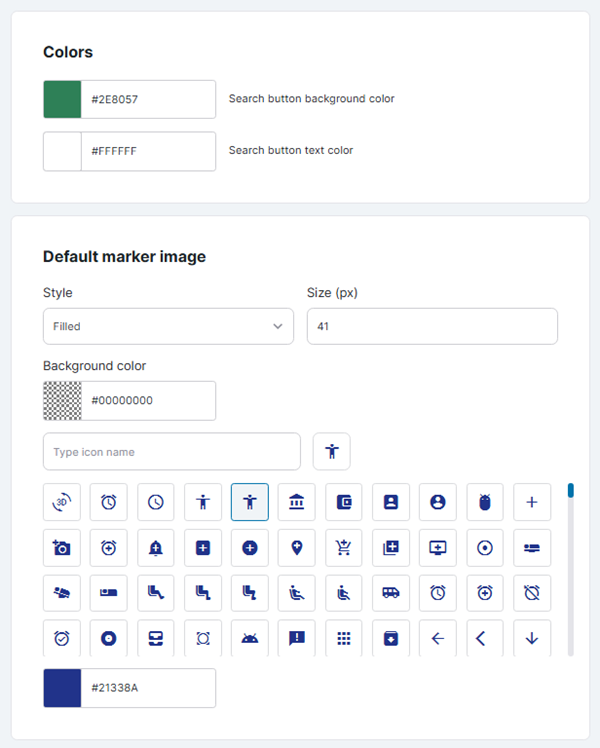
Color and marker image
You can adjust the color and default marker image here.
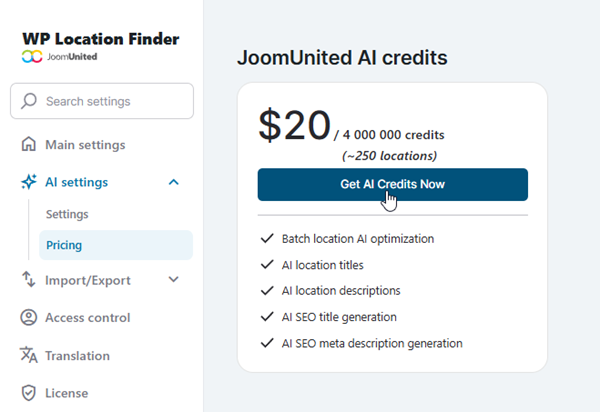
3. AI Settings
To use this feature, navigate to Plugin Settings > AI Settings > Pricing tab to obtain credits. Click the Get AI Credits Now button and complete the purchase process.
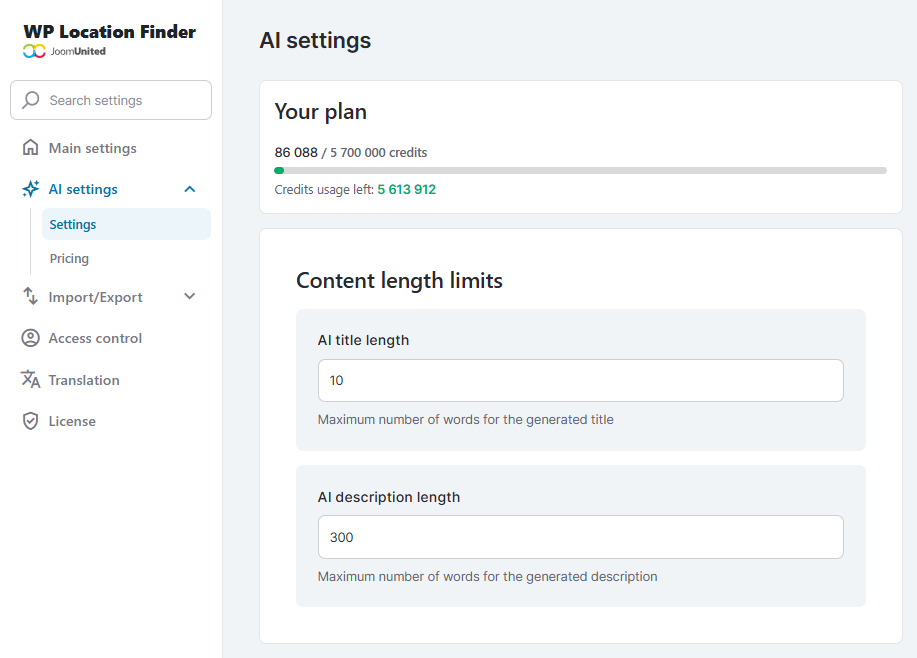
After acquiring credits, return to AI Settings > Settings tab > Content length limits section to configure the following options:
- AI title length: Set the maximum number of words for generated titles
- AI description length: Set the maximum number of words for generated descriptions
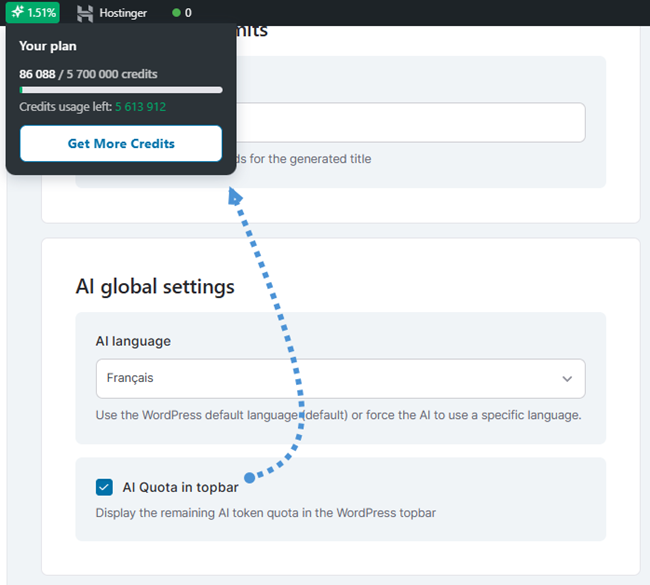
In the AI global settings section, you can customize the language for AI-generated content. Enable the AI Quota in topbar option to display your remaining credits in the Wordpress topbar.
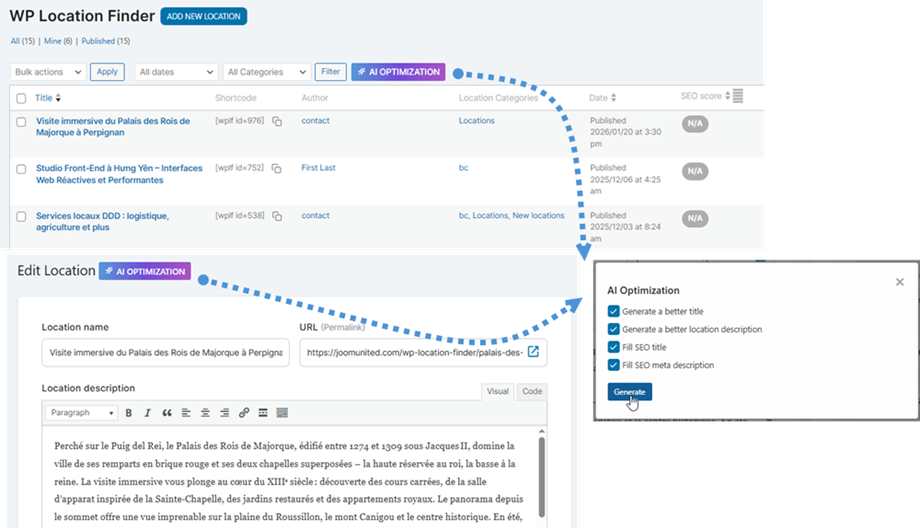
Once configuration is complete, you can access the AI Optimization feature from either the All Locations view or within an individual location view. Click the AI Optimization button at the top of the page, then select the Generate button in the popup window to automatically create or populate SEO data.
4. Import/Export locations
Import locations
To get started with importing your locations, head over to Menu Location Finder > Settings > Import section. Choose your CSV or KML file from the appropriate field based on your existing data format.
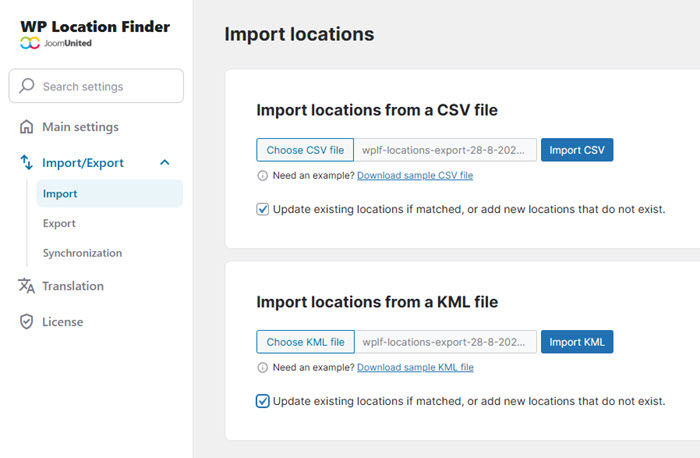
Need a template? Simply click the Download sample CSV file link to get our sample file and see the proper format. You can also check the "Update existing locations if matched, or add new locations that do not exist" option if you want to update your current data while adding new entries.
Export locations
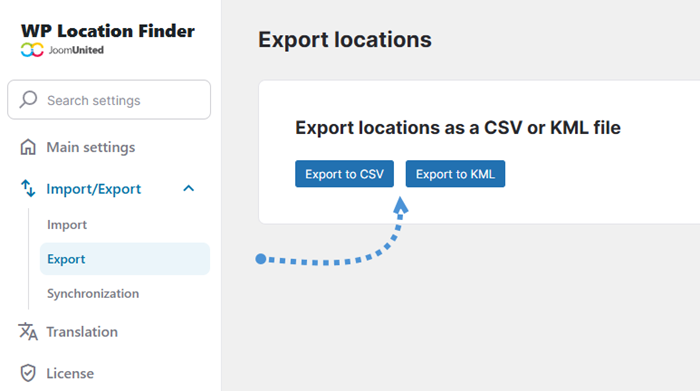
When you're ready to export your existing locations, navigate to the Export section. From there, just click either the "Export to CSV" or "Export to KML" button depending on which format you need.
Synchronization
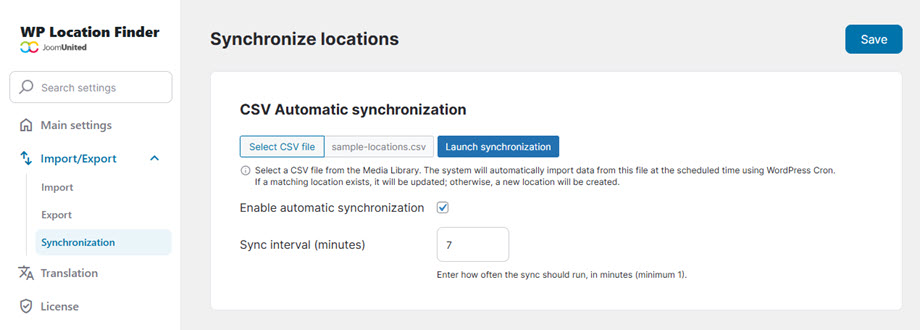
To set up automatic CSV synchronization, navigate to Settings and then Import/Export > Synchronization tab, to select your CSV file from the Media Library. Enable the "Enable automatic synchronization" option and specify your preferred update frequency in the "Sync interval (minutes)" field.
The system will automatically import data at your chosen intervals, updating existing locations when matches are found and creating new entries for additional data.
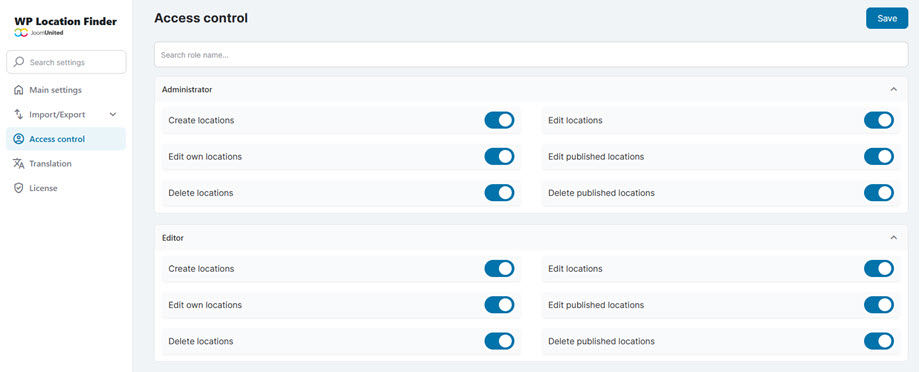
5. Access control
To manage location permissions (create, edit, delete, publish) for each user role, navigate to Settings > Access Control.