WordPress products
 Joomla products
 Support
 News
News Login
LoginWP Media Folder Addon: pCloud Integration
1. Login to pCloud from WP Media Folder
In order to use pCloud in the plugin, please navigate to the WordPress dashboard and click on the menu Settings > WP Media Folder > Cloud & Media offload > Cloud connectors section.
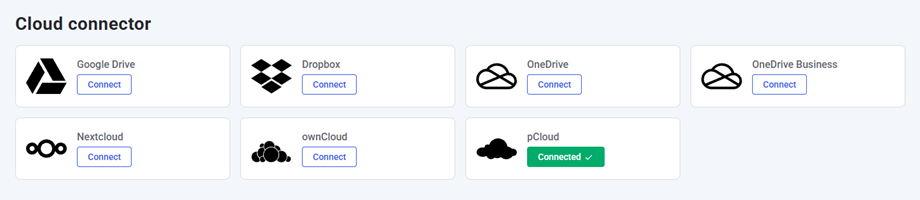
After selecting the pCloud connector, input the credentials generated during the app creation step:
- Client ID (Insert your pCloud client ID here)
- Client secret
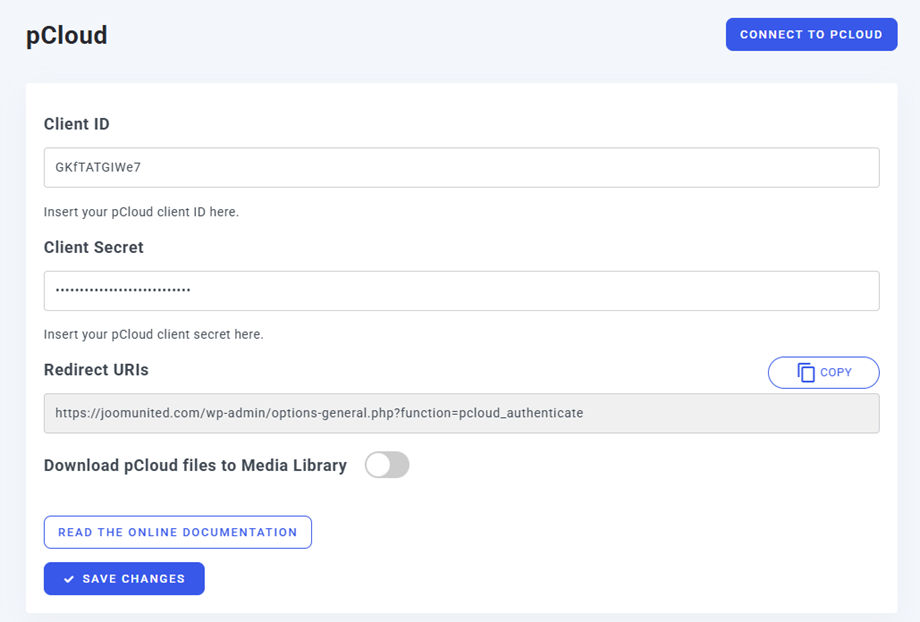
After that, Save the settings and click on Connect to pCloud button then the connection should be a success. Please go to Media library to use pCloud features.
2. How does it work? What can I do with pCloud ?
2.1 How does it work?
Once you've connected WP Media Folder with pCloud Storage, all folders and sub-folders added in Media library pCloud will be synchronized under the root folder named in the settings.
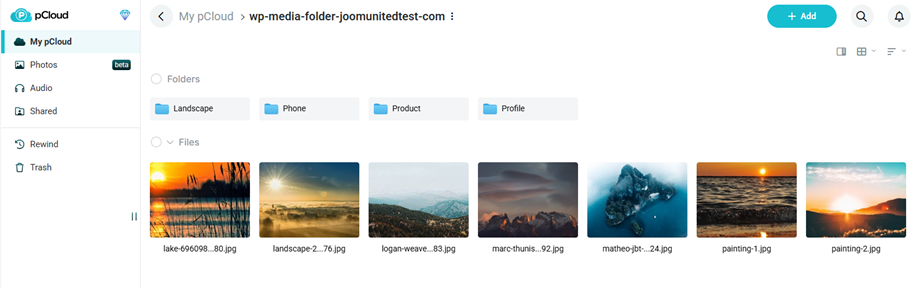
And vice versa, all your media from that root folder on pCloud will be synchronized to your Media library on Wordpress.
2.2 What are the sync directions?
It works in both directions! You can add a file from pCloud and see it in WP Media Folder, or add a file in WP Media Folder and see it in pCloud. It also means you can manage WordPress files from your desktop using pCloud sync software. That’s crazy - we know! ☺
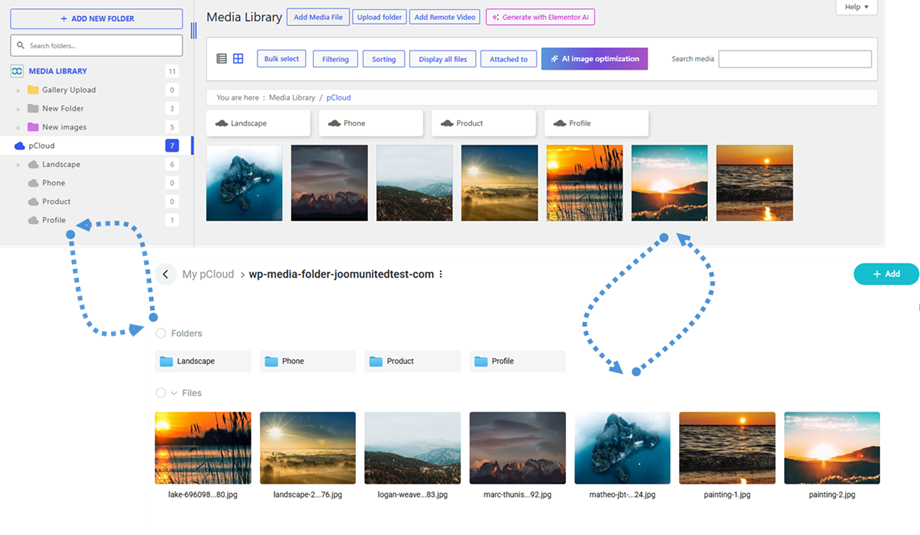
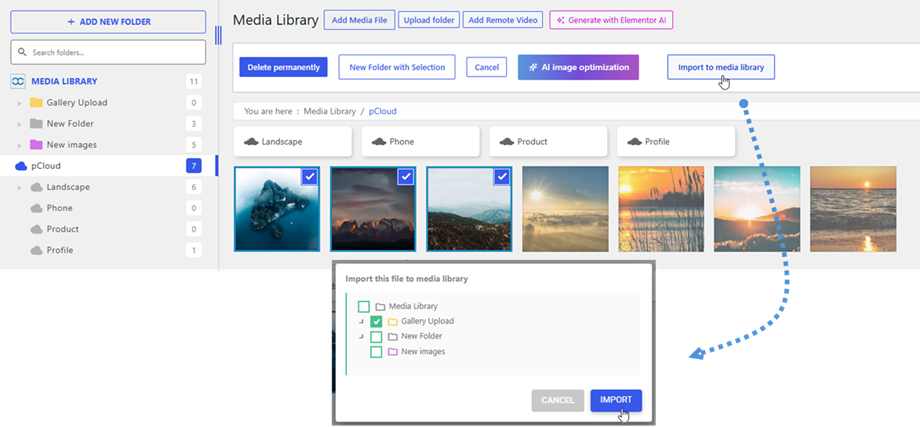
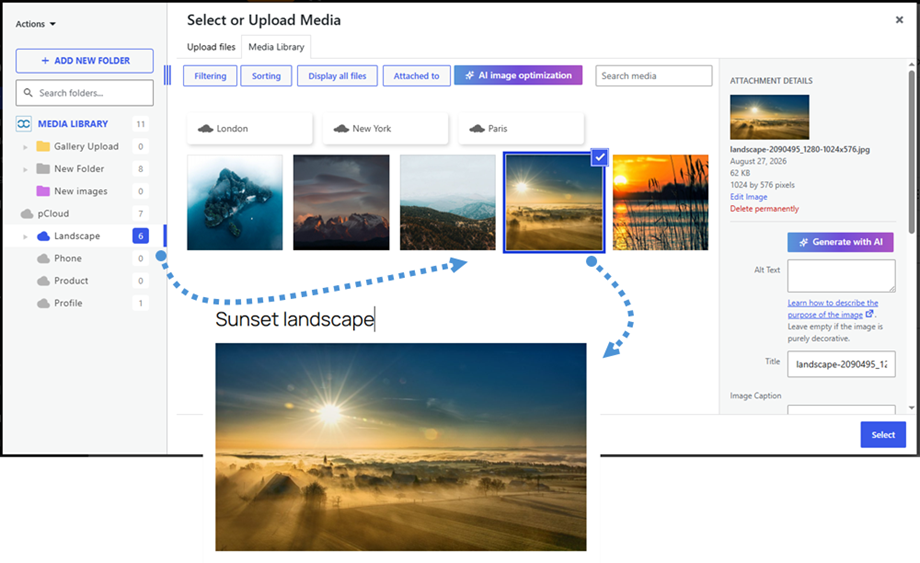
The WP Media Folder pCloud integration allows you 2 types of actions with your media:
The first option is to import the pCloud media in WP Media Folder (folder selection for import).
The second option is to embed the pCloud media in your content directly. In this case, the media will be loaded from pCloud, not from your server.
3. Create pCloud App
3.1 App Details
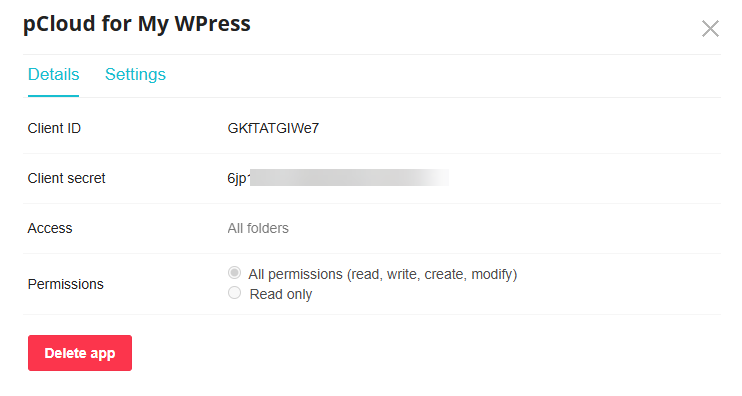
To get started, you will first need to create a dedicated app from your pCloud account. Once you are logged in, head over to https://docs.pcloud.com/my_apps/ to create your new application. After it is created, stay right there on the Details tab and locate your Client ID and Client Secret. Make sure to copy and keep these handy, as you will need them to connect your WP Media Folder!
3.2 App Settings
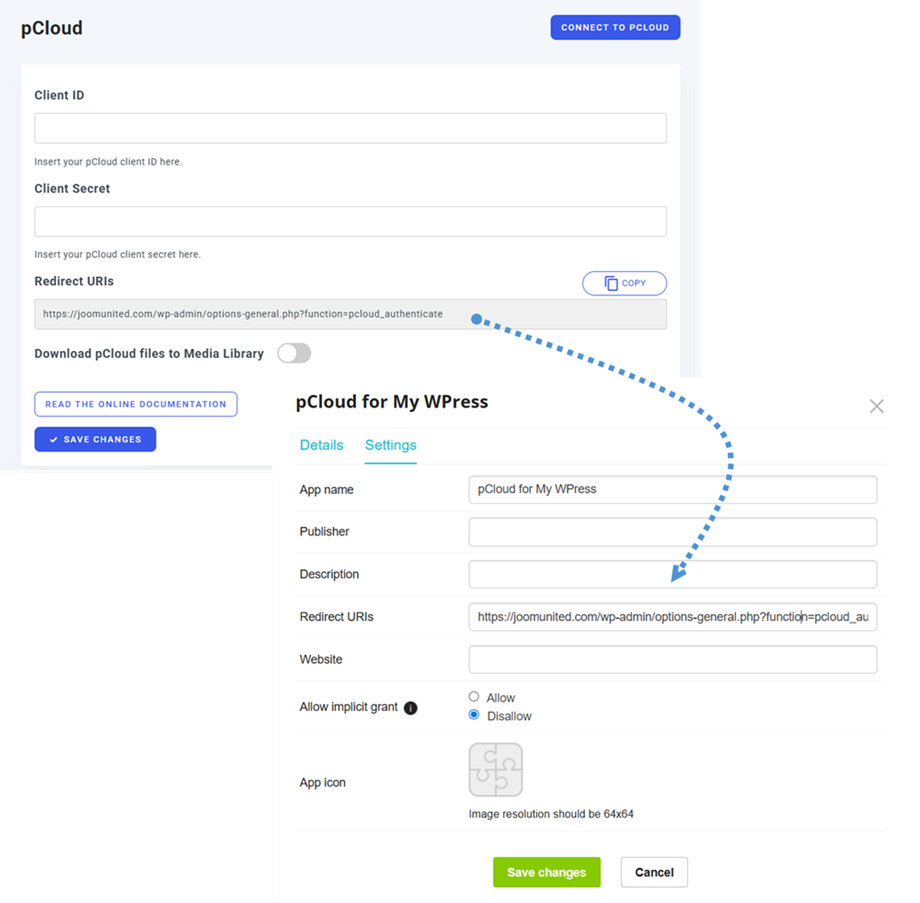
Next, click over to the Settings tab of your new app to finish the setup. Find the Redirect URIs field and paste in the exact redirect URL provided at the bottom of your WP Media Folder pCloud settings. Once that is pasted in, just hit the Save changes button and your app configuration is complete!