WordPress products
 Joomla products
 Support
 News
News Login
LoginWP Media Folder Addon: ownCloud Integration
1. Login to ownCloud from WP Media Folder
In order to use ownCloud in the plugin, please navigate to the WordPress dashboard and click on the menu Settings > WP Media Folder > Cloud & Media offload > Cloud connectors.
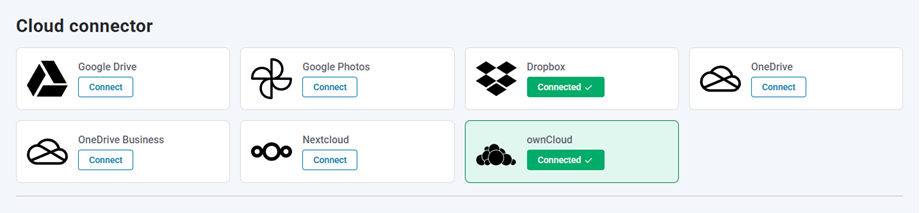
Then select ownCloud connector and enable Connect ownCloud option. Fill the following into the form fields:
- Username (without white space and special characters)
- Password
- ownCloud Url
- Root folder name
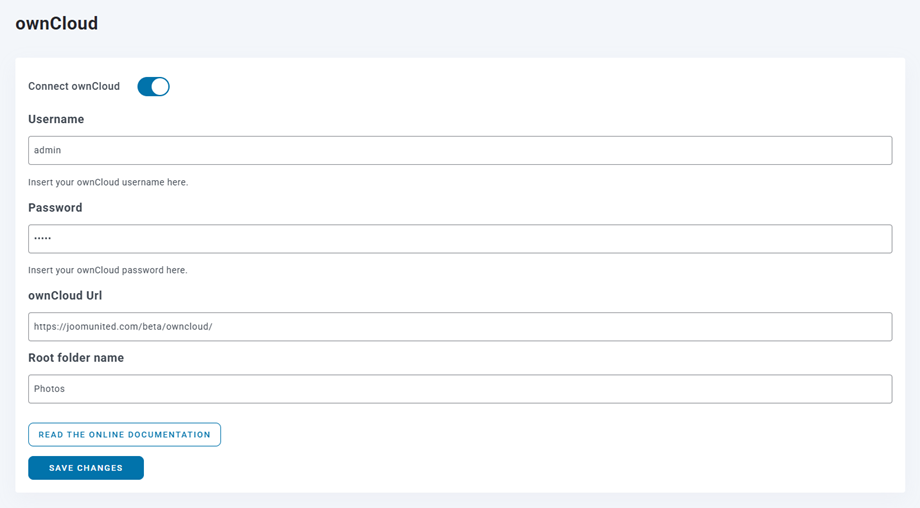
After that, save the settings and the connection should be a success. Please go to Media library to use ownCloud features.
2. How does it work? What can I do with ownCloud ?
How does it work?
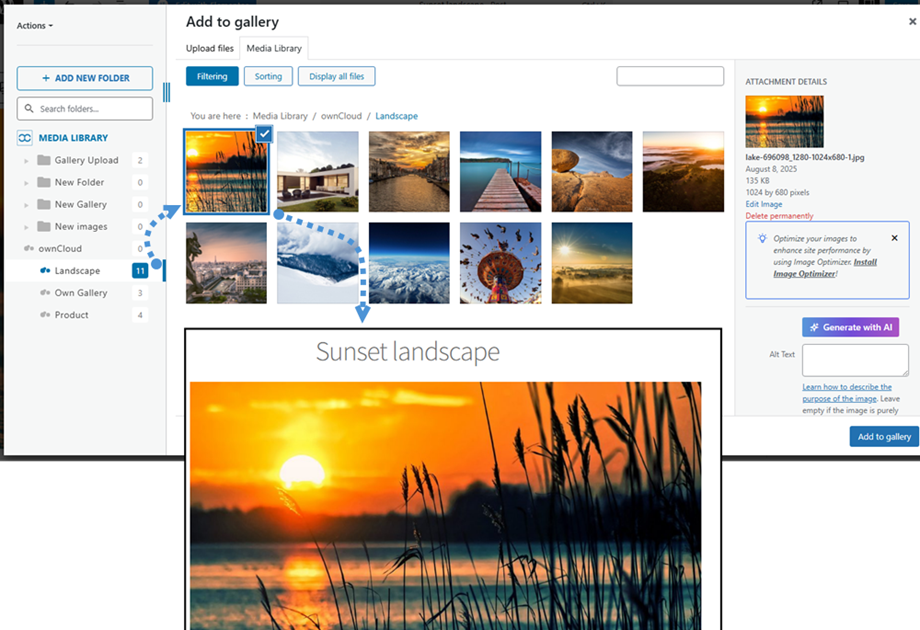
Once you've connected WP Media Folder with ownCloud Storage, all folders and sub-folders added in Media library ownCloud will be synchronized under the root folder named in the settings.
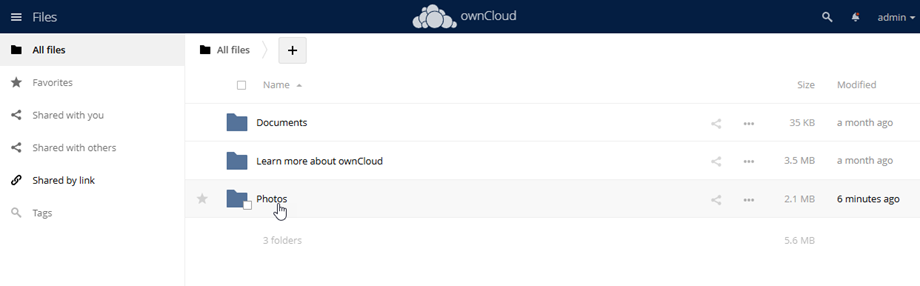
And vice versa, all your media from that root folder on ownCloud will be synchronized to your Media library on Wordpress.
What are the sync directions?
It works in both directions! You can add a file from ownCloud and see it in WP Media Folder, or add a file in WP Media Folder and see it in ownCloud. It also means you can manage WordPress files from your desktop using ownCloud sync software. That’s crazy - we know! ☺
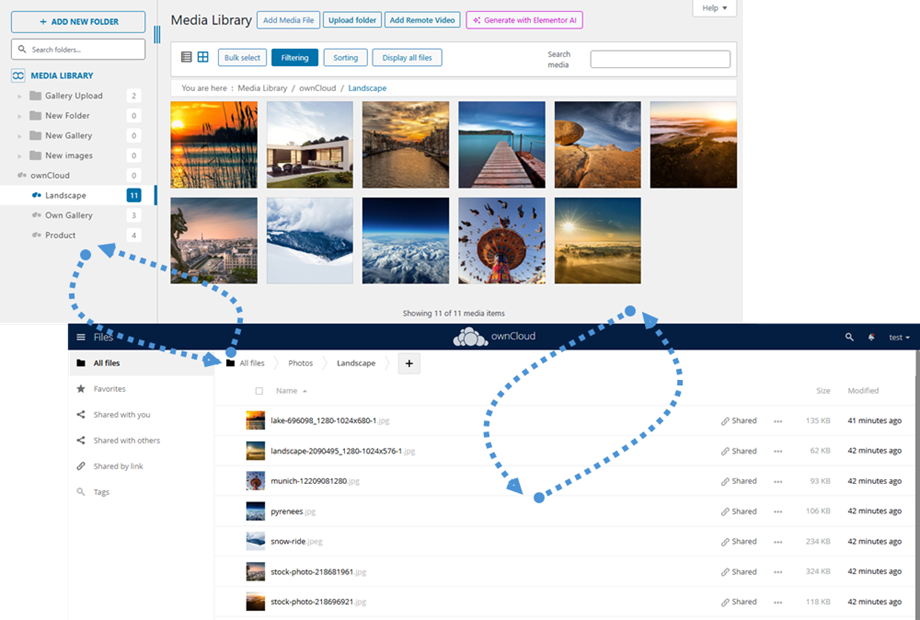
The WP Media Folder ownCloud integration allows you 2 types of actions with your media:
The first option is to import the ownCloud media in WP Media Folder (folder selection for import).
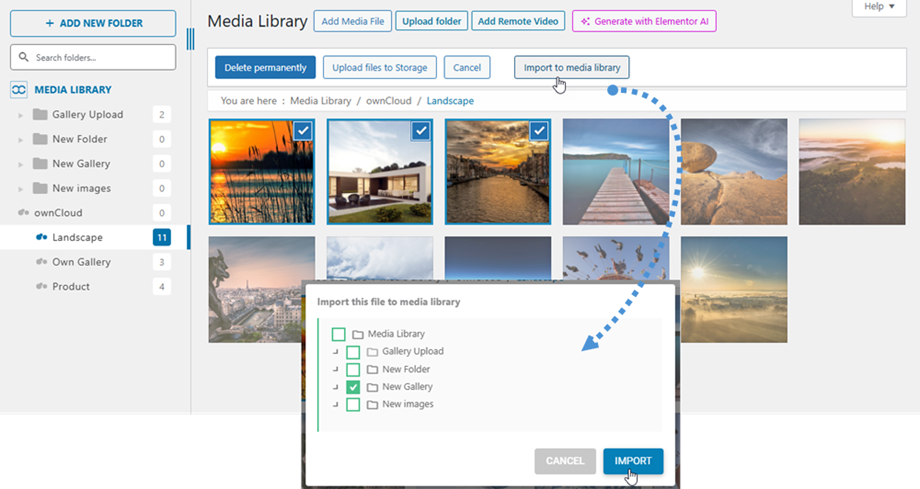
The second option is to embed the ownCloud media in your content directly. In this case, the media will be loaded from ownCloud, not from your server.