WordPress products
 Joomla products
 Support
 News
News Login
LoginWP Media Folder Addon: Vultr Integration
1. Login to Vultr Storage from WP Media Folder
Return to the WordPress dashboard and click on the menu Settings > WP Media Folder > Cloud & Media offload > Media offload > choose Vultr.
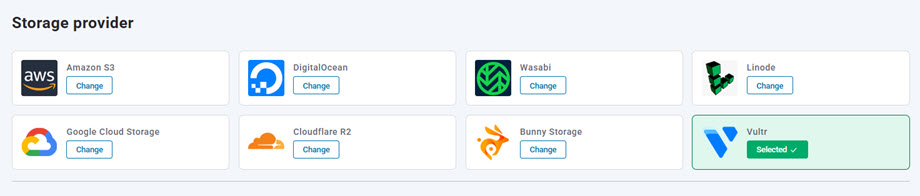
Then, paste the following into the form fields:
- Access Key ID: G52WFRND6MZPFJ5TN
- Secret Access Key (Password)
- Hostname: sgp1.vultrobjects.com
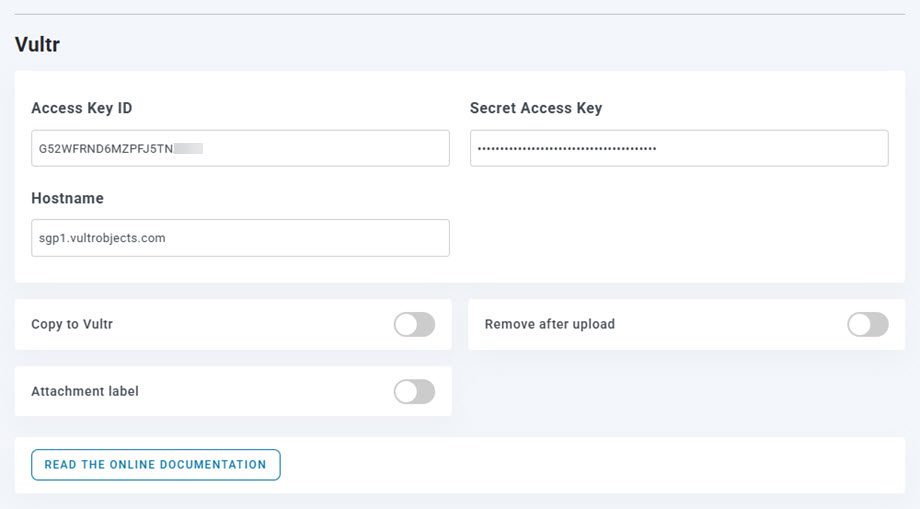
After that, save the settings and the connection should be a success. Please go to the next step to discover Vultr Storage features.
2. How does it work? What can I do with Vultr Storage?
How does it work?
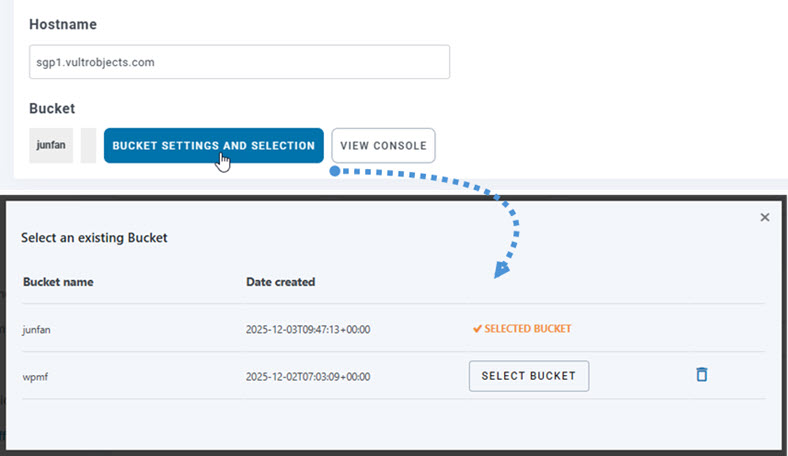
Once you've connected WP Media Folder with Vultr Storage, please select a bucket where all your data will be stored.
Then you can enable Copy to Vultr Storage option, and all your new media uploaded will be sent to Vultr Storage.
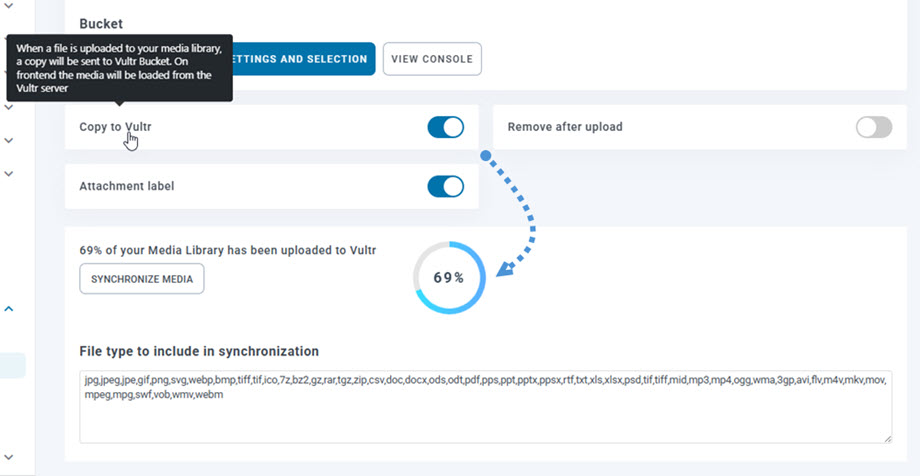
If you want to sync your uploaded media before using Vultr Storage integration, click on Synchronize Media button. Then it will send all your existing media library to your Vultr Storage bucket.
In order to offload the media on your site, you should enable Remove after upload option, your media library will be completely stored on Vultr Storage instead of your server.
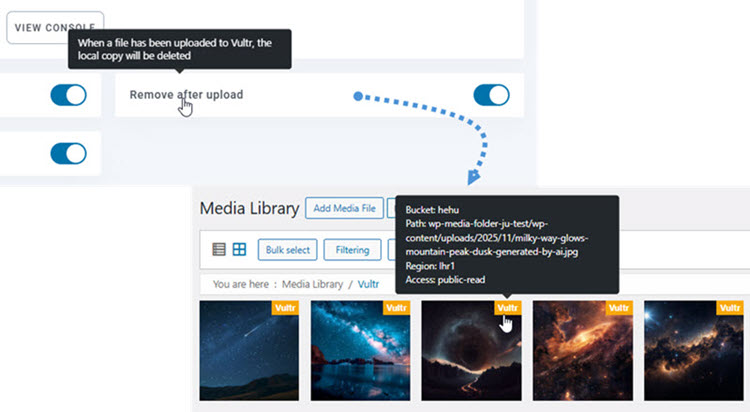
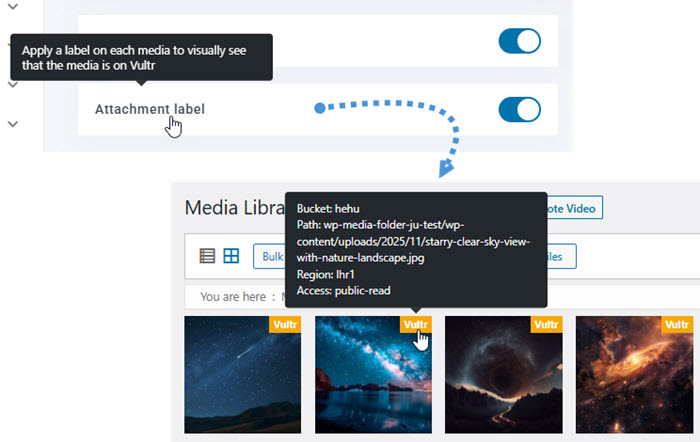
By enabling Attachment label option, the information on each media will be displayed when you hover on the Vultr Storage label on the top right.
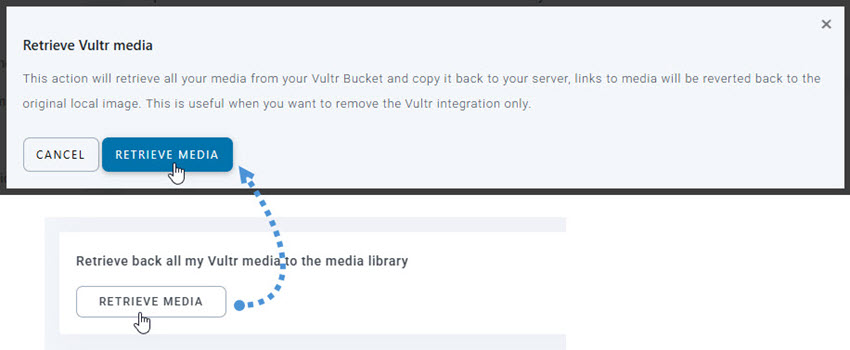
When you want to change your media location or remove the plugin, click Retrieve Media button, then all your media will be copied from Vultr Storage to your media library. All former link added in your content will remain in place (no broken link).
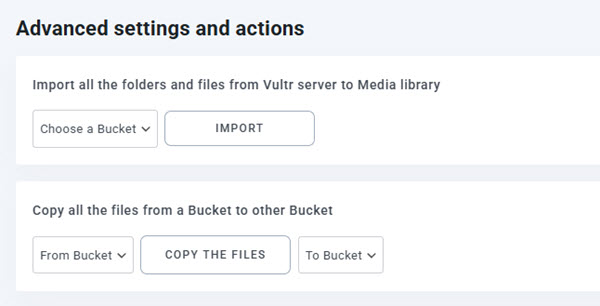
Advanced settings and actions
You can select a bucket to import folders and files from Vultr Storage server to your Media library. Or copy all files from one bucket to another one.
3. Create Object Storage and Buckets
First, you should login to Vultr Storage. Once logged in, navigate to Products > Cloud Storage > Object Storage from the left-side panel. In the Object Storage page, click the Add Object Storage button on the right corner to create a new object storage.
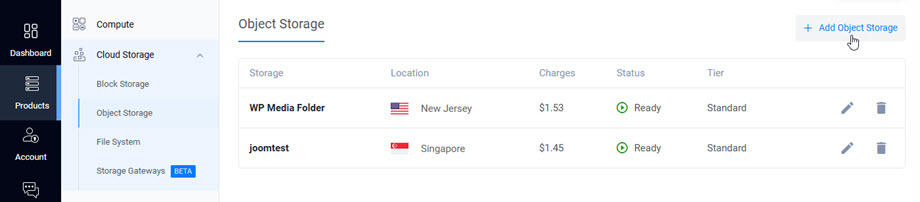
Complete the following fields:
- Select package
- Choose a location
- Label: input the name
After that, click the Add Object Storage button at the bottom of the form to create your new object storage.
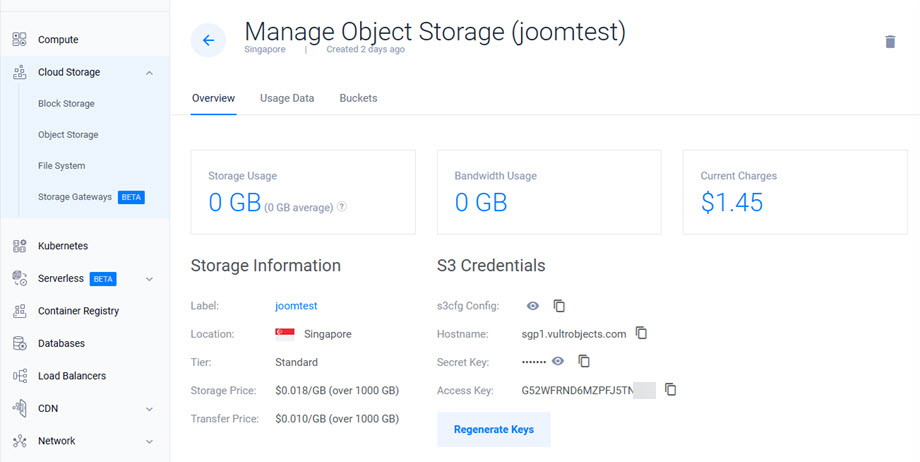
Then click on the storage you just created to get the credentials.
- Access Key ID: Access Key
- Secret Access Key: Secret Key
- Hostname: Host Name
Then navigate to Buckets tab, click on Create Bucket button to create a new bucket. Then follow the steps to complete.
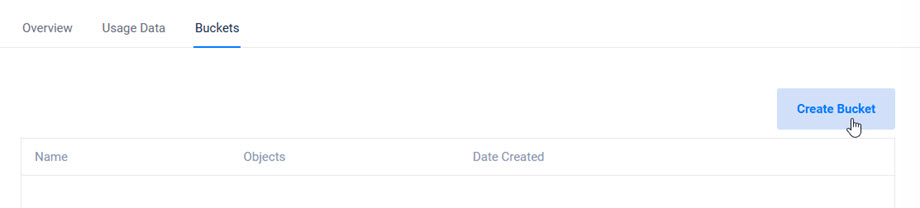
Once completed, your object storage will be ready for use with the WP Media Folder plugin's Vultr Storage integration.