WordPress products
 Joomla products
 Support
 News
News Login
LoginWP Media Folder: Installation
1. Install
In order to install our plugin you should use the standard WordPress installer or unzip and put the whole folder in /wp-content/plugin.
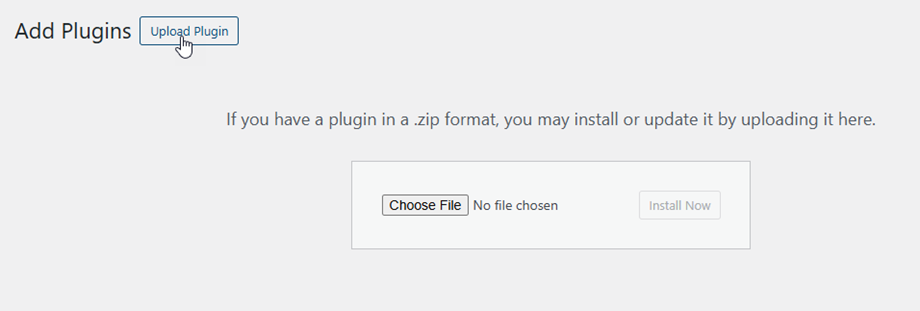
Then click on activate plugin to see WP Media Folder menu appear on the WordPress left menu.
From now on, please make sure to log in to your JoomUnited account before using the plugin.
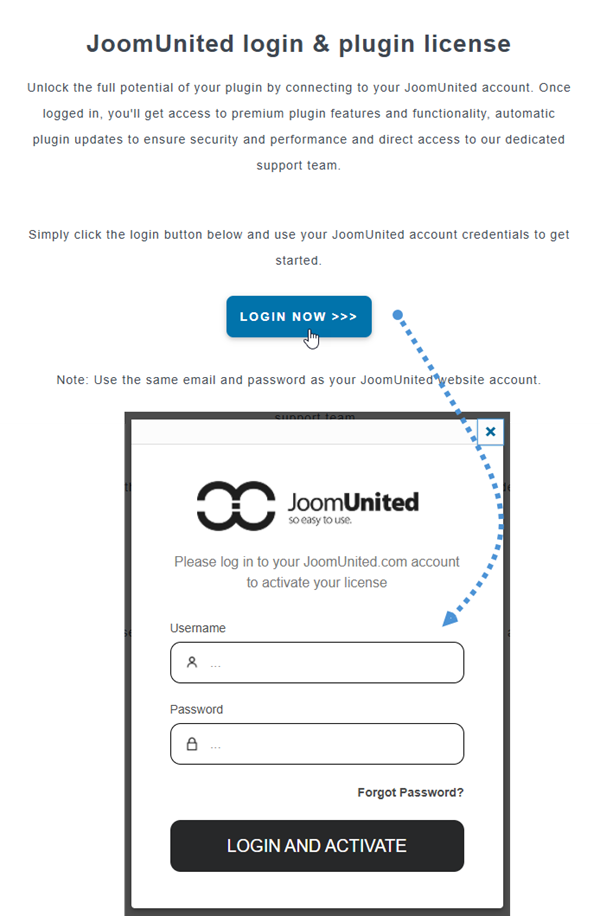
2. Update the plugin
In order to update the WP Media Folder, you can use the WordPress default updater. You can also remove and install the new version from a .zip file downloaded from www.joomunited.com. In any case you won’t lose any content because everything is stored in a database.
Be sure to always have the latest version to avoid security and stability problems.
To update the paid version, please navigate to Plugins > Installed plugin, click on update now link text in the WP Media Folder section.

Then finally, you can update all the JoomUnited commercial plugins from the WordPress standard updater.

3. Notifications after installation
After installing the plugin you will get 2 notifications
- Do you want to import the post categories as media folders?
- Do you want to import NextGEN galleries as media folders?
Hit Yes to proceed or Dismiss to ignore.