 WordPress products
 Joomla products
 Support
 News
News Login
LoginWP Latest Posts: Installation
1. Install
The pro addon needs to be purchased and downloaded from JoomUnited. To install, download the zip package from your account (My account menu) and install it using the zip uploader: Plugin > Add new > Upload plugin.
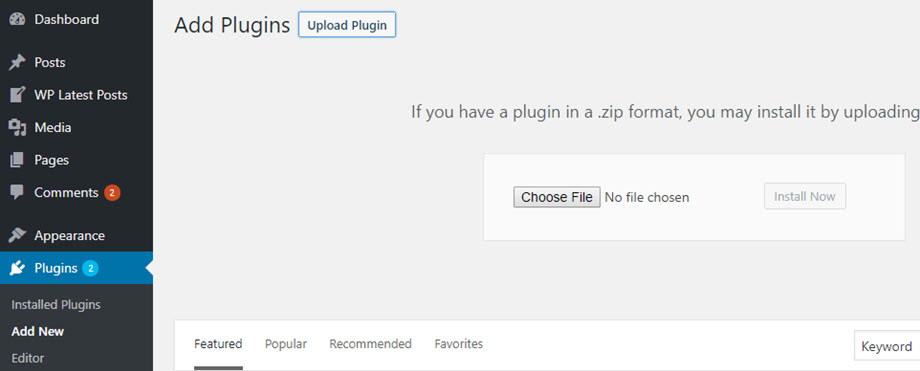
Then click on activate plugin, to see the WP LATEST POSTS menu appear on the WordPress left menu.
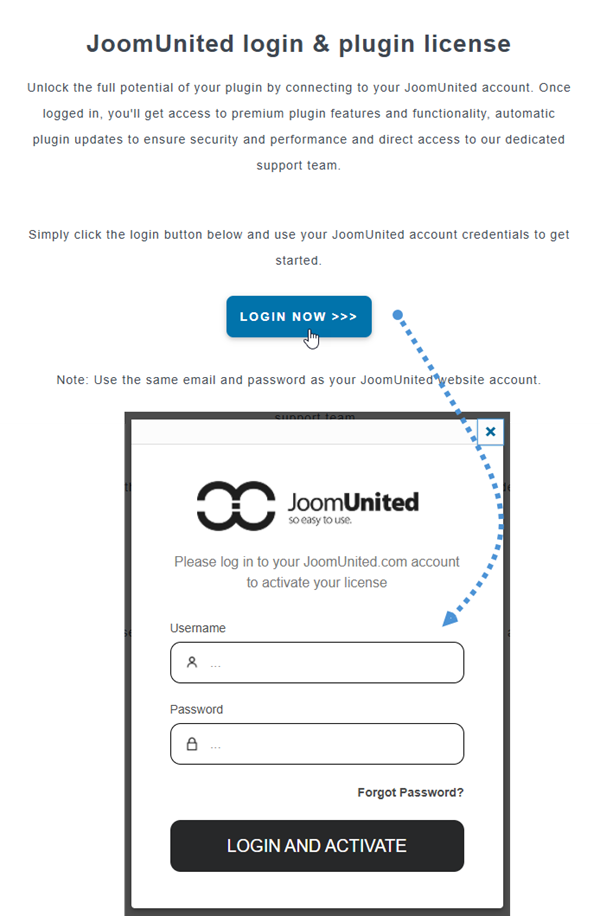
From now on, please make sure to log in to your JoomUnited account before using the plugin.
2. Update the plugin
In order to update the WP Latest Posts plugin, you need to use WordPress' default updater. For the free plugin, it works automatically like any other WordPress free plugin. Click on update and you’re done. You can also remove and install the new version. In any case, you won’t lose any content because everything is stored in the database.
Be sure to always have the latest version to avoid security and stability problems.
Navigate to Plugins > Installed Plugins > WP Latest Posts section, click on the 'update now' link text will appear where you can click to update a new version.

Then finally, you can update all the JoomUnited commercial plugins from the WordPress standard updater.

