 WordPress products
 Joomla products
 Support
 News
News Login
LoginWP File Download: Themes
1. Included themes
Themes can be applied per category or defined in the global configuration, it’s up to you. Go to the WP File Download plugin and click on Configuration menu > Main Setting > Frontend tab.
If you select Theme per category to “No” the default theme defined below will be loaded in all categories of files.
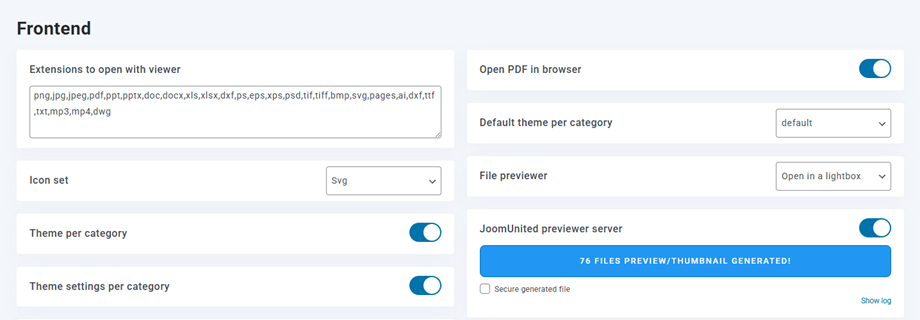
In this case, the default theme settings defined on the right side will be loaded.
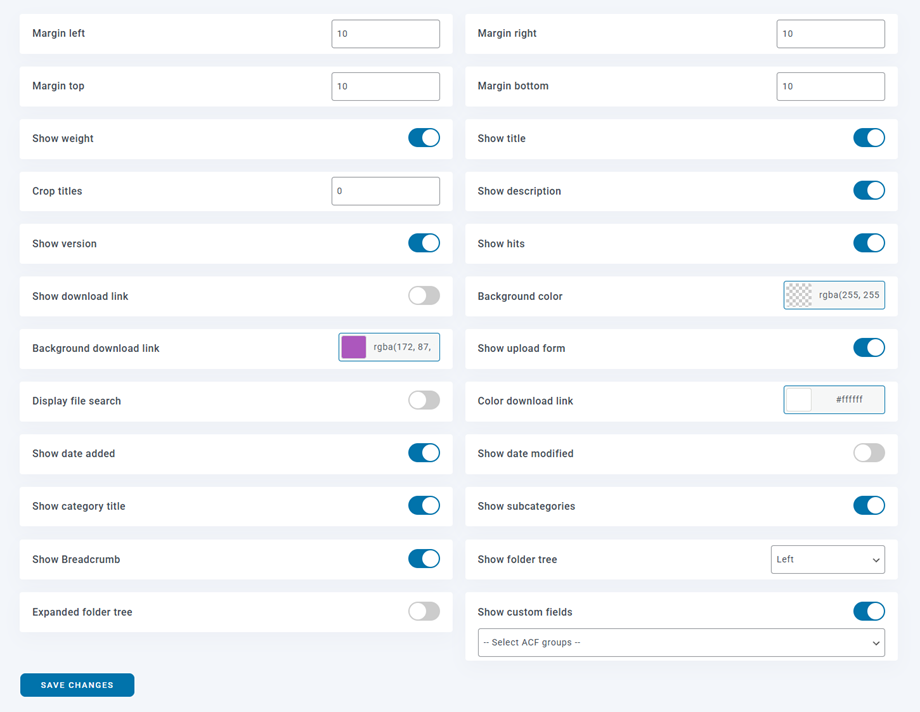
If you select “Yes” the themes can be changed in each category with all options. This is not recommended if multiple users have admin access to category.
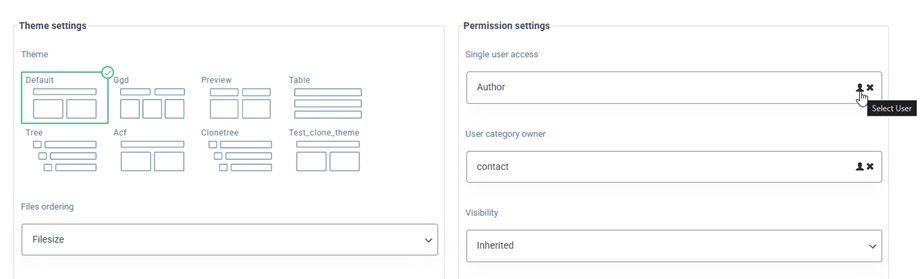
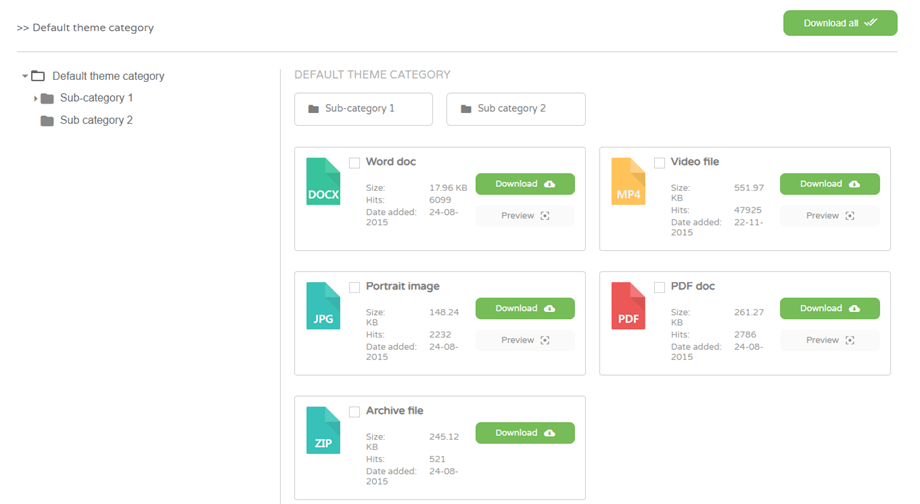
Default theme preview
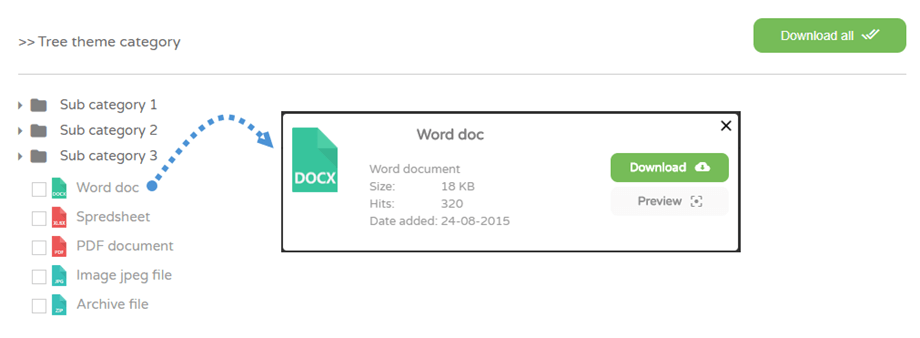
Tree theme preview
GGD theme preview
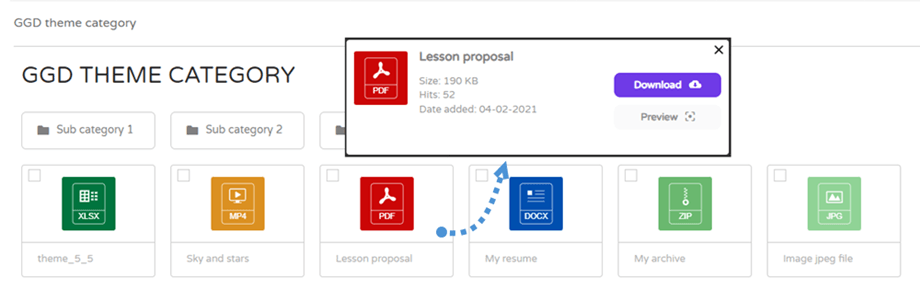
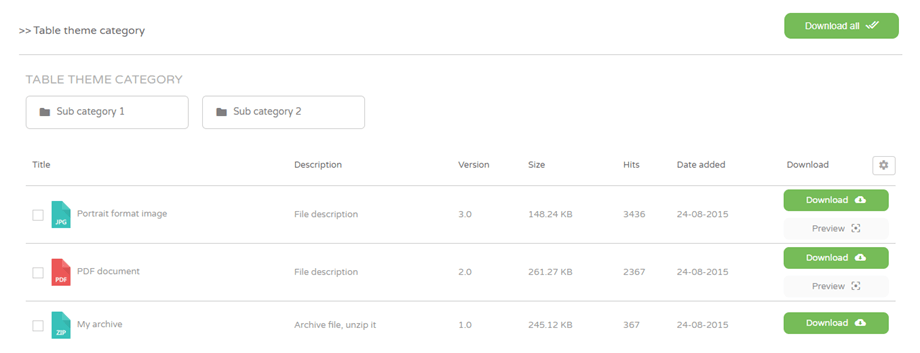
Table theme preview
Preview theme preview
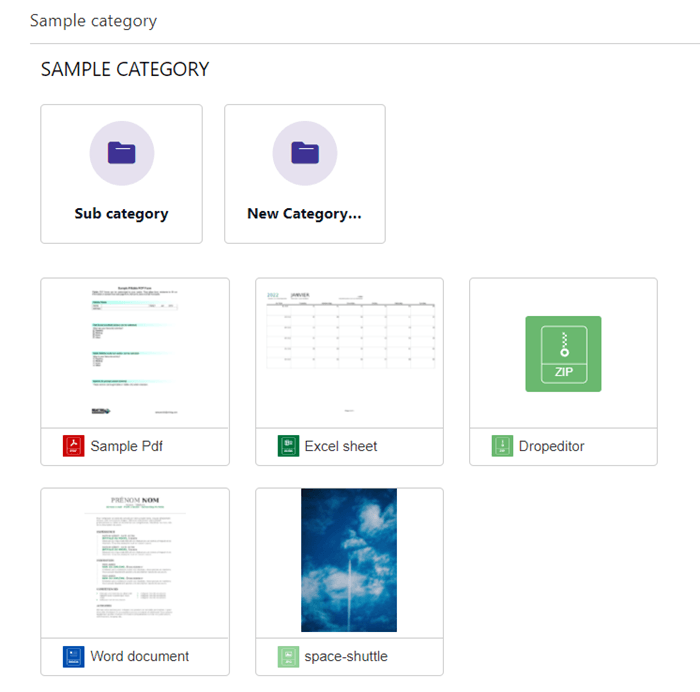
In order to use this theme, first you should go to Main setting > Frontend tab to enable JoomUnited previewer server option and then click on Generate Preview button to generate thumbnails.
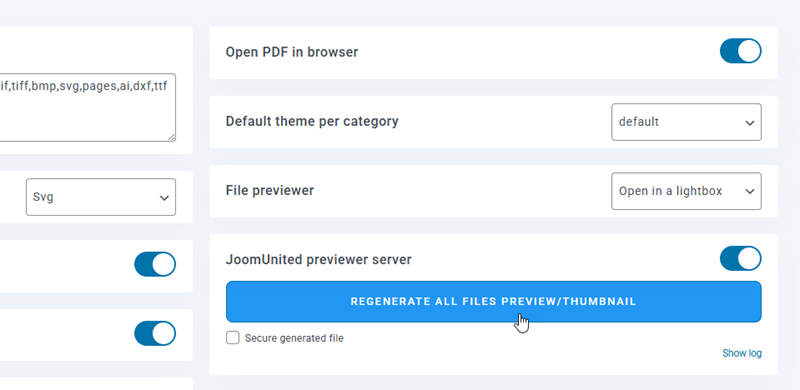
Once you generate successfully, then you can see the thumbnails of files on the Preview theme when publishing the category on frontend.
2. Custom icon
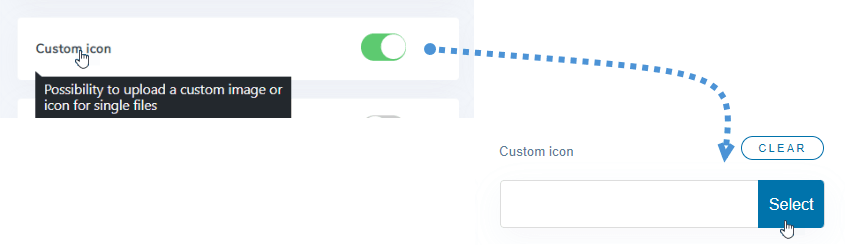
From WP File download Main settings > Frontend tab, you also have an option to activate the possibility of defining a custom icon per file. It's pretty handy to display an overview of the doc for example.
3. Create your own theme
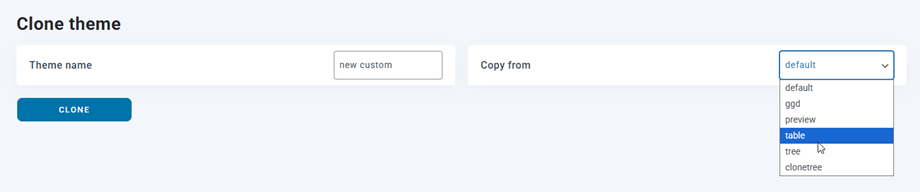
WP File Download allows the creation of custom themes. From the Configuration > Clone Theme, you can duplicate a theme based on an existing model.
Once your theme is created you'll have a new theme folder added on your server and the theme will be added in WP File Download configuration
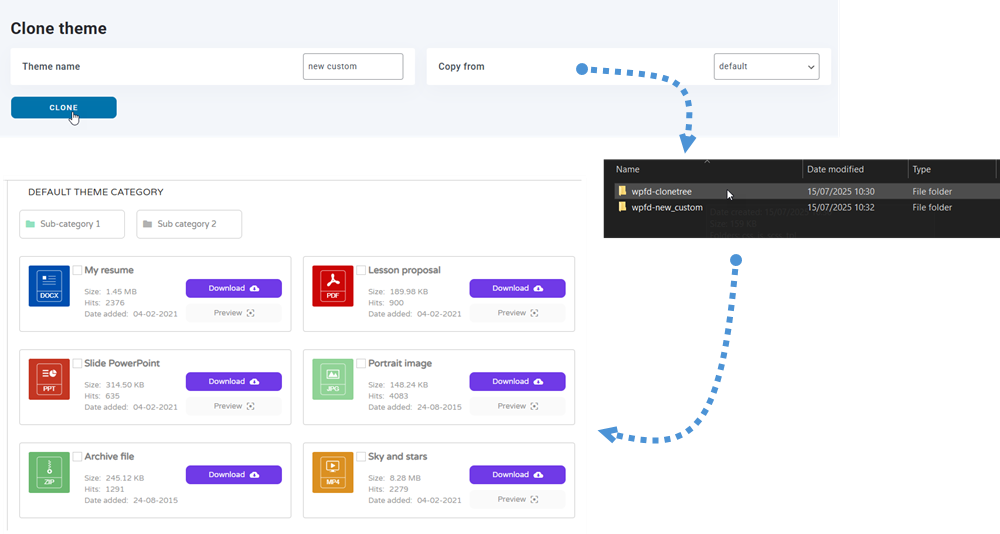
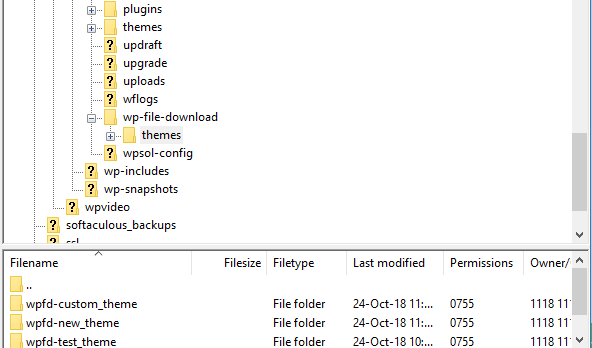
The location of the new theme folder where you can edit file theme is: /wp-content/uploads/wpfd-themes/.
From version 4.3.28, new clone themes are stored at /wp-content/wp-file-download/themes/
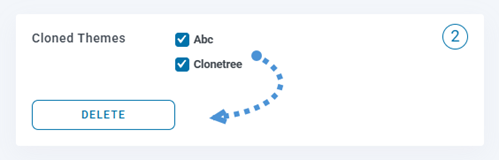
Delete cloned themes
A new option is now available in the Configuration > Clone theme section. You can select one or multiple cloned theme(s) using the checkboxes, then click the Delete button to remove them.
This makes it easier to manage and clean up unused themes directly from the Clone theme section.
Your new themes won't be touched on plugin update. If you want to remove a theme, just remove the theme folder from your server.
4. File category multiple downloads
First, you need to enable Download category option in WP File Download > Configuration > Main Setting > Frontend section.
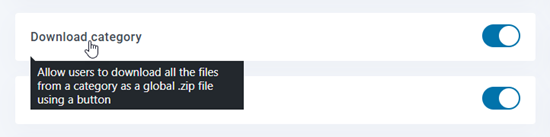
This feature allows you to download multiple files inside a category all at once in a convenient .zip archive.
- Downloading a Category: Click the Download button on any main category folder to package and download its entire contents in one click.
- Include Subcategories:
- Checked (Enabled): Your download will include all files in the main category plus everything inside its subfolders (nested categories).
- Unchecked (Disabled): Your download will only include the files directly inside the main folder, completely ignoring subfolders.
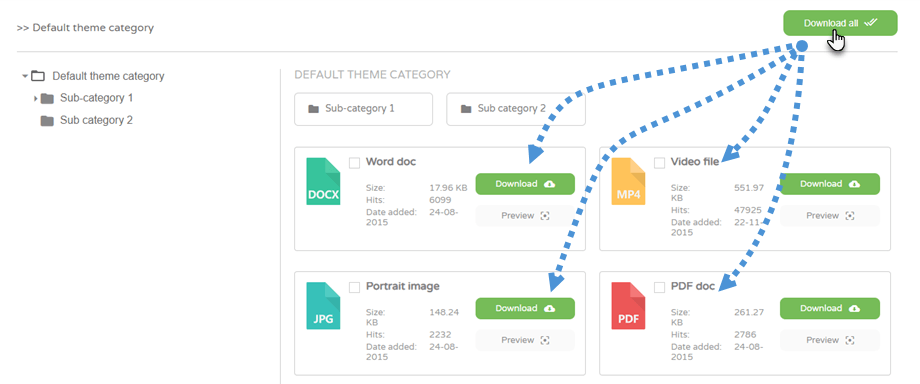
5. File selection download
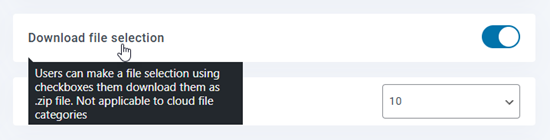
First, you should enable Download file selection option at WP File Download > Configuration > Main Setting > Frontend tab.
On frontend, you can select some files, then click on Download selected button.
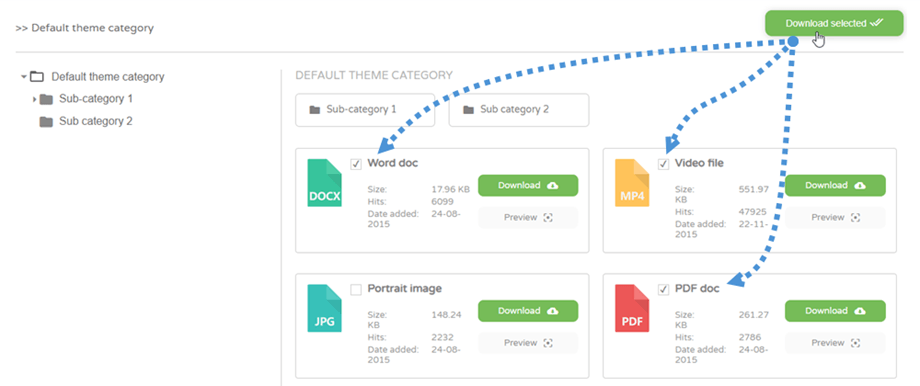
When the option is enabled, files list result in the search engine can be selective download also.
