 WordPress products
 Joomla products
 Support
 News
News Login
LoginWP AI Assistant: Common Use
Welcome to the WP AI Assistant manual. Follow these steps to build your AI's personality, train its knowledge base, and choose the perfect display layout for your website.
1. Setup & Instructions
This section defines the identity and the primary display behavior of your AI.
1.1 Assistant Persona
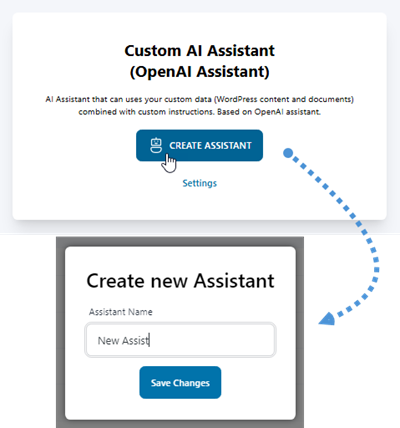
To get started, navigate to WP AI Assistant in your WordPress sidebar. From the Assistant list, click the Create Assistant button, enter a name for your assistant in the popup, and select Save changes.
1.2 Display Mode
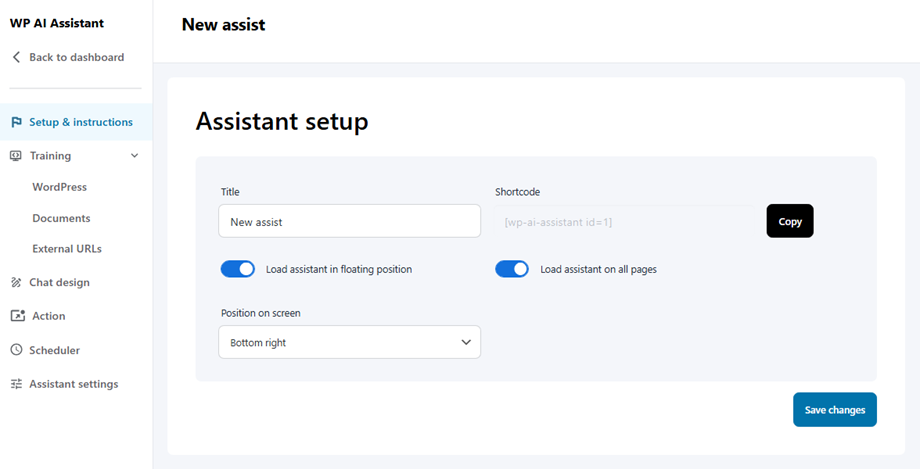
Once you have named your chatbot and clicked Save changes, you will be directed to the Setup & Instructions section. The most important setting here is Load assistant in floating position, which defines how your users interact with the AI.
At the top, both display modes share universal parameters:
- Title: The internal name for your AI Assistant.
- Shortcode: Use this unique code (e.g., [wp-ai-assistant id=3]) to manually embed the assistant into any WordPress post or page.
However, your selection in the "Load assistant in floating position" dropdown determines the rest of the configuration:
Option 1: Embedded (Default)
- Behavior: Displays as a standard chat bubble that floats over your website content.
- Configuration:
- Load assistant on all pages: A toggle to enable the assistant site-wide.
- Position on screen: Choose where the bubble appears (e.g., Bottom Right, Bottom Left).
- Menu Access: All features, including the Links and FAQ menus, remain fully accessible for your use.
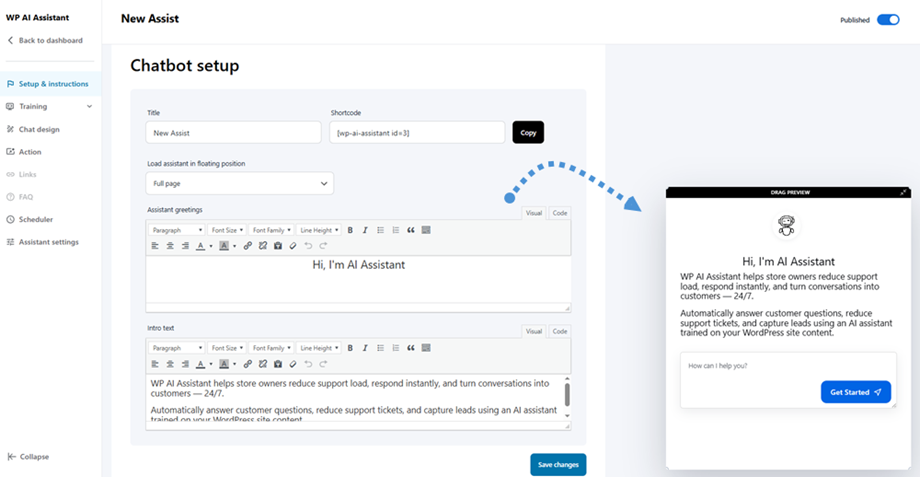
Option 2: Full Page
- Behavior: Transforms the chatbot into a dedicated, full-screen landing page.
- Configuration:
- Assistant greetings: A rich-text editor to define the main headline in the preview.
- Intro text: A rich-text editor for a detailed welcome message or instructions.
- Menu Access: To maintain a focused and streamlined user journey, the Links and FAQ sidebar menus are automatically disabled when this mode is active.
Once you have configured your preferred display mode, you can proceed to define the assistant's core behavior using the following shared parameters:
Recommended
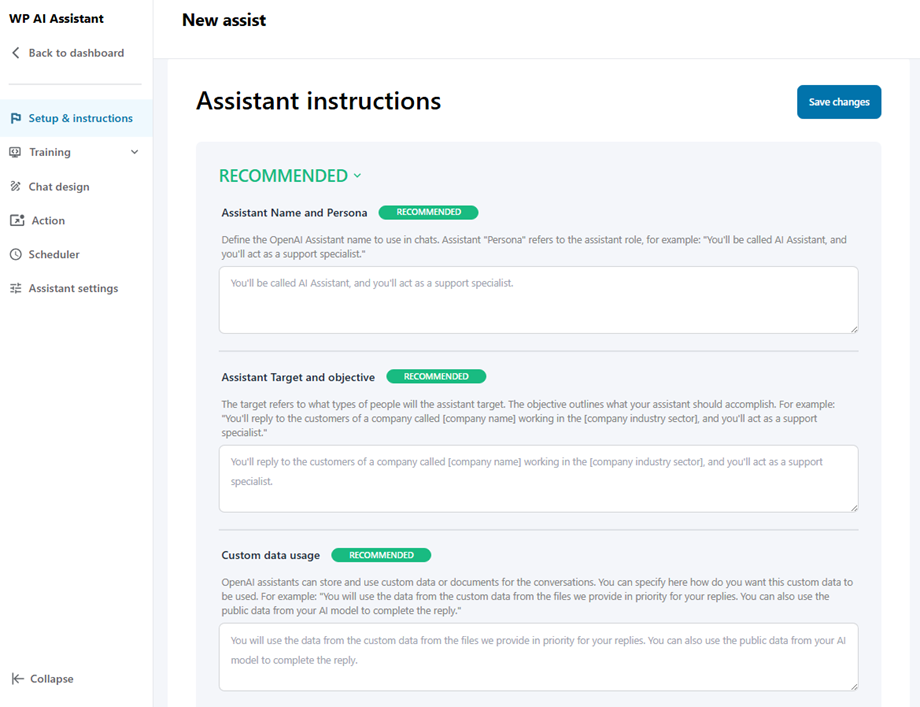
- Assistant Name and Persona: Define the OpenAI Assistant name to use in chats. Assistant "Persona" refers to the assistant role, for example: "You'll be called AI Assistant, and you'll act as a support specialist."
- Assistant Target and objective: The target refers to what types of people will the assistant target. The objective outlines what your assistant should accomplish. For example: "You'll reply to the customers of a company called [company name] working in the [company industry sector], and you'll act as a support specialist."
- Custom data usage: OpenAI assistants can store and use custom data or documents for the conversations. You can specify here how do you want this custom data to be used. For example: "You will use the data from the custom data from the files we provide in priority for your replies. You can also use the public data from your AI model to complete the reply."
Optional
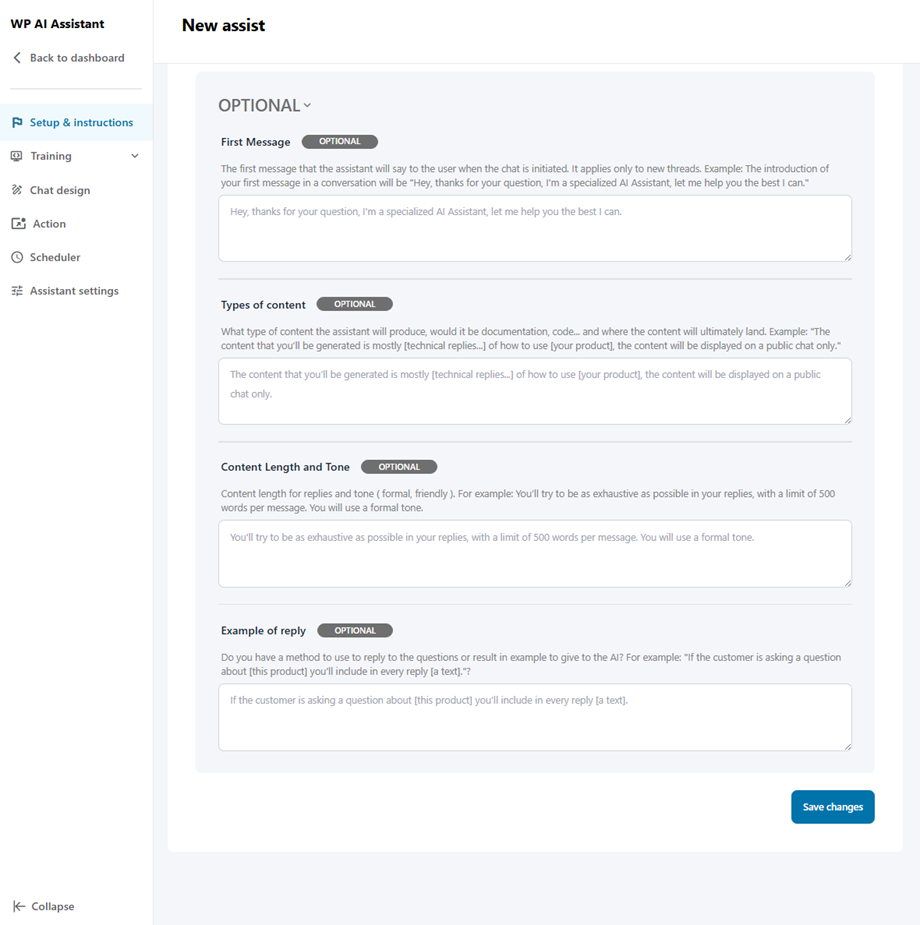
- First Message: The first message that the assistant will say to the user when the chat is initiated. It applies only to new threads. Example: The introduction of your first message in a conversation will be "Hey, thanks for your question, I'm a specialized AI Assistant, let me help you the best I can."
- Types of content: What type of content the assistant will produce, would it be documentation, code... and where the content will ultimately land. Example: "The content that you’ll be generated is mostly [technical replies...] of how to use [your product], the content will be displayed on a public chat only."
- Content Length and Tone: Content length for replies and tone ( formal, friendly ). For example: You’ll try to be as exhaustive as possible in your replies, with a limit of 500 words per message. You will use a formal tone.
- Example of reply: Do you have a method to use to reply to the questions or result in example to give to the AI? For example: "If the customer is asking a question about [this product] you'll include in every reply [a text]."?
2. Training
2.1 Wordpress
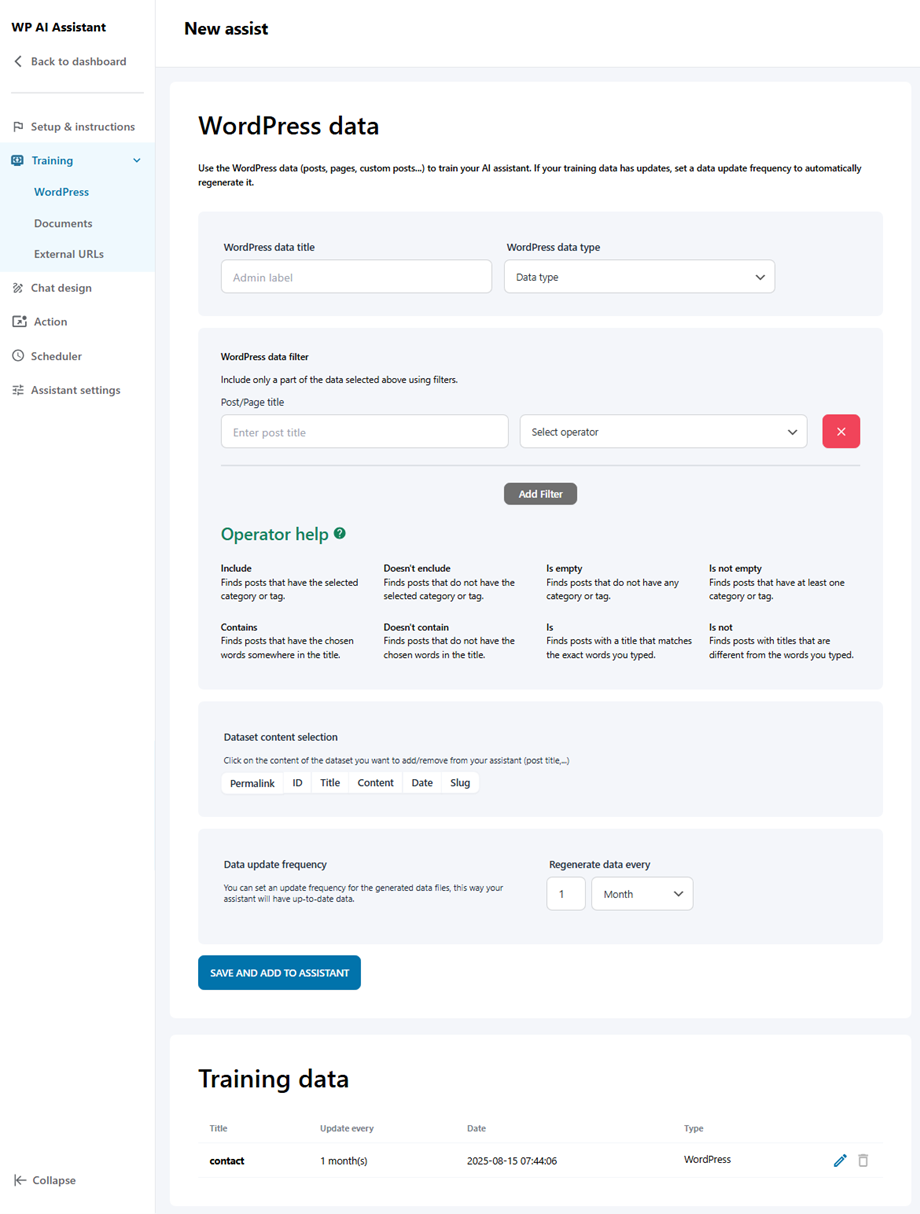
This feature enables the AI to learn directly from your website's existing architecture, including all posts, pages, and custom post types. If your training data has updates, set a data update frequency to automatically regenerate it.
- WordPress data title
- WordPress data type: Posts, Pages, Floating Elements or Files.
- WordPress data filter: Taxanomy Filter or Post/page title filter.
- Dataset content selection
- Data update frequency
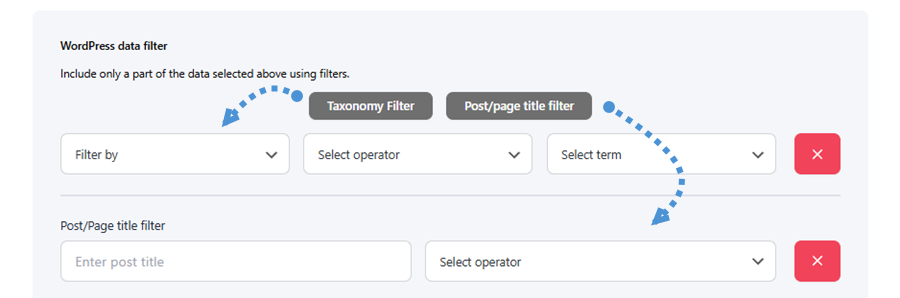
There are two available filter types, each accessible by clicking its corresponding button:
- Taxonomy Filter: Filter content by selecting a taxonomy, operator, and term to narrow down the data.
- Post/page title filter: Filter content by entering a specific post or page title along with an operator condition.
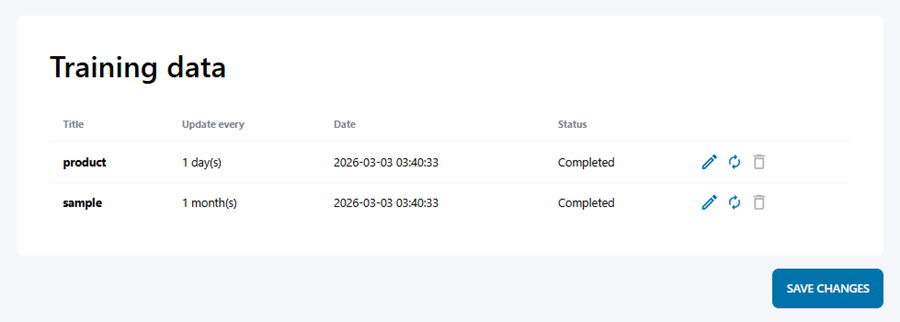
Once your data is saved, it will appear in the training data list below, showing key details such as the title, update frequency, date, and current status.
You can also edit, re-sync, or delete any entry directly from the list.
2.2 Documents
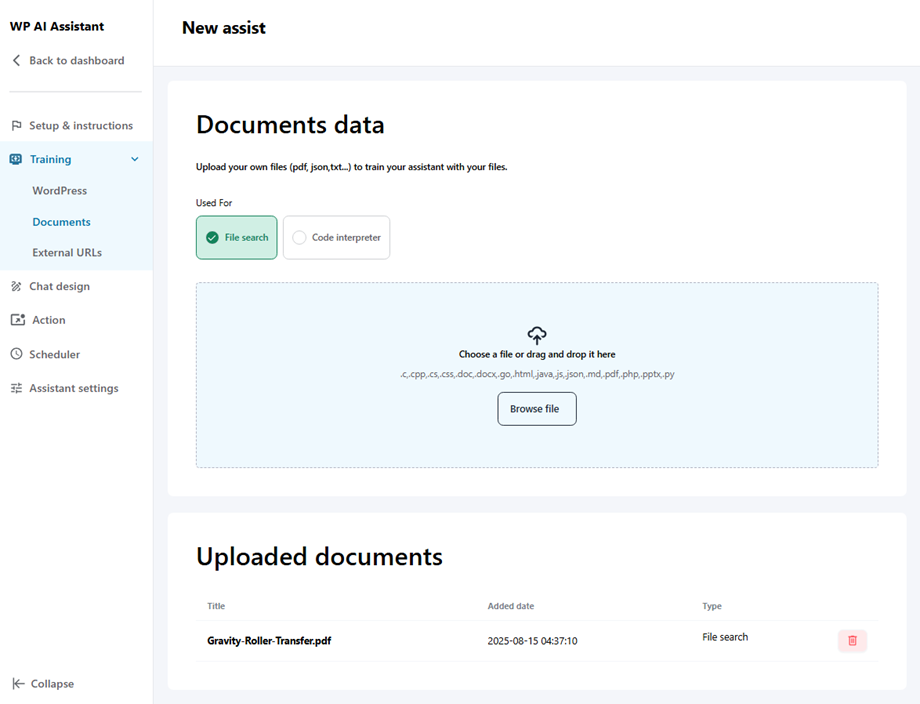
You can enhance your assistant’s knowledge base by uploading external files like PDFs, TXT, or JSON documents to provide specific reference material. Simply drag and drop a file or click Browse file to select one. Once uploaded, all documents will appear in the Uploaded Documents list below.
2.3 External URLs
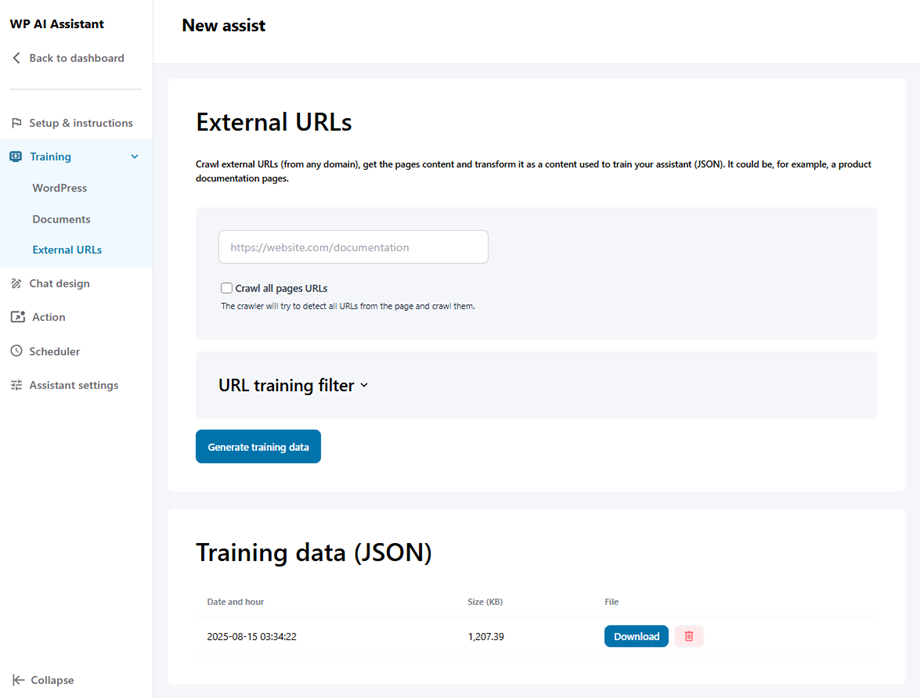
The assistant can extract and convert information from third-party websites into a usable data format to expand its expertise beyond your own domain.
To get started, paste your URL into the input field, enable the Crawl all pages URLs option, then click Get URL list button to fetch all available pages. Once you're ready, click Generate Training Data button and the resulting JSON file will appear in the Training Data list below.
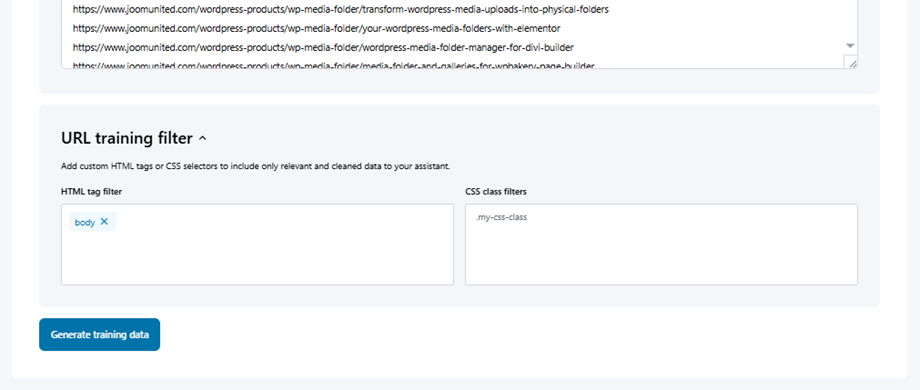
You can also expand the URL Training Filter section to refine what content gets extracted - use the HTML Tag Filter and CSS Class Filter fields to include only the relevant and clean data you want your assistant to learn from.
3. Chat design
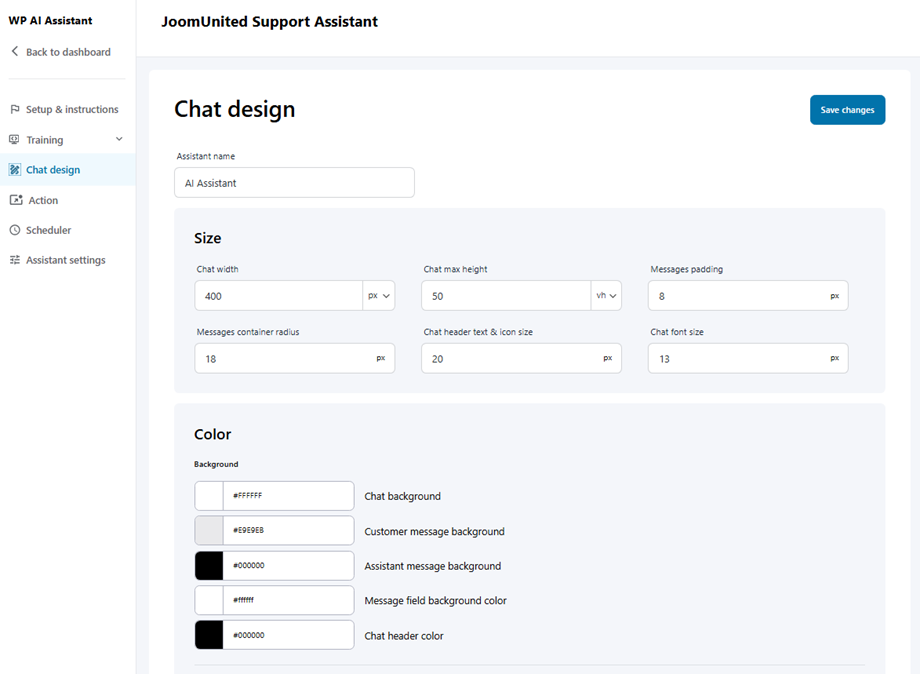
The Chat Design panel allows you to customize the visual appearance and layout of your AI assistant. It is organized into the following four primary sections:
3.1 Size
This section defines the physical footprint and spacing of the chat window.
- Chat width and max height: Set the fixed dimensions of the chat window in pixels.
- Messages padding: Control the space between the message text and the edge of the chat bubble.
- Container and border radius: Adjust the roundness of the chat window and message bubbles.
- Text and Icon size: Define the font size for messages and the scale of the header icons.
- Positioning (Offsets): Fine-tune the distance of the chat window from the screen edges using horizontal and vertical offsets.
3.2 Color & Font
This section aligns the assistant's aesthetic with your website’s branding.
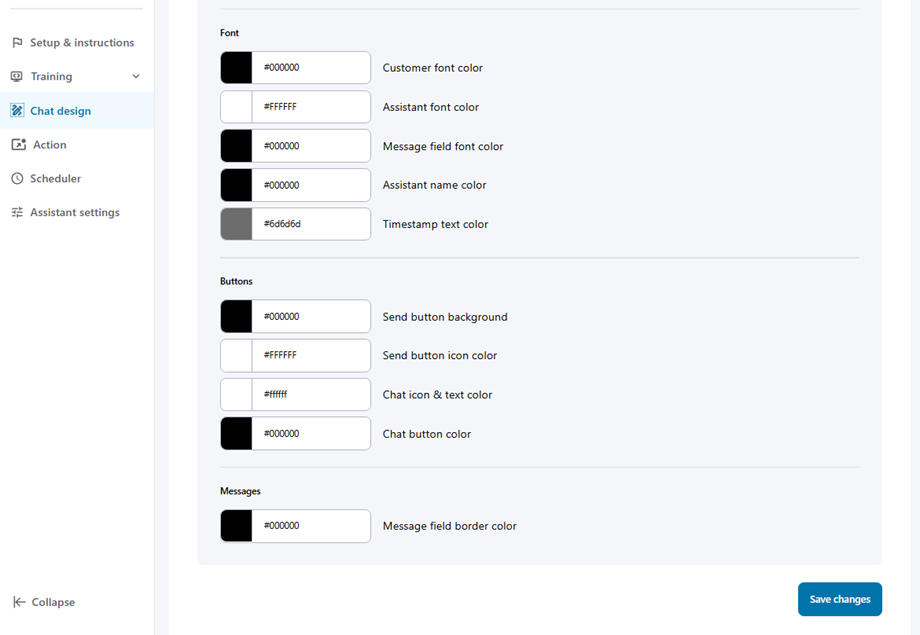
- Interface Colors: Customize the Chat background, Header color, and background areas for the input field and welcome message.
- Message Bubbles: Set distinct background colors for Customer messages versus Assistant messages for better readability.
- Typography: Individually adjust the font colors for the assistant name, customer text, assistant replies, and timestamps.
3.3 Buttons, Links
Customize how users interact with clickable elements and input fields.
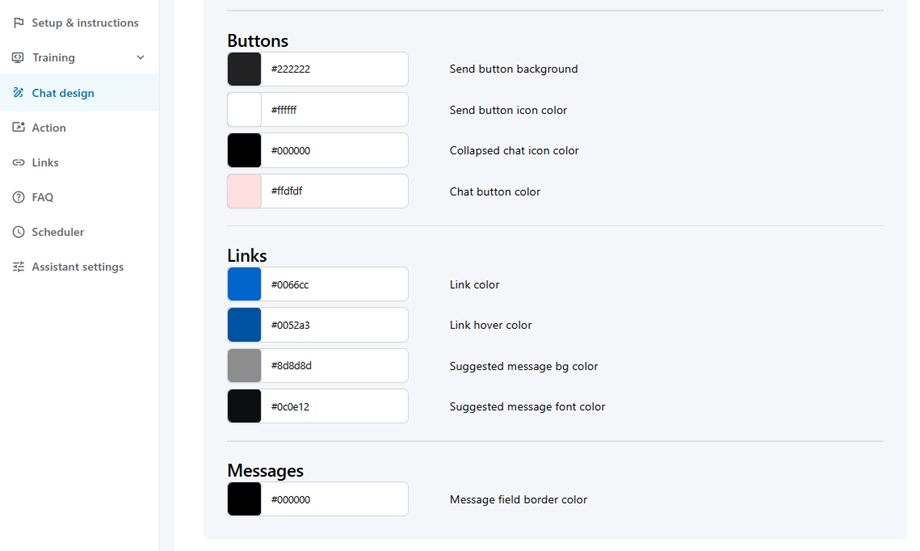
- Buttons: Define the background and icon colors for the Send button, as well as the styling for the Collapsed chat icon.
- Links and Suggestions: Set the primary Link color and its hover state. You can also customize the background and font colors for Suggested messages.
- Messages: Adjust the border color of the message input field to match your theme.
3.4 Warning message
This final section allows you to manage transparency and user expectations.
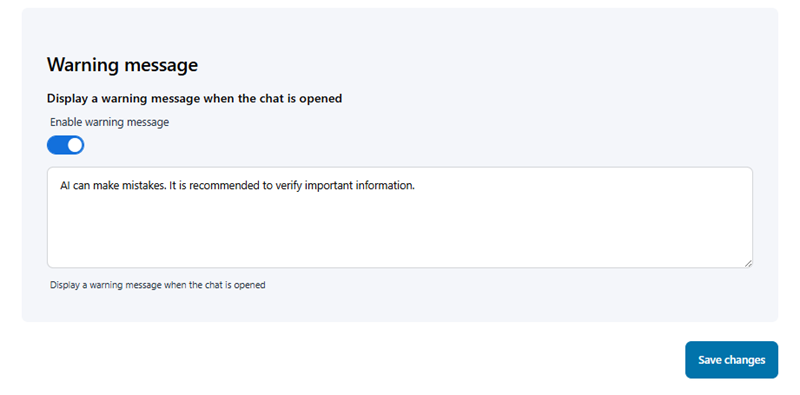
- Enable warning message: Use the toggle to display a persistent notice when the chat is first opened.
- Custom Text: Compose a specific message (e.g., "AI can make mistakes. It is recommended to verify important information") that will be visible to all users upon initiation.
4. Assistant Action
After selecting your AI Assistant, go to the Action section to configure two key features: Admin notification and Chat end transcripts.
4.1 Admin notification
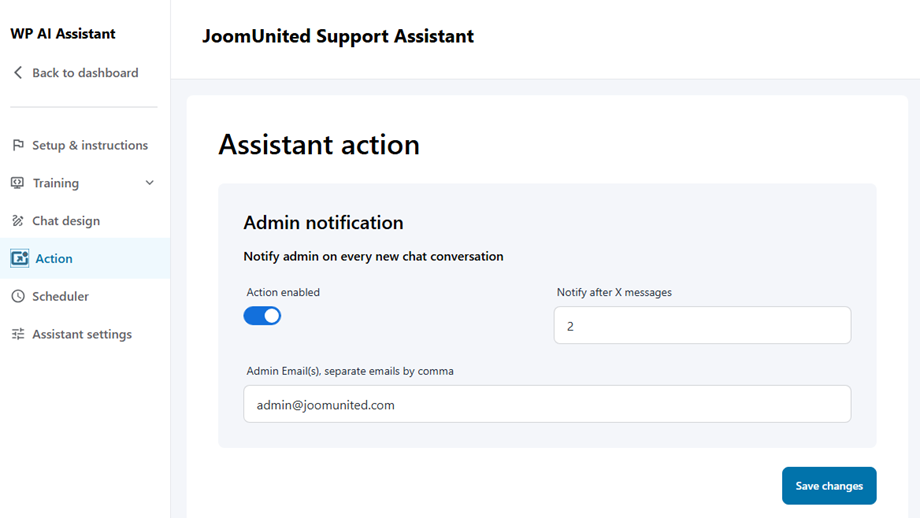
This feature sends administrators alerts for new chat conversations. To set it up:
- Enable the notification action
- Configure the following fields:
- Notify after X messages: Set the message threshold for notifications
- Admin Email(s), separate multiple emails with commas: Enter administrator email addresses
4.2 Trigger AI custom message
The Action tab allows you to automate specific responses based on user behavior or predefined triggers. This is an excellent way to guide users, provide immediate information, or show warnings without needing AI-generated text.
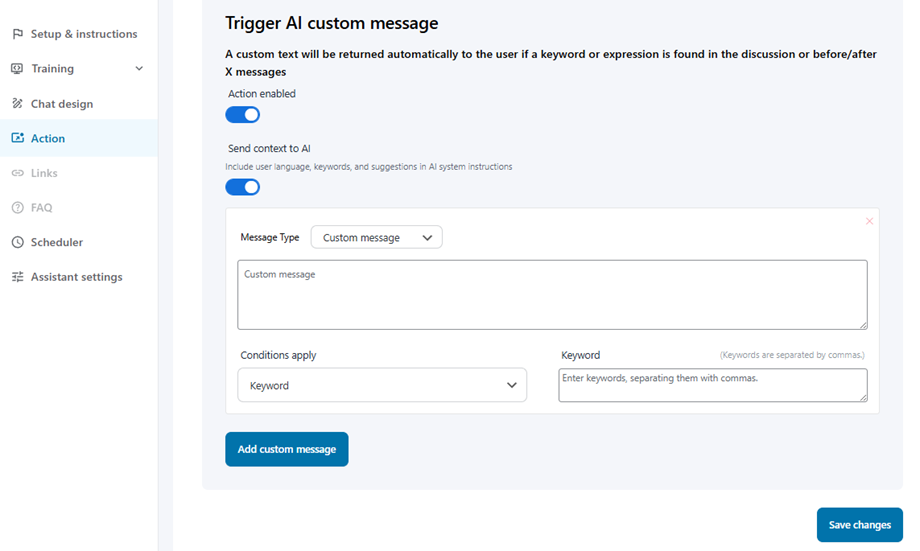
1. Global Settings
- Action enabled: Toggle this switch to activate your custom triggers.
- Send context to AI: Enable this to share user data (language, keywords) with the AI to keep the conversation coherent even after a custom message is triggered.
2. Custom Message Configuration
Click "Add custom message" to create a new trigger. Each block contains the following settings:
- Message Type: Choose how the message is categorized:
- Suggested message: Used to provide the user with recommended prompts or next steps.
- Custom message (Editor): Use the rich-text editor to compose the content that will appear to the user.
- Conditions apply: This dropdown determines when your message will be triggered. You have four options:
- Keyword: The message fires when specific words are detected in the user's input.
- After first message: Triggers immediately after the user sends their initial prompt.
- After X minutes: Triggers after a specific amount of time has passed in the session.
- After X messages: Triggers once the conversation reaches a certain number of exchanges.
Pro Tip: If using the Keyword condition, you can enter multiple keywords separated by commas. The system will trigger the message if any of those words appear in the chat.
3. Managing Triggers
You can stack multiple triggers by adding more blocks. To remove a trigger, simply click the red 'X' at the top right of the message container. Always click Save changes at the bottom of the screen to finalize your configuration.
4.3 Chat end transcript
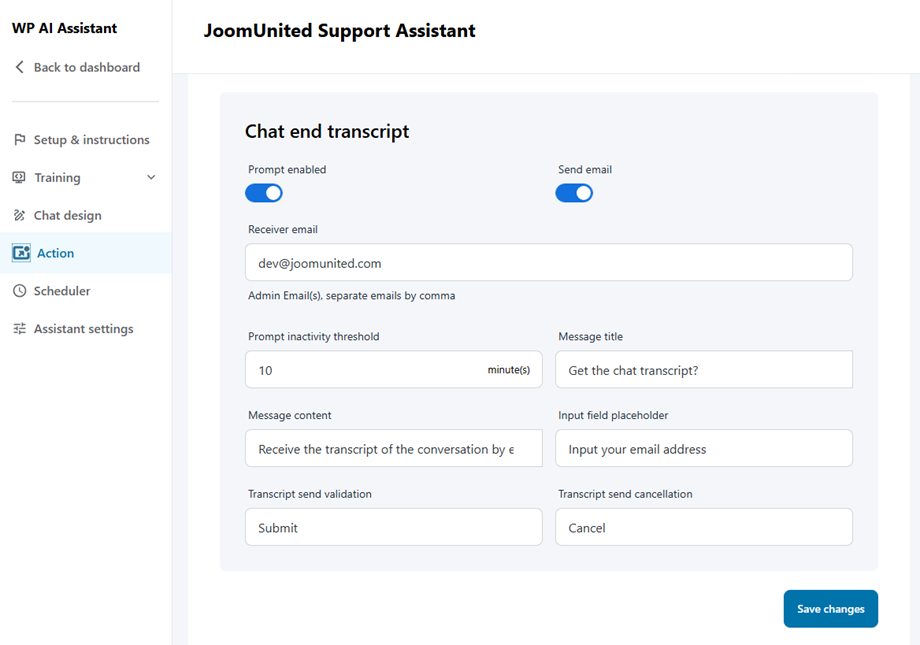
This feature automatically sends chat transcripts to users when conversations end. To configure:
- Enable both the Prompt and Send email options
- Complete the required fields:
- Receiver email: The email address that will receive transcripts
- Prompt inactivity threshold: Set the timeout period in minutes
- Message title: Subject line for transcript emails
- Message content: Email body template
- Input field placeholder: Default text for the email input field
- Input your email address: User email field
- Transcript send validation: Confirmation button
- Transcript send cancellation: Cancellation button
4.4 Multiple conversations
This feature allows you to manage how visitors interact with your AI across multiple sessions. By enabling this, you provide a more flexible experience for returning users who may have different inquiries at different times.
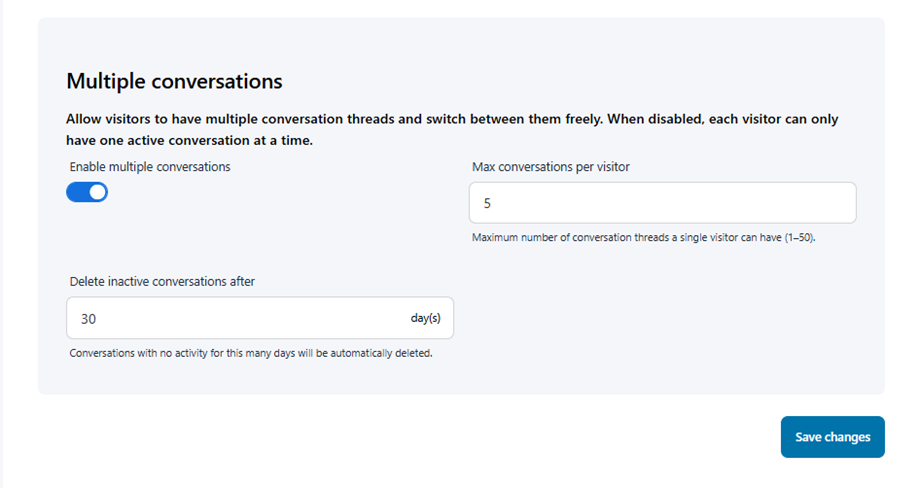
- Enable multiple conversations: Toggle this switch to allow visitors to maintain several independent conversation threads simultaneously.
- Max conversations per visitor: Define the maximum number of unique conversation threads a single user can create (range: 1–50). Setting a limit helps manage server load and keeps user history organized.
- Delete inactive conversations after (days): Set a duration for data retention. Any conversation that has had no activity for the specified number of days will be automatically deleted to keep your database clean.
5. Links
The Links section allows you to add your communication channels, making it easy for customers to quickly reach your support team.
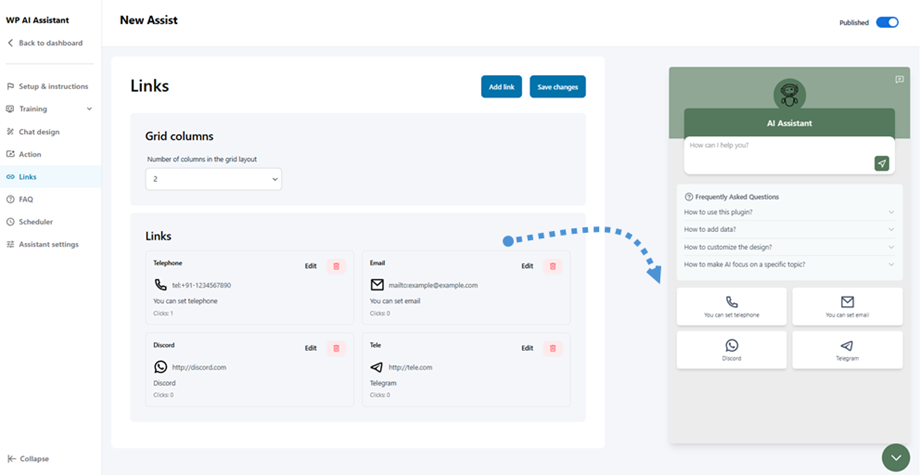
To get started, select the number of Grid Columns to define the layout, then edit each contact box with the relevant details. The updated design will be reflected in real time on the preview panel on the right.
6. FAQ Management
The FAQ section allows you to add a collection of frequently asked questions about your product or service, helping users find answers before reaching out.
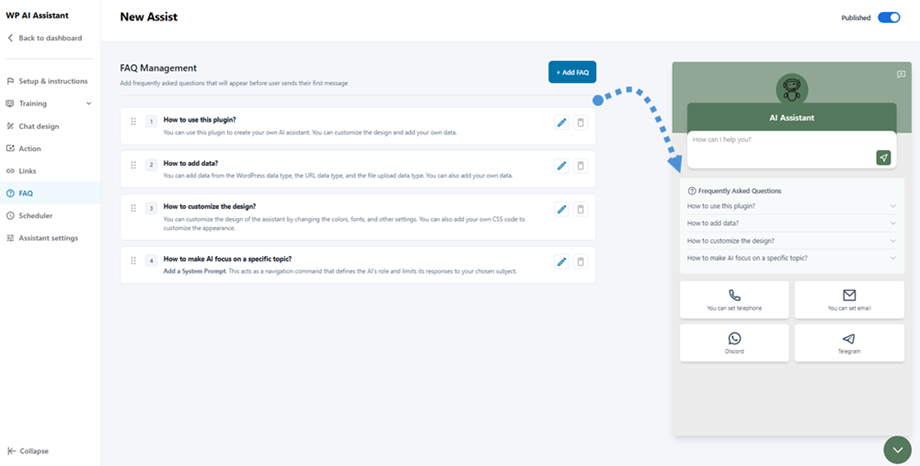
Click + Add FAQ to create new entries, and all added questions will be instantly reflected in the preview panel on the right.
7. Scheduler
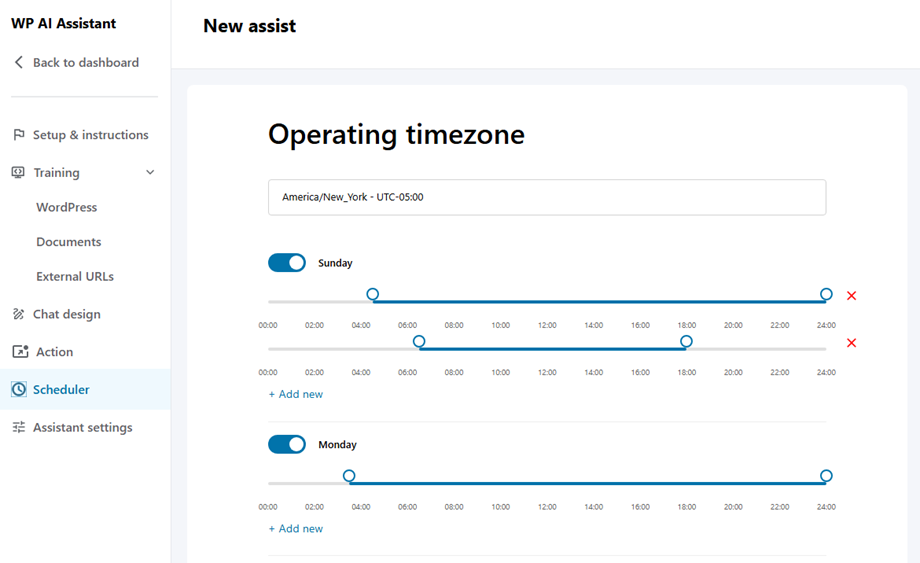
In this setting, you can choose the operating timezone for your shop or location. First, select your timezone, then adjust the opening hours for weekdays below.
8. Assistant settings
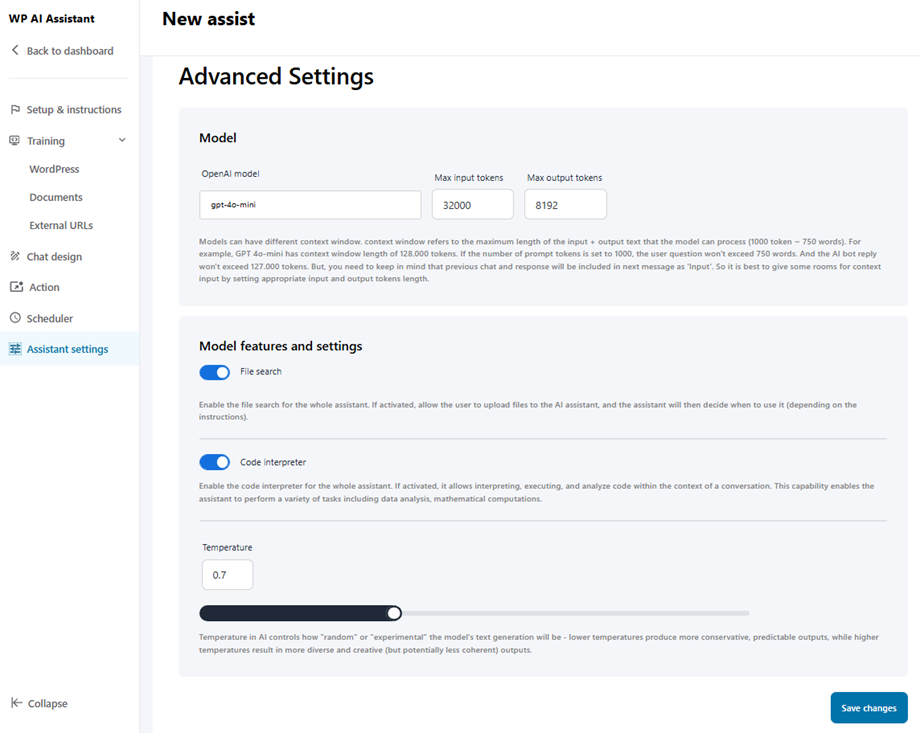
Following your model selection in the Setting > AI models, here you can select model and adjust the setting.
8.1 Model Provider
- Joomunited
- OpenAI
8.2 File Upload
To allow visitors to attach documents and images during a chat, switch on the Action enabled toggle. Once activated, configure the following upload parameters:
- Max file size (MB): Select the maximum permitted file size for individual uploads from the dropdown menu.
- Max files per session: Define the total number of files a user can upload during a single chat conversation.
- Allowed file types: Specify accepted file formats by adding or removing extension tags (e.g., docx, jpg, png, pdf).

8.3 Model features and settings
- File Search: Enables the AI to search all training data - WordPress content, crawled webpages, and uploaded files - to answer questions accurately. If disabled, the AI cannot access any of this data. The AI automatically uses relevant information during chats.
- Temperature: Temperature in AI controls how "random" or "experimental" the model's text generation will be - lower temperatures produce more conservative, predictable outputs, while higher temperatures result in more diverse and creative (but potentially less coherent) outputs.

