 WordPress products
 Joomla products
 Support
 News
News Login
LoginDroptables: Excel, CSV and Google Sheets Sync
1. Excel file import
At any tables, you can import an Excel file from your PC. First, you should go to Menu Import & Sync > Excel file button, then click on Select Excel file button to pick an Excel file from your PC.
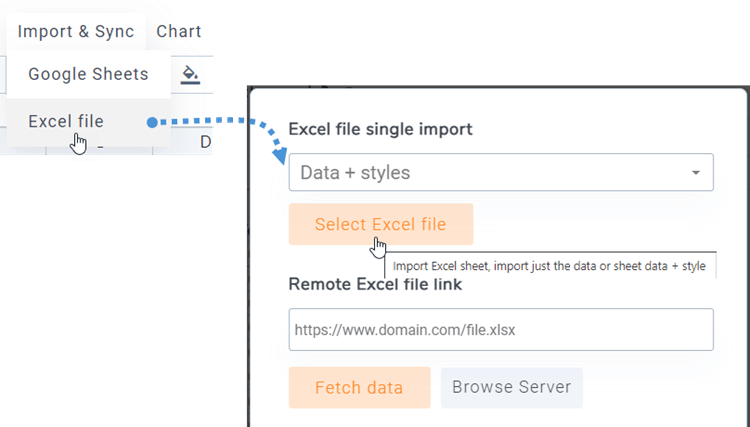
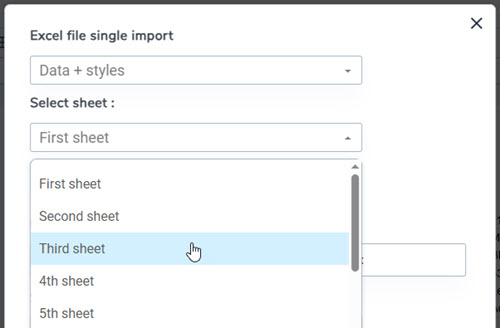
Before importing the file, you can select an option to import Data only or Data + styles and pick the sheet you want to import.
2. Sync a table with an Excel file data
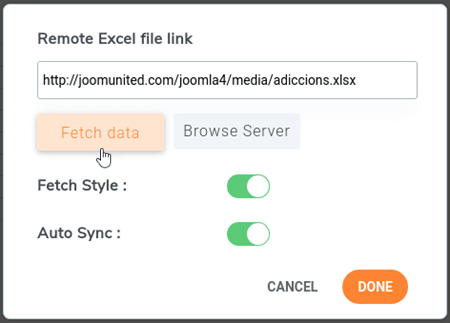
It is possible to run a synchronization between a table you've created and an Excel file located on your server (anywhere). After creating a new table or going to an existing table. Navigate to the Menu Import & Sync > Excel file button, then a popup window will appear.
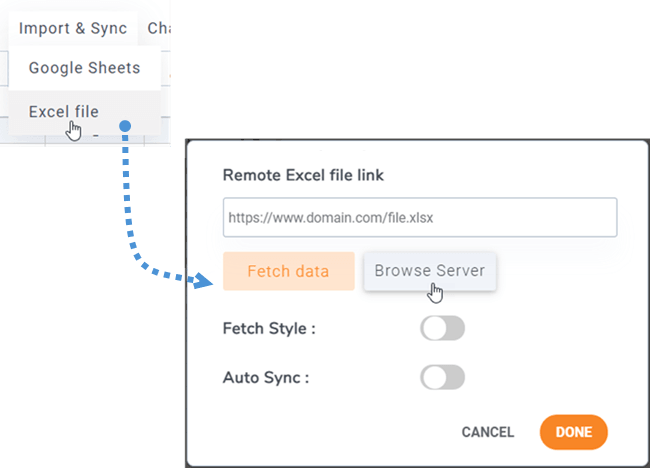
On clicking on the Browse Server button, you'll be able to select an Excel anywhere on your server, where it's a file uploaded through the media manager (/images folder).
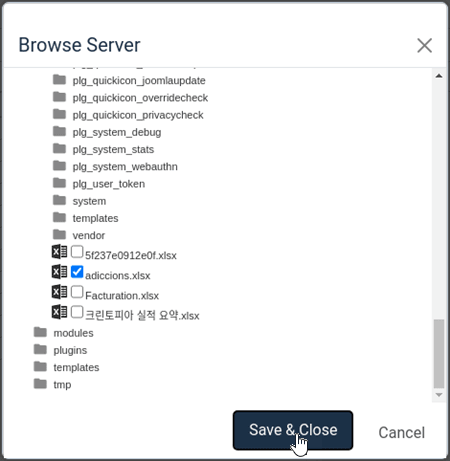
Once your Excel file is linked to the table, you can pick the sheet you want to sync and hit the Fetch data button to import data from the Excel file.
3. Synchronization with Google Sheets
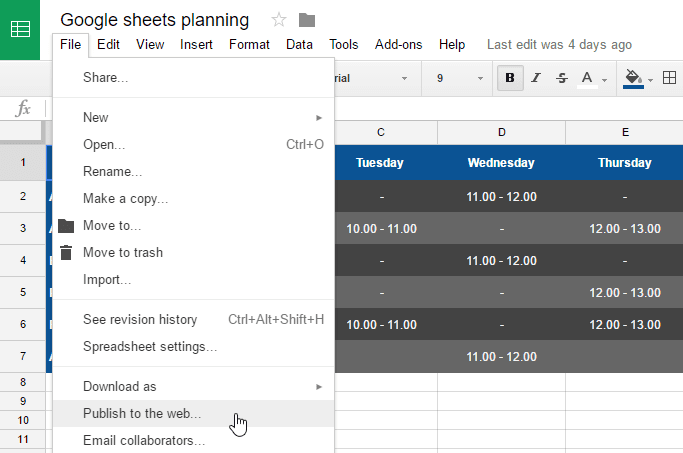
Droptables offers a Google Sheets synchronization possibility. Your Google Sheets need to be "Publish to web" to be synchronized. First, open your sheet from Google Drive and publish it as web page using the Menu File >> Share.
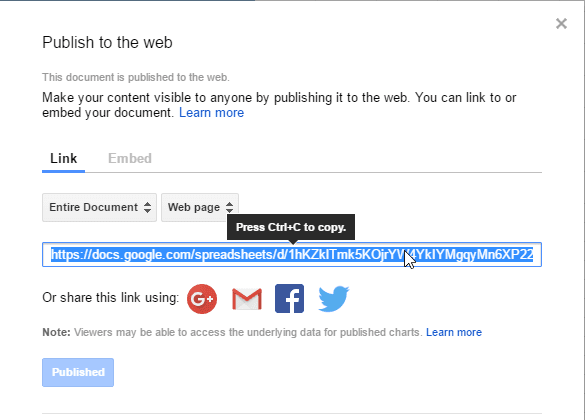
On the Publish to the web pop-up, click on Publish button and confirmation to make sure you want to do it. Then, you will get access to Google Sheets file link, copy this link.
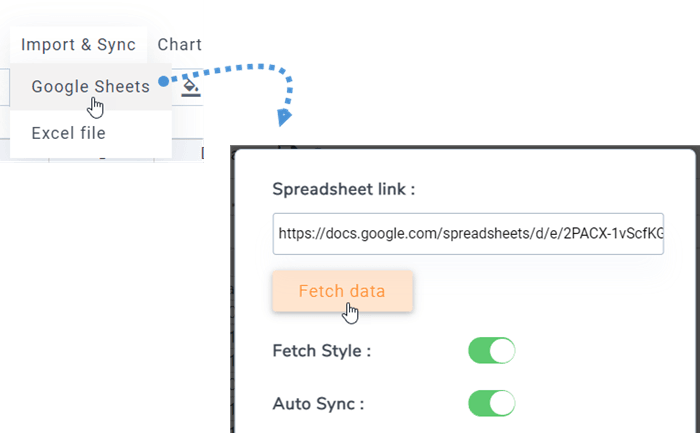
After that, back to the plugin and navigate to Menu Import & Sync, click on Google Sheets button. Then paste the URL into Spreadsheet link field, pick the sheet you want to sync and click on Fetch data button.
4. Automatic Excel and Google Sheets sync
Above the file link you can also activate an automatic data synchronization. Droptables will fetch the data automatically at a regular interval.
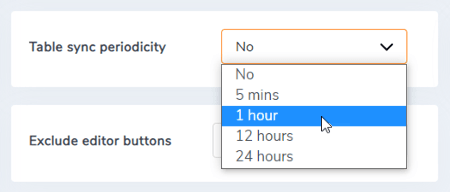
The synchronization delay can be set in the Droptables configuration.
5. Import and Sync CSV files
To import a CSV file from your PC using the Droptables extensions, go to the "Menu Import & Sync" section and select the "CSV file" button. Next, click on the "Select CSV file" button to choose a CSV file from your computer that you want to import.
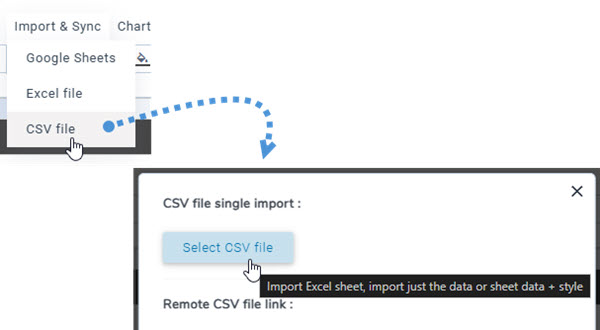
To synchronize your CSV files from the server using an alternative method, start by going to the "Menu Import & Sync" section and selecting the "CSV file" button. Next, click on the "Browse server" button and choose the CSV file you wish to sync. Then, click on the "Fetch data" button. After a few seconds, the popup will close, and you will be able to view the content.
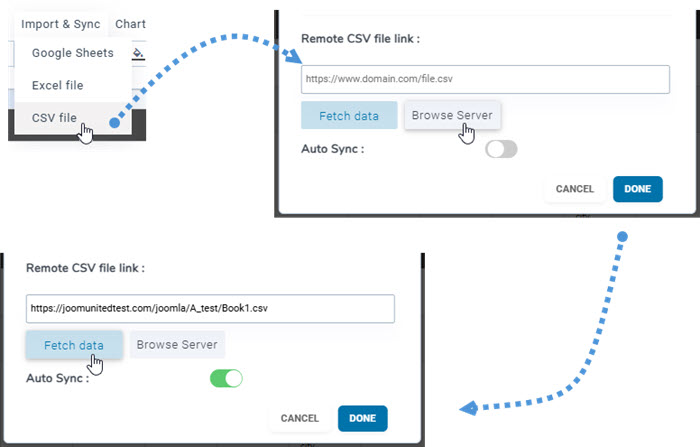
Enabling the "Auto Sync" option will ensure that new data is synced automatically.
