WordPress products
 Joomla products
 Support
 News
News Login
LoginWP File Download Addon: Social Locker
1. Social locker configuration
WP File Download Social Locker will lock your files download behind a set of social buttons unless the visitor likes, shares the content on Facebook or Tweets your page. It helps to improve the social performance of your website, get more likes/shares, build quality followers and attract more traffic from social networks. The addon also includes the features: Google Drive, Dropbox and OneDrive file and folder synchronization.
From the plugin configuration you can activate the social locker: WP File Download > Configuration > Social Locker tab.
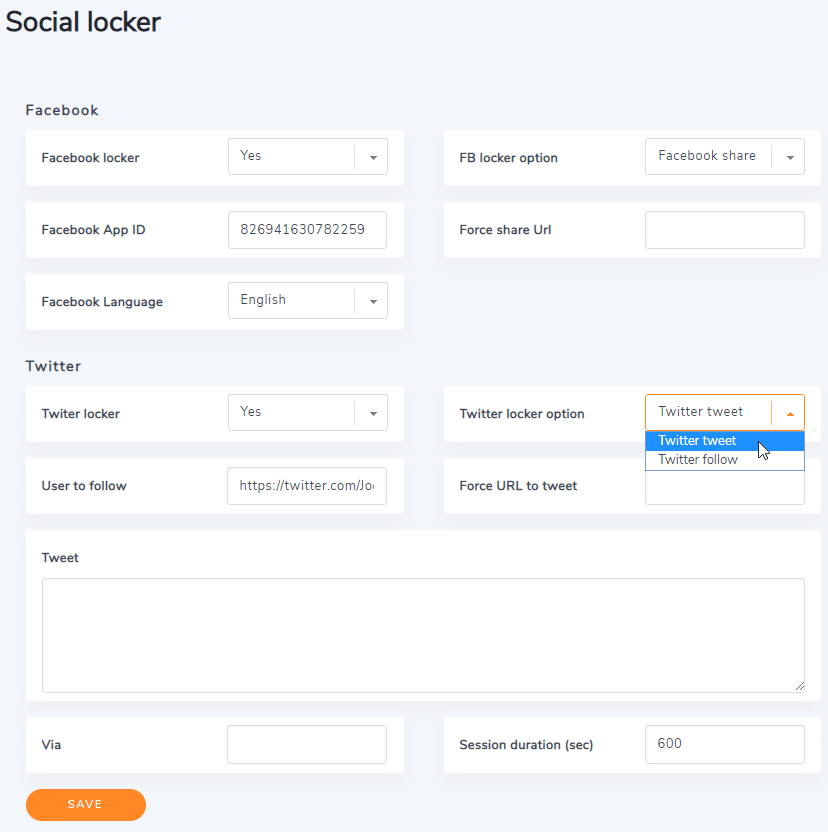
Facebook Locker
Facebook locker: lock file download with a Facebook share or like.
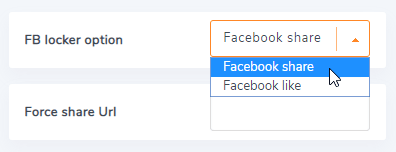
FB locker option: share a page URL or like your Facebook page to unlock.
The Facebook like locker can be activated right away it does not require any App.
To enable the social locker, you need to create a Facebook App. In order to create a Facebook App ID, you can access here: https://developers.facebook.com
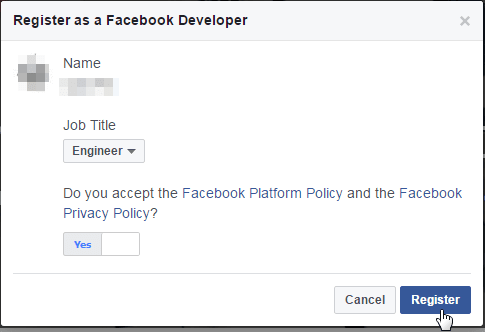
First, you need to Register.
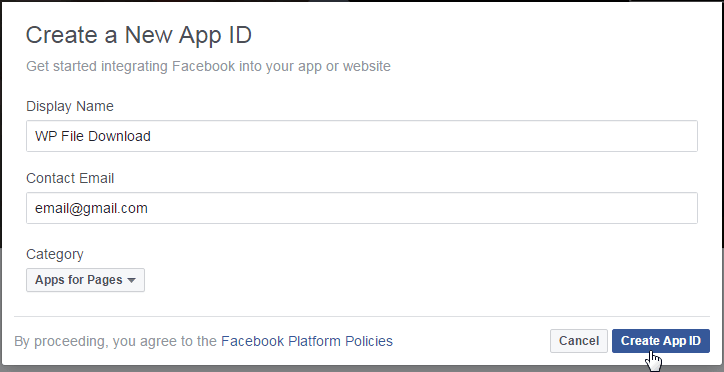
Then, you can create your new App ID.
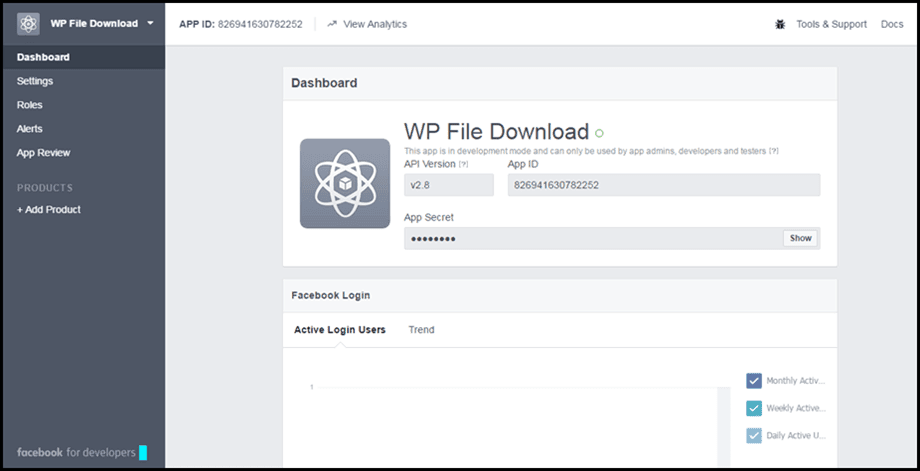
Finally, copy and paste the code to Facebook App ID.
The other options are:
- Force share Url: force an URL for all facebook sharing instead of the current page URL
- Facebook language: frontend language for social buttons
Twitter Locker
The locker types are:
- Twitter locker: lock file download with a Twitter tweet or follow
- Twitter locker option: tweet or follow your twitter to unlock
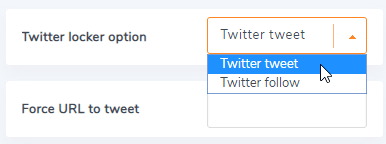
The other locker options are:
- User to follow: set an URL of your Twitter profile (for example https://twitter.com/JoomUnited)
- Force URL to tweet: force an URL for all Twitter sharing instead of the current
- Tweet: default tweet content, default content, can be edited by user
- Via: add the screen name of the user to attribute the Tweet
- Session duration (sec): when a file is unlocked, determine how long the user will be able to download the file without re-sharing it
2. Use the Social locker
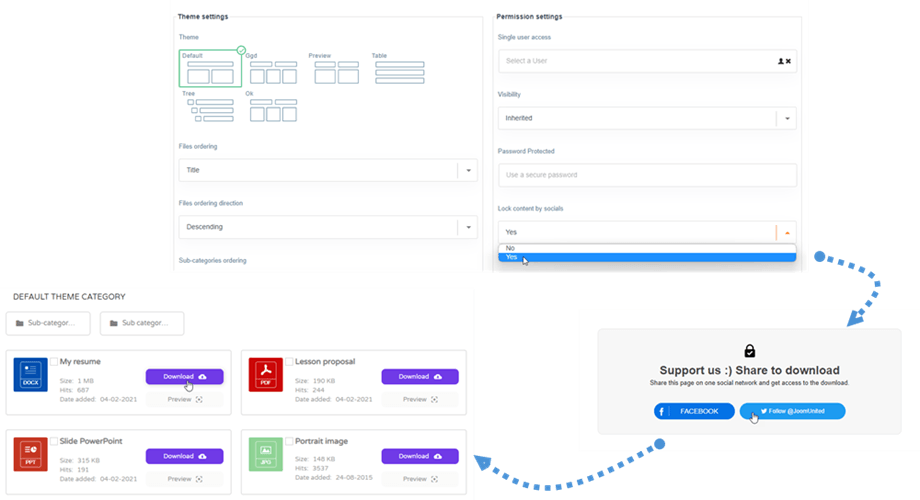
Then, in order to lock a single file or a category, you need to switch Lock content by socials to YES in the category setting when you have opened your file manager.
3. Locker Email Subscription
To set up and use the email locker feature, first navigate to the WP File Download configuration > Social locker section and customize the Locker: Download link email template and the Locker: Download confirmation page layout using available tags like {category}, {site_name}, and {file_list}.
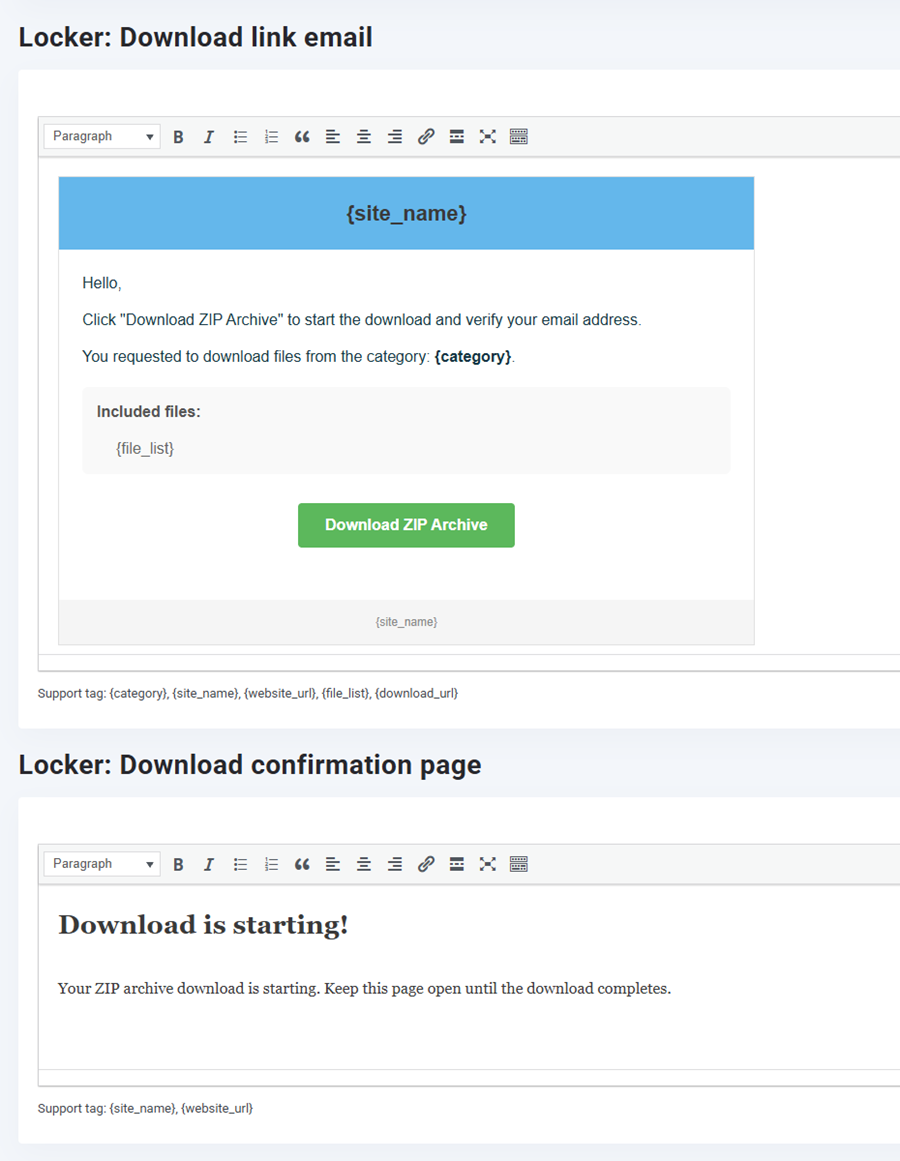
Next, go to the plugin dashboard, select your target category, and find the Locker email subscription toggle under Permission settings to enable it.

Finally, on the frontend, visitors can select their desired files, enter their email address in the subscription box, and click Email me the download link to receive a secure download link via email.
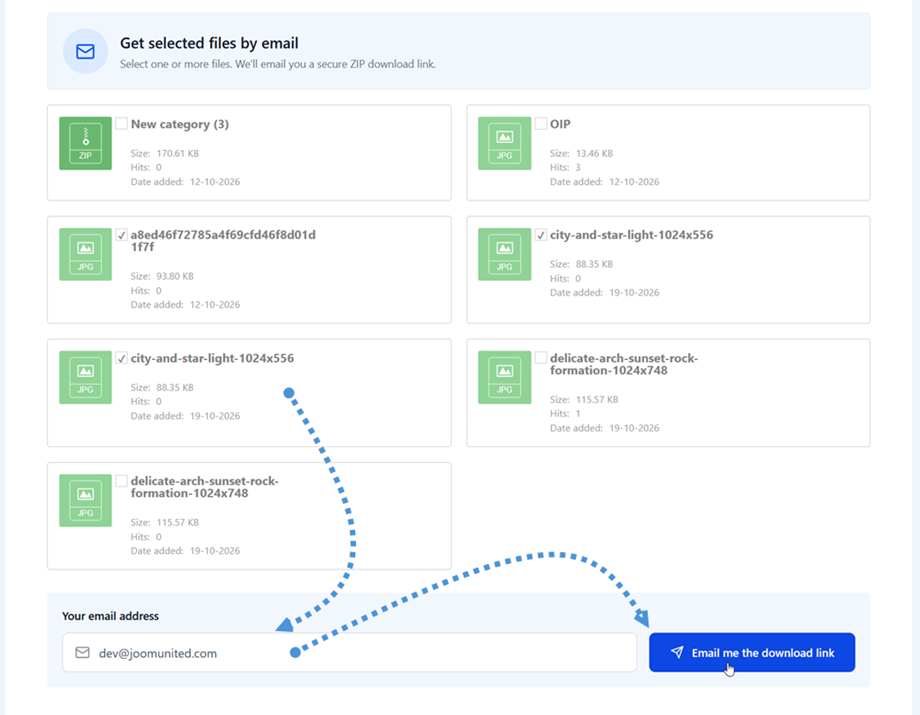
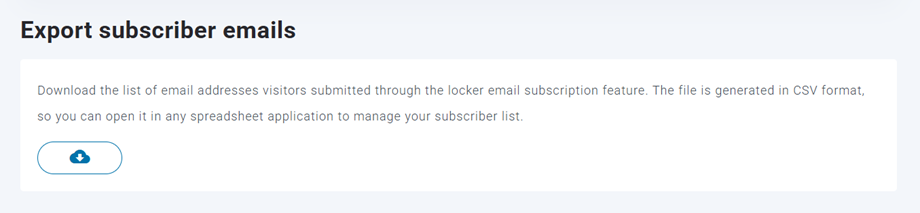
All email addresses submitted by visitors through the locker email subscription feature are automatically stored in the plugin's configuration area. You can navigate to the Import/Export section of the configuration page to find the Export subscriber emails tool, where you can download the complete list of subscriber emails in CSV format for use in any spreadsheet application.