Produkty WordPress
 Produkty Joomla
 Wsparcie
 Aktualności
 Logowanie
Jak skonfigurować NextCloud jako pobieranie plików WordPress

Zintegrowanie NextCloud z WordPressem to doskonałe rozwiązanie zapewniające bezpieczne i efektywne zarządzanie pobieraniem plików na stronie WordPress, zwłaszcza jeśli obsługujesz wiele plików lub pracujesz w zespole.
Ten przewodnik przeprowadzi Cię przez proces konfiguracji NextCloud jako systemu pobierania plików WordPress przy użyciu wtyczki WP File Download . Od instalacji do synchronizacji w czasie rzeczywistym i wyświetlania plików na Twojej stronie.
- Integracja z NextCloud daje pełną kontrolę i bezpieczeństwo nad pobieranymi plikami, umożliwiając przechowywanie, zarządzanie i udostępnianie plików z własnej chmury prywatnej zamiast polegania na dostawcach zewnętrznych.
- Automatyczna dwukierunkowa synchronizacja między WordPress a NextCloud usprawnia współpracę w zespole, zapewnia aktualność plików i eliminuje potrzebę ręcznych przesyłek lub duplikowania treści na różnych platformach.
- Zaawansowane mechanizmy kontroli dostępu do plików i uprawnienia pozwalają bezpiecznie zarządzać tym, kto może wyświetlać, edytować lub pobierać pliki, umożliwiając zgodność z przepisami dotyczącymi prywatności i konfigurowalne przepływy pracy dla projektów biznesowych lub klientów.
Spis treści
Dlaczego używać NextCloud do scentralizowanego zarządzania plikami w WordPress?
Zarządzanie plikami na stronie WordPress, zwłaszcza w przypadku pobierania lub współpracy w zespole, może być wyzwaniem. Właśnie tutaj pojawia się NextCloud jako rozwiązanie. Oto niektóre z głównych powodów, dla których NextCloud jest świetnym wyborem do scentralizowanego zarządzania plikami w ekosystemie WordPress:
- Wysokie bezpieczeństwo danych - NextCloud allows you to store your files on a private server or a server you control, rather than a third-party service. This provides better security and privacy, especially for sensitive or client-owned files.
- Automatyczna dwukierunkowa synchronizacja - Wszystkie pliki i foldery dodane za pośrednictwem NextCloud automatycznie pojawią się w WordPress i odwrotnie. Ułatwia to zespołom wspólne zarządzanie treścią bez konieczności ręcznego ponownego przesyłania plików.
- Lepiej kontrolować dostęp - NextCloud zapewnia zaawansowane funkcje kontroli dostępu. Możesz określić, kto może wyświetlać, edytować lub usuwać określone pliki po stronie NextCloud oraz w widoku WordPress.
- Oszczędność czasu i efektywność dla zespołów - Dzięki scentralizowanemu systemowi, wysyłanie plików za pośrednictwem poczty e-mail lub usług chmury jest zbędne. Zespoły mogą pracować bezpośrednio w tym samym systemie i aktualizować pliki w czasie rzeczywistym.
Szukasz potężnego rozwiązania do zarządzania plikami dla witryn klientów?
WP File Download to odpowiedź. Z zaawansowanymi funkcjami takimi jak kategorie plików, ograniczenia dostępu i intuicyjny interfejs użytkownika.
Zaimponuj swoim klientom najwyższą organizacją plików!
Jak skonfigurować NextCloud jako pobieranie plików WordPress za pomocą wtyczki?
Integracja NextCloud jako głównego magazynu może uczynić zarządzanie plikami na stronie WordPress bardziej wydajnym i bezpiecznym. NextCloud pozwala na przechowywanie plików prywatnie na serwerze, który kontrolujesz, a przy pomocy wtyczki WordPress możesz uzyskać do nich dostęp bezpośrednio ze swojej strony. Jednym z najprostszych sposobów na tę integrację jest użycie WP File Download wtyczki.
Ta wtyczka została zaprojektowana, aby dać pełną kontrolę nad plikami, które można pobrać na Twojej stronie WordPress, i obsługuje integrację z różnymi usługami chmury, w tym NextCloud. Oto niektóre z głównych funkcji WP File Download:
- Brak limitu liczby pobieranych plików i kategorii
- Wbudowana wyszukiwarka do skanowania zawartości dokumentów bezpośrednio z front-endu
- Konfigurowalne ikony plików, aby dopasować je do wyglądu Twojej strony
- Bezproblemowa integracja z WooCommerce do sprzedaży treści do pobrania
- Obsługuje synchronizację z chmurą z usługami takimi jak Google Drive, Dropbox, OneDrive, i NextCloud
Dzięki tym funkcjom możesz zbudować profesjonalny, elastyczny i łatwy w użyciu system dystrybucji plików z poziomu pulpitu WordPress. W związku z tym, w tym artykule omówimy krok po kroku konfigurację NextCloud jako pobieranie plików WordPress przy użyciu wtyczki WP File Download .
Krok 1: Zainstaluj wtyczkę WP File Download
Aby zainstalować wtyczkę, prześlij plik ZIP WordPress, przechodząc do Wtyczki > Dodaj nową > Prześlij wtyczkę.
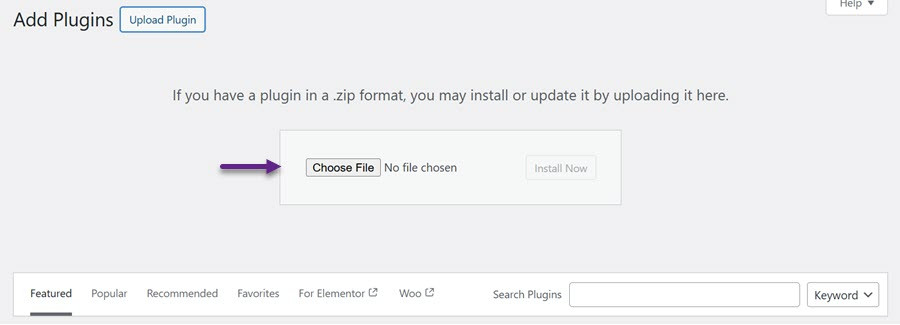
Kliknij Wybierz plik i wybierz plik wtyczki z komputera. Po zakończeniu przesyłania kliknij Aktywuj , aby włączyć wtyczkę. Po aktywacji menu WP File Download pojawi się na lewym pasku bocznym.
Krok 2: Zaloguj się do NextCloud z poziomu WP File Download
Aby połączyć NextCloud za pomocą wtyczki, przejdź do pulpitu WordPress i wybierz WP File Download > Konfiguracja > Połączenie z chmurą > NextCloud. Wypełnij wymagane pola odpowiednimi danymi.
- Adres URL Nextcloud
- Nazwa użytkownika (unikaj spacji i znaków specjalnych)
- Hasło
- Nazwa folderu głównego (użyj istniejącego lub wprowadź nową nazwę, aby automatycznie utworzyć folder w Nextcloud)
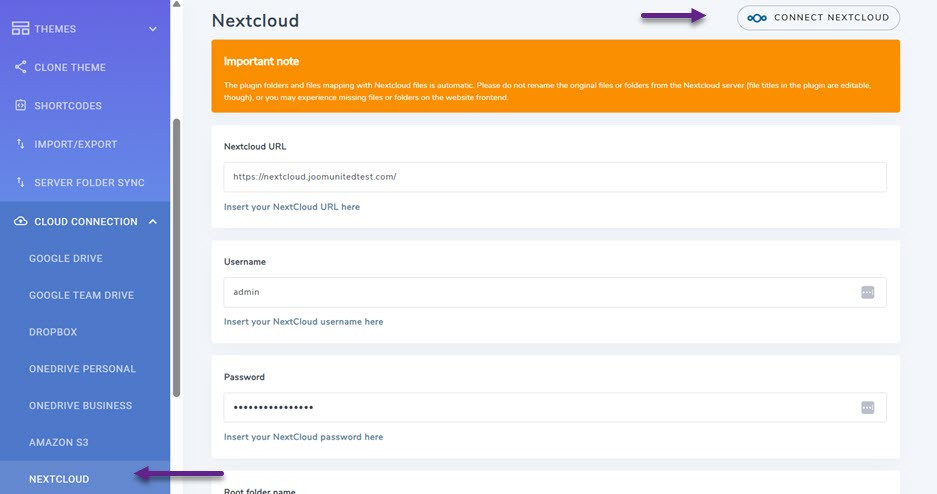
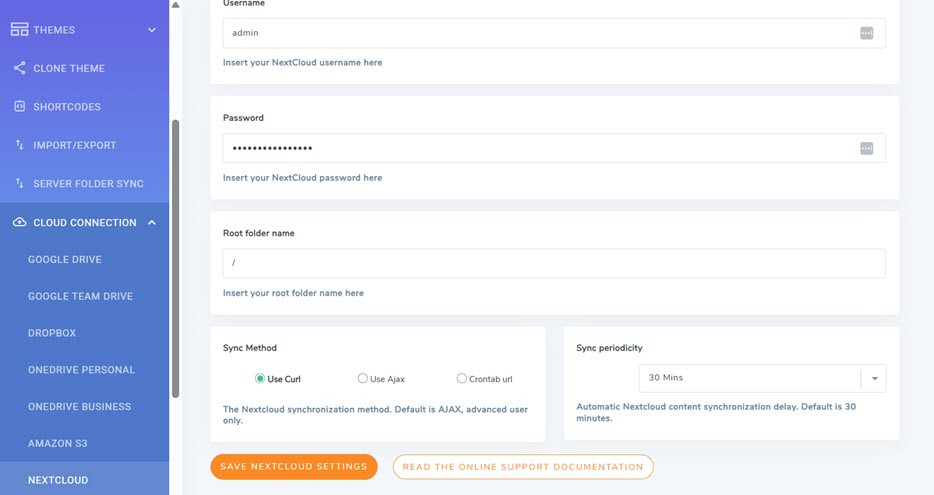
Po wprowadzeniu danych kliknij „Zapisz” , a następnie „Połącz z NextCloud”. Jeśli synchronizacja się powiedzie, WP File Download pojawi się folder NextCloud, jak pokazano poniżej.
Krok 3: Synchronizacja i zarządzanie plikami
Gdy WP File Download zostanie zintegrowany z magazynem NextCloud , wszystkie foldery i podfoldery utworzone w WP File Download panelu sterowania będą automatycznie synchronizowane w określonym folderze głównym na Twoim koncie NextCloud.
Synchronizacja działa w obie strony. Wszelkie pliki przesłane do wyznaczonego folderu głównego w NextCloud pojawią się również w WP File Download na Twojej stronie WordPress w ten sposób.
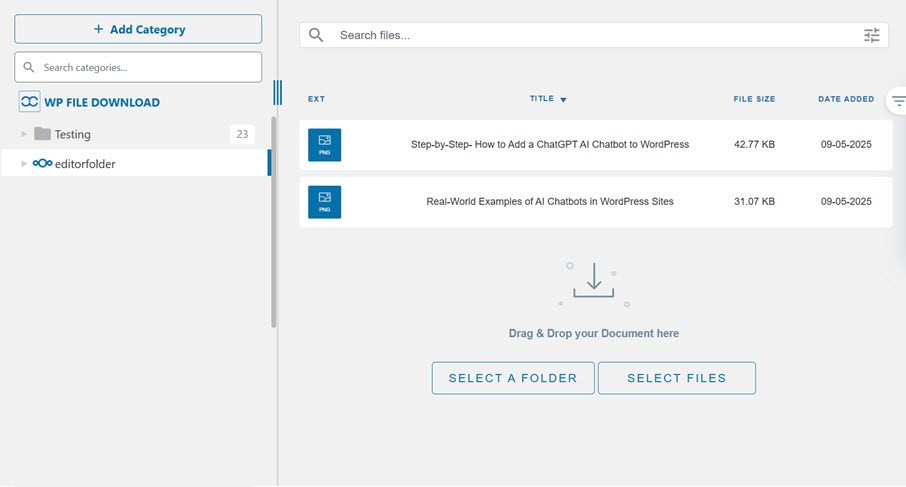
Podobnie pliki dodane za pomocą WP File Download zostaną zsynchronizowane z powrotem do Twojego magazynu NextCloud. Ta dwukierunkowa synchronizacja pozwala na zarządzanie plikami WordPress bezpośrednio z pulpitu przy użyciu klienta synchronizacji NextCloud.
Jeśli zmienisz nazwę folderu głównego na inną niż ta użyta podczas początkowego połączenia, konieczne będzie ponowne uruchomienie synchronizacji. Kliknij prawym przyciskiem myszy WP File Download i wybierz „Synchronizuj” , aby ją zaktualizować.
Krok 4: Wyświetlanie plików na stronie WordPress
Oprócz synchronizowania plików w Nextcloud i WordPress, możesz wyświetlać je na swoich stronach internetowych. Możesz to zrobić łatwo otwierając stronę lub zawartość, do której chcesz dodać pliki. Następnie w sekcji Widżety wybierz kategorię WP File Download i przeciągnij ją w prawo.

Następnie wyświetlacz zmieni się w następujący sposób, wybierz Wybierz kategorię kolumnę.
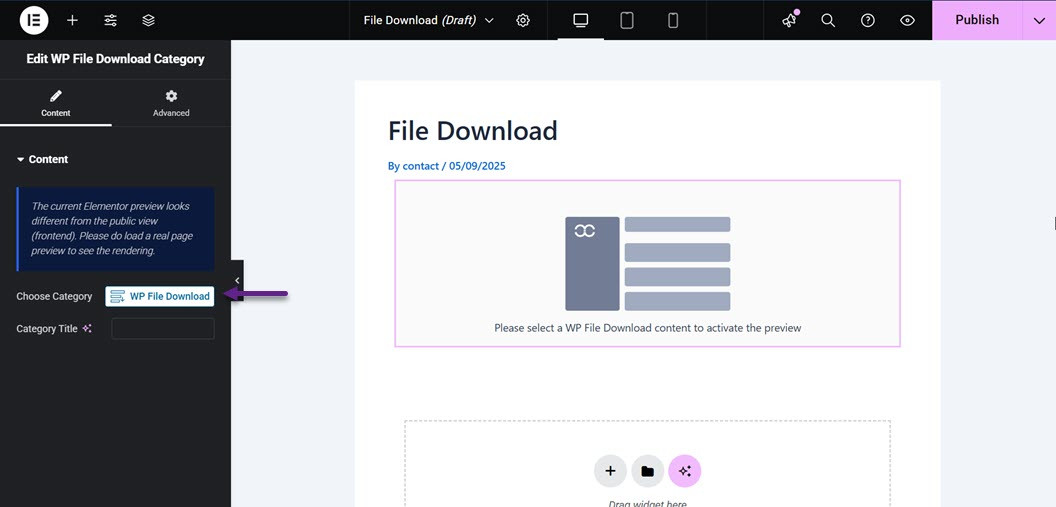
Następnie zostaniesz przekierowany do wyboru kategorii wyświetlanej na stronie. Wybierz kategorię, a następnie kliknij Wstaw tę kategorię.
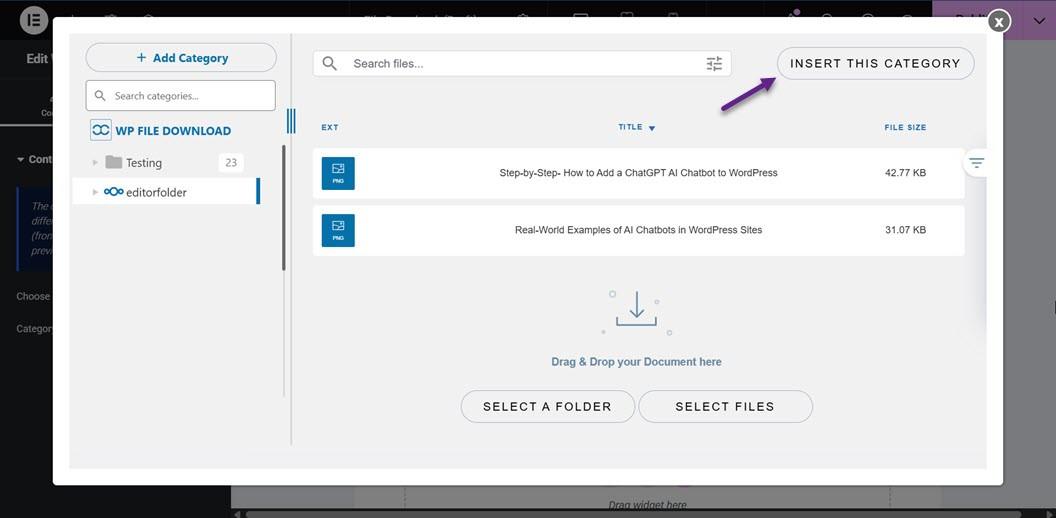
Jeśli kategoria została pomyślnie wprowadzona, zawartość folderu/kategorii pojawi się tutaj.
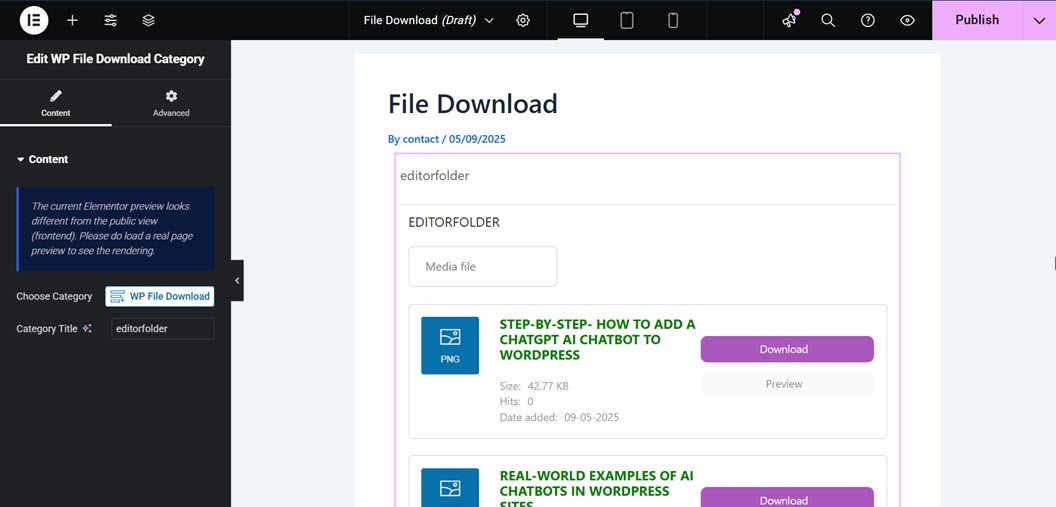
Po tym możesz natychmiast opublikować stronę. Jeśli pojawi się to w ten sposób, plik do pobrania został pomyślnie dodany do Twojej strony internetowej, a odwiedzający mogą bezpośrednio pobrać lub wyświetlić podgląd pliku.
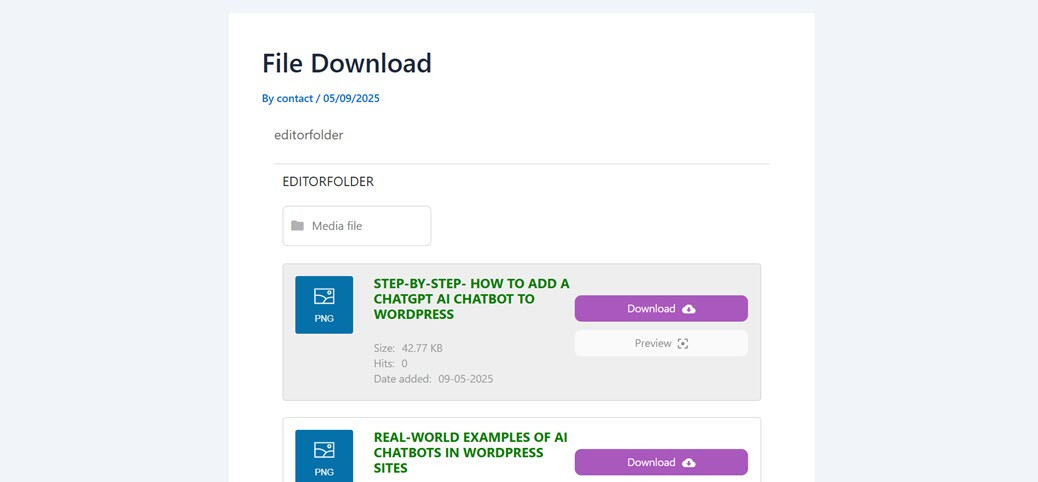
W tym momencie pomyślnie zintegrowałeś Nextcloud z WordPress za pomocą wtyczki WP File Download . Możesz również wyświetlić plik odwiedzającym do pobrania.
Zadzwońcie wszyscy webmasterzy!
Zwiększ możliwości witryn internetowych swoich klientów za pomocą WP File Download. Twórz bezpieczne i konfigurowalne repozytoria plików, umożliwiając klientom łatwy dostęp i zarządzanie plikami.
Zwiększ możliwości swoich usług projektowania stron internetowych już dziś!
Wniosek
Integracja NextCloud z WordPress jest świetnym krokiem dla tych, którzy chcą zarządzać swoimi plikami bezpiecznie i centralnie. Dzięki dwukierunkowej synchronizacji, silnemu dostępowi kontrolnemu i elastyczności przechowywania na prywatnym serwerze, NextCloud pozwala zarządzać plikami na dużą skalę lub we współpracy zespołowej bez żadnych problemów.
Aby maksymalnie wykorzystać ten potencjał na swojej stronie WordPress, rozważ użycie wtyczki takiej jak WP File Download. Te wtyczki obsługują pełną integrację z NextCloud i dostarczają zaawansowane funkcje, które upraszczają zarządzanie i serwowanie plików bezpośrednio ze stron WordPress. Wypróbuj WP File Download teraz i doświadcz wygody bardziej profesjonalnego i zorganizowanego zarządzania plikami.
Gdy zapiszesz się do bloga, będziemy wysyłać Ci e-mail, gdy pojawią się nowe aktualizacje na stronie, abyś ich nie przegapił.