Produkty WordPress
 Produkty Joomla
 Wsparcie
 Aktualności
 Logowanie
Skonfiguruj silnik wyszukiwania dokumentów z pełnym tekstem wyszukiwania w WordPressie

Kiedy udostępniamy naszym użytkownikom repozytorium plików, znalezienie konkretnego pliku lub dokumentu może być dla nich lub dla nas zbyt trudne. Właśnie dlatego WP File Download oferuje potężną wyszukiwarkę z funkcją wyszukiwania tekstowego, która umożliwia znalezienie dokumentu po tytule lub zawartej w nim treści.
Udostępnienie repozytorium plików jest zawsze świetnym pomysłem, gdy nasza strona jest związana z udostępnianiem informacji lub gdy istnieją istotne dokumenty, które muszą być udostępnione naszym użytkownikom, warto zauważyć, że nie są to jedyne powody, dla których warto mieć repozytorium plików na naszej stronie, ponieważ jest ono przydatne na każdej stronie.
W tym poście zobaczymy, jak udostępniać te pliki w najlepszy możliwy sposób przy użyciu wyszukiwarki, która pozwoli nam znaleźć informacje w dokumencie.
Spis treści
Szukasz potężnego rozwiązania do zarządzania plikami dla witryn klientów?
WP File Download to odpowiedź. Z zaawansowanymi funkcjami takimi jak kategorie plików, ograniczenia dostępu i intuicyjny interfejs użytkownika.
Zaimponuj swoim klientom najwyższą organizacją plików!
Ustaw silnik wyszukiwania plików biblioteki dokumentów dla WordPress
Tworzenie repozytorium plików WordPress
W tym samouczku zobaczymy, jak stworzyć i opublikować naprawdę przydatną wyszukiwarkę przy użyciu WP File Download.
Po pierwsze, przejdziemy do WP File Downloads w lewym menu bocznym, gdzie możemy tworzyć kategorie i dodawać pliki do udostępnienia jako pobranie.
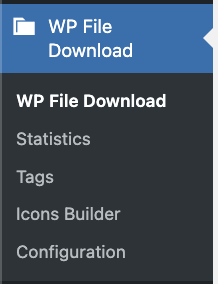
Teraz, gdy jesteśmy na WP File Download pulpicie, możemy rozpocząć tworzenie kategorii, w tym kliknij na + Dodaj kategorię.

To otworzy modal, którego możemy użyć, aby wpisać nazwę naszej kategorii i zakończyć jej tworzenie.
W tym przypadku nazwaliśmy kategorię Assets ale to od Ciebie zależy, jaką nazwę wybierzesz.
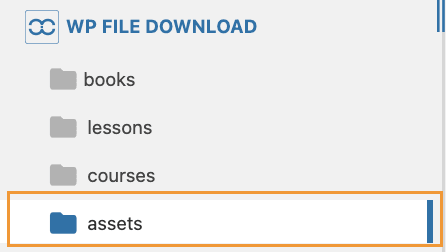
Po wykonaniu tej czynności możemy przejść do dodawania plików do utworzonej kategorii. Możemy to zrobić, klikając Wybierz pliki lub Wybierz folder , co spowoduje otwarcie eksploratora plików na naszym komputerze, lub po prostu przeciągając i upuszczając pliki.

Po przesłaniu naszych plików będziemy mogli zobaczyć nazwę pliku, jego rozszerzenie oraz kilka innych szczegółów dotyczących pliku.
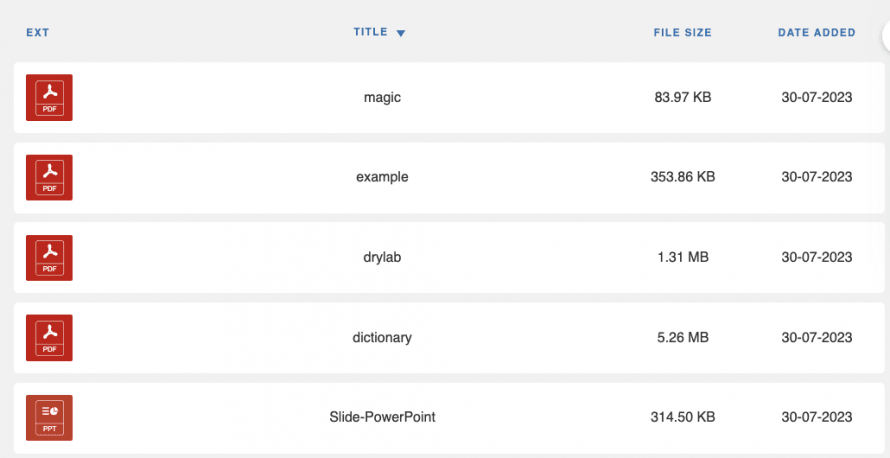
Teraz możemy przystąpić do dostosowania naszych plików i kategorii, aby działały lepiej z wyszukiwarką.
Generowanie wyszukiwarki tekstowej WordPress
Teraz, gdy kategoria została utworzona, możemy przystąpić do jej dostosowania, aby działała perfekcyjnie z wyszukiwarką; w tym celu mamy:
Tagi: Tagi można stosować w celu „kategoryzacji” plików i dodawania ich jako filtrów dla wyszukiwarki.
Aby dodać tagi, musimy kliknąć prawym przyciskiem myszy na plik, a następnie kliknąć na Edytuj plik.
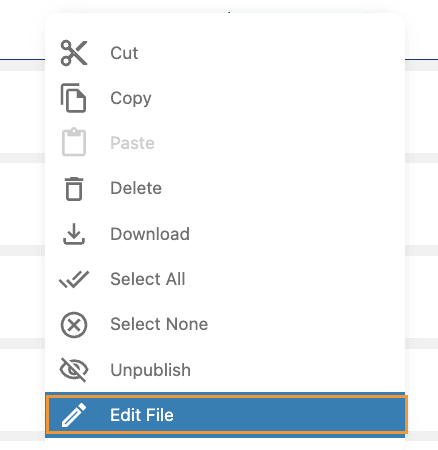
Wszystkie opcje pojawią się pod plikiem, gdzie będziemy mogli znaleźć Tagi sekcję.
Możemy użyć tego, aby dodać rozszerzenie pliku, gatunek lub coś innego, co może pomóc zidentyfikować plik w wyszukiwarce.

W ten sposób zakończymy ustawienia kategorii i plików i możemy przejść do indeksowania plików. Aby to zrobić, przejdź do WP File Download > Konfiguracja > Ustawienia wyszukiwania.

Tutaj, możemy włączyć Wyszukiwanie zwykłego tekstu opcję i następnie kliknąć Zbuduj indeks wyszukiwania, to spowoduje, że nasze pliki zostaną zindeksowane, aby silnik wyszukiwania mógł przeszukiwać nasze dokumenty.

Przycisk wyświetli ikonę ładowania i zmieni się na zielony, gdy zakończy wyświetlanie liczby zindeksowanych plików.

Teraz, gdy indeks jest już gotowy, możemy wygenerować kod skrótu naszej wyszukiwarki. W tym celu przejdźmy do WP File Download > Configuration > Shortcodes w Search Engine Shortcode Generator .
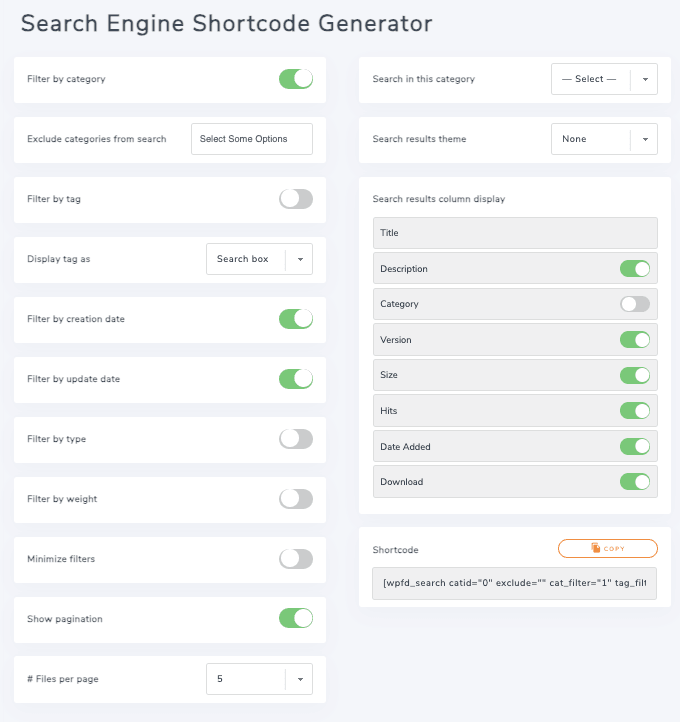
Mamy wiele opcji dostosowywania, takich jak dodawanie filtru tagów, pokazywanie/ukrywanie informacji o niektórych plikach, wybór motywu pasującego do naszej strony oraz dodawanie wielu filtrów, musimy tylko włączyć/wyłączyć to, co chcemy i w końcu skopiować Shortcode pod Shortcode sekcją, aby użyć go w naszym poście/stronie.
Dodaj do witryny przeszukiwalne repozytorium plików WordPress
Teraz, gdy nasza wyszukiwarka jest gotowa i skopiowaliśmy shortcode, możemy przystąpić do jej publikacji przy użyciu dowolnego edytora/budowniczego stron WordPress, jest kompatybilna ze wszystkimi i ma bezpośrednią integrację z najpopularniejszymi, takimi jak Elementor, Divi i Gutenberg.
W tym przypadku będziemy używać Shortcode i edytora Gutenberg.
Aby to zrobić, przejdź do swojej strony/posta i dodaj blok Shortcode.
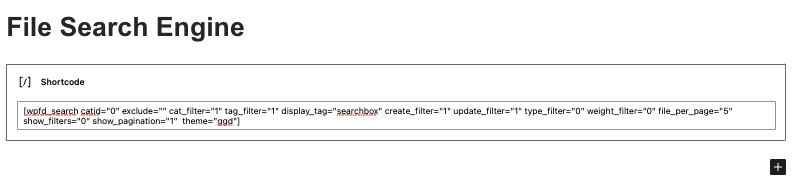
Teraz wszystko, co musimy zrobić, to opublikować/aktualizować to i będziemy gotowi, wyszukiwarka pojawi się i będzie dostępna natychmiast, super! Czy nie?
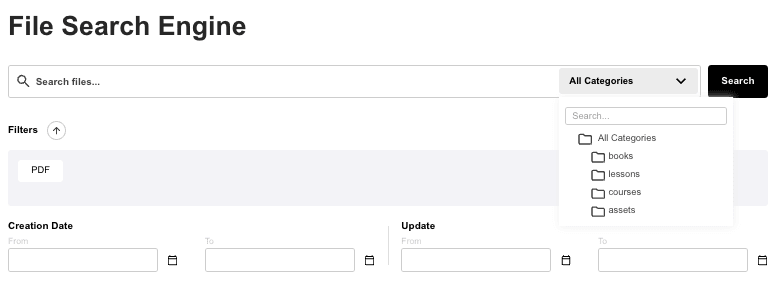
Wiele narzędzi, aby nasza wyszukiwarka była jak najdokładniejsza, możemy teraz przeszukiwać pliki używając filtru tagów jako pola wyboru, wybierając konkretną kategorię, datę utworzenia, datę aktualizacji oraz typ od nazwy pliku po zawartość dokumentu, aby znaleźć plik, którego szukamy! I będzie również używany motyw, który wybraliśmy wcześniej.
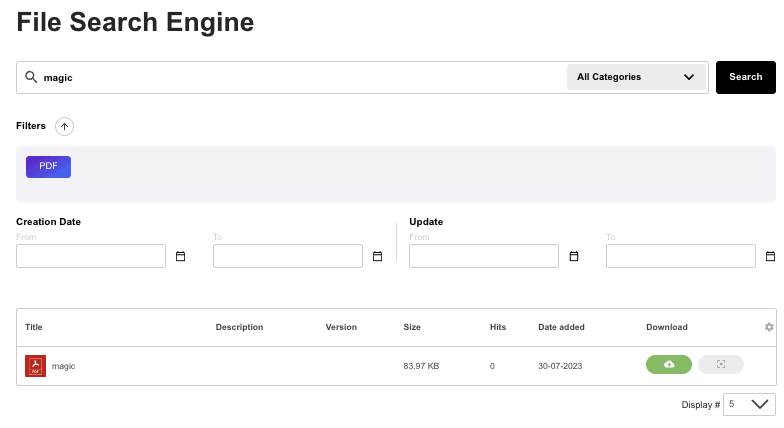
Pojawi się także wyszukiwarka predykcyjna, aby przyspieszyć proces wyszukiwania.

Teraz możemy oferować nasze pliki i ułatwić proces wyszukiwania bardziej niż kiedykolwiek wcześniej.
Zadzwońcie wszyscy webmasterzy!
Zwiększ możliwości witryn internetowych swoich klientów za pomocą WP File Download. Twórz bezpieczne i konfigurowalne repozytoria plików, umożliwiając klientom łatwy dostęp i zarządzanie plikami.
Zwiększ możliwości swoich usług projektowania stron internetowych już dziś!
Łatwe przeszukiwanie dokumentów WordPress
Jak widzisz, jest to naprawdę niesamowite narzędzie, które możemy używać do obsługi naszych dokumentów, a jest wiele innych narzędzi, które zrobią wszystko jeszcze lepiej, takie jak połączenie z usługami w chmurze, aby zaoszczędzić miejsce w magazynie, konfigurowalne motywy, aby nasze pliki pasowały do witryny, chronione pliki, integracja z WooCommerce i wiele więcej! Co więc czekasz? Przejdź tutaj i zdobądź swój!
Gdy zapiszesz się do bloga, będziemy wysyłać Ci e-mail, gdy pojawią się nowe aktualizacje na stronie, abyś ich nie przegapił.