WordPress products
 Joomla products
 Pomoc
Pomoc News
News Zaloguj się
Jak zarządzać tabelami WordPress i edytować je za pomocą Elementora

Tworzenie tabel w WordPressie było kiedyś frustrującym procesem. Wielu właścicieli stron zmagało się ze sztywnymi układami, ograniczoną personalizacją i narzędziami, które nie dostosowywały się dobrze do nowoczesnych projektów. Jeśli chciałeś uzyskać coś atrakcyjnego wizualnie i responsywnego, często musiałeś polegać na skomplikowanych konfiguracjach lub ręcznym kodowaniu.
Dziś to doświadczenie całkowicie się zmieniło. Dzięki narzędziom takim jak Elementor i zaawansowanym wtyczkom do tabel możesz tworzyć, zarządzać i edytować tabele wizualnie, bez wiedzy technicznej. Niezależnie od tego, czy prezentujesz cennik, porównujesz produkty, czy porządkujesz dane strukturalne, nowoczesne rozwiązania pozwalają zrobić to szybciej i z o wiele lepszymi efektami.
Spis treści
- Dlaczego tabele mają znaczenie we współczesnych witrynach WordPress
- Wprowadzenie do zarządzania tabelami za pomocą Elementora
- Pierwsze kroki z WP Table Manager
- Osadzanie tabel w Elementorze
- Tworzenie responsywnych tabel
- Edytowanie tabel w czasie rzeczywistym
- Tworzenie dynamicznych i interaktywnych tabel
- Przykład użycia 1: Tabele cenowe
- Przypadek użycia 2: Tabele porównawcze
- Przypadek użycia 3: Wykresy danych i informacje strukturalne
- Optymalizacja tabel pod kątem wyszukiwarek
- Poprawa doświadczeń użytkownika dzięki tabelom
- Wskazówki dotyczące efektywnego zarządzania tabelami
- Twórz inteligentniejsze tabele w WordPress
Dlaczego tabele mają znaczenie we współczesnych witrynach WordPress

Tabele to jeden z najskuteczniejszych sposobów prezentowania uporządkowanych informacji. Pomagają użytkownikom szybko przeglądać treści i podejmować decyzje szybciej. Jest to szczególnie ważne w przypadku:
- Strony z cennikiem, gdzie przejrzystość wpływa na konwersje
- Porównania produktów, w których różnice muszą być oczywiste
- Prezentacja danych, w której liczy się czytelność
Dobrze zaprojektowana tabela poprawia zarówno doświadczenia użytkownika, jak i zrozumienie przez wyszukiwarki. Przejrzysta struktura, spójne formatowanie i responsywne zachowanie przyczyniają się do lepszych wyników w wyszukiwarkach.
Szukasz solidnego rozwiązania do zarządzania tabelami dla stron klientów?
Od tabel z cennikami po porównania produktów — ta wtyczka oferuje zaawansowane funkcje, które pozwalają prezentować dane w przejrzysty i przyjazny dla użytkownika sposób.
Zyskaj przewagę konkurencyjną już teraz!
Wprowadzenie do zarządzania tabelami za pomocą Elementora
Elementor jest powszechnie znany ze swoich możliwości wizualnego budowania stron. Jednak jeśli chodzi o tabele, jego natywne opcje są ograniczone. W tym miejscu WP Table Manager staje się niezbędny.
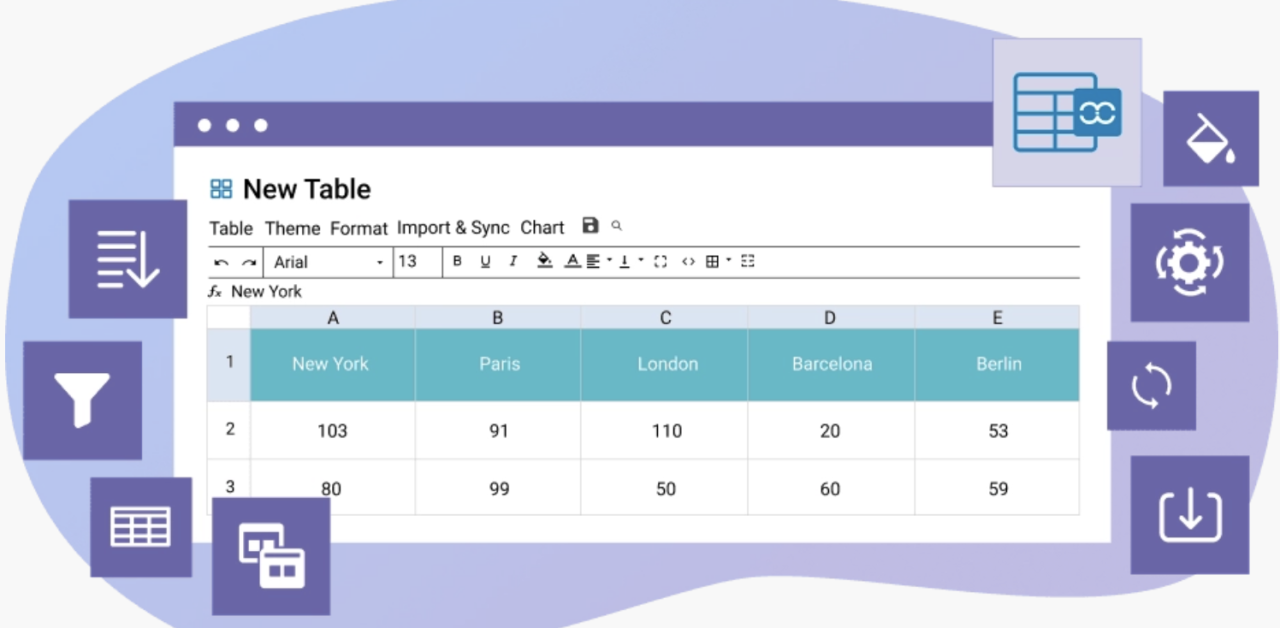
WP Table Manager rozszerza Elementor, umożliwiając tworzenie zaawansowanych tabel i wstawianie ich bezpośrednio do swoich projektów za pomocą dedykowanych widżetów. Zamiast tworzyć tabele ręcznie, zarządzasz nimi z centralnego interfejsu i wyświetlasz je w dowolnym miejscu w witrynie.
Kluczowe zalety korzystania z WP Table Manager z Elementorem
- Wizualne tworzenie tabel bez kodowania
- Interfejs edycji przypominający arkusz kalkulacyjny
- Bezproblemowa integracja z widżetami Elementora
- Responsywny design dla urządzeń mobilnych
- Zaawansowane opcje formatowania i stylizacji
Ta kombinacja daje pełną kontrolę nad wyglądem i zachowaniem tabel.
Pierwsze kroki z WP Table Manager
Przed osadzeniem tabel w Elementorze musisz je utworzyć i skonfigurować.
Krok 1: Zainstaluj i aktywuj wtyczkę
Pobierz i zainstaluj WP Table Manager od JoomUnited. Po aktywacji znajdziesz nową sekcję w swoim panelu WordPress przeznaczoną do zarządzania tabelami.
Krok 2: Utwórz pierwszą tabelę
Aby to zrobić, przejdź do swojego wp-admin > WP Table Manager i kliknij + Utwórz nowy, możesz także uporządkować go w kategoriach.
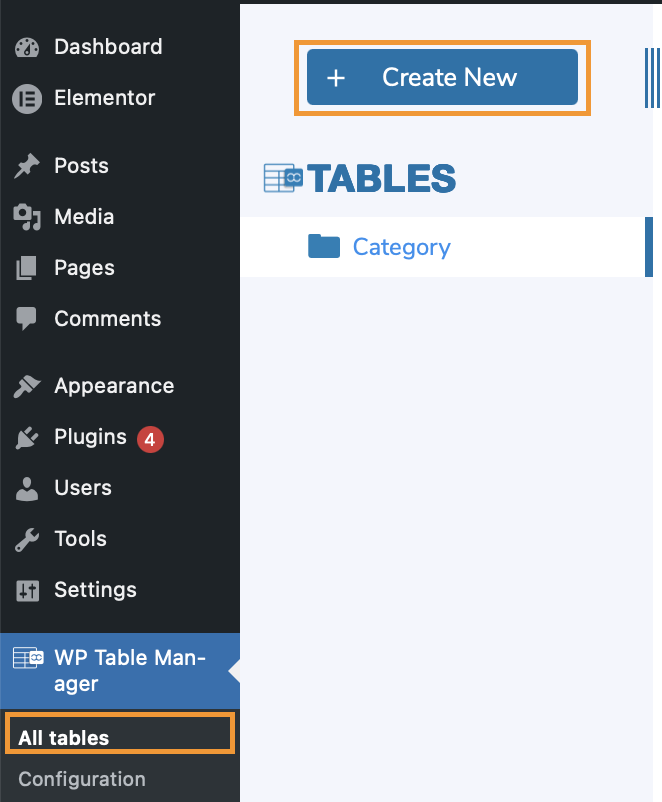
W tym przykładzie używamy zwykłej tabeli, ponieważ można również tworzyć tabele bazy danych.
W interfejsie wtyczki możesz:
- Dodaj wiersze i kolumny
- Wprowadzaj dane bezpośrednio do komórek
- Formatuj tekst, kolory i obramowania
- Wstaw obrazy lub linki
Interfejs działa podobnie jak arkusz kalkulacyjny, co czyni go intuicyjnym dla każdego.
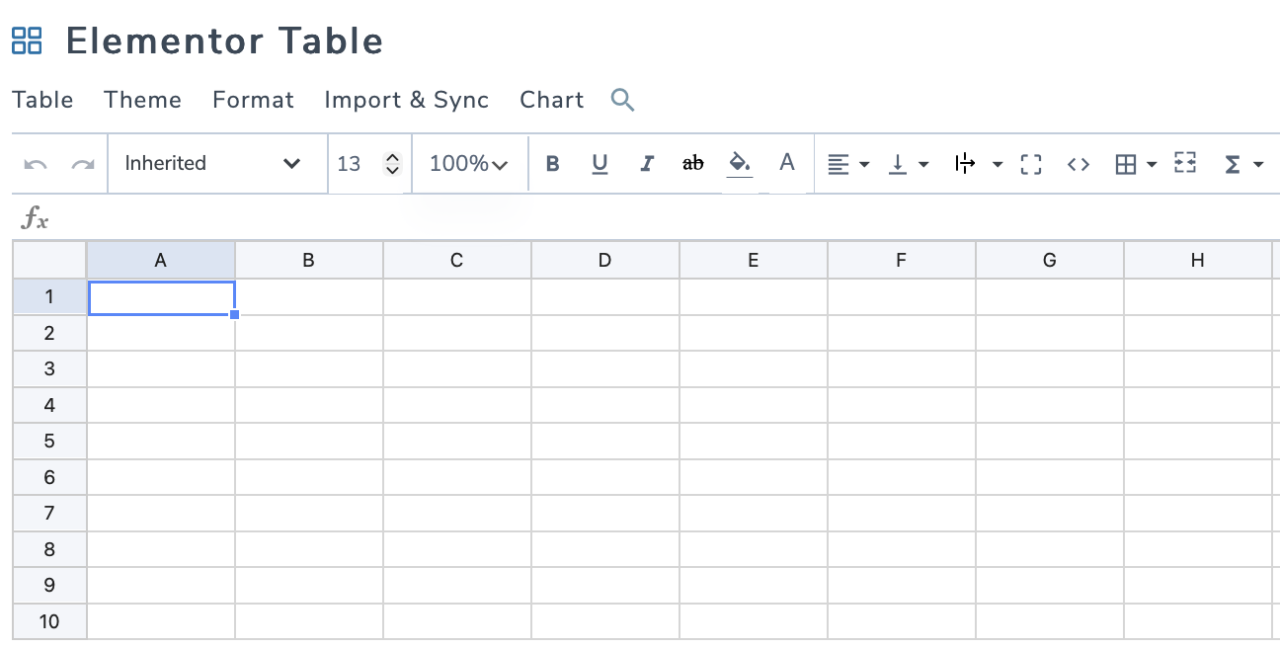
Krok 3: Uporządkuj swoje tabele
Możesz tworzyć wiele tabel i organizować je w kategorie. Jest to przydatne, jeśli Twoja witryna zawiera różne rodzaje danych, takie jak ceny, stany magazynowe czy porównania.
Osadzanie tabel w Elementorze
Gdy Twoja tabela będzie gotowa, następnym krokiem jest dodanie jej do swoich stron.
Przewodnik krok po kroku
- Otwórz swoją stronę i edytuj za pomocą Elementora
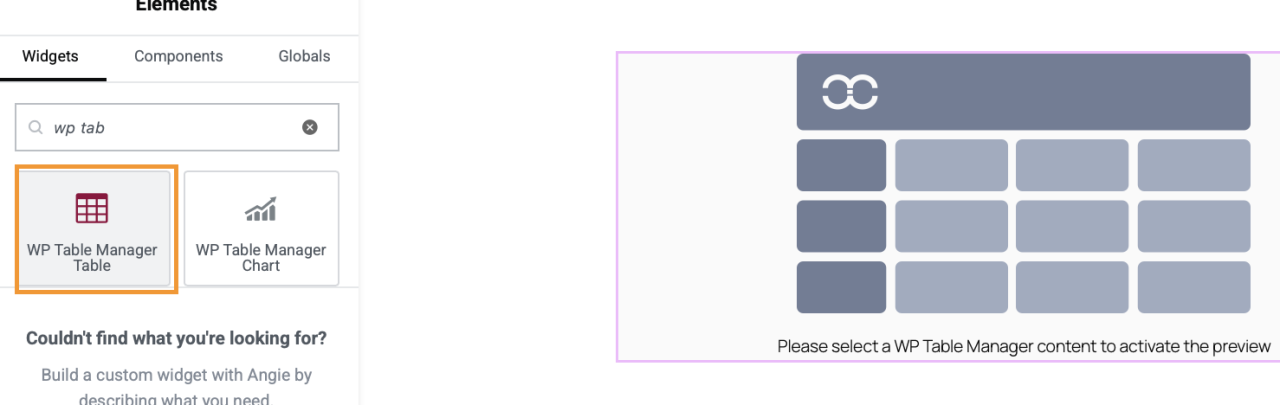
- Wyszukaj widget WP Table Manager
- Przeciągnij i upuść widget w swoim układzie
- Wybierz utworzoną tabelę
- Dostosuj ustawienia wyświetlania
To wszystko. Twoja tabela natychmiast pojawi się w Twoim projekcie.
Tworzenie responsywnych tabel
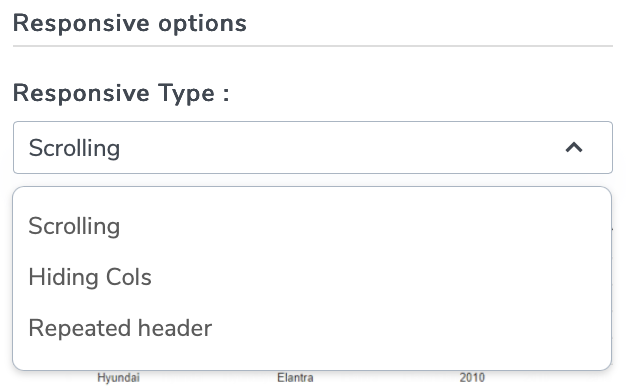
Ponieważ mamy WP Table Manager, możemy wykorzystać jego ustawienia; dostępne są 3 opcje, które możemy wybrać bezpośrednio podczas edycji tabeli w Format > Opcje responsywne.
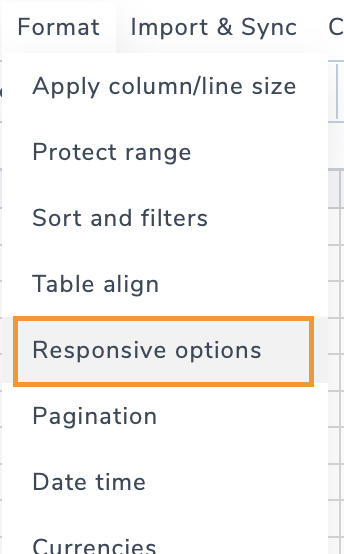
Zobaczymy opcję Ukryj niektóre kolumny, Dodaj przewijanie oraz Powtórz nagłówek.
Edytowanie tabel w czasie rzeczywistym
Jedną z największych zalet korzystania z centralnej wtyczki do tabel jest edycja w czasie rzeczywistym.
Gdy aktualizujesz tabelę w WP Table Manager:
- Zmiany są automatycznie odzwierciedlane na wszystkich stronach
- Nie ma potrzeby edytowania każdej strony osobno
- Dane pozostają spójne w całej witrynie
Jest to szczególnie przydatne w przypadku dynamicznych treści, takich jak ceny lub dostępność produktów.
Tworzenie dynamicznych i interaktywnych tabel
Tabele statyczne są przydatne, ale tabele dynamiczne idą o krok dalej.
Dzięki WP Table Managermożesz:
- Włącz sortowanie kolumn
- Dodaj funkcję wyszukiwania
- Filtruj dane na podstawie kategorii
- Wyróżnij ważne wiersze
Te funkcje poprawiają użyteczność i zwiększają interaktywność Twoich treści.
Przykład użycia 1: Tabele cenowe
Tabele cenowe to jedno z najczęstszych zastosowań.
Dlaczego są ważne
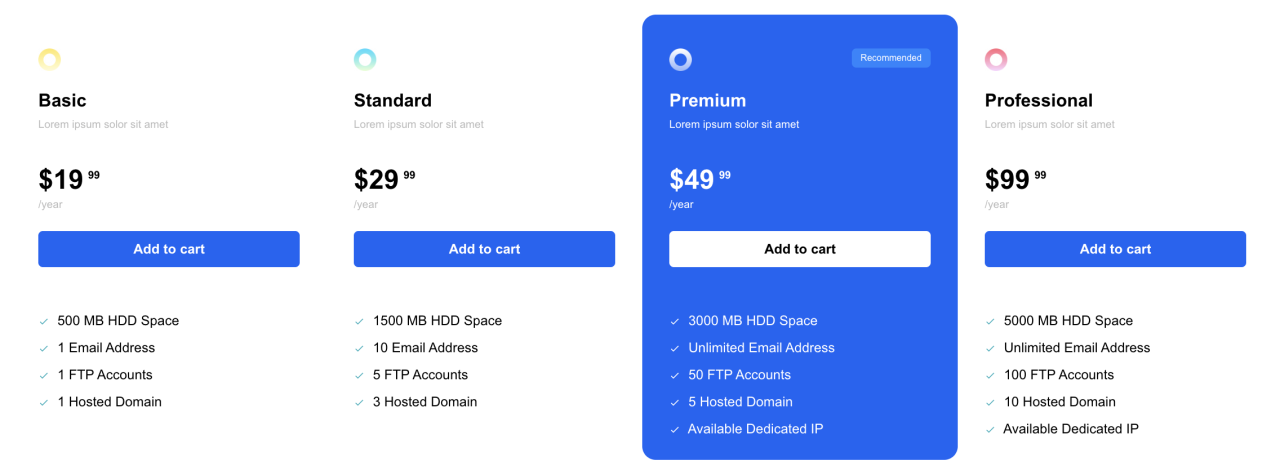
Przejrzysta tabela cen pomaga użytkownikom szybko porównać plany i podjąć decyzję w krótszym czasie. Źle zorganizowana struktura cen może prowadzić do dezorientacji i utraty konwersji.
Sprawdzone praktyki
- Zachowaj spójność kolumn
- Wyróżnij najpopularniejszy plan
- Używaj wyraźnych etykiet i opisów
- Unikaj bałaganu
Dzięki WP Table Managermożesz projektować tabele cenowe, które są zarówno funkcjonalne, jak i atrakcyjne wizualnie, zaczynając od szablonu przeznaczonego specjalnie dla tabel cenowych.
Przypadek użycia 2: Tabele porównawcze
Tabele porównawcze są niezbędne do oceny produktu lub usługi.
Typowe scenariusze
- Porównywanie cech produktów
- Ocenianie planów usług
- Prezentowanie zalet i wad
Wskazówki dotyczące skutecznych tabel porównawczych
- Skup się na kluczowych różnicach
- Używaj znaczników wyboru lub ikon dla przejrzystości
- Zachowaj prosty układ
- Zapewnij czytelność na urządzeniach mobilnych
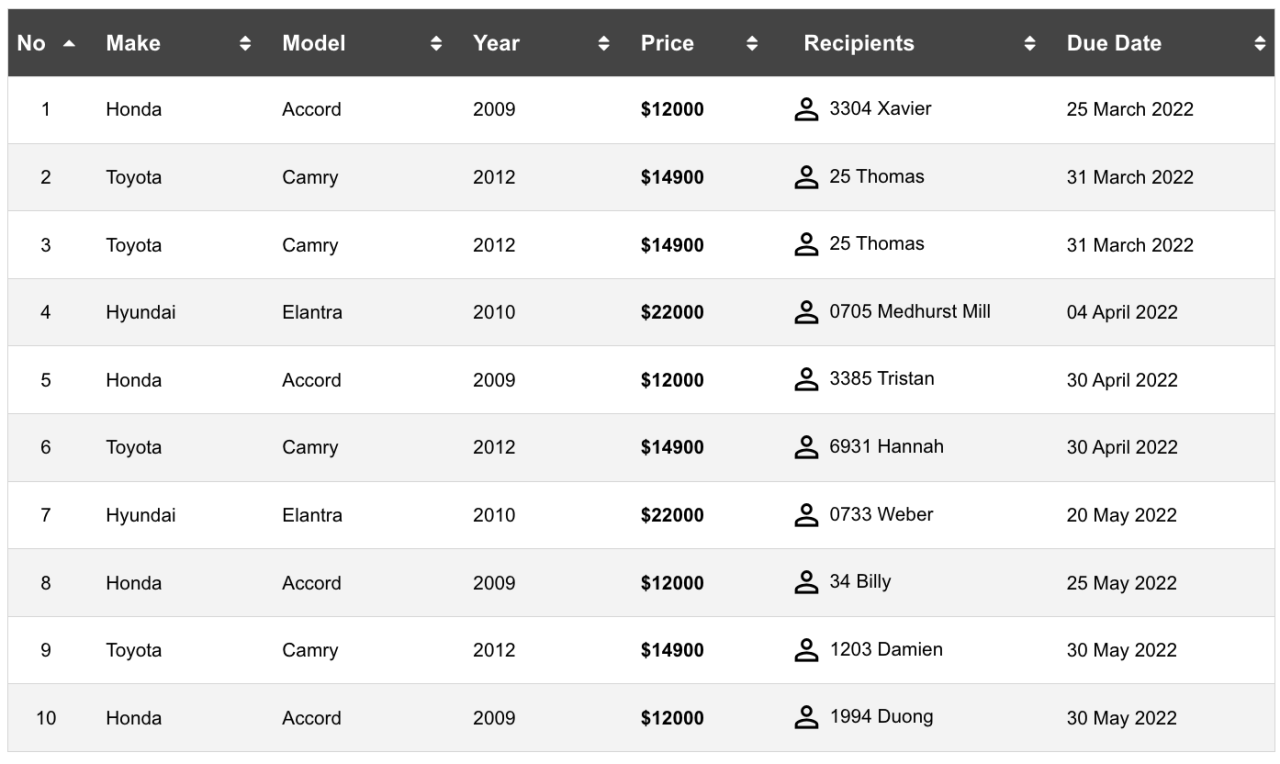
Te tabele pomagają użytkownikom podejmować świadome decyzje bez przytłaczania ich, a Ty możesz zacząć korzystać z motywów tabel z WP Table Manager.
Przypadek użycia 3: Wykresy danych i informacje strukturalne
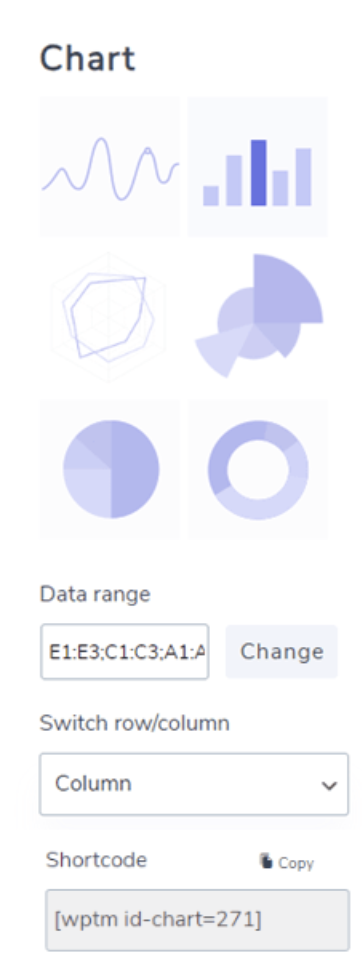
Tabele są również idealne do wyświetlania danych strukturalnych, takich jak:
- Statystyki
- Raporty
- Listy inwentarza
W połączeniu z Elementorem możesz strategicznie umieścić te tabele w swojej treści, aby wesprzeć swój przekaz.
Optymalizacja tabel pod kątem wyszukiwarek
Wyszukiwarki opierają się na strukturze, aby zrozumieć treść. Tabele mogą to poprawić, jeśli są używane prawidłowo.
Kluczowe strategie optymalizacji
- Używaj opisowych nagłówków
- Utrzymuj dane uporządkowane i spójne
- Unikaj nadmiernego stylizowania, które ukrywa treść
- Zapewnij szybkie czasy ładowania
Tabele utworzone za pomocą WP Table Manager mają przejrzystą strukturę, którą wyszukiwarki mogą łatwiej zinterpretować.
Poprawa doświadczeń użytkownika dzięki tabelom
Dobra tabela to nie tylko dane, ale także użyteczność.
Popraw czytelność
- Skutecznie wykorzystuj odstępy
- Stosuj spójne formatowanie
- Wyróżnij kluczowe informacje
Zachowaj spójność
- Używaj tego samego stylu we wszystkich tabelach
- Wyrównaj tekst i liczby prawidłowo
- Ogranicz używanie kolorów do minimum
Te drobne ulepszenia robią znaczącą różnicę w sposobie, w jaki użytkownicy wchodzą w interakcję z Twoją treścią.
Wskazówki dotyczące efektywnego zarządzania tabelami
Aby usprawnić swój proces:Twórz szablony dla powtarzających się typów tabel
- Używaj kategorii do organizowania tabel
- Aktualizuj dane z jednego źródła
- Testuj tabele na różnych urządzeniach
Te praktyki pomagają zachować spójność i ograniczyć pracę ręczną.
Uwaga wszyscy webmasterzy!
Ulepsz strony internetowe swoich klientów dzięki WP Table Manager. Łatwo zarządzaj tabelami, wykresami i arkuszami kalkulacyjnymi oraz dostosowuj je, zapewniając klientom dynamiczne i angażujące wizualizacje danych.
Ulepsz swoje usługi projektowania stron internetowych już dziś!
Twórz inteligentniejsze tabele w WordPress
Zarządzanie tabelami w WordPressie nie musi być już skomplikowane. Dzięki Elementorowi i WP Table Manager możesz tworzyć uporządkowane, responsywne i atrakcyjne wizualnie tabele bez barier technicznych.
Łącząc łatwość obsługi z zaawansowanymi funkcjami, ta konfiguracja pozwala obsłużyć wszystko, od prostych list danych po zaawansowane tabele cenowe i porównawcze. Prawidłowo używane tabele nie tylko poprawiają użyteczność Twojej witryny, ale także przyczyniają się do lepszych wyników w wyszukiwarkach.
Dobrze zaplanowana strategia tabel może podnieść jakość całych Twoich treści, czyniąc Twoją witrynę bardziej uporządkowaną, profesjonalną i skuteczną.
Gdy zapiszesz się do bloga, wyślemy Ci e-mail, gdy na stronie pojawią się nowe aktualizacje, abyś ich nie przegapił.