Productos para WordPress
 Productos Joomla
 Soporte
 Noticias
 Iniciar sesión
Aplicar marcas de agua en imágenes de WordPress

En la actualidad, proteger la propiedad creativa en WordPress no es tarea fácil. Si eres fotógrafo o artista, compartir tu arte puede hacerte sentir que pierdes parte del control sobre él. Y si tienes una tienda WooCommerce, probablemente quieras evitar que aparezcan imitaciones de tus productos en otros lugares. Sin embargo, mantener tus creaciones ocultas o no compartirlas no es la solución: protegerlas es la solución. Con WP Media Folder, puedes compartir tus creaciones en WordPress y protegerlas al mismo tiempo. ¿Cómo? Con marcas de agua.
Las marcas de agua de WP Media Foldergarantizan que, incluso si alguien toma tus imágenes de tu blog de WordPress y las reutiliza en otro lugar, tu marca esté siempre presente. Además, si ya tienes una gran cantidad de archivos multimedia subidos a WordPress, te alegrará saber que WP Media Folder también puede aplicar marcas de agua de forma retrospectiva en las imágenes existentes.
Dile adiós a la desordenada biblioteca de medios.
WP Media Folder te permite categorizar archivos, sincronizar carpetas con almacenamiento en la nube, crear galerías increíbles e incluso reemplazar imágenes sin romper enlaces.
Optimiza tu flujo de trabajo multimedia hoy
Activar y aplicar marcas de agua en imágenes de WordPress
Hay dos componentes en las marcas de agua de WP Media Folder: los archivos multimedia a los que deseas aplicar la marca de agua y la propia marca de agua. Sin embargo, antes de que todo esto funcione, deberás activar las marcas de agua para tu contenido de WordPress.
Para activar las marcas de agua, dirígete a la configuración de WP Media Folder en tu panel de WordPress. En el menú renombrar y marca de agua , encontrarás una pestaña marca de agua . Esta pestaña contiene todos los ajustes relacionados con las marcas de agua. Para habilitar las marcas de agua en tus archivos multimedia de WordPress, activa el interruptor marca de agua en imágenes en la parte superior de la página y guarda los cambios.
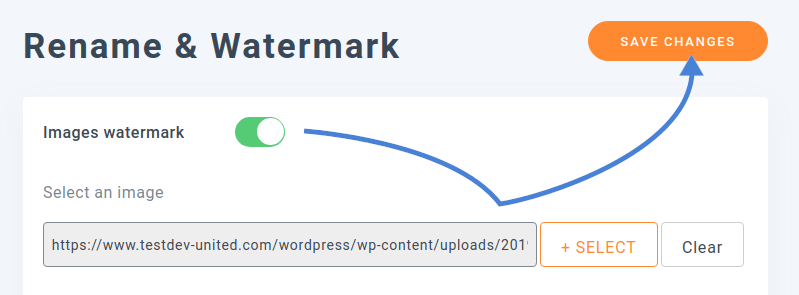
Después de activar las marcas de agua, deberás elegir una imagen para usar como marca de agua. Esta imagen se superpondrá a tus medios de WordPress. Para elegir una imagen de marca de agua, utiliza el selector de archivos que se encuentra debajo del interruptor. Puedes elegir cualquier archivo de imagen subido a tu biblioteca de medios de WordPress como marca de agua.
El resto de las opciones te permiten especificar cómo y dónde debe mostrarse la marca de agua en las imágenes. Puedes atenuar la marca de agua usando la opacidad, o reducir su tamaño para que no sea demasiado intrusiva. También puedes posicionar la marca de agua en el centro de una imagen o en sus esquinas. En cualquier caso, puedes añadir un margen a su alrededor. Todas estas son consideraciones importantes que dependen del tipo de imágenes que subas. Asegúrate de colocar la marca de agua en la posición correcta para que no obstruya tus medios.
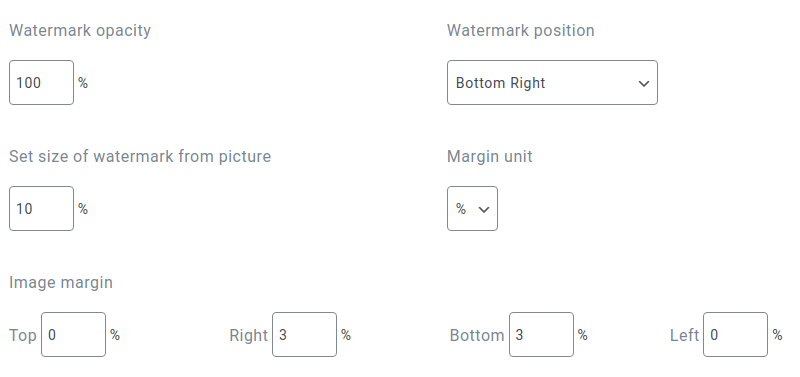
Lo más importante es que puedes decidir cuándo se debe aplicar la marca de agua a tus imágenes de WordPress. Es posible que la marca de agua aparezca demasiado grande en las imágenes en miniatura o de tamaño mediano. Por lo tanto, WP Media Folder te permite aplicar marcas de agua solo en las imágenes de WordPress más grandes.
Puede que ni siquiera sea deseable aplicar una marca de agua en todas las imágenes. Si utilizas imágenes de uso libre que no son tuyas, probablemente no deberías aplicarles marcas de agua en absoluto. Por otro lado, es posible que quieras proteger las imágenes que tú mismo has tomado y subido a WordPress.
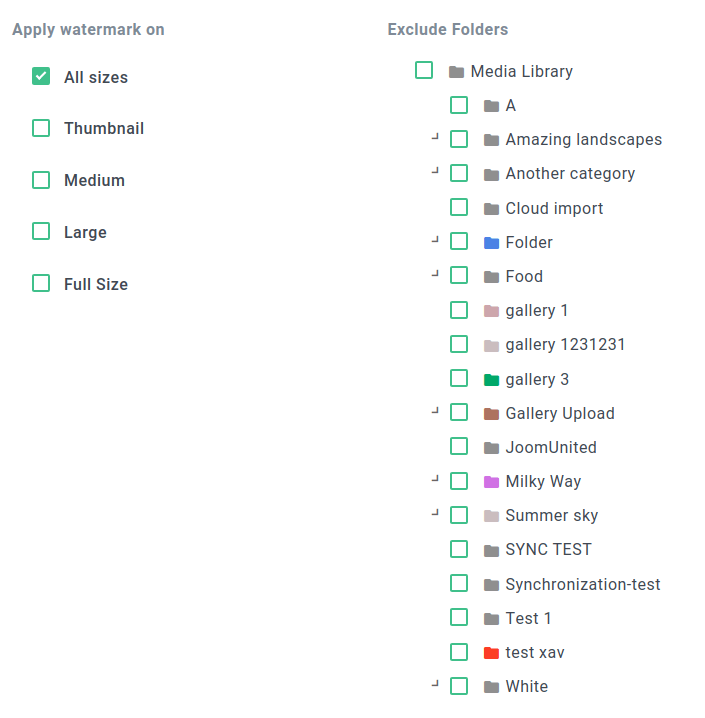
La última sección de los ajustes te permite especificar las carpetas de WordPress cuyas imágenes no deben recibir el tratamiento de marca de agua. Puedes usar el árbol de archivos de la derecha para elegir qué carpetas deben tener marcas de agua. Cuando termines, guarda los cambios. WP Media Folder aplicará automáticamente marcas de agua a las nuevas imágenes cuando las subas, a menos que las subas a una carpeta excluida.
Aplicar marcas de agua en imágenes existentes de WordPress
Si guardas y te diriges a tu biblioteca de medios de WordPress, es posible que te lleves una sorpresa: tus imágenes están todas ahí, pero las marcas de agua no. Si subes una nueva imagen a una carpeta con marcas de agua habilitadas, WP Media Folder aplicará la marca de agua en ella. Sin embargo, es más probable que también quieras aplicar la marca de agua a otras imágenes que hayas subido previamente a WordPress. Eso también es posible con WP Media Folder.

Para añadir o actualizar marcas de agua en imágenes de WordPress existentes, no tienes que volver a subirlas una por una. Todo lo que tienes que hacer es volver a la pestaña de configuración de marca de agua y desplazarte hasta abajo, donde encontrarás un botón de regeneración de miniaturas . Haz clic en él y espera a que finalice el proceso. Alternativamente, puedes realizar la misma operación desde el menú regenerar miniatura en la configuración de WP Media Folder.
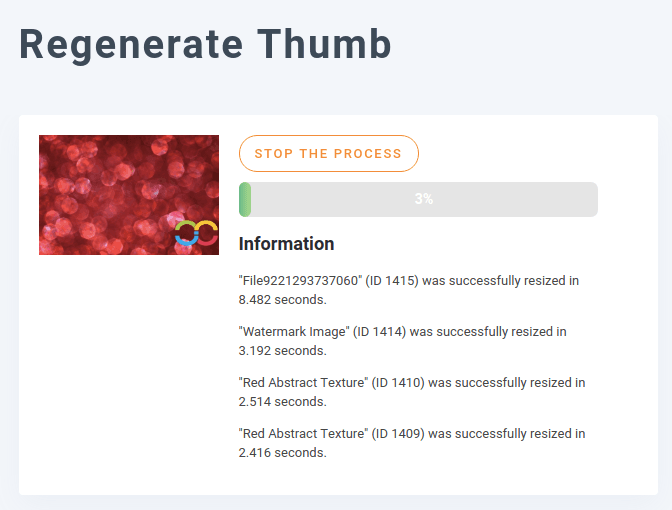
El proceso de regeneración de miniaturas vuelve a aplicar marcas de agua a todas las imágenes de WordPress existentes que cumplan los criterios anteriores de inmediato y sobre la marcha. Esto significa que, aunque una imagen ya tenga una marca de agua, WP Media Folder volverá a aplicar la marca de agua con la configuración actual de posicionamiento, márgenes y tamaño.
Aplicar marcas de agua a productos de WooCommerce
¿Y si no eres pintor ni fotógrafo, pero tienes una tienda? La marca de agua de WP Media Foldertambién puede proteger tus productos, sean cuales sean. En este ejemplo, veremos cómo puedes aplicar una marca de agua a tu tienda WooCommerce en WordPress.
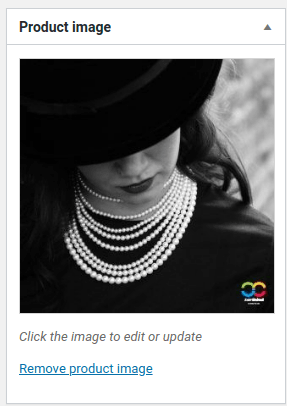
Para aplicar una marca de agua a las imágenes de tus productos de WooCommerce, primero súbelas a la biblioteca de medios de WordPress. Si la imagen es lo suficientemente grande como para tener una marca de agua y no está en una carpeta excluida, WP Media Folder debería aplicar una marca de agua automáticamente. Asegúrate de que WP Media Folder esté configurado para aplicar la marca de agua en todos los tamaños de imagen, incluidos miniaturas, medianas, grandes y de tamaño completo, para que la marca de agua aparezca siempre.
Puedes crear un producto de WooCommerce de forma normal y añadirle la imagen con marca de agua, ya sea como imagen del producto o en la galería del producto. Cuando muestres el producto en tu tienda de WooCommerce, la imagen aparecerá con una marca de agua.

¡Llamando a todos los webmasters!
Ahorre tiempo y aumente la productividad con WP Media Folder. Organice sin esfuerzo los archivos multimedia de sus clientes, cree galerías personalizadas y ofrezca una experiencia de usuario fluida.
¡Mejore sus proyectos web ahora!
Proteger tus creaciones es incómodo, pero necesario. Ya seas un artista, un fotógrafo o un vendedor de WooCommerce en WordPress, también es importante tener en cuenta que WP Media Folder nos permitirá crear galerías de productos, con WP Media Folder es más fácil que nunca dejar tu huella en tus creaciones. Simplemente activa las marcas de agua en las imágenes, elige una marca de agua y deja que WP Media Folder haga el resto por ti.
Obtén WP Media Folder aquí: https://www.joomunited.com/wordpress-products/wp-media-folder
Cuando se suscriba al blog, le enviaremos un correo electrónico cuando haya nuevas actualizaciones en el sitio para que no se las pierda.