WordPress-producten
 Joomla-producten
 Ondersteuning
 Nieuws
 Inloggen
De volledige gids voor de WordPress-mediabibliotheek (4 handige mediabibliotheek-hacks inbegrepen)

De WordPress-mediabibliotheek is een van de krachtigste, maar vaak over het hoofd geziene onderdelen van elke website. Elke afbeelding, video en document die je uploadt, bevindt zich daar en ondersteunt stilletjes je inhoud, je ontwerp en uiteindelijk je zoekresultaten. Maar wanneer het niet goed wordt beheerd, kan het snel veranderen in een rommelig, traag en inefficiënt systeem dat de prestaties meer schaadt dan helpt.
Als je've ooit moeite gehad om een afbeelding te vinden, hebt opgemerkt dat je site langzaam laadt, of je je afvraagt waarom je inhoud niet naar verwachting scoort, kan je Media Library deel uitmaken van het probleem. Het goede nieuws is dat je met een paar eenvoudige strategieën het kunt omvormen tot een goed georganiseerde, SEO-vriendelijke middel die zowel de gebruikerservaring als de siteprestaties verbetert.
Inhoudsopgave
- Wat is de WordPress Media Library?
- Waarom mediabeheer belangrijk is voor SEO en prestaties
- Hoe de Media Library de gebruikerservaring beïnvloedt
- Afbeeldingen optimaliseren voor zoekmachines
- Het probleem met een standaard mediabibliotheek
- Verbeter de organisatie met slimmere tools
- 4 handige mediabibliotheek-hacks
- Mediabibliotheek en websiteprestaties
- Best practices voor langdurig mediamanagement
- Hoe dit van toepassing is op echte websites
- Waarom WP Media Folder Opvalt
- Neem de controle over uw mediabibliotheek
Zeg vaarwel tegen rommelige mediabibliotheek.
WP Media Folder laat je bestanden categoriseren, mappen synchroniseren met cloudopslag, ongelofelijke galleries maken en zelfs afbeeldingen vervangen zonder links te verbreken.
Optimaliseer vandaag nog je mediaworkflow
Wat is de WordPress Media Library?
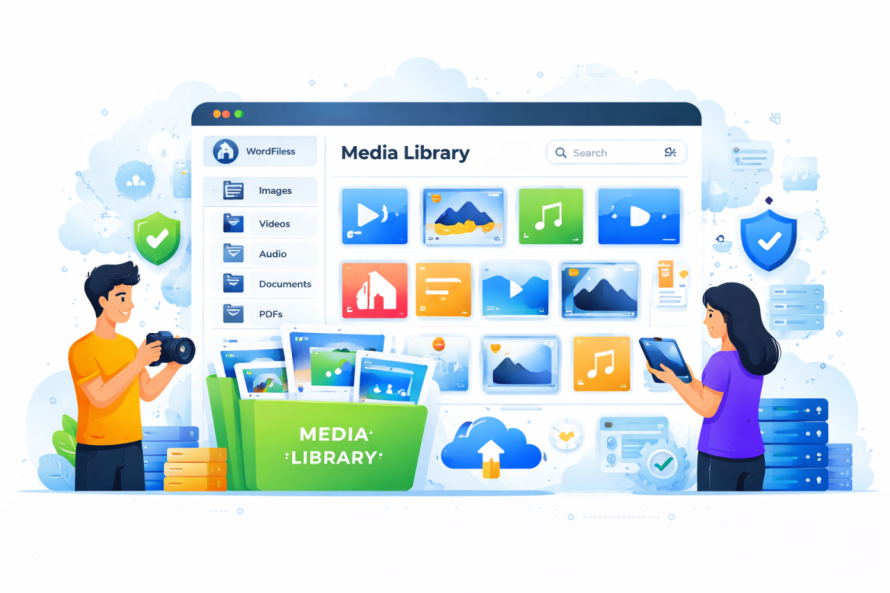
De WordPress Media Library is het centrale knooppunt waar al uw mediabestanden worden opgeslagen. Dit omvat:
- Afbeeldingen (JPEG, PNG, WebP)
- Video's
- PDF's en documenten
- Audiobestanden
Telkens wanneer u media uploadt via de editor of rechtstreeks via de Media Library, slaat WordPress deze hier op en beheert het. Vanuit deze interface kunt u:
- Nieuwe bestanden uploaden
- Bestandsdetails bewerken
- Voeg alt-tekst en beschrijvingen toe
- Media invoegen in berichten en pagina's
Hoewel het misschien lijkt op een eenvoudig opslagsysteem, speelt het een veel grotere rol in de structuur en prestaties van je website's.
Waarom mediabeheer belangrijk is voor SEO en prestaties
Zoekmachines kijken niet alleen naar je tekst; ze evalueren ook je afbeeldingen, bestandstructuur en paginasnelheid. Slecht mediabeheer kan leiden tot:
- Trage laadtijden
- Ontbrekende of onjuiste afbeeldingsgegevens
- Dubbele bestanden
- Ongeorganiseerde inhoud
Aan de andere kant kan een goed beheerde Media Library:
- Verbeter paginasnelheid
- Help zoekmachines uw inhoud te begrijpen
- Maak uw site gemakkelijker te navigeren
- Verbeter de gebruikerservaring
Kort gezegd, het optimaliseren van uw mediabibliotheek is niet optioneel; het is essentieel als u een hoogpresterende WordPress-site wilt.
Hoe de Media Library de gebruikerservaring beïnvloedt
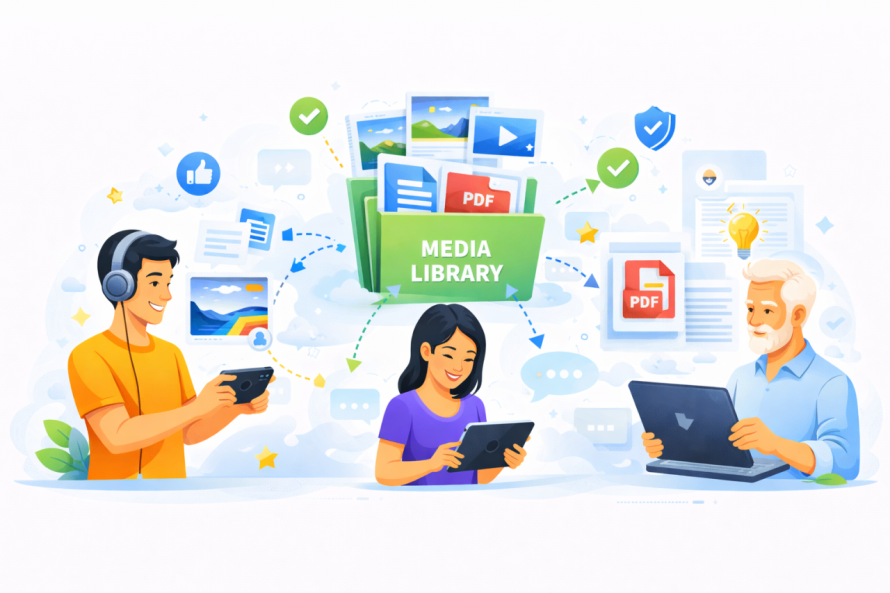
Vanuit het perspectief van een bezoeker is media alles. Afbeeldingen trekken de aandacht, ondersteunen het vertellen van verhalen en maken uw site visueel aantrekkelijk.
Maar als uw media niet geoptimaliseerd is:
- Afbeeldingen kunnen langzaam laden
- Lay-outs kunnen breken
- Inhoud kan rommelig aanvoelen
Een schone, goed gestructureerde mediabibliotheek zorgt ervoor dat:
- Afbeeldingen laden snel
- Inhoud lijkt consistent
- Navigatie voelt intuïtief
Dit beïnvloedt direct hoe lang gebruikers op uw site blijven en of ze actie ondernemen.
Afbeeldingen optimaliseren voor zoekmachines
Een van de belangrijkste aspecten van het beheren van uw Media Library is afbeeldingoptimalisatie. Dit doesn't vereisen geavanceerde technische kennis; it's gaat erom een paar best practices consistent toe te passen.
1. Gebruik beschrijvende bestandsnamen
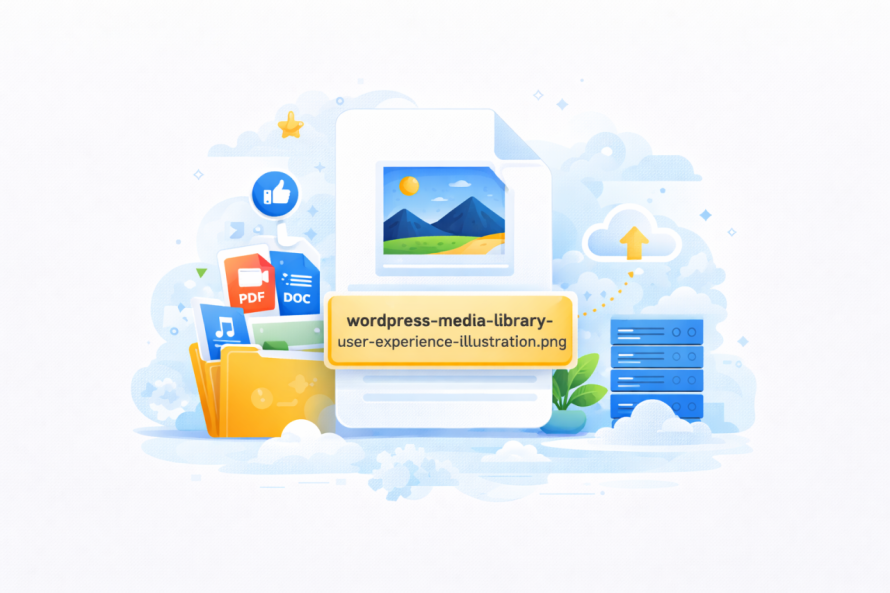
In plaats van bestanden te uploaden zoals "IMG_1234.jpg," gebruik namen die de afbeelding duidelijk beschrijven.
Voorbeeld: vintage-1920s-dress-blue.jpg
Dit helpt zoekmachines te begrijpen wat de afbeelding voorstelt.
2. Voeg alt-tekst toe aan elke afbeelding
Alt-tekst is een korte beschrijving van de afbeelding. Het's gebruikt door zoekmachines en toegankelijkheidstools.
Goede alt-tekst moet:
- Beschrijf de afbeelding duidelijk
- Neem relevante zoekwoorden natuurlijk op
- Vermijd zoekwoordstapeling
Voorbeeld: "Blauwe vintage jurk uit de jaren 1920 met kanten details"
3. Kies het juiste bestandsformaat
Verschillende formaten dienen verschillende doeleinden:
- JPEG: Het beste voor foto's
- PNG: Het beste voor graphics met transparantie
- WebP: Het beste voor moderne optimalisatie (kleinere grootte, hoge kwaliteit)
Het juiste formaat gebruiken helpt de bestandsgrootte te verkleinen zonder kwaliteit op te offeren.
4. Comprimeer afbeeldingen vóór het uploaden
Grote afbeeldingen vertragen uw website. Het comprimeren ervan verkleint de bestandsgrootte terwijl de visuele kwaliteit behouden blijft.
Dit verbetert:
- Pagina snelheid
- Gebruikerservaring
- SEO-prestaties
5. Gebruik juiste afbeeldingsafmetingen
Het uploaden van te grote afbeeldingen en WordPress automatisch laten schalen is inefficiënt.
In plaats daarvan:
- Afbeeldingen verkleinen vóór het uploaden
- Pas de afmetingen aan op uw themalayout
Dit voorkomt onnodig dataverbruik en versnelt het laden.
Het probleem met een standaard mediabibliotheek
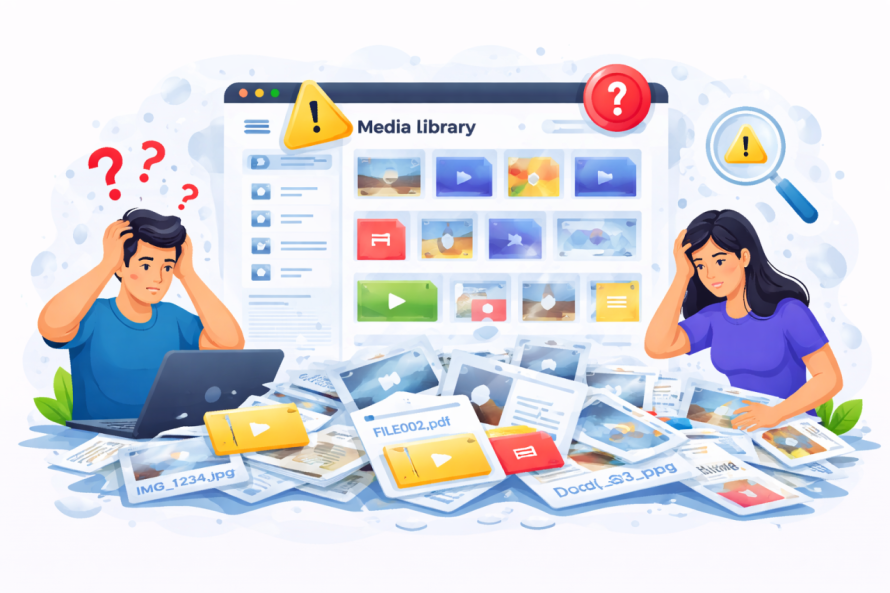
Naarmate uw website groeit, kan de standaard mediabibliotheek moeilijk te beheren worden.
Veelvoorkomende problemen zijn:
- Geen mapstructuur
- Moeilijk te vinden bestanden
- Dubbele uploads
- Gebrek aan organisatie
Verbeter de organisatie met slimmere tools
Om deze beperkingen te overwinnen, gebruiken veel site‑eigenaren geavanceerde mediabeheer‑plugins zoals WP Media Folder.
Dit type tool stelt je in staat om:
- Mappen en submappen maken
- Bestanden slepen en neerzetten
- Media visueel organiseren
- Synchroniseren met externe opslag
In plaats van eindeloos te scrollen, kun je je media structureren als een bestandssysteem op je computer.
4 handige mediabibliotheek-hacks
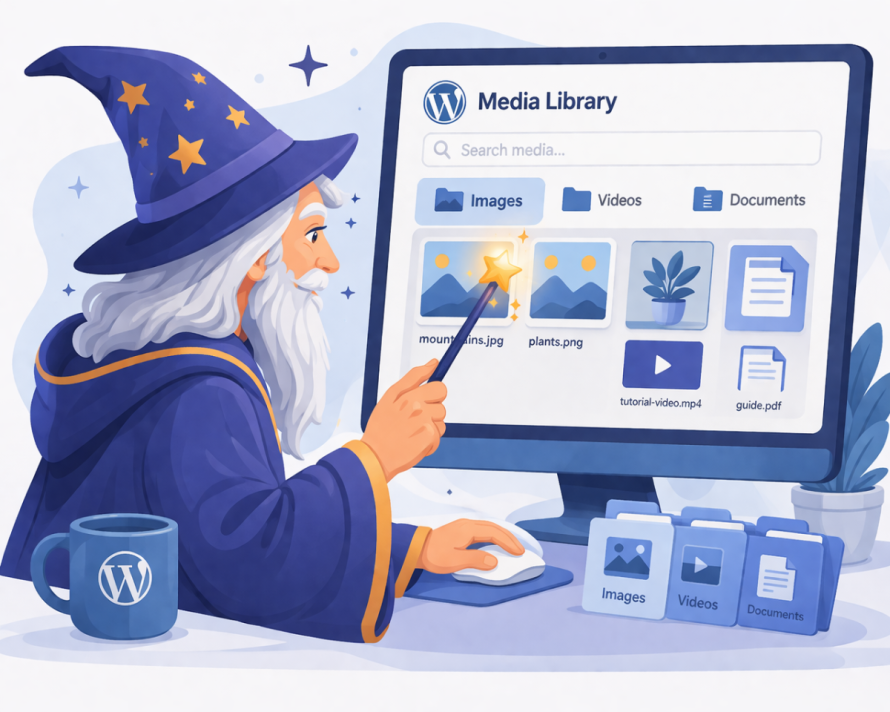
Hier zijn vier praktische strategieën die je meteen kunt implementeren om je mediabibliotheek te verbeteren.
Hack #1: Organiseer bestanden in logische mappen
Beschouw je mediabibliotheek als een archiefkast. Zonder mappen wordt alles door elkaar gemengd.
Maak mappen aan op basis van:
- Inhoudstype (blog, producten, banners)
- Categorieën (mode, accessoires, promoties)
- Datums of campagnes
Dit maakt het veel makkelijker om:
- Bestanden snel vinden
- Duplicaten vermijden
- Consistentie behouden
Hack #2: Gebruik bulkafbeeldingsbewerking
Afbeeldingen één voor één bewerken kost veel tijd. Gebruik in plaats daarvan tools die bulkupdates mogelijk maken.
Je kunt:
- Alt-tekst toevoegen aan meerdere afbeeldingen
- Bestanden in batches hernoemen
- Optimaliseer meerdere afbeeldingen tegelijk
Dit is vooral handig voor grote websites met honderden of duizenden mediabestanden.
Hack #3: Verwijder ongebruikte media
Na verloop van tijd verzamelt uw mediabibliotheek ongebruikte bestanden.
Deze kunnen:
- Opslagruimte innemen
- Back-ups vertragen
- Verwarring veroorzaken
Bekijk en verwijder regelmatig ongebruikte afbeeldingen om uw bibliotheek schoon en efficiënt te houden.
Hack #4: Verbind externe opslag
Als uw site een grote hoeveelheid media verwerkt, overweeg dan externe opslagdiensten te koppelen.
Dit stelt u in staat om:
- Zware bestanden uitbesteden
- Prestaties verbeteren
- Schaal uw opslag eenvoudig
Sommige tools integreren direct met cloudopslag, waardoor dit proces naadloos verloopt.
Mediabibliotheek en websiteprestaties
Mediabestanden zijn vaak de zwaarste elementen op een webpagina. Slecht geoptimaliseerde afbeeldingen kunnen de laadtijden drastisch verhogen.
Een trage website kan leiden tot:
- Hogere bouncepercentages
- Lagere zoekresultaten
- Verminderde conversies
Door uw mediabibliotheek te optimaliseren, zorgt u ervoor dat:
- Pagina's laden sneller
- Gebruikers blijven langer
- Zoekmachines rangschikken uw inhoud hoger
Best practices voor langdurig mediamanagement
Om een efficiënte mediabibliotheek te behouden, is consistentie cruciaal.
Volg deze praktijken:
- Noem bestanden altijd correct voordat je ze uploadt
- Voeg direct alt-tekst toe
- Gebruik mappen vanaf het begin
- Optimaliseer afbeeldingen regelmatig
- Controleer je bibliotheek periodiek
Kleine gewoonten maken na verloop van tijd een groot verschil.
Hoe dit van toepassing is op echte websites
Voor content‑zware websites—zoals mode eCommerce winkels—is mediabeheer nog belangrijker.
Bijvoorbeeld:
- Productafbeeldingen moeten snel laden
- Variaties (kleuren, maten) hebben duidelijke organisatie nodig
- Visuele consistentie beïnvloedt de merkperceptie
Een gestructureerde Media Library zorgt ervoor dat je site schaalbaar blijft naarmate deze groeit.
Waarom WP Media Folder Opvalt
Tools zoals WP Media Folder vereenvoudigen alles wat hierboven is besproken door te bieden:
- Een op mappen gebaseerde interface
- Slepen-en-neerzetten organisatie
- Integratie met cloudservices
- Snellere mediabeheerworkflows
In plaats van om de beperkingen van WordPress heen te werken, verbeter je de mogelijkheden op een manier die natuurlijk en intuïtief aanvoelt.
Alle webmasters!
Tijd besparen en productiviteit verhogen met WP Media Folder. Klantmediabestanden eenvoudig ordenen, aangepaste galleries maken en een naadloze gebruikerservaring bieden.
Upgrade nu uw websiteprojecten!
Neem de controle over uw mediabibliotheek
Je mediabibliotheek is meer dan alleen opslag; het's een kernonderdeel van de prestaties, SEO en gebruikerservaring van je website's.
Wanneer correct beheerd, helpt het je site:
- Sneller laden
- Beter scoren
- Blijf georganiseerd
- Schaal efficiënt
Door de strategieën in deze gids toe te passen en de juiste tools te gebruiken zoals WP Media Folder, kun je je mediabibliotheek transformeren van een rommelige ruimte naar een krachtig hulpmiddel dat je hele website ondersteunt.
Het resultaat is een snellere, schonere en professionelere site die beter presteert voor zowel gebruikers als zoekmachines.
Wanneer u zich abonneert op de blog, sturen we u een e-mail wanneer er nieuwe updates op de site zijn, zodat u ze niet mist.