WordPress products
 Joomla products
 Assistance
 Actualités
 Connexion
Comment connecter Amazon S3 Buckets à WP Media Folder pour un stockage cloud optimisé

La gestion de grands volumes d'images, de vidéos et de fichiers téléchargeables peut rapidement mettre sous pression un serveur WordPress. C'est pourquoi de nombreux développeurs et agences cherchent des moyens de déplacer les ressources multimédias vers le stockage cloud. Une solution efficace consiste à apprendre à connecter Amazon S3 buckets pour un stockage cloud optimisé, ce qui permet aux sites web de décharger les fichiers multimédias tout en gardant la bibliothèque de médias WordPress organisée et facile à gérer.
En intégrant Amazon S3 à WordPress, vous pouvez réduire la charge du serveur, améliorer la vitesse de votre site web, et adapter le stockage à mesure que votre contenu se développe. Dans ce guide, vous découvrirez comment fonctionne le déchargement des médias, les avantages de l'utilisation d'Amazon S3 pour les médias WordPress, et la procédure étape par étape pour connecter les Amazon S3 buckets à WordPress.
- Déchargez les fichiers multimédias volumineux vers Amazon S3 via WP Media Folder pour réduire les temps de chargement et les coûts d'hébergement.
- Gérez les compartiments S3 comme des dossiers locaux avec une synchronisation par glisser-déposer et des téléversements automatiques.
- Transférez en toute sécurité les médias existants vers le stockage cloud sans interruption de service ni liens brisés.
Table des matières
- Qu'est-ce que le déchargement des médias pour WordPress ?
- Avantages de l'utilisation d'Amazon S3 pour les médias WordPress
- Pourquoi utiliser WP Media Folder pour l'intégration d'Amazon S3 ?
- Étape par étape : Connecter Amazon S3 à WP Media Folder
- Bonnes pratiques pour la gestion des fichiers multimédias dans Amazon S3
- Conclusion
Qu'est-ce que le déchargement des médias pour WordPress ?
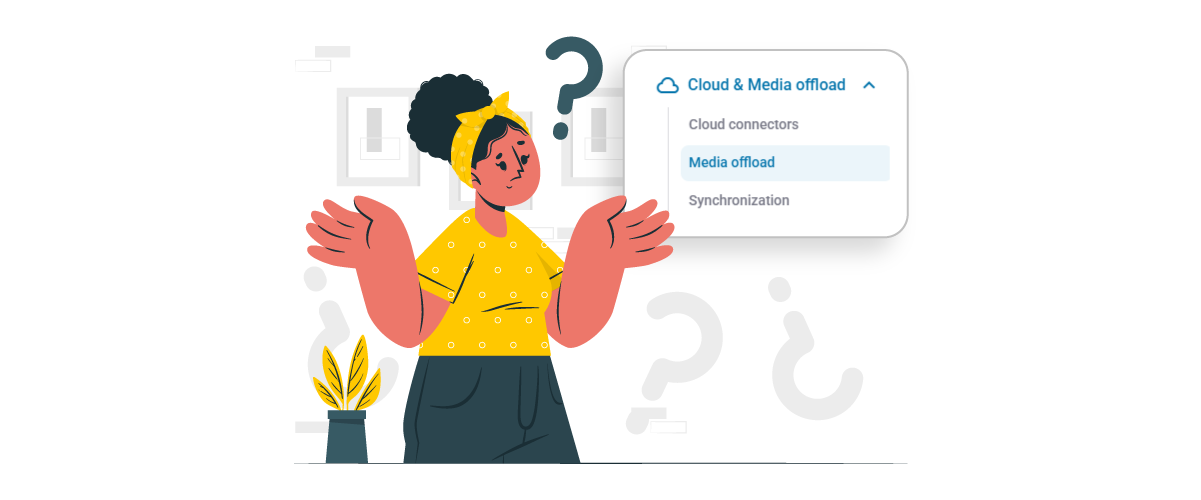
Le déchargement des médias pour WordPress est le processus consistant à stocker les fichiers multimédias de votre site web—tels que les images, vidéos, PDF et autres téléchargements—dans un stockage cloud externe plutôt que sur le serveur d'hébergement principal. Normalement, lorsque vous téléchargez des fichiers dans la médiathèque WordPress, ils sont enregistrés directement sur le serveur de votre site web. À mesure que le nombre de fichiers augmente, cela peut consommer un espace de stockage important et accroître la charge du serveur.
Avec le déchargement des médias, ces fichiers sont automatiquement déplacés ou copiés vers des services cloud tels qu'Amazon S3. WordPress affiche toujours les médias dans vos articles et pages, mais les fichiers sont servis depuis le cloud plutôt que depuis votre serveur d'hébergement. Cette approche permet de réduire la charge du serveur, d'améliorer les performances du site et de permettre aux sites disposant de grandes bibliothèques de médias d'évoluer plus efficacement en matière de stockage.
Avantages de l'utilisation d'Amazon S3 pour les médias WordPress
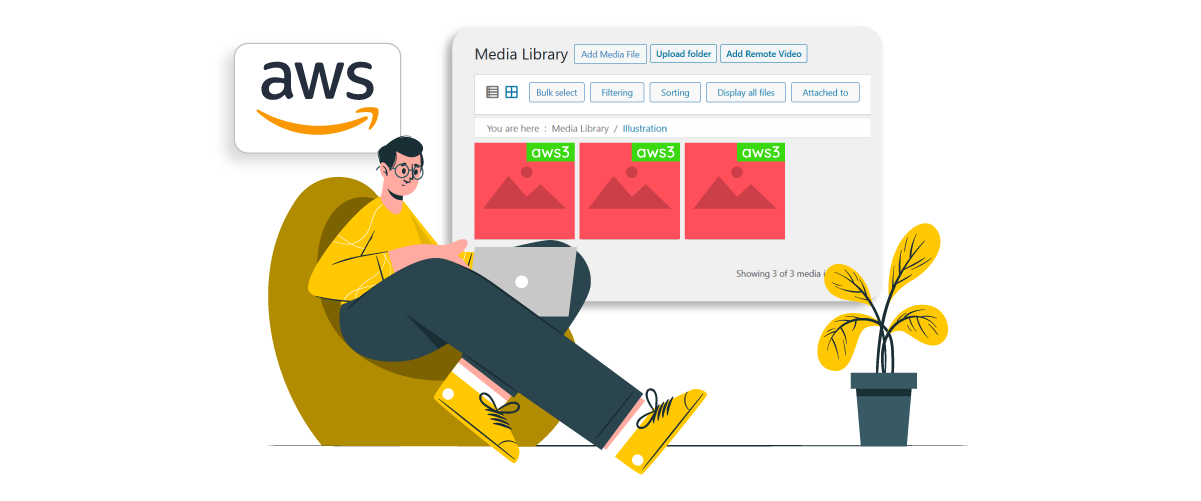
L'utilisation d'Amazon S3 pour les médias WordPress offre plusieurs avantages, en particulier pour les sites web qui gèrent un grand nombre d'images, de vidéos ou de fichiers téléchargeables.
Charge serveur réduite
L'un des plus grands avantages de l'utilisation d'Amazon S3 est de réduire la charge de travail sur votre serveur WordPress principal. Lorsque les fichiers multimédias sont stockés localement, chaque demande d'image ou de fichier doit être traitée par le serveur d'hébergement, ce qui peut consommer de l'espace de stockage et des ressources serveur. À mesure que la médiathèque s'agrandit, cela peut ralentir le site web et augmenter le risque de problèmes de performance.
En déchargeant les fichiers multimédias vers Amazon S3, le stockage et la diffusion de ces fichiers sont gérés par l'infrastructure cloud plutôt que par le serveur d'hébergement. Cela permet au serveur WordPress de se concentrer sur le traitement du site web lui-même, ce qui peut aider à maintenir des performances stables même lorsque la quantité de contenu multimédia augmente.
Vitesse et évolutivité accrues
Amazon S3 est conçu pour gérer de grands volumes de données et de trafic, ce qui le rend idéal pour les sites web qui téléchargent ou diffusent fréquemment des fichiers multimédias. Au lieu de dépendre d'un espace de stockage d'hébergement limité, les sites web peuvent facilement faire évoluer leur stockage multimédia à mesure que le site se développe, sans se soucier des limitations du serveur.
Cela permet également d'améliorer la vitesse de chargement, car les fichiers multimédias peuvent être diffusés à partir d'une infrastructure cloud optimisée. Lorsqu'elle est combinée à un CDN tel que CloudFront, les visiteurs peuvent accéder aux images et autres médias depuis des serveurs plus proches de leur emplacement, ce qui réduit la latence et améliore les temps de chargement globaux des pages.
Stockage sécurisé et fiable
Amazon S3 offre un environnement de stockage hautement sécurisé et fiable pour les fichiers multimédias de sites web. Les données stockées dans S3 bénéficient de l'infrastructure cloud d'Amazon, qui inclut une redondance intégrée et plusieurs couches de sauvegarde afin de garantir que les fichiers restent accessibles même en cas de problème matériel.
De plus, S3 offre des paramètres d'autorisation avancés et un contrôle d'accès, permettant aux propriétaires de sites web de gérer qui peut accéder aux fichiers multimédias stockés ou les modifier. Ce niveau de fiabilité et de sécurité fait d'Amazon S3 une solution de confiance pour gérer les médias WordPress à grande échelle tout en protégeant les ressources importantes du site web.
Pourquoi utiliser WP Media Folder pour l'intégration d'Amazon S3 ?
WP Media Folder est une extension WordPress conçue pour améliorer l'organisation et la gestion des fichiers multimédias au sein de la bibliothèque de médias WordPress. Au lieu de gérer des centaines ou des milliers de fichiers dans une seule liste, l'extension permet aux utilisateurs de gérer les médias dans des dossiers, ce qui facilite l'organisation efficace de grandes bibliothèques multimédias pour les développeurs, les équipes de contenu et les agences.
L'une des principales fonctionnalités de WP Media Folder est son intégration Amazon S3, qui permet aux sites web de décharger automatiquement les fichiers multimédias WordPress vers un bucket S3. Une fois connecté, les médias existants peuvent être transférés vers S3, et les nouveaux téléversements seront automatiquement stockés dans le cloud tout en apparaissant dans la médiathèque WordPress comme des fichiers classiques.
Parmi les fonctionnalités importantes de l'intégration Amazon S3 d' WP Media Folder , on peut citer :
- Décharger automatiquement les médias WordPress existants et nouveaux vers Amazon S3
- Option permettant de supprimer les médias du serveur après leur téléversement vers S3 afin d'économiser l'espace de stockage de l'hébergement
- Gérez les buckets S3 directement depuis le tableau de bord WordPress
- Restaurez les médias depuis Amazon S3 vers la bibliothèque de médias WordPress à tout moment
- Intégration CDN Amazon CloudFront intégrée pour une diffusion plus rapide des médias
Avec ces fonctionnalités, WP Media Folder aide les sites web à tirer pleinement parti du stockage cloud Amazon S3 tout en gardant la gestion des médias simple dans WordPress. Cela le rend particulièrement utile pour les sites riches en médias qui ont besoin d'un stockage évolutif et d'une diffusion de médias optimisée.
Dites adieu à une médiathèque en désordre.
WP Media Folder vous permet de catégoriser les fichiers, de synchroniser les dossiers avec le stockage cloud, de créer des galeries étonnantes et même de remplacer des images sans casser les liens.
Optimisez votre flux de travail média dès aujourd'hui
Étape par étape : Connecter Amazon S3 à WP Media Folder
Après avoir compris les avantages d'Amazon S3 pour les médias WordPress, l'étape suivante consiste à connecter votre stockage cloud à WordPress. WP Media Folder simplifie ce processus en vous permettant d'intégrer Amazon S3 directement depuis le tableau de bord WordPress, ce qui active le déchargement automatique des médias et la gestion du stockage dans le cloud.
Voici un guide étape par étape simplifié pour vous aider à intégrer Amazon S3 avec WP Media Folder.
Préparez votre environnement AWS
Avant de connecter WordPress à Amazon S3, vous devez d'abord préparer votre environnement AWS en créant un utilisateur IAM, en générant des clés d'accès et en configurant un bucket S3.
Commencez par vous connecter à la console de gestion AWS, puis accédez à IAM (Identity and Access Management) et créez un nouvel utilisateur. Lors de la configuration, attribuez les autorisations en attachant la politique AmazonS3FullAccess afin que l'utilisateur puisse gérer les buckets et les objets S3.
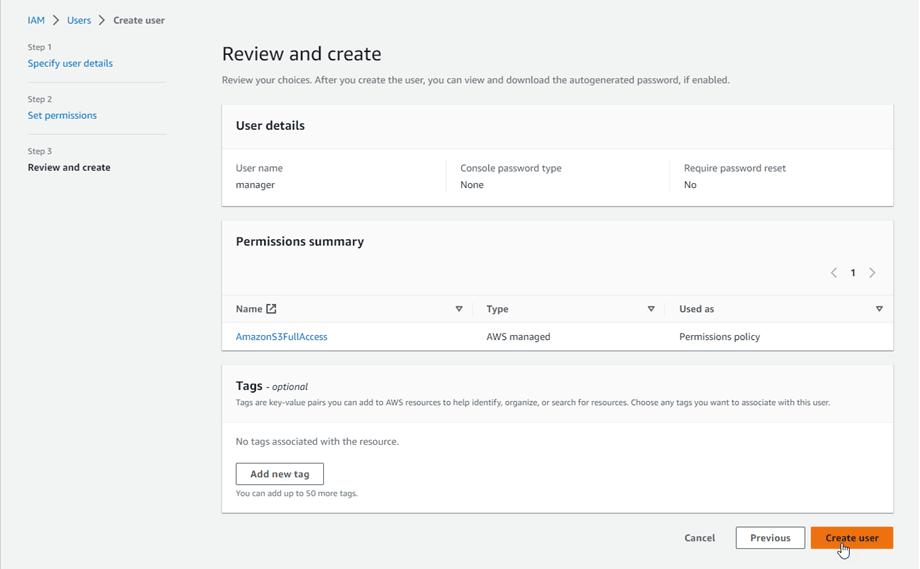
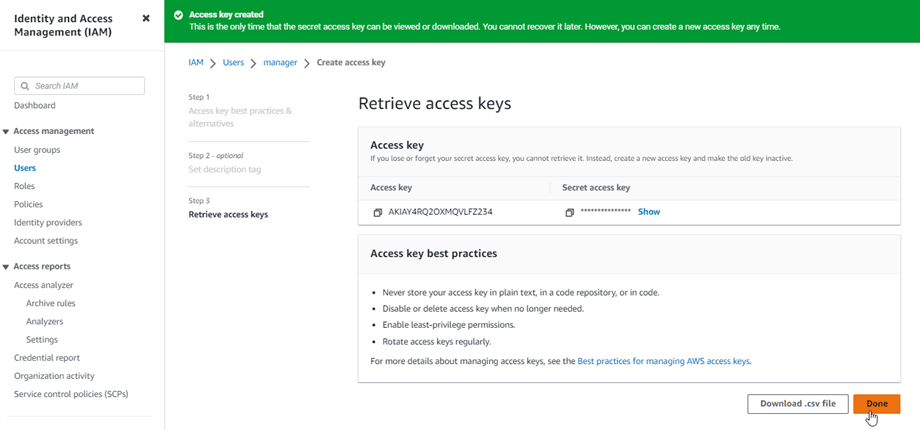
Une fois l'utilisateur créé, générez un Access Key ID et une Secret Access Key depuis l'onglet Informations d'identification de sécurité. Enregistrez ces identifiants, car ils seront nécessaires lors de la connexion de WordPress à Amazon S3.
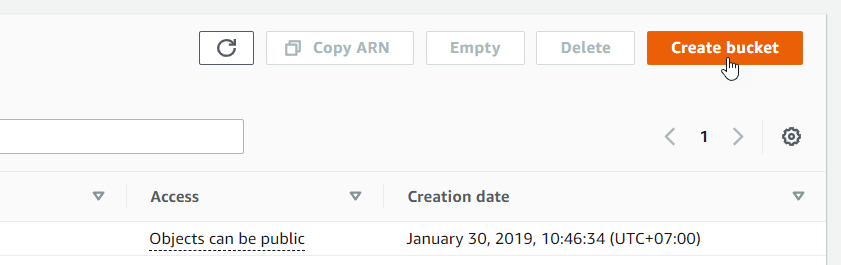
Ensuite, créez un nouveau bucket S3 depuis le tableau de bord Amazon S3. Pour commencer à utiliser Amazon S3, vous devez créer un nouveau bucket. Rendez-vous sur la page des buckets S3 dans la console AWS et cliquez sur le bouton Créer un bucket .
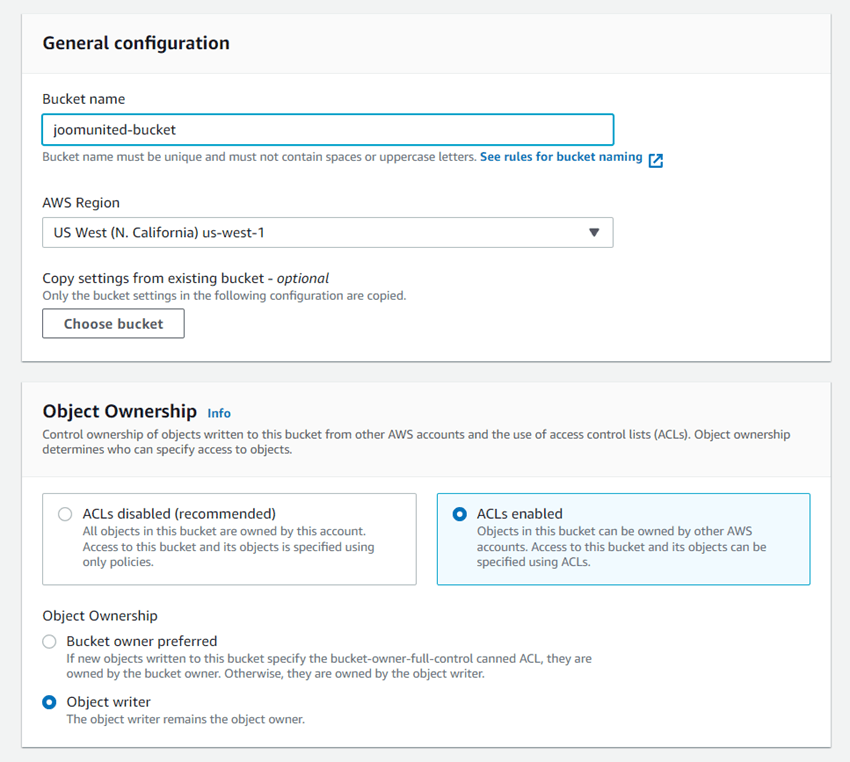
Dans la section Configuration générale, saisissez un nom de bucket et sélectionnez la région AWS souhaitée. Ensuite, dans les paramètres de Propriété des objets, choisissez ACLs activés et sélectionnez Rédacteur d'objets.
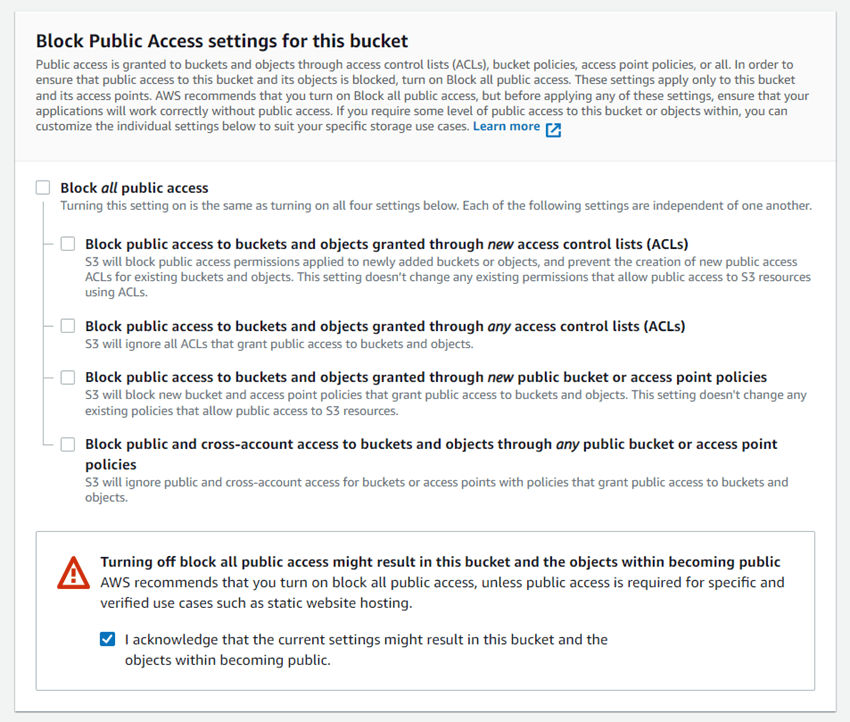
Ensuite, localisez la section Bloquer l'accès public pour ce bucket. Décochez l'option Bloquer tout accès public et confirmez en sélectionnant « Je reconnais que les paramètres actuels… » comme indiqué dans l'exemple.
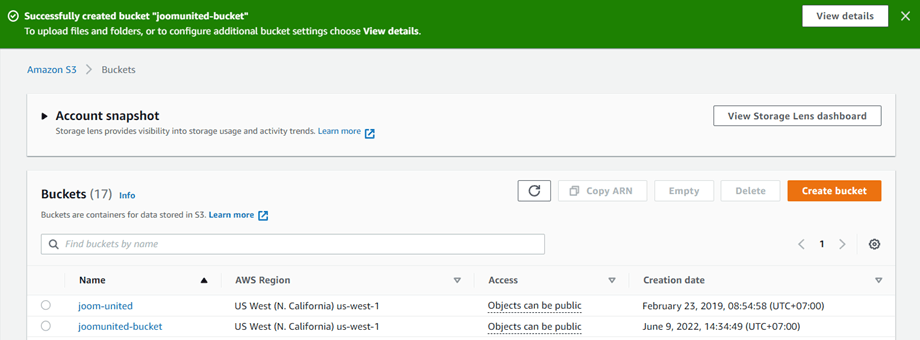
Ensuite, conservez les paramètres restants par défaut et cliquez sur Créer un bucket. Une fois l'opération terminée, le nouveau bucket sera créé avec succès et la colonne Accès devrait indiquer que les objets peuvent être publics.
Connecter WP Media Folder à Amazon S3
Une fois votre environnement AWS prêt, vous pouvez connecter Amazon S3 à WordPress via WP Media Folder. Dans votre tableau de bord WordPress, accédez à Réglages → WP Media Folder → Cloud & Media Offload → cliquez sur Amazon S3.
Ensuite, collez l'Access Key ID et la Secret Access Key générés depuis AWS dans les champs de configuration du plugin et enregistrez les paramètres. Si les identifiants sont corrects, le plugin se connectera avec succès à votre compte Amazon S3.
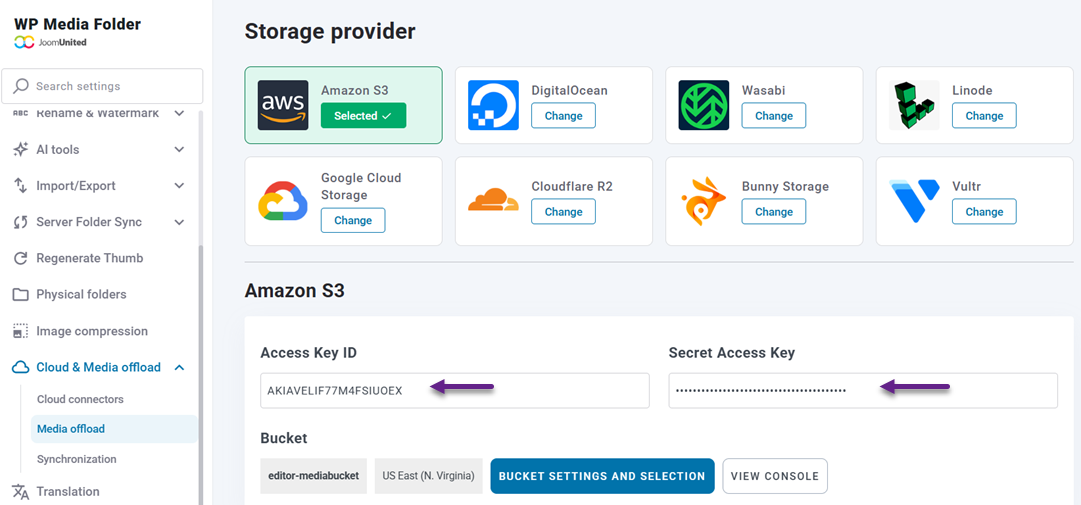
Une fois la connexion établie, vous pouvez choisir un bucket existant ou créer un nouveau bucket directement depuis les paramètres du plugin. Ce bucket servira d'emplacement de stockage principal pour vos fichiers multimédias WordPress.
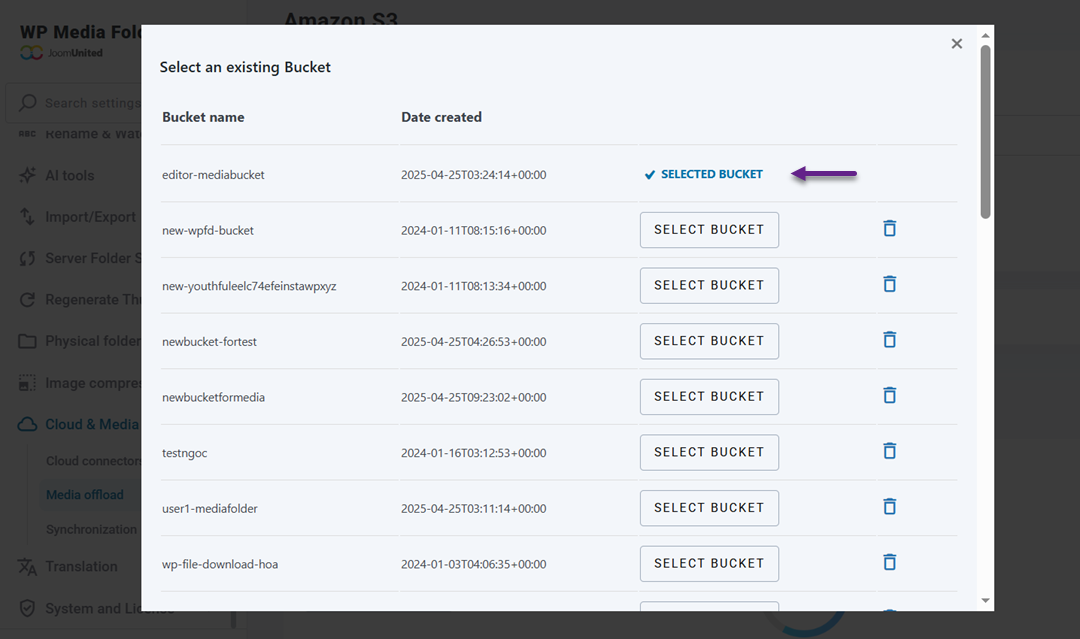
Synchroniser votre WordPress avec Amazon S3
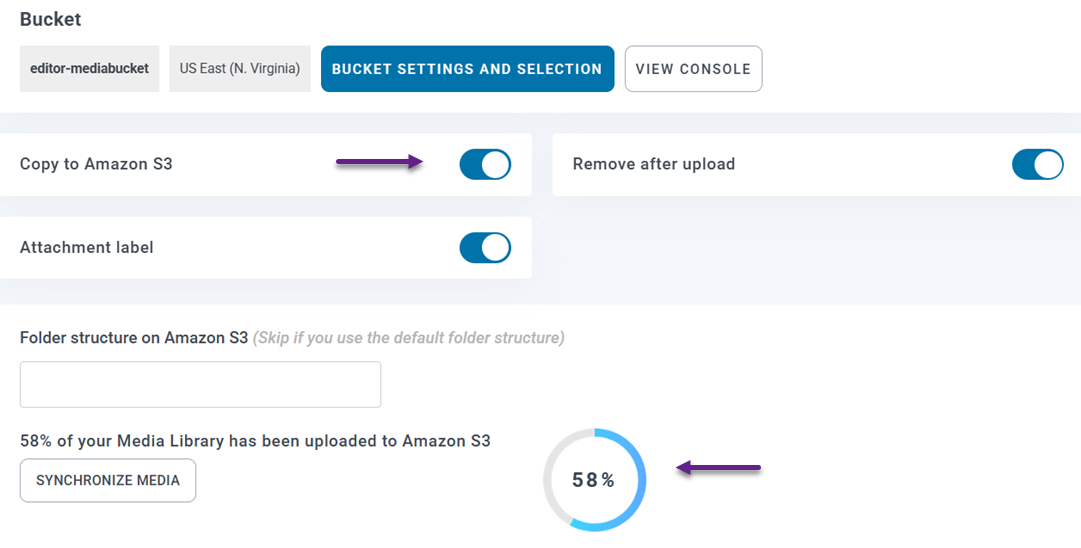
Une fois la connexion active, vous pouvez commencer à transférer votre bibliothèque de médias WordPress existante vers Amazon S3. Depuis la même page de paramètres WP Media Folder , sélectionnez votre bucket et activez l'option Copier vers Amazon S3. Ce paramètre garantit que chaque nouveau fichier téléversé dans la bibliothèque de médias WordPress sera automatiquement copié vers votre bucket S3.
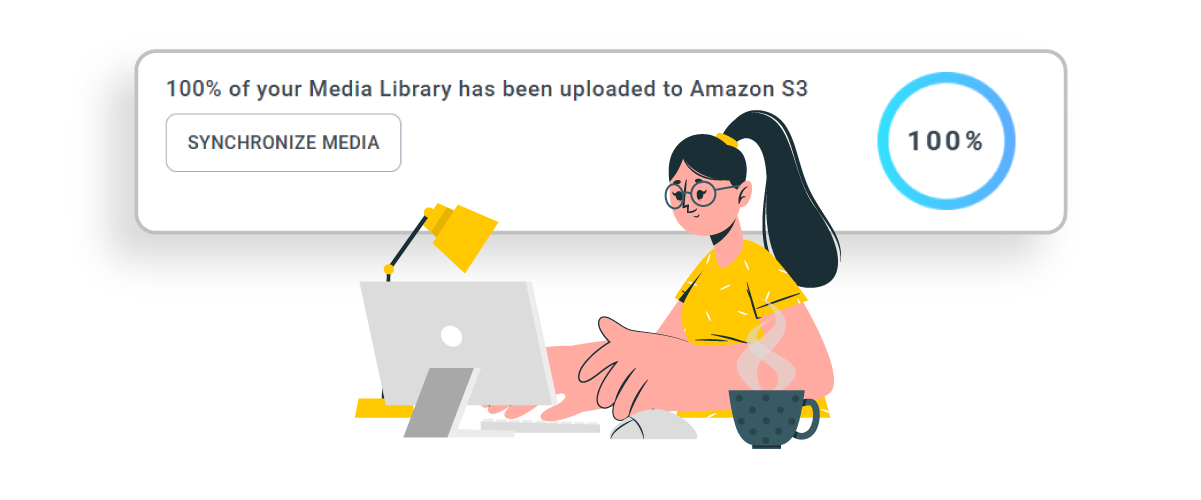
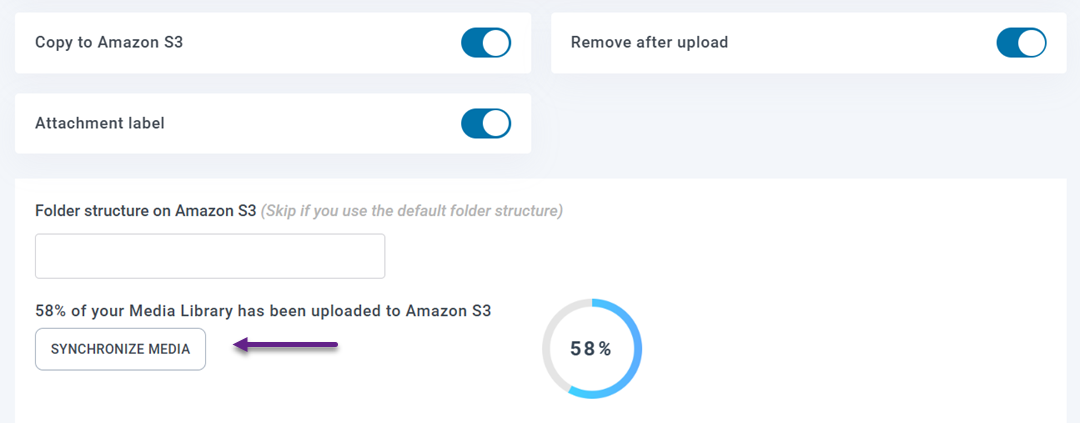
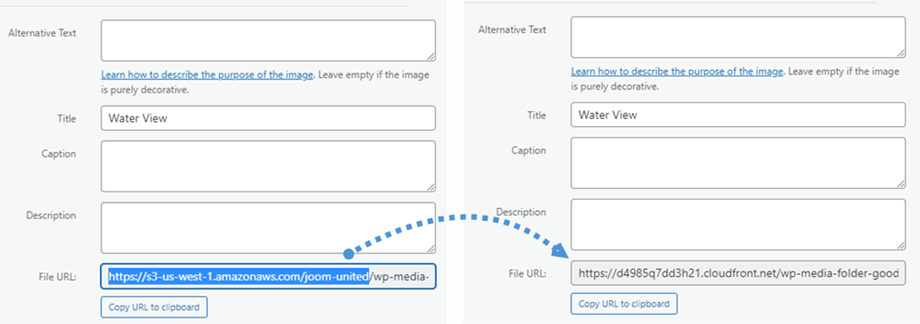
Synchroniser les médias - Comment connecter Amazon S3 Buckets à WP Media Folder pour un stockage cloud optimisé. Si votre site contient déjà des fichiers multimédias, cliquez sur le bouton Synchroniser les médias pour téléverser tous les fichiers multimédias existants vers le bucket S3. Après la synchronisation, les URL des médias seront mises à jour pour utiliser le chemin Amazon S3 au lieu du chemin du serveur local.
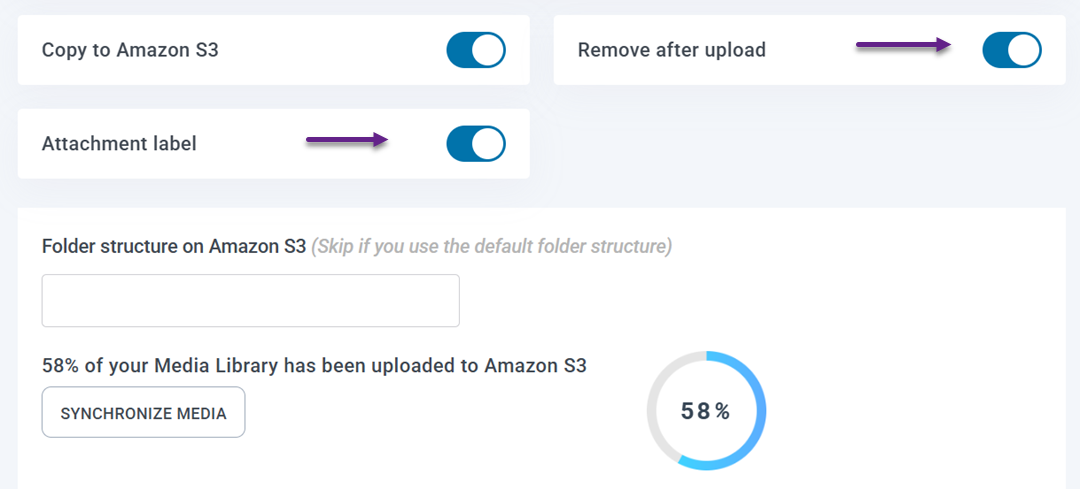
Vous pouvez également activer l'option Supprimer après téléversement pour stocker les fichiers multimédias uniquement sur Amazon S3 et libérer de l'espace sur votre serveur d'hébergement. Si l'option Étiquette de pièce jointe est activée, chaque fichier multimédia affichera une étiquette AWS3 dans la médiathèque, et en survolant celle-ci, des informations sur le fichier stocké dans Amazon S3 s'afficheront.
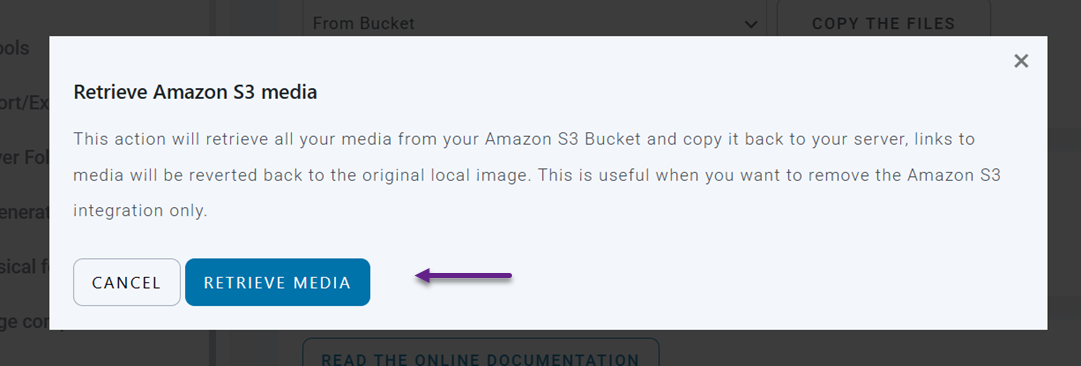
Si vous devez ultérieurement déplacer vos fichiers vers WordPress, vous pouvez utiliser la fonctionnalité Récupérer les médias Amazon S3 . Cela copiera tous les médias d'Amazon S3 vers la médiathèque WordPress tout en conservant les liens existants dans vos articles et pages inchangés.
Configurer le CDN CloudFront pour la diffusion des médias
Pour améliorer encore davantage les performances de diffusion des médias, vous pouvez connecter votre compartiment Amazon S3 à Amazon CloudFront, qui agit comme un Content Delivery Network (CDN) mondial.
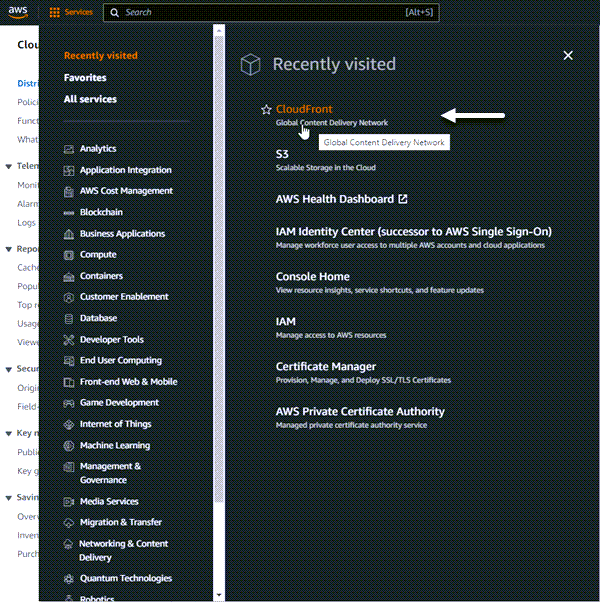
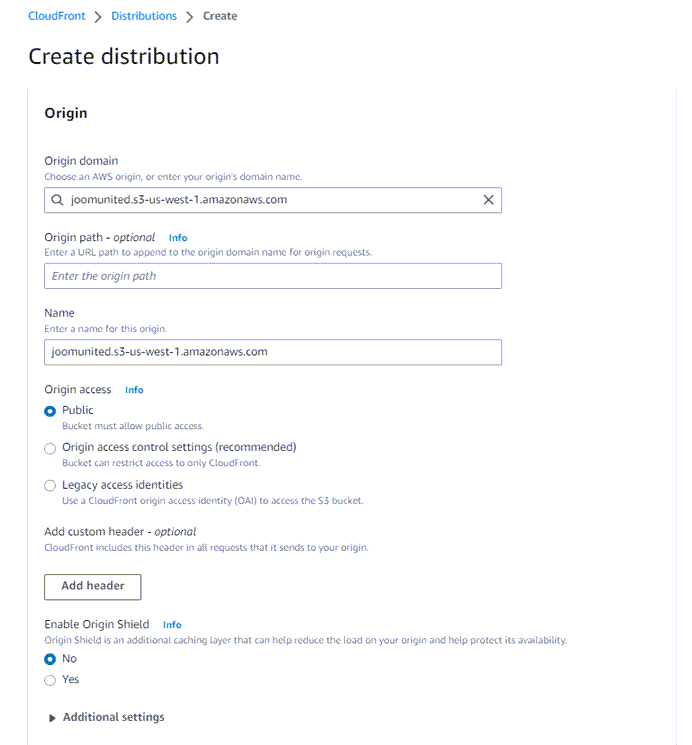
Commencez par ouvrir le service CloudFront dans le tableau de bord AWS et en cliquant sur Créer une distribution. Sur la page de configuration, définissez votre compartiment S3 comme domaine d'origine, configurez les paramètres de comportement du cache et créez la distribution.
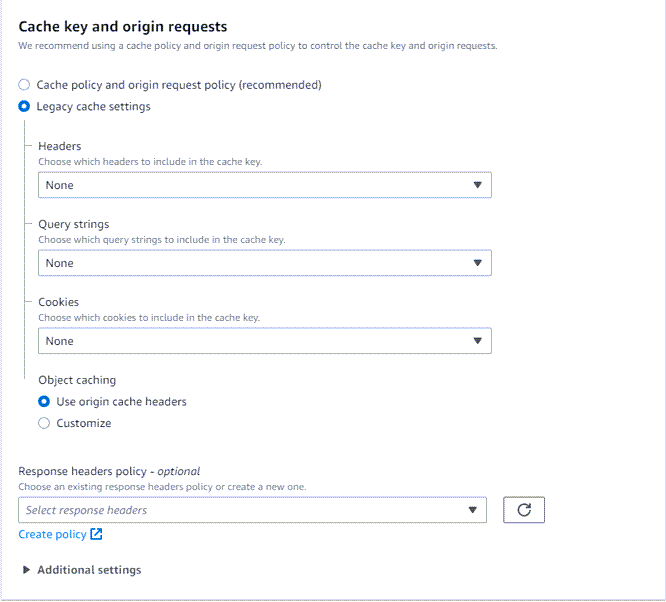
Dans la section Comportement de cache par défaut, accédez à Clé de cache et requêtes d'origine et choisissez l'option Paramètres de cache hérités.
Une fois la distribution créée, copiez le nom de domaine de distribution généré par CloudFront. Retournez dans les paramètres Amazon S3 de WP Media Folder et collez ce domaine dans le champ Domaine personnalisé (CNAME).
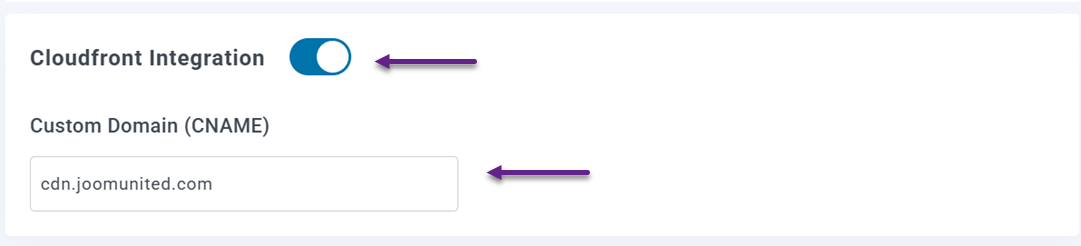
Une fois la configuration terminée et le statut de distribution passé de Déploiement à Actif, vos fichiers multimédias commenceront à se charger via le CDN. Cette configuration garantit une diffusion plus rapide des médias en servant les fichiers mis en cache depuis des emplacements plus proches de vos visiteurs dans le monde entier.
Bonnes pratiques pour la gestion des fichiers multimédias dans Amazon S3

L'utilisation d'Amazon S3 pour le stockage des médias WordPress peut considérablement améliorer les performances et l'évolutivité, mais une bonne gestion de ces fichiers est tout aussi importante. L'application de quelques pratiques simples peut vous aider à garder votre bibliothèque de médias organisée, à maintenir une diffusion rapide et à garantir que votre stockage cloud reste efficace à mesure que votre site web se développe.
Organisez vos médias avec des dossiers clairs
Garder vos fichiers multimédias organisés avec une structure de dossiers claire facilite la gestion d'un grand nombre de fichiers stockés dans Amazon S3. Sans une organisation appropriée, les ressources multimédias peuvent rapidement devenir difficiles à localiser, en particulier pour les sites web qui téléchargent fréquemment des images, des vidéos ou des documents.
Créer des dossiers basés sur des catégories telles que l'année, le projet, le type de contenu ou les sections du site peut simplifier la gestion des fichiers. Cette structure aide les développeurs, les équipes de contenu et les agences à trouver et gérer rapidement les fichiers multimédias tout en maintenant un système de stockage propre et structuré.
Utiliser un CDN pour une diffusion plus rapide
Bien qu'Amazon S3 offre un stockage fiable, son association à un Content Delivery Network (CDN) peut considérablement améliorer la vitesse à laquelle les fichiers multimédias sont transmis aux visiteurs. Un CDN distribue des versions mises en cache des fichiers sur plusieurs serveurs situés dans différentes régions du monde.
Lorsqu'une personne visite votre site web, le CDN diffuse les médias depuis l'emplacement de serveur le plus proche au lieu de les récupérer directement depuis le stockage principal. Cela réduit la latence et améliore les temps de chargement, en particulier pour les audiences internationales qui accèdent à votre site web depuis différentes régions géographiques.
Optimiser les images avant le téléchargement
Même avec le stockage cloud, le téléversement d'images volumineuses et non optimisées peut encore affecter les performances du site web. Les images surdimensionnées augmentent la taille des fichiers, ce qui signifie que les navigateurs ont besoin de plus de temps pour les télécharger et les afficher sur la page.
Optimiser les images avant de les téléverser vers Amazon S3 permet de réduire la taille des fichiers sans sacrifier la qualité visuelle. L'utilisation de dimensions d'image appropriées, d'outils de compression et de formats modernes peut réduire la taille des fichiers multimédias, améliorer la vitesse de chargement et offrir une expérience plus fluide aux visiteurs du site.
Appel à tous les webmestres !
Gagnez du temps et boostez votre productivité avec WP Media Folder. Organisez sans effort les fichiers multimédias de vos clients, créez des galeries personnalisées et offrez une expérience utilisateur fluide.
Améliorez vos projets web dès maintenant !
Conclusion
Connecter un stockage cloud à WordPress est un moyen efficace de gérer des bibliothèques de médias en pleine croissance tout en maintenant de bonnes performances du site web. En apprenant à connecter Amazon S3 buckets à WP Media Folder pour un stockage cloud optimisé, vous pouvez décharger les fichiers multimédias de votre serveur, réduire les limitations d'hébergement et diffuser des images ou des fichiers plus efficacement grâce à une infrastructure cloud évolutive et à la prise en charge d'un CDN.
Si vous gérez des sites riches en médias ou des projets critiques en termes de performances, l'utilisation de WP Media Folder avec l'intégration Amazon S3 peut simplifier la gestion des médias tout en améliorant la vitesse et la fiabilité. Découvrez le WP Media Folder pour commencer à décharger vos médias WordPress vers le cloud et optimiser la façon dont votre site stocke et diffuse les fichiers multimédias.
Lorsque vous vous abonnez au blog, nous vous enverrons un e-mail lorsqu'il y aura de nouvelles mises à jour sur le site afin que vous ne les manquiez pas.