Produits WordPress
 Produits Joomla
 Support
 Actualités
 Connexion
WebP vs PNG vs JPEG : le meilleur format d'image pour WordPress

Si votre site WordPress utilise encore des JPEG ou des PNG, vous ralentissez probablement votre site sans vous en rendre compte. Cela signifie que les visiteurs deviennent impatients, ce qui peut entraîner un classement Google inférieur. Un choix plus intelligent est WebP, un format d'image moderne qui offre la même qualité visuelle avec des tailles de fichiers beaucoup plus petites, souvent 25 à 35 % plus petites que JPEG, et 26 % plus petites que PNG pour les cas sans perte. Vous souhaitez un site plus rapide et plus fluide sans sacrifier l'attrait visuel ? Lisez la suite.
Dans cet article, nous décomposerons les avantages et les inconvénients des formats JPEG, PNG et WebP, et expliquerons leurs meilleurs cas d'utilisation en termes de vitesse, de qualité et de compatibilité avec les navigateurs.
Dites adieu à la médiathèque en désordre.
WP Media Folder vous permet de catégoriser les fichiers, de synchroniser les dossiers avec le stockage cloud, de créer des galeries incroyables et même de remplacer des images sans casser les liens.
Optimisez votre flux de travail média dès aujourd'hui
Avantages et inconvénients de chaque format d'image
JPEG (ou JPG) – Bon pour les photos
Avantages :
- Pris en charge universellement par les navigateurs et les appareils (presque 100 % de compatibilité).
- Taille de fichier réduite pour le contenu naturel et photographique, en particulier à compression moyenne ou élevée.
- Les versions rendues progressivement donnent des chargements perçus plus rapides.
- La compression avec perte peut introduire des artefacts visibles, et les enregistrements répétés dégradent la qualité.
- Ne prend pas en charge la transparence ou les bords nets.
- Les données EXIF de l'appareil photo et les grandes dimensions peuvent gonfler les fichiers.
Idéal pour : images photographiques pour articles de blog, images principales de portfolio, photos de produits e-commerce où la transparence n'est pas requise.
PNG – Excellent pour les graphiques, les diagrammes et la transparence

Avantages :
- Qualité sans perte ; parfait pour les logos nets, les icônes, les superpositions de texte et les captures d'écran.
- Prend en charge la transparence alpha complète pour la composition ou les superpositions.
- Aucune perte de qualité générationnelle.
Inconvénients :
- Les tailles de fichiers sont souvent beaucoup plus grandes que celles de JPEG (peuvent être 3 à 10 fois plus grandes pour les photos).
- Chargement plus lent, en particulier sur les réseaux lents.
- Pas idéal pour les contenus richement colorés ou photographiques.
Idéal pour : logos, infographies, captures d'écran, superpositions d'appels à l'action et images nécessitant une netteté ou une transparence précise.
WebP – Le format d'image moderne qui équigratuit tout
Avantages :
- Fournit à la fois une compression avec perte et sans perte, et prend en charge la transparence alpha.
- WebP produit souvent des fichiers 25 à 34 % plus petits que JPEG, et environ 26 % plus petits que PNG, avec une qualité visuelle égale.
- Prend en charge l'animation (en remplacement des GIF).
- WordPress (version 5.8+) et presque tous les navigateurs modernes prennent désormais en charge WebP.
Inconvénients :
- Prise en charge médiocre ou inexistante sur les anciens navigateurs comme Internet Explorer et certaines anciennes versions de Safari.
- Certains hébergeurs peuvent bloquer les téléchargements WebP si les bibliothèques d'images côté serveur ne sont pas configurées.
- L'encodage en WebP nécessite plus de CPU/mémoire, des conversions « à la volée » plus lentes.
Idéal pour : photos, diaporamas, bannières principales, images animées et partout où les éléments visuels volumineux affectent la vitesse de chargement des pages, en particulier si vous utilisez un plugin d'optimisation d'images ou un flux de travail de génération.
Vitesse, qualité et compatibilité : lequel pour quoi ?
Astuce pour accélérer le chargement des pages : même une réduction de 30 % par image s’accumule. WebP peut réduire une page « uniquement composée d’images » de plusieurs dizaines ou centaines de kilo-octets et faire gagner plusieurs secondes sur l’ensemble des sessions.
Avantage SEO : Google considère le temps de chargement de la page comme un signal de classement. Les images plus petites améliorent vos éléments Web essentiels et votre positionnement dans les recherches.
Qualité pour l'utilisateur : À des paramètres typiques de 85–90 % de qualité pour WebP, ou 70–80 % pour JPEG, l'œil remarque rarement les différences de compression ; les artefacts sont minimes dans WebP pour la plupart des utilisateurs.Flux de travail WordPress et prise en charge de WebP
WordPress 5.8 et versions ultérieures prennent en charge les téléchargements WebP directement tant que votre hébergeur le prend en charge (via Imagick, GD ou VLC).
Pour les anciens hébergeurs ou pour convertir des actifs JPEG/PNG existants en WebP, vous pouvez utiliser des plugins comme Imagify, ShortPixel, Smush ou WebP Converter pour Media. Ils gèrent la conversion WebP souvent avec une solution de repli automatique pour les navigateurs non compatibles.
Remarque : La conversion WebP peut casser l'orientation EXIF ou les métadonnées ; vérifiez les paramètres du plugin ou désactivez la suppression des métadonnées si nécessaire.
BONUS : Comment WP Media Folder rend vos médias WordPress plus intelligents
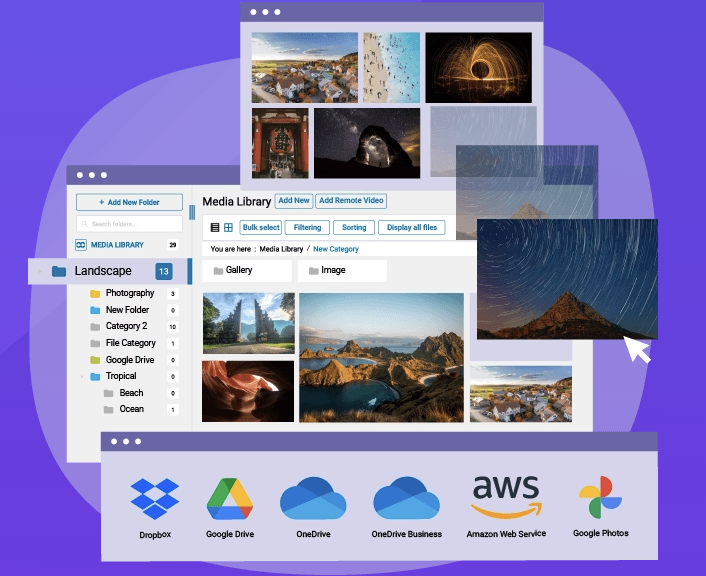
Que vous gériez de grandes galeries, des photos e-commerce ou simplement des centaines d'images de blog, WP Media Folder vous aide à les garder organisées et optimisées :
Ajoute des dossiers et sous-dossiers natifs dans le gestionnaire de médias WordPress afin que vous puissiez regrouper les images par format, sujet ou date.
Offre un renommage automatique des fichiers multimédias lors du téléchargement, idéal pour les mots clés SEO (par exemple sunset-photography.webp ou how-to-compress-images.webp).
Lorsqu'il est utilisé avec un plugin d'optimisation d'image, il gère correctement les fichiers WebP créés par des plugins comme Imagify ou ShortPixel, y compris dans des configurations cloud comme Amazon S3 ou Bunny Storage.
Il comprend également un optimiseur d'images par IA en masse qui peut générer en masse des textes alternatifs, des titres et des descriptions, garantissant ainsi que vos ressources WebP, JPEG ou PNG sont toutes optimisées pour le référencement naturel.
En bref : avec WP Media Folder, vos médias ne sont pas seulement stockés, ils sont structurés, optimisés et adaptés au référencement naturel et aux performances.
Recommandation finale
- Pour les nouveaux sites WordPress, optez par défaut pour WebP : il offre le meilleur compromis entre qualité, vitesse et compatibilité avec les navigateurs modernes.
- Utilisez le format JPEG uniquement lorsque WebP n'est pas pris en charge ou comme solution de repli en matière de compatibilité.
- Conservez PNG pour les graphiques, les icônes, les superpositions transparentes ou les images nécessitant une netteté parfaite.
- Pour optimiser votre flux de travail et améliorer votre référencement, utilisez WP Media Folder pour renommer, organiser et synchroniser votre bibliothèque multimédia, notamment si vous utilisez WebP via des plugins d'optimisation.
Appel à tous les webmasters !
Gagnez du temps et boostez votre productivité avec WP Media Folder. Organisez sans effort les fichiers multimédias des clients, créez des galeries personnalisées et offrez une expérience utilisateur fluide.
Mettez à niveau vos projets de site web maintenant !
Prêt à faire des mouvements de pouvoir média ?
Si vous souhaitez utiliser le format d'image le plus performant pour WordPress, choisir WebP n'est que le point de départ. Pour optimiser la vitesse, la qualité et le référencement, et éviter les problèmes liés à une gestion désorganisée des médias, WP Media Folder est la solution idéale pour une image propre, rapide et optimisée.
L'extension Galerie débloque des galeries d'images magnifiquement thématisées (masonry, grille, curseurs), et WP Media Folder s'intègre même avec Dropbox, Google Drive, OneDriveet Amazon S3, idéal si vous stockez de grands ensembles d'images en externe.
Et oui, il prend en charge les flux de travail d'optimisation WebP animé, PNG sans perte et JPEG, et fonctionne main dans la main avec des plugins d'optimisation comme ShortPixel et Imagify pour une conversion WebP automatique.
Lorsque vous vous abonnez au blog, nous vous enverrons un e-mail lorsqu'il y a de nouvelles mises à jour sur le site afin que vous ne les manquiez pas.