Produtos WordPress
 Produtos Joomla
 Suporte
 Notícias
 Entrar
Guia Completo da Biblioteca de Mídia do WordPress (4 Truques Úteis de Biblioteca de Mídia Incluídos)

A Biblioteca de Mídia do WordPress é uma das partes mais poderosas, porém frequentemente negligenciadas, de qualquer site. Cada imagem, vídeo e documento que você envia vive lá, apoiando silenciosamente seu conteúdo, seu design e, em última análise, suas classificações de busca. Mas quando it's não é gerenciada adequadamente, pode rapidamente se transformar em um sistema bagunçado, lento e ineficiente que prejudica o desempenho mais do que ajuda.
Se você've já teve dificuldade em encontrar uma imagem, percebeu que seu site está carregando lentamente ou se perguntou por que seu conteúdo isn't está classificado como esperado, sua Biblioteca de Mídia pode ser parte do problema. A boa notícia é que, com algumas estratégias simples, você pode transformá‑la em um recurso bem organizado e amigável ao SEO, que melhora tanto a experiência do usuário quanto o desempenho do site.
Índice de conteúdo
- O que é a Biblioteca de Mídia do WordPress?
- Por que a Gestão de Mídia é Importante para SEO e Desempenho
- Como a Biblioteca de Mídia Impacta a Experiência do Usuário
- Otimizar Imagens para Motores de Busca
- O Problema com uma Biblioteca de Mídia Padrão
- Melhore a Organização com Ferramentas Mais Inteligentes
- 4 Truques Úteis da Biblioteca de Mídia
- Biblioteca de Mídia e Desempenho do Site
- Melhores práticas para gerenciamento de mídia a longo prazo
- Como isso se aplica a sites reais
- Por que WP Media Folder se destaca
- Assuma o controle da sua biblioteca de mídia
Diga adeus à biblioteca de mídia desorganizada.
WP Media Folder permite categorizar arquivos, sincronizar pastas com armazenamento em nuvem, criar galerias incríveis e até substituir imagens sem quebrar links.
Otimize seu fluxo de trabalho de mídia hoje
O que é a Biblioteca de Mídia do WordPress?
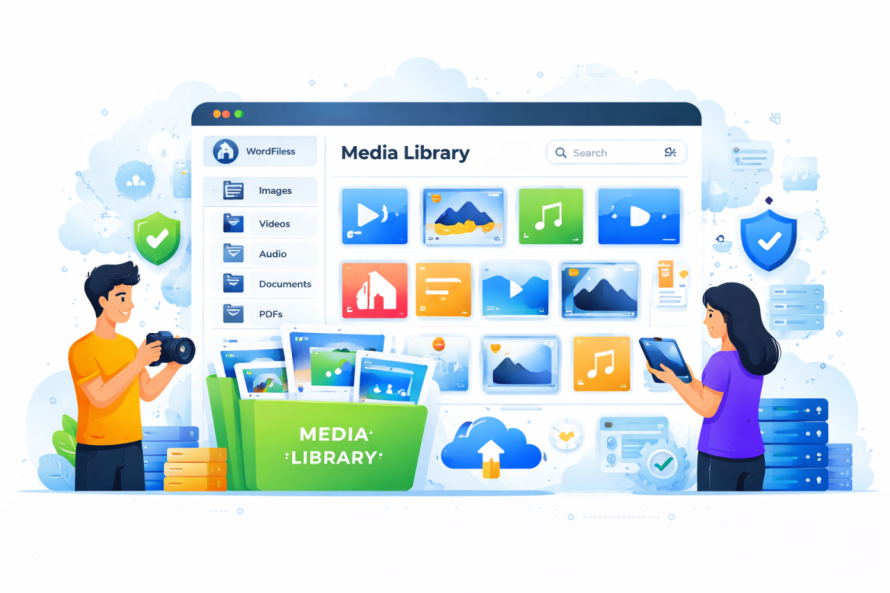
A Biblioteca de Mídia do WordPress é o hub central onde todos os seus arquivos de mídia são armazenados. Isso inclui:
- Imagens (JPEG, PNG, WebP)
- Vídeos
- PDFs e documentos
- Arquivos de áudio
Sempre que você envia mídia através do editor ou diretamente pela Biblioteca de Mídia, o WordPress a armazena e gerencia aqui. A partir desta interface, você pode:
- Enviar novos arquivos
- Editar detalhes do arquivo
- Adicionar texto alternativo e descrições
- Inserir mídia em posts e páginas
Embora pareça um sistema de armazenamento simples, ele desempenha um papel muito maior na estrutura e desempenho do seu site's.
Por que a Gestão de Mídia é Importante para SEO e Desempenho
Os motores de busca don't apenas analisam seu texto; eles também avaliam suas imagens, a estrutura de arquivos e a velocidade da página. Uma má gestão de mídia pode levar a:
- Tempos de carregamento lentos
- Dados de imagem ausentes ou incorretos
- Arquivos duplicados
- Conteúdo desorganizado
Por outro lado, uma Biblioteca de Mídia bem gerenciada pode:
- Melhorar a velocidade da página
- Ajude os motores de busca a entender seu conteúdo
- Facilite a navegação do seu site
- Melhore a experiência do usuário
Em resumo, otimizar sua Biblioteca de Mídia não é opcional; 'é' essencial se você deseja um site WordPress de alto desempenho.
Como a Biblioteca de Mídia Impacta a Experiência do Usuário

Do ponto de vista do visitante, a mídia é tudo. As imagens guiam a atenção, apoiam a narrativa e tornam seu site visualmente atraente.
Mas se sua mídia não estiver otimizada:
- As imagens podem carregar lentamente
- Os layouts podem quebrar
- O conteúdo pode parecer desordenado
Uma Biblioteca de Mídia limpa e bem estruturada garante que:
- As imagens carregam rapidamente
- O conteúdo parece consistente
- A navegação parece intuitiva
Isso afeta diretamente quanto tempo os usuários permanecem em seu site e se eles realizam alguma ação.
Otimizar Imagens para Motores de Busca
Um dos aspectos mais importantes de gerenciar sua Biblioteca de Mídia é a otimização de imagens. Isso não requer conhecimento técnico avançado; trata‑se de seguir algumas boas práticas de forma consistente.
1. Use Nomes de Arquivo Descritivos
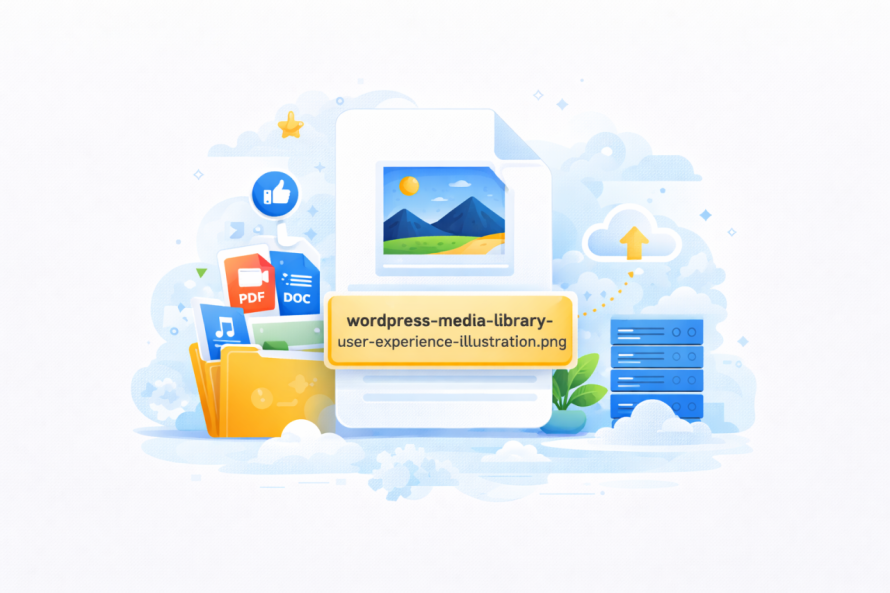
Em vez de enviar arquivos como "IMG_1234.jpg," use nomes que descrevam a imagem claramente.
Exemplo: vintage-1920s-dress-blue.jpg
Isso ajuda os motores de busca a entender o que a imagem representa.
2. Adicione Texto Alt a Cada Imagem
Alt text é uma breve descrição da imagem. É usado por motores de busca e ferramentas de acessibilidade.
Um bom texto alternativo deve:
- Descreva a imagem claramente
- Inclua palavras‑chave relevantes naturalmente
- Evite o excesso de palavras‑chave
Exemplo: "Vestido vintage azul dos anos 1920 com detalhes de renda"
3. Escolha o Formato de Arquivo Correto
Formatos diferentes atendem a propósitos diferentes:
- JPEG: Melhor para fotos
- PNG: Melhor para gráficos com transparência
- WebP: Melhor para otimização moderna (tamanho menor, alta qualidade)
Usar o formato correto ajuda a reduzir o tamanho do arquivo sem sacrificar a qualidade.
4. Comprima Imagens Antes de Enviar
Imagens grandes deixam seu site mais lento. Compactá‑las reduz o tamanho do arquivo enquanto mantém a qualidade visual.
Isso melhora:
- Velocidade da página
- Experiência do usuário
- Desempenho de SEO
5. Use Dimensões de Imagem Adequadas
Carregar imagens excessivamente grandes e deixar o WordPress redimensioná‑las automaticamente é ineficiente.
Em vez disso:
- Redimensione as imagens antes de enviá‑las
- Ajuste as dimensões ao layout do seu tema
Isso evita o uso desnecessário de dados e acelera o carregamento.
O Problema com uma Biblioteca de Mídia Padrão
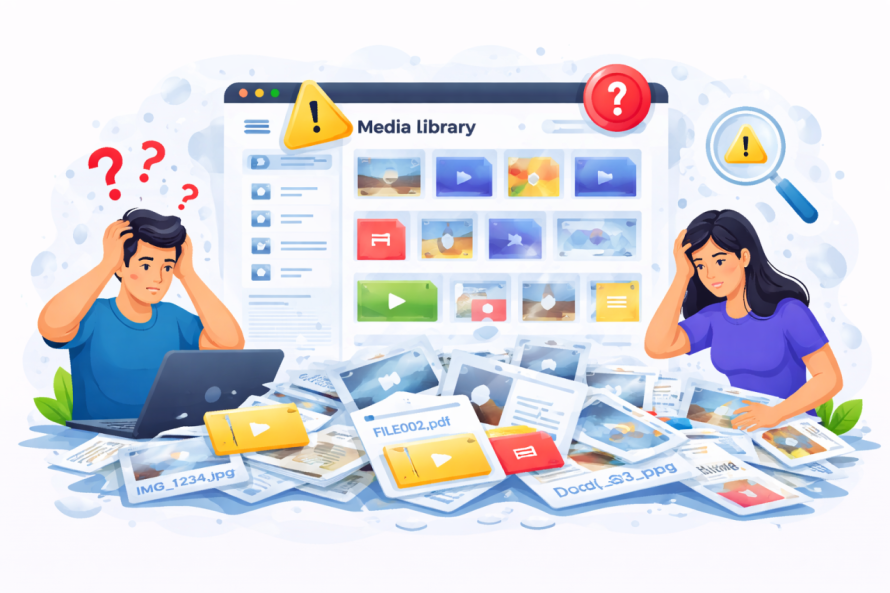
À medida que seu site cresce, a Biblioteca de Mídia padrão pode se tornar difícil de gerenciar.
Problemas comuns incluem:
- Sem estrutura de pastas
- Arquivos difíceis de encontrar
- Envios duplicados
- Falta de organização
Melhore a Organização com Ferramentas Mais Inteligentes
Para superar essas limitações, muitos proprietários de sites usam plugins avançados de gerenciamento de mídia como WP Media Folder.
Este tipo de ferramenta permite que você:
- Criar pastas e subpastas
- Arrastar e soltar arquivos
- Organizar mídia visualmente
- Sincronizar com armazenamento externo
Em vez de rolar infinitamente, você pode estruturar sua mídia como um sistema de arquivos no seu computador.
4 Truques Úteis da Biblioteca de Mídia
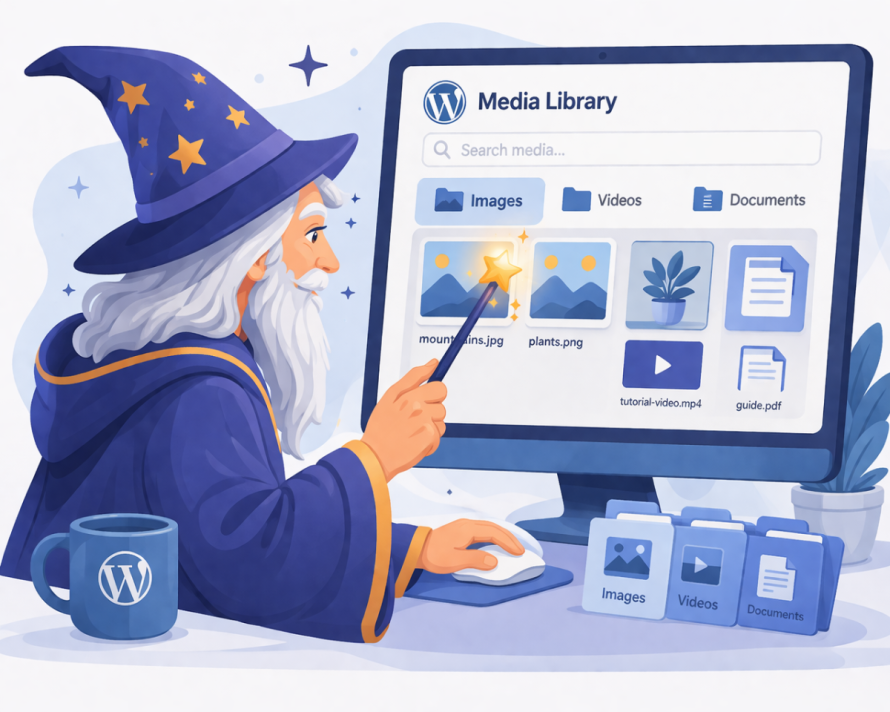
Aqui estão quatro estratégias práticas que você pode implementar imediatamente para melhorar sua Biblioteca de Mídia.
Hack #1: Organize Arquivos em Pastas Lógicas
Pense na sua Biblioteca de Mídia como um arquivo de documentos. Sem pastas, tudo fica misturado.
Crie pastas com base em:
- Tipo de conteúdo (blog, produtos, banners)
- Categorias (moda, acessórios, promoções)
- Datas ou campanhas
Isso facilita muito para:
- Encontrar arquivos rapidamente
- Evitar duplicatas
- Manter a consistência
Hack #2: Use Edição em Massa de Imagens
Editar imagens uma a uma consome tempo. Em vez disso, use ferramentas que permitem atualizações em massa.
Você pode:
- Adicionar texto alternativo a várias imagens
- Renomear arquivos em lote
- Otimizar várias imagens de uma vez
Isso é especialmente útil para sites grandes com centenas ou milhares de arquivos de mídia.
Hack #3: Remova Mídia Não Utilizada
Com o tempo, sua Biblioteca de Mídia acumula arquivos não utilizados.
Eles podem:
- Ocupa espaço de armazenamento
- Retarda backups
- Causa confusão
Revise e exclua regularmente imagens não utilizadas para manter sua biblioteca limpa e eficiente.
Hack #4: Conecte Armazenamento Externo
Se o seu site lida com uma grande quantidade de mídia, considere vincular serviços de armazenamento externo.
Isso permite que você:
- Descarregar arquivos pesados
- Melhorar o desempenho
- Aumente seu armazenamento facilmente
Algumas ferramentas se integram diretamente ao armazenamento em nuvem, tornando este processo fluido.
Biblioteca de Mídia e Desempenho do Site
Arquivos de mídia costumam ser os elementos mais pesados em uma página web. Imagens mal otimizadas podem aumentar drasticamente o tempo de carregamento.
Um site lento pode levar a:
- Taxas de rejeição mais altas
- Posicionamento de busca mais baixo
- Conversões reduzidas
Ao otimizar sua Biblioteca de Mídia, você garante que:
- As páginas carregam mais rápido
- Os usuários permanecem mais tempo
- Os motores de busca classificam seu conteúdo mais alto
Melhores práticas para gerenciamento de mídia a longo prazo
Para manter uma Biblioteca de Mídia eficiente, a consistência é fundamental.
Siga estas práticas:
- Sempre nomeie os arquivos corretamente antes de enviá‑los
- Adicione texto alternativo imediatamente
- Use pastas desde o início
- Otimize imagens regularmente
- Audite sua biblioteca periodicamente
Pequenos hábitos fazem uma grande diferença ao longo do tempo.
Como isso se aplica a sites reais
Para sites com muito conteúdo—como lojas de moda de comércio eletrônico—a gestão de mídia é ainda mais crítica.
Por exemplo:
- Imagens de produtos devem carregar rapidamente
- Variações (cores, tamanhos) precisam de organização clara
- A consistência visual afeta a percepção da marca
Uma Biblioteca de Mídia estruturada garante que seu site permaneça escalável à medida que cresce.
Por que WP Media Folder se destaca
Ferramentas como WP Media Folder simplificam tudo o que foi discutido acima, fornecendo:
- Uma interface baseada em pastas
- Organização arrastar-e-soltar
- Integração com serviços de nuvem
- Fluxos de trabalho de gerenciamento de mídia mais rápidos
Em vez de contornar as limitações do WordPress, você aprimora suas capacidades de forma natural e intuitiva.
Chamando todos os webmasters!
Economize tempo e aumente a produtividade com WP Media Folder. Organize facilmente os arquivos de mídia do cliente, crie galerias personalizadas e forneça uma experiência de usuário perfeita.
Atualize seus projetos de site agora!
Assuma o controle da sua biblioteca de mídia
Sua Biblioteca de Mídia é mais do que apenas armazenamento; é uma parte central do desempenho do seu site, SEO e experiência do usuário.
Quando gerenciado adequadamente, ajuda o seu site:
- Carregue mais rápido
- Classifique melhor
- Mantenha-se organizado
- Escalone eficientemente
Ao aplicar as estratégias deste guia e usar as ferramentas certas como WP Media Folder, você pode transformar sua Biblioteca de Mídia de um espaço desordenado em um recurso poderoso que suporta todo o seu site.
O resultado é um site mais rápido, mais limpo e mais profissional que tem melhor desempenho tanto para os usuários quanto para os motores de busca.
Quando você se inscrever no blog, enviaremos um e-mail quando houver novas atualizações no site para que você não perca.