Produits WordPress
 Produits Joomla
 Support
 Actualités
 Connexion
Intégration de OneDrive avec WP Media Folder: Automatisez la synchronisation de votre bibliothèque multimédia

Gestion des fichiers multimédias sur plusieurs plateformes peut rapidement devenir inefficace, surtout pour les équipes travaillant dans l'écosystème Microsoft. Lorsque les images, documents et ressources résident dans différents systèmes, les flux de travail ralentissent et des incohérences apparaissent. C'est à ce moment que l'intégration de OneDrive avec WordPress devient un avantage stratégique.
Si votre équipe dépend déjà de Microsoft OneDrive pour le stockage de fichiers et la collaboration, le connecter directement à votre bibliothèque multimédia WordPress crée un flux de travail centralisé et automatisé. Avec WP Media Folder, vous pouvez synchroniser les fichiers entre les plateformes, maintenir la structure et rationaliser la façon dont le contenu est géré et publié.
Dites adieu à la médiathèque en désordre.
WP Media Folder vous permet de catégoriser les fichiers, de synchroniser les dossiers avec le stockage cloud, de créer des galeries incroyables et même de remplacer des images sans casser les liens.
Optimisez votre flux de travail média dès aujourd'hui
Table des matières
- Pourquoi OneDrive Integration est importante pour les équipes WordPress
- Comment WP Media Folder gère la synchronisation OneDrive
- Comportement de synchronisation en temps réel vs planifié
- Permissions de dossiers et contrôle d’accès
- Flux de travail d'entreprise courants
- Considérations de sécurité et de conformité
- Rationalisez, synchronisez et développez vos opérations médiatiques
Pourquoi OneDrive Integration est importante pour les équipes WordPress
Pour les entreprises évoluant dans l'écosystème Microsoft, OneDrive est souvent la couche de stockage principale pour les actifs numériques. Les équipes marketing, les designers et les gestionnaires de contenu l'utilisent quotidiennement pour télécharger, modifier et organiser les fichiers. Cependant, lorsqu'il s'agit de publier du contenu sur WordPress, ces fichiers doivent généralement être téléchargés puis re-téléchargés manuellement.
Cette duplication introduit plusieurs inefficacités opérationnelles. Premièrement, elle augmente le risque de discordances de version. Un fichier mis à jour dans OneDrive peut ne pas se refléter dans WordPress, entraînant l'affichage de visuels ou de documents obsolètes sur le site. Deuxièmement, elle crée un stockage redondant, le même fichier existant à plusieurs emplacements. Troisièmement, elle ralentit les flux de travail de publication, en particulier pour les équipes gérant de gros volumes de contenu.
En intégrant OneDrive à WordPress via WP Media Folder, ces problèmes sont éliminés. Les fichiers stockés dans OneDrive peuvent être accessibles directement depuis la bibliothèque multimédia de WordPress, réduisant les frictions et assurant la cohérence. Cette approche s'aligne sur les opérations de contenu modernes, où l'automatisation et l'accès centralisé aux données sont essentiels pour l'évolutivité.
Comment WP Media Folder gère la synchronisation OneDrive
WP Media Folder intègre OneDrive directement dans la bibliothèque multimédia de WordPress, vous permettant de parcourir, télécharger et gérer les fichiers cloud sans quitter votre tableau de bord. Au-delà de la synchronisation, l'un de ses plus grands avantages est la simplicité du processus de connexion— même pour les utilisateurs non techniques.
Voici un guide clair et structuré expliquant comment connecter votre compte OneDrive à WordPress en utilisant le plugin.
Étape par étape: Connecter OneDrive à WP Media Folder
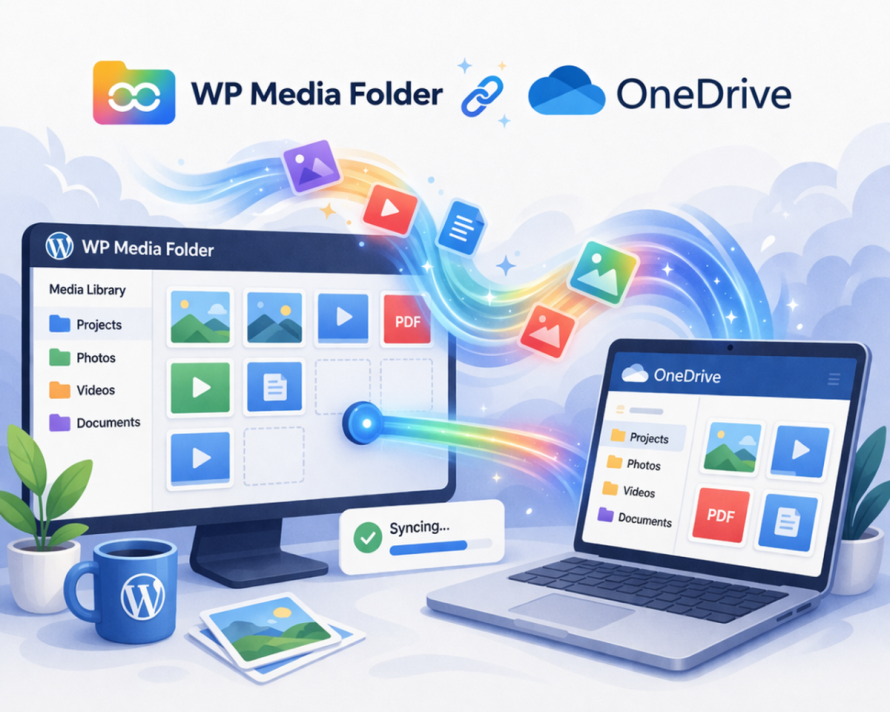
1. Installer et activer les extensions requises
Assurez-vous que le plugin principal WP Media Folder et son module complémentaire Cloud sont installés et activés dans votre environnement WordPress. L'intégration OneDrive fait partie de l'extension cloud.
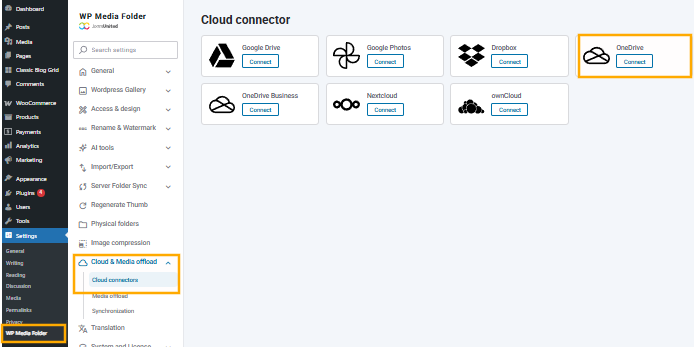
2. Naviguer vers les paramètres du cloud
Dans le tableau de bord WordPress, allez à :
Paramètres > WP Media Folder > Cloud > OneDrive
Cette section contient toutes les options de configuration liées aux fournisseurs de stockage cloud.
3. Générer la connexion OneDrive
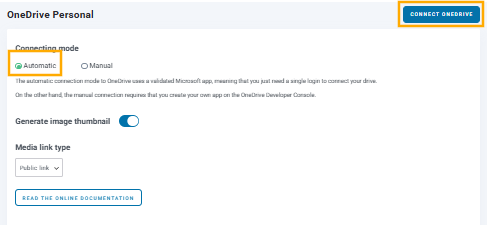
Cliquez sur Automatique puis sur le bouton "Connecter OneDrive". Cela lancera le processus d'authentification avec Microsoft OneDrive.
Vous serez redirigé vers un écran de connexion Microsoft où vous devez :
- Connectez-vous avec votre compte OneDrive
- Accordez les autorisations demandées par WP Media Folder
Ces autorisations permettent à WP Media Folder de lire et de gérer vos fichiers en toute sécurité.
4. Autoriser l’accès et revenir à WordPress
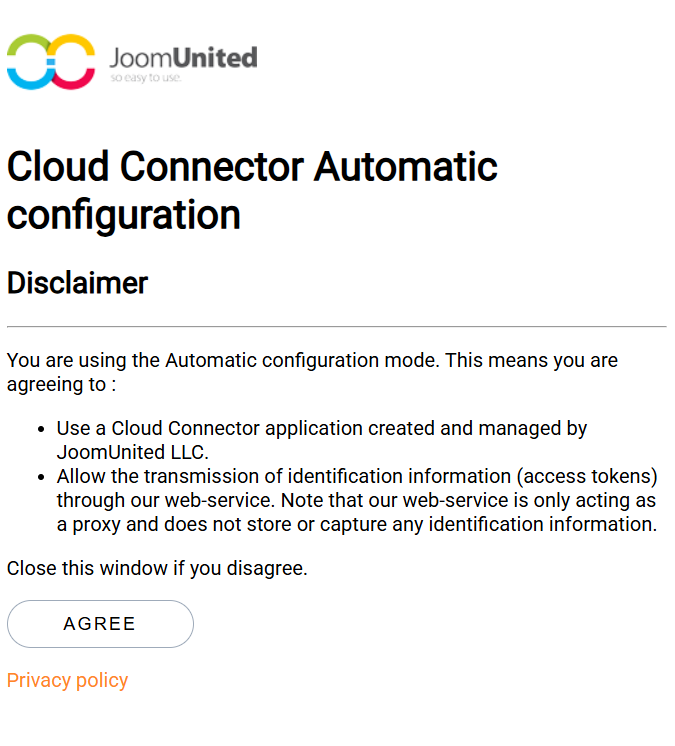
Une fois que vous avez approuvé l'accès, you'll serez redirigé vers le tableau de bord d'administration de votre WordPress. À ce stade, la connexion est établie et active.
5. Accéder à OneDrive depuis la bibliothèque multimédia
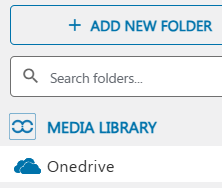
Allez dans Media > Library, et vous'll verrez maintenant OneDrive comme source. À partir d'ici, vous pouvez :
- Parcourez vos dossiers OneDrive
- Insérer des fichiers directement dans les articles/pages
- Téléverser des fichiers qui se synchronisent avec OneDrive
Comportement de synchronisation en temps réel vs planifié
L'un des aspects les plus importants de toute intégration est la façon dont la synchronisation est gérée. WP Media Folder offre de la flexibilité dans ce domaine en prenant en charge à la fois la synchronisation en temps réel et la synchronisation planifiée.
La synchronisation en temps réel garantit que toute modification effectuée dans OneDrive est immédiatement reflétée dans WordPress. Cela convient parfaitement aux équipes qui ont besoin d'actifs mis à jour en permanence, comme les opérations de commerce électronique ou les campagnes marketing actives. Par exemple, si un designer met à jour une image produit dans OneDrive, la version mise à jour devient instantanément disponible dans WordPress.
La synchronisation planifiée, en revanche, fonctionne à des intervalles définis. Cette approche est utile pour réduire la charge du serveur ou gérer de grandes bibliothèques où une synchronisation constante n'est pas nécessaire. Les équipes peuvent configurer des tâches de synchronisation pour s'exécuter toutes les heures, quotidiennement, ou à des intervalles personnalisés selon leurs besoins.
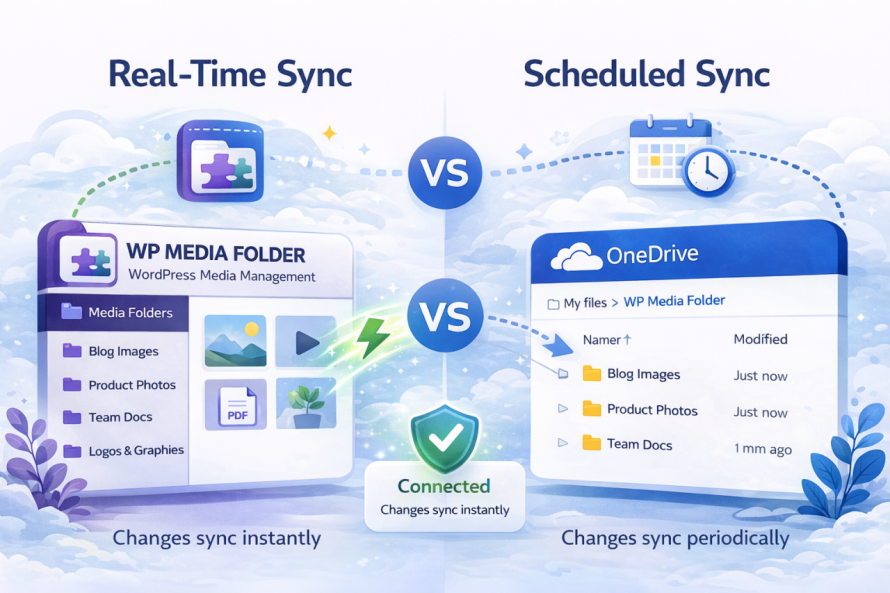
Le choix entre ces modes dépend des exigences opérationnelles. La synchronisation en temps réel privilégie la précision et l'immédiateté, tandis que la synchronisation planifiée privilégie la performance et l'optimisation des ressources. WP Media Folder permet aux équipes d'équigratuitr les deux facteurs en fonction de leur flux de travail.
Permissions de dossiers et contrôle d’accès
Lors de l'intégration d'un stockage cloud tel que Microsoft OneDrive avec WordPress, la gestion de qui peut accéder et modifier les médias devient cruciale. Bien que OneDrive fournisse son propre système d'autorisations, il est tout aussi important de contrôler l'accès au sein de WordPress même. C'est là que WP Media Folder ajoute une couche puissante de gouvernance des médias.
Permissions de dossiers au niveau WordPress (avantage principal)
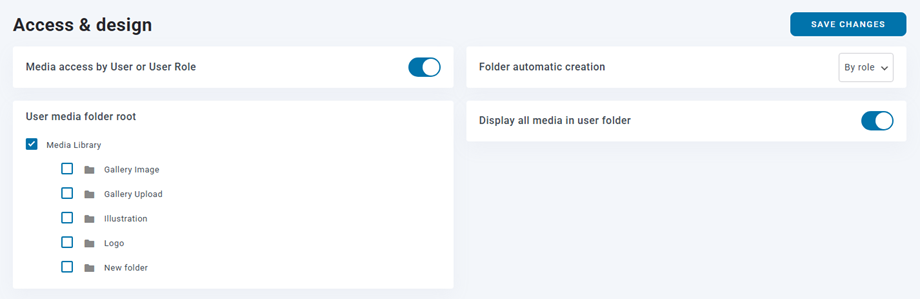
WP Media Folder vous permet de définir des autorisations au niveau des dossiers directement dans WordPress, indépendamment de OneDrive. Cela signifie que vous pouvez contrôler quels utilisateurs ou rôles peuvent afficher, télécharger, modifier ou gérer les fichiers dans des dossiers spécifiques de votre bibliothèque multimédia.
Au lieu d'avoir un seul pool de médias partagé, vous pouvez segmenter l'accès en fonction des responsabilités. Par exemple :
- Les équipes marketing peuvent accéder aux dossiers liés aux campagnes
- Les éditeurs de contenu ne peuvent gérer que les médias du blog
- Les développeurs ou administrateurs conservent un accès complet à tous les dossiers
Cette structure réduit l'encombrement et empêche les modifications ou suppressions accidentelles par des utilisateurs non autorisés.
Attribution des permissions par utilisateur ou rôle
Les autorisations peuvent être configurées de deux manières principales :
1. Par les rôles d’utilisateurs WordPress
Vous pouvez attribuer des règles d'accès en fonction de rôles tels qu'Administrateur, Éditeur, Auteur ou rôles personnalisés. Cela est idéal pour standardiser l'accès au sein des équipes.
2. Par les utilisateurs individuels
Pour un contrôle plus granulaire, les autorisations peuvent être appliquées à des utilisateurs spécifiques. Cela est utile dans les scénarios où les responsabilités ne suivent pas strictement les définitions de rôle.
Chaque dossier peut avoir sa propre configuration, permettant un contrôle d'accès très flexible dans votre bibliothèque multimédia.
Attribution automatique de dossiers
Une autre fonctionnalité utile est l'attribution automatique de dossiers. WP Media Folder peut créer ou attribuer des dossiers dynamiquement en fonction des utilisateurs. Par exemple:
- Chaque utilisateur peut disposer de son propre dossier multimédia dédié
- Les fichiers téléchargés sont automatiquement stockés dans le répertoire qui leur est attribué
Cela maintient la bibliothèque multimédia organisée et évite les conflits lorsque plusieurs utilisateurs téléchargent du contenu simultanément.
Pourquoi cela importe pour les équipes
Sans autorisations structurées, les bibliothèques multimédias deviennent rapidement chaotiques, les fichiers sont écrasés, mal placés ou exposés aux mauvais utilisateurs. WP Media Folder résout ce problème en introduisant un environnement contrôlé où chaque membre de l'équipe n'interagit qu'avec les ressources pertinentes à son rôle.
Flux de travail d'entreprise courants
L'intégration entre OneDrive et WordPress permet plusieurs flux de travail pratiques qui améliorent l'efficacité au sein des équipes.
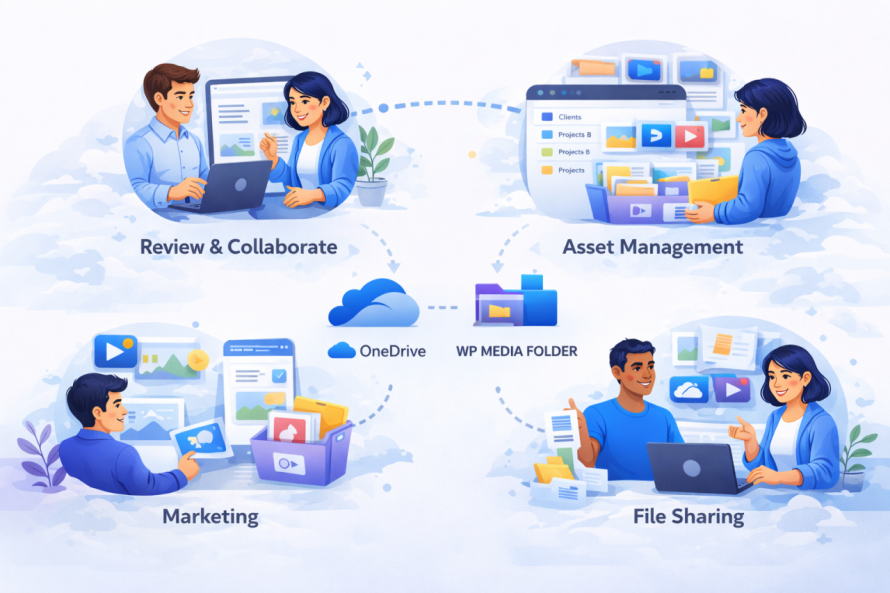
Pour les équipes marketing, les ressources de campagne peuvent être stockées dans OneDrive et mises automatiquement à disposition dans WordPress. Cela signifie que lorsqu'une nouvelle campagne est lancée, toutes les images, bannières et documents requis sont déjà accessibles dans le CMS. Il n'est pas nécessaire de procéder à des téléchargements manuels ou à des transferts de fichiers.
Les équipes de contenu bénéficient de processus éditoriaux rationalisés. Les rédacteurs et les éditeurs peuvent collaborer sur des documents dans OneDrive, finaliser les ressources, puis les publier directement via WordPress sans changer de plateforme. Cela réduit les changements de contexte et accélère la production de contenu.
Pour les entreprises de commerce électronique, les images et catalogues de produits peuvent être gérés de manière centralisée dans OneDrive. Les mises à jour des visuels des produits peuvent être synchronisées avec WordPress, assurant la cohérence sur la vitrine. Cela est particulièrement important pour les magasins disposant de grands inventaires où les mises à jour manuelles seraient chronophages.
Un autre flux de travail courant implique des équipes distantes. Depuis que OneDrive est basé sur le cloud, les membres de l'équipe peuvent télécharger des ressources depuis n'importe où. Avec l'intégration WP Media Folder , ces ressources deviennent immédiatement disponibles dans WordPress, soutenant les environnements de travail distribués.
Considérations de sécurité et de conformité
Lorsqu'il s'agit d'intégrations cloud, la sécurité est une préoccupation principale. OneDrive, en tant que partie de l'écosystème Microsoft, comprend des fonctionnalités de sécurité de niveau entreprise telles que le chiffrement, la gestion des identités et les certifications de conformité. En l'intégrant à WordPress, les organisations peuvent étendre ces protections à leurs flux de travail médiatiques.
WP Media Folder utilise des protocoles d’authentification sécurisés pour se connecter à OneDrive, garantissant que les informations d’identification ne sont pas exposées. Les transferts de données entre les systèmes sont chiffrés, réduisant le risque d’interception.
Du point de vue de la conformité, cette intégration est bénéfique pour les organisations qui doivent se conformer aux réglementations sur la protection des données. Conserver les fichiers dans OneDrive permet aux entreprises de tirer parti de l’infrastructure de conformité de Microsoft's, y compris les journaux d’audit et le suivi des accès.
De plus, la centralisation du stockage des médias réduit le risque de fragmentation des données. Au lieu d'avoir des fichiers dispersés sur des serveurs locaux et les téléchargements du CMS, tout est géré dans un environnement contrôlé.
Les processus de sauvegarde et de récupération sont également améliorés. Puisque les fichiers sont stockés dans OneDrive, ils bénéficient d'une redondance intégrée et d'un historique des versions. Si un fichier est accidentellement supprimé ou modifié, il peut être restauré sans affecter le site WordPress.
Appel à tous les webmasters !
Gagnez du temps et boostez votre productivité avec WP Media Folder. Organisez sans effort les fichiers multimédias des clients, créez des galeries personnalisées et offrez une expérience utilisateur fluide.
Mettez à niveau vos projets de site web maintenant !
Rationalisez, synchronisez et développez vos opérations médiatiques
Un flux de travail médiatique fragmenté peut ralentir même les équipes les plus efficaces. En intégrant OneDrive à WordPress via WP Media Folder, les entreprises obtiennent un système unifié qui prend en charge l'automatisation, la collaboration et l'évolutivité.
Cette approche garantit que les actifs médiatiques sont toujours à jour, accessibles et sécurisés. Elle élimine les processus redondants et aligne la gestion de contenu avec les pratiques modernes basées sur le cloud.
Pour les organisations qui utilisent déjà OneDrive, cette intégration constitue une étape logique pour optimiser les opérations numériques. Elle améliore non seulement l'efficacité, mais pose également les bases d'une croissance évolutive dans des environnements axés sur le contenu.
En mettant en œuvre une stratégie de synchronisation structurée et en tirant parti des capacités de WP Media Folder, les équipes peuvent prendre le contrôle total de leur bibliothèque multimédia et créer un flux de travail plus fiable et rationalisé.
Lorsque vous vous abonnez au blog, nous vous enverrons un e-mail lorsqu'il y a de nouvelles mises à jour sur le site afin que vous ne les manquiez pas.