Produits WordPress
 Produits Joomla
 Support
 Actualités
 Connexion
Comment télécharger des fichiers PDF sur votre site WordPress

Le téléchargement de fichiers PDF sur votre site WordPress est l'une des les méthodes les plus efficaces pour partager des ressources téléchargeables, guides, brochures, livres blancs, factures et documents numériques avec votre audience. Cependant, le simple téléchargement d'un fichier ne suffit pas. Si les PDF ne sont pas correctement intégrés, optimisés pour les moteurs de recherche et structurés pour un accès facile, ils peuvent nuire à l'expérience utilisateur et aux performances du site.
Dans ce guide complet, vous apprendrez comment télécharger des fichiers PDF sur WordPress, comment les ajouter aux articles et aux pages, comment créer des sections de téléchargement sécurisées, et comment intégrer des PDF avec des fonctionnalités de visualisation avancées. Nous aborderons également comment optimiser les images et les PDF pour les moteurs de recherche et comment gérer les fichiers professionnellement en utilisant des outils comme WP File Download.
En savoir plus pour découvrir comment transformer de simples téléchargements de documents en une stratégie de gestion de fichiers structurée et optimisée pour le SEO pour votre site WordPress.
Vous recherchez une solution puissante de gestion de fichiers pour les sites Web des clients ?
WP File Download est la réponse. Avec des fonctionnalités avancées telles que les catégories de fichiers, les restrictions d'accès et l'interface utilisateur intuitive.
Épatez vos clients avec une organisation de fichiers de haute qualité !
Table des matières
- Pourquoi télécharger des PDF sur WordPress ?
- Comment télécharger un fichier PDF sur WordPress
- Comment ajouter un PDF à un article ou une page WordPress
- Utiliser des extensions pour intégrer des PDF avec des fonctionnalités avancées
- Comment téléverser des PDF en utilisant WP File Download
- Création de sections de téléchargement dans WordPress
- Téléchargements PDF sécurisés dans WordPress
- Optimisation des fichiers PDF pour les moteurs de recherche
- Suivi des téléchargements de PDF
- Intégration cloud pour le stockage de PDF
- Réflexions finales
Pourquoi télécharger des PDF sur WordPress ?
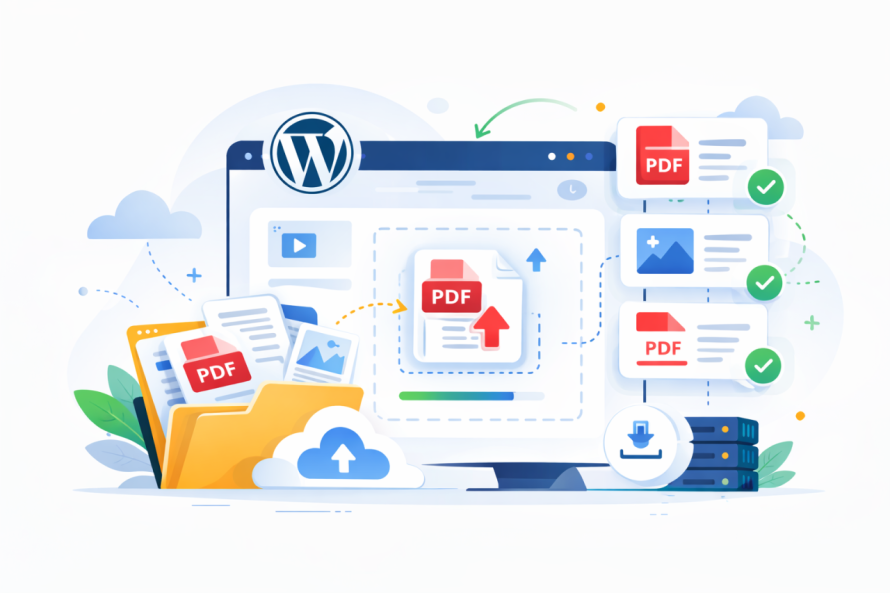
Les fichiers PDF sont largement utilisés car ils conservent la mise en forme sur tous les appareils et systèmes d'exploitation. Les entreprises les utilisent pour :
- Catalogues de produits
- eBooks et guides
- Contrats et formulaires
- Documentation technique
- Études de cas
- Brochures marketing
Du point de vue du SEO et des performances, les PDF servent également d'actifs de contenu précieux. Lorsqu'ils sont correctement optimisés, ils peuvent apparaître dans les résultats des moteurs de recherche et générer du trafic supplémentaire.
Cependant, une mauvaise gestion des fichiers peut créer des problèmes :
- Liens de téléchargement cassés
- Temps de chargement lents
- Risques de sécurité
- Mauvaise expérience mobile
- Manque de suivi et d'organisation
C'est pourquoi il est important de comprendre la bonne façon de télécharger et de gérer les fichiers PDF dans WordPress.
Comment télécharger un fichier PDF sur WordPress
WordPress facilite le téléchargement de fichiers PDF en utilisant la bibliothèque multimédia intégrée. Suivez ces étapes :
Étape 1 : Accéder à la bibliothèque multimédia
- Connectez-vous à votre tableau de bord WordPress.
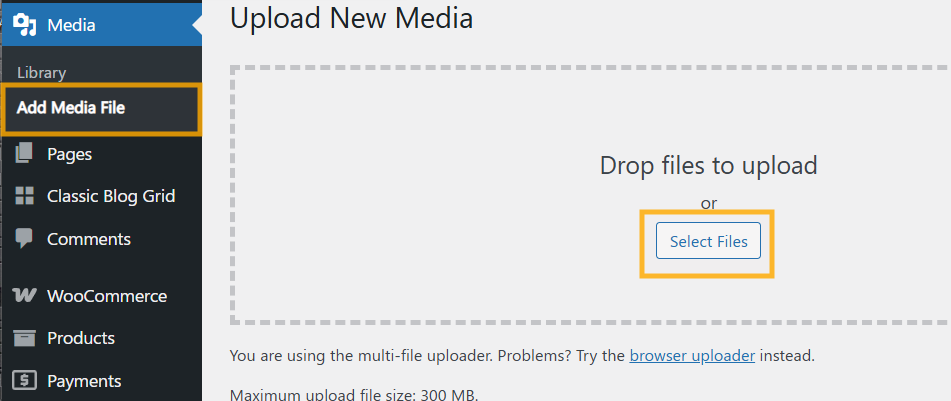
- Allez à la bibliothèque multimédia
- Cliquez sur Ajouter nouveau
Vous pouvez soit glisser-déposer votre fichier PDF, soit cliquer sur Sélectionner des fichiers pour le télécharger depuis votre ordinateur.
Une fois téléchargé, WordPress génère automatiquement une URL du fichier.
Étape 2 : Copier l'URL du PDF
Après le téléchargement :
- Cliquez sur le fichier téléchargé
- Copiez l'URL du fichier affichée dans les détails de la pièce jointe
Vous pouvez maintenant utiliser cette URL pour lier le PDF dans les articles ou les pages.
Comment ajouter un PDF à un article ou une page WordPress
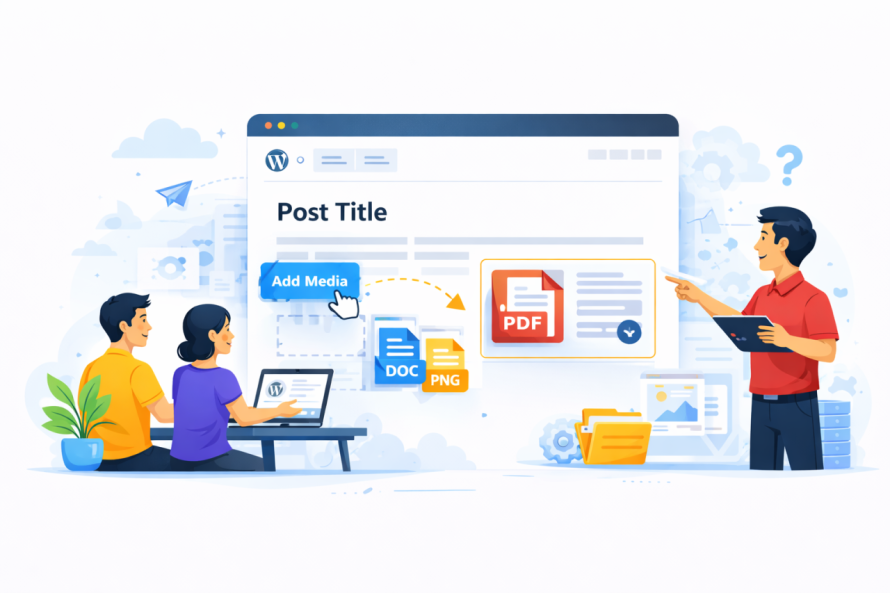
Il existe plusieurs façons d’ajouter des fichiers PDF au contenu.
Méthode 1 : Ajouter un lien de téléchargement
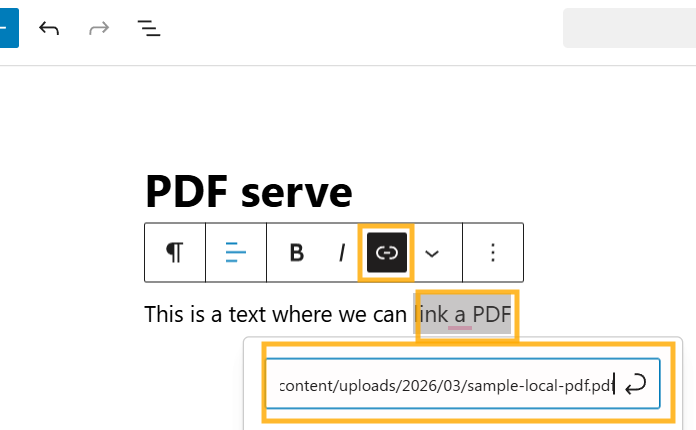
- Ouvrez l’éditeur d’article ou de page
- Sélectionnez le texte que vous souhaitez transformer en lien de téléchargement
- Cliquez sur l’icône du lien
- Collez l’URL du PDF
- Enregistrez ou mettez à jour la page
Cette méthode crée un lien de téléchargement cliquable simple.
Méthode 2 : Utiliser le bloc de fichier
Pour ce faire, nous utilisons WP File Download il faudra donc l'installer ; vous pouvez le télécharger ici.
Une fois installé, nous pouvons aller dans wp-admin > cliquer sur WP File Download > créer ou utiliser une catégorie existante > télécharger le fichier.
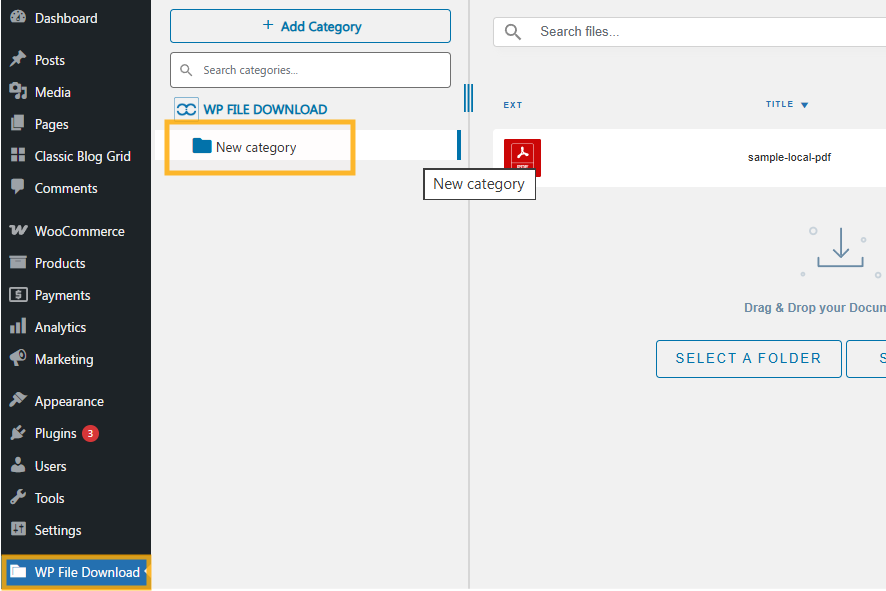
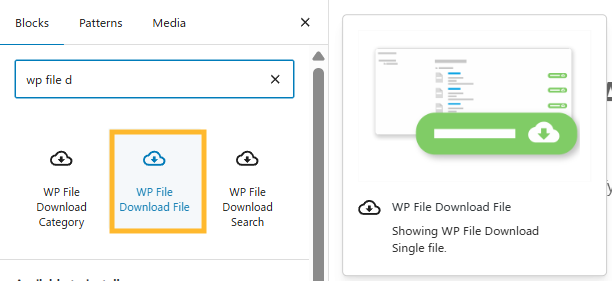
Une fois cela fait, nous pouvons nous rendre sur la page où nous souhaitons ajouter le téléchargement ou créer une nouvelle page > Ajouter un nouveau bloc > Tapez WP File Download et les blocs du plugin apparaîtront ; nous pouvons sélectionner le WP File Download File .
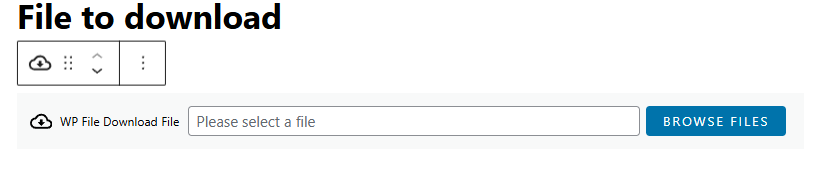
Nous pouvons cliquer sur Parcourir le fichier afin que la fenêtre pop up apparaisse pour sélectionner le fichier que nous voulons ajouter à la page/publication.
Non nous pouvons naviguer vers la catégorie où notre fichier est situé, le trouver et cliquer sur Insérer ce fichier
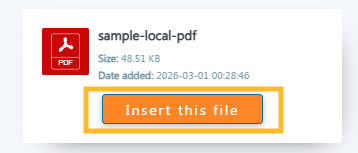
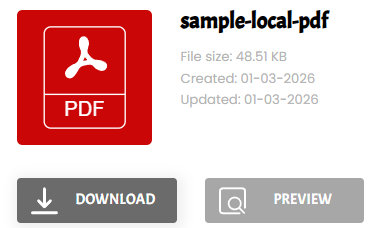
Et c'est tout ! Nous avons le fichier disponible pour le prévisualiser et le télécharger, donc maintenant nous avons le fichier PDF intégré avec l'option de le télécharger également.
Utiliser des extensions pour intégrer des PDF avec des fonctionnalités avancées
Si vous souhaitez un affichage PDF professionnel, des téléchargements sécurisés, le suivi analytique ou l'organisation de fichiers, vous avez besoin d'un plugin de gestion de fichiers dédié.
L'une des options les plus avancées est WP File Download.
WP File Download Aperçu
WP File Download est un plugin professionnel de gestion de fichiers WordPress conçu pour la gestion structurée des fichiers et la manipulation avancée de documents. Il vous permet de :
- Organiser les PDF en catégories
- Créer des dépôts de téléchargement
- Restreindre l'accès selon les rôles d'utilisateur
- Suivre les statistiques de téléchargement
- Ajouter des aperçus de fichiers
- Protéger les fichiers avec des paramètres de sécurité
- Intégrer le stockage cloud
Au lieu de télécharger des fichiers aléatoires dans la Bibliothèque multimédia, vous pouvez créer des catégories de fichiers structurées et gérer les documents professionnellement.
Comment téléverser des PDF en utilisant WP File Download
Après avoir installé et activé WP File Download:
- Allez à WP File Download dans le tableau de bord
- Créer une nouvelle catégorie de fichiers
- Cliquez sur Ajouter un fichier
- Téléchargez votre PDF
Vous pouvez alors insérer la catégorie dans n'importe quelle page en utilisant un shortcode ou un bloc, comme expliqué dans le point précédent.
Cette méthode est idéale pour les sites proposant plusieurs téléchargements, tels que les centres de documentation, les portails membres et les bibliothèques numériques.
Création de sections de téléchargement dans WordPress
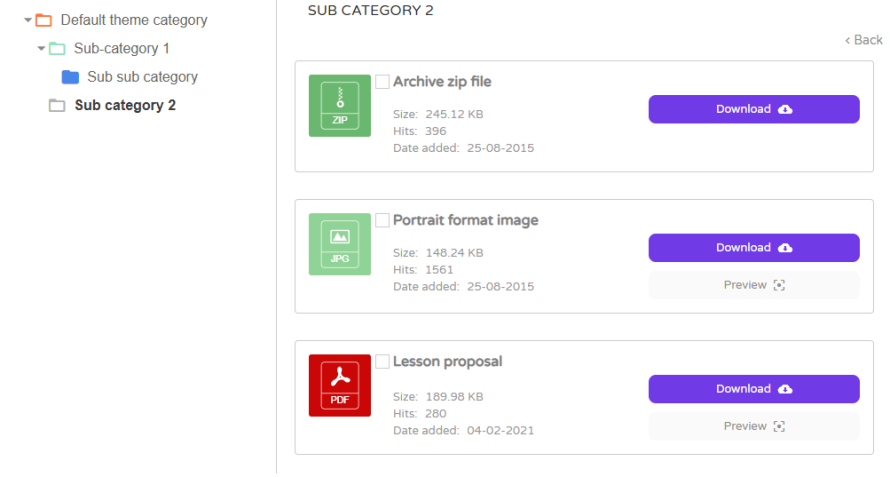
Si votre site propose plusieurs fichiers PDF, créer une section de téléchargement dédiée améliore l'expérience utilisateur et la structure SEO.
Meilleures pratiques pour les pages de téléchargement
- Utilisez des noms de fichiers descriptifs
- Ajoutez une courte description pour chaque PDF
- Inclure les informations de taille de fichier
- Organiser les fichiers par sujet ou catégorie
- Utiliser des boutons d’appel à l’action clairs
Avec WP File Download, vous pouvez créer des listes de téléchargement visuellement organisées avec des options de tri et de filtrage.
Cela améliore la navigation et réduit les taux de rebond.
Téléchargements PDF sécurisés dans WordPress
La sécurité est essentielle lors de la gestion de documents sensibles tels que les contrats, les factures ou le contenu premium.
Risques de sécurité courants
- Partage direct d'URL
- Téléchargements non autorisés
- Indexation des fichiers par les moteurs de recherche
- Abus de bande passante
L'utilisation de plugins avancés de gestion de fichiers vous permet de :
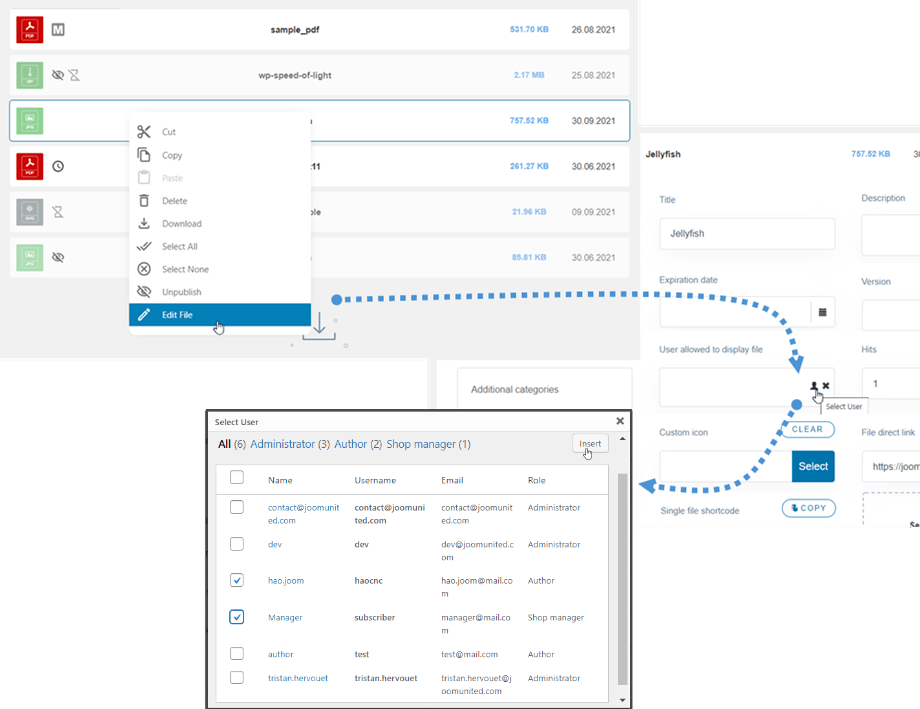
- Restreindre les téléchargements aux utilisateurs connectés
- Bloquer l'accès direct aux fichiers
- Protéger les fichiers par mot de passe
- Contrôler les autorisations de téléchargement
WP File Download offre des fonctionnalités de contrôle d'accès intégrées, ce qui le rend idéal pour les sites d'adhésion et les portails clients privés.
Optimisation des fichiers PDF pour les moteurs de recherche
L'optimisation pour les moteurs de recherche ne s'arrête pas aux articles de blog. Les PDF peuvent également être classés dans les résultats de recherche.
Optimiser le fichier PDF lui-même
Avant le téléchargement :
- Utilisez des noms de fichiers riches en mots-clés
- Ajoutez des métadonnées de titre de document appropriées
- Incluez des titres à l'intérieur du PDF
- Compressez la taille du fichier
- Ajoutez des liens internes lorsque c'est pertinent
Par exemple, au lieu de nommer votre fichier document1.pdf, utilisez wordpress-pdf-upload-guide.pdf.
Optimiser la page de téléchargement
- Ajoutez un titre clair et une méta description
- Utilisez des titres structurés
- Inclure du contenu lié
- Ajouter du texte alternatif pour les icônes ou les images d'aperçu
- Créer des liens internes
Les moteurs de recherche indexent à la fois le PDF et la page qui l'héberge. Optimiser les deux augmente la visibilité.
Suivi des téléchargements de PDF
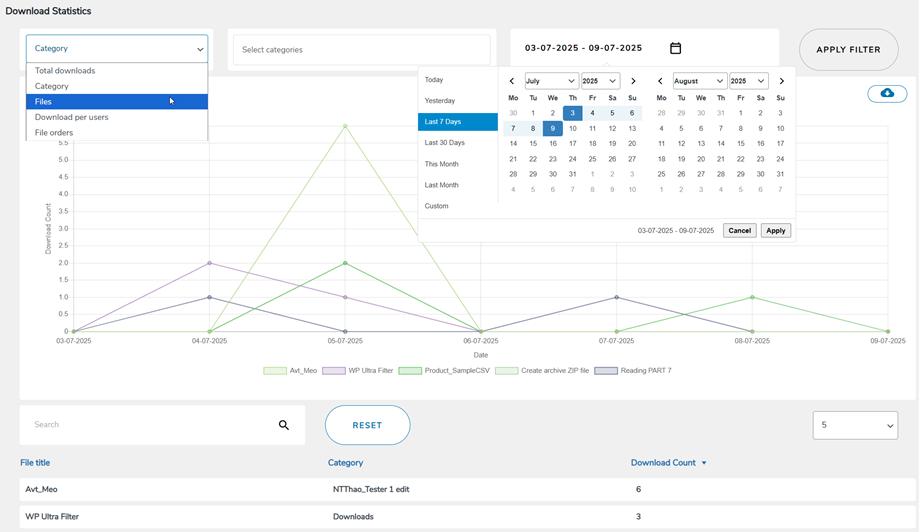
Si vous proposez des aimants à prospects, des eBooks ou des brochures numériques, le suivi des téléchargements est essentiel.
Sans suivi, vous ne pouvez pas mesurer :
- Documents populaires
- Taux de conversion
- Engagement des utilisateurs
- Performance du contenu
WP File Download inclut les statistiques de téléchargement afin que vous puissiez voir combien de fois un document a été téléchargé et identifier les fichiers les plus performants.
Ces données aident à affiner votre stratégie de contenu.
Intégration cloud pour le stockage de PDF
Les gros fichiers PDF peuvent augmenter la charge du serveur. L'utilisation du stockage cloud améliore les performances.
Les plugins avancés de gestion de fichiers permettent l'intégration avec :
- Google Drive
- Dropbox
- OneDrive
- Amazon S3
Le stockage cloud réduit la charge du serveur et améliore la vitesse de livraison des fichiers.
WP File Download prend en charge l'intégration cloud, permettant aux fichiers de se synchroniser tout en étant affichés dans WordPress.
Appel à tous les webmasters !
Améliorez les sites Web de vos clients avec WP File Download. Créez des référentiels de fichiers sécurisés et personnalisables, permettant aux clients d'accéder et de gérer facilement leurs fichiers.
Améliorez dès aujourd'hui vos services de conception Web !
Réflexions finales
Le téléchargement de fichiers PDF sur votre site WordPress est simple, mais leur gestion correcte nécessite une structure, une optimisation et une planification de la sécurité. En utilisant la Bibliothèque de médias pour les téléchargements de base ou en implémentant des outils avancés comme WP File Download, vous pouvez créer une expérience de téléchargement professionnelle qui améliore l'engagement des utilisateurs et la visibilité dans les moteurs de recherche.
Lorsque vous combinez des catégories de fichiers organisées, des contrôles d'accès sécurisés, une dénomination de fichiers optimisée et des images optimisées pour la recherche, votre stratégie PDF devient un atout précieux plutôt qu'une simple pièce jointe.
Mettez en œuvre ces meilleures pratiques pour garantir que votre site WordPress gère les téléchargements de PDF de manière efficace, sécurisée et d'une façon qui supportt la croissance SEO à long terme.
Lorsque vous vous abonnez au blog, nous vous enverrons un e-mail lorsqu'il y a de nouvelles mises à jour sur le site afin que vous ne les manquiez pas.