 Prodotti WordPress
 Prodotti Joomla
 Supporto
 Notizie
 Accedi
Come servire in modo sicuro grandi file WordPress da DigitalOcean Spaces usando WP Media Folder

Serving large files directly from WordPress hosting can quickly become a performance bottleneck. Videos, high-resolution images, downloadable resources, backups, and media libraries consume storage, bandwidth, and server resources. As your site grows, so do loading times, hosting costs, and the risk of downtime during traffic spikes.
If you manage a media-heavy WordPress site, an online store, a membership platform, or a content-rich blog, relying only on traditional hosting is rarely sustainable. The smarter approach is to separate media storage from your main WordPress server. This is where object storage and automation come in.
Object storage platforms such as DigitalOcean Spaces provide a scalable and cost-efficient way to store and deliver large files. When combined with WP Media Folder, you can automatically offload media from WordPress to the cloud, improve loading speed, reduce hosting strain, and maintain secure file delivery. In this guide, we will explain how this setup works, why it improves performance, and how to implement it correctly for long-term scalability.
Dì addio alla libreria multimediale disordinata.
WP Media Folder ti consente di categorizzare i file, sincronizzare le cartelle con l'archiviazione cloud, creare gallerie straordinarie e persino sostituire le immagini senza interrompere i collegamenti.
Ottimizza oggi il tuo flusso di lavoro multimediale
Sommario
- Challenges of Serving Large Files from WordPress Hosting
- Why DigitalOcean Spaces Is Ideal for Media-Heavy WordPress Sites
- WP Media Folder Offload Architecture Overview
- Secure Public vs Private File Delivery
- CDN and Bandwidth Optimization Benefits
- Cost Efficiency
- Best Use Cases for Offloading Large WordPress Files
- Build a Faster and More Scalable WordPress Media Infrastructure
Challenges of Serving Large Files from WordPress Hosting
WordPress is flexible and powerful, but most standard hosting environments are not optimized for large file distribution.
Here are the most common problems:
1. Limited Server Resources
Traditional hosting plans share CPU power, memory, and bandwidth. When users download large files or stream videos, those resources are heavily consumed. This affects page loading speed for all visitors.
2. Storage Constraints
High-resolution images, PDFs, video files, and backups can quickly fill up your hosting storage. Upgrading hosting plans frequently becomes expensive and inefficient.
3. Slow Global Delivery
If your server is located in one region, users from other regions may experience slower download speeds. This directly impacts user experience and search rankings.
4. Risk During Traffic Spikes
If a product goes viral or you launch a marketing campaign, a sudden increase in downloads can overload your hosting server. That can lead to downtime or throttling.
5. High Bandwidth Costs
Large file downloads consume significant bandwidth. Many hosting providers charge extra when you exceed limits.
The root issue is simple: your web server is designed to run WordPress, not act as a high-volume file distribution system.
Why DigitalOcean Spaces Is Ideal for Media-Heavy WordPress Sites
DigitalOcean Spaces is an object storage solution built for storing and delivering large files efficiently. Instead of keeping files on your WordPress server, they are stored in a cloud environment optimized for scalability.
Here is why it works so well for WordPress:
Scalable Storage
You can store thousands or millions of files without affecting your website's core performance. Storage scales independently from your WordPress hosting.
Predictable Pricing
DigitalOcean offers straightforward pricing that is often more affordable than constantly upgrading hosting plans.
High-Speed Delivery
Files can be delivered through a global content delivery network (CDN), reducing latency for international users.
Reliability
Object storage is built for redundancy. Your files remain available even if your main WordPress server experiences issues.
Simplified Infrastructure
Instead of managing complex server configurations, you use a structured storage system that integrates directly with WordPress.
For sites that rely heavily on downloadable content, product media, educational videos, or digital assets, this separation between application and storage is essential.
WP Media Folder Offload Architecture Overview
WP Media Folder is a powerful WordPress plugin that helps manage and organize media libraries. With its DigitalOcean integration, it becomes a full media offloading solution.
You can explore the DigitalOcean integration here: https://www.joomunited.com/wordpress-products/wp-media-folder/digitalocean-wordpress-media-offloading-plugin
The core plugin is available here: https://www.joomunited.com/wordpress-products/wp-media-folder
How to connect the WP Media Library with Digital Ocean
There are a few steps that you need to follow to connect your media library with Digital Ocean using WP Media Folder:
1. Getting the Digital Ocean API Key from DigitalOcean
First of all, login to your DigitalOcean account and navigate here (the API section) and click on Generate New Key button.

Type your API Key name and click on the tick button.

You'll get the KEY ID and Secret to be used on WP Media Folder for the integration, save those.

2.A create a new space from DigitalOcean
To create a new space in DigitalOcean, click on the green create button and then click on space.
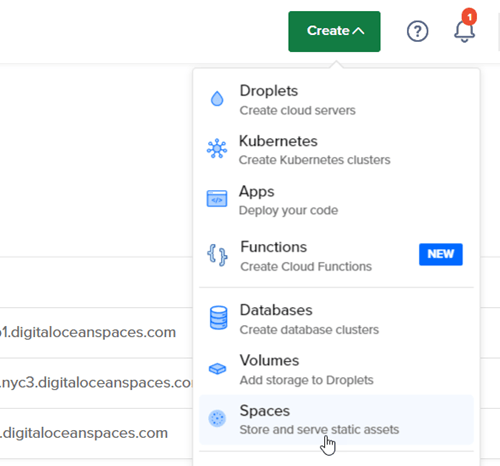
Now you will be able to select the datacenter region, type the name for the space and click on Create.
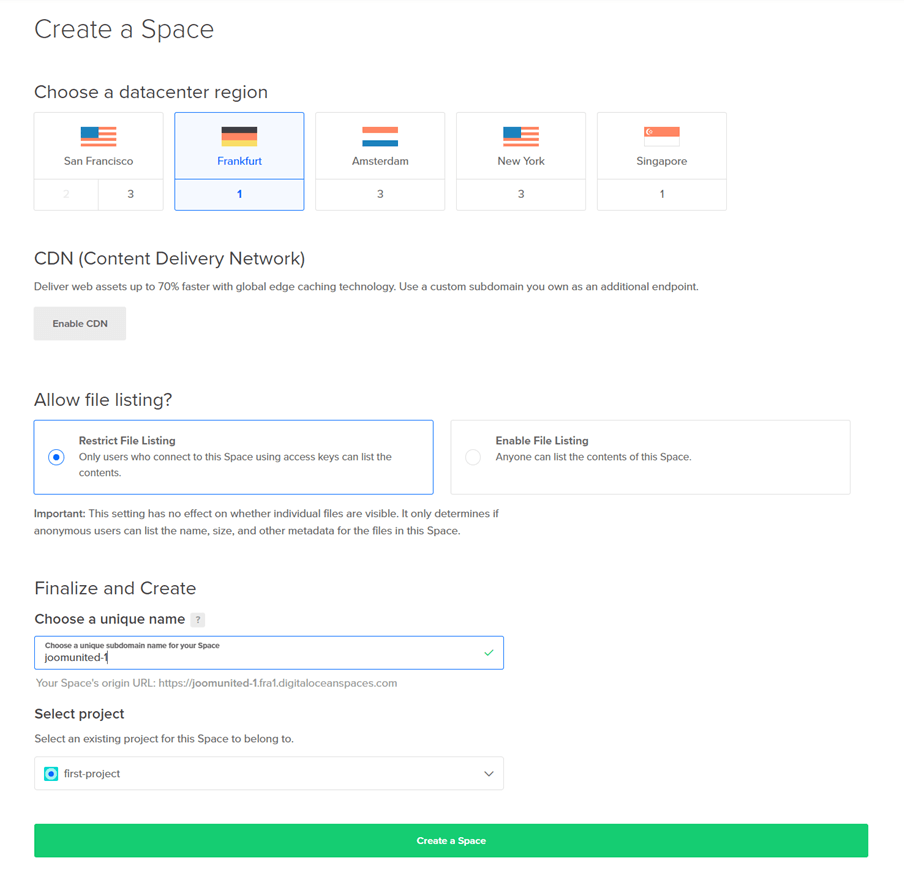
2.B Create the Space but from WP Media Folder directly
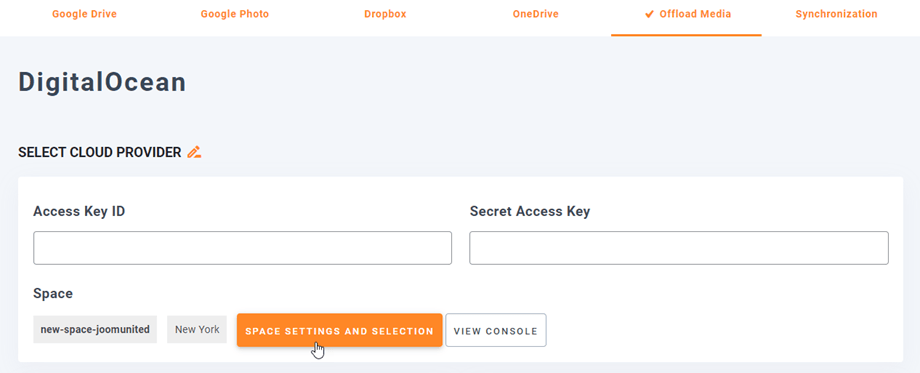
Navigate to menu Settings > WP Media Folder > Cloud > Offload Media > DigitalOcean, click on Space settings and selection button.
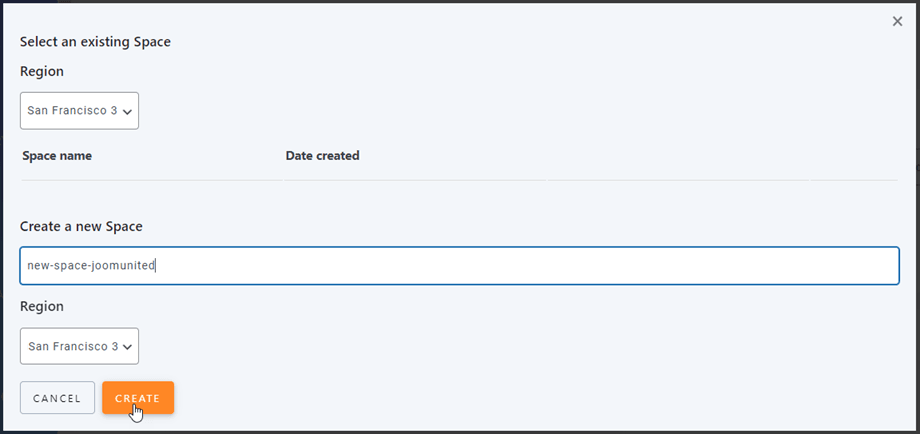
Now select the region, the Space name and click on Create.
3. Login to DigitalOcean from WP Media Folder
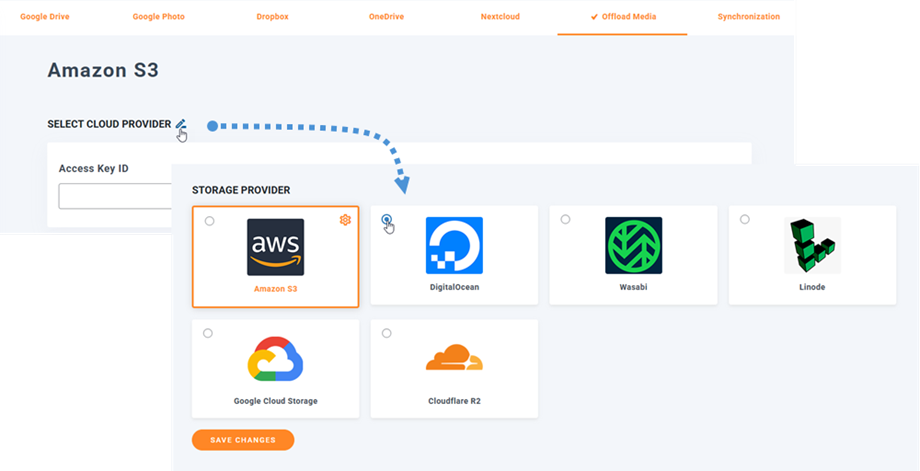
Now that we have the keys and the space created, go to Settings > WP Media Folder > Cloud > Offload Media. Next, click the Edit icon at Select Cloud Provider and choose DigitalOcean.
Now we need to paste the info that we got before, the API Key and Secret Key.
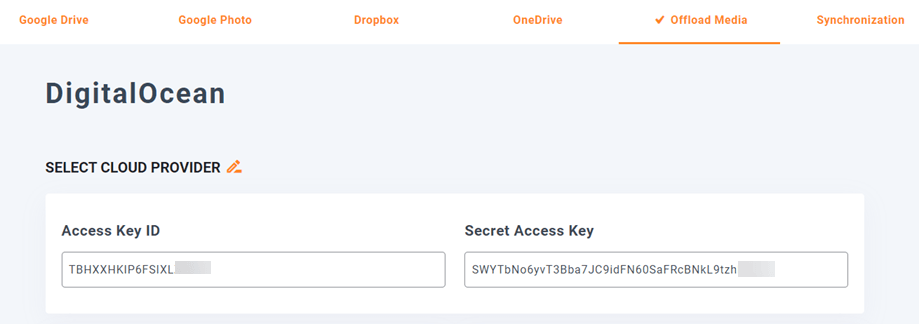
Now it should be a success and we should be able to click on space settings and selection to select an space or create a new one(the step that we mentioned before, 2.B)
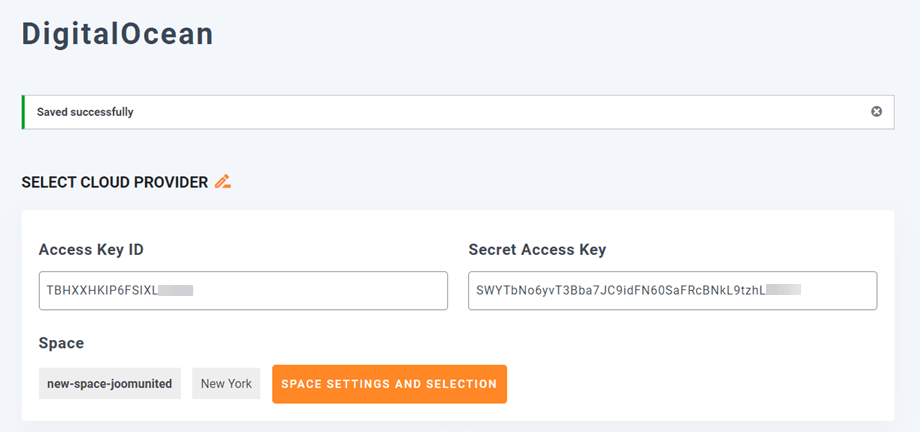
And that's it! We have DigitalOcean connected to our Media Library using WP Media Folder.
DigitalOcean settings overview
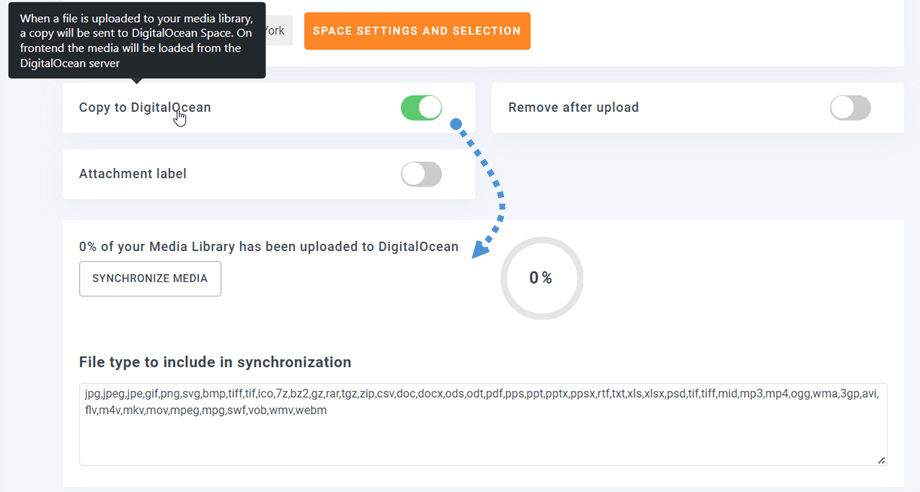
Now we have a few options:
1- Copy to Digital Ocean: This is the main option that will allow us to copy our entire media library after the connection.
2- Remove after upload: This option is useful if we don't want to save our media on the server; it will remove it after finishing the sync.
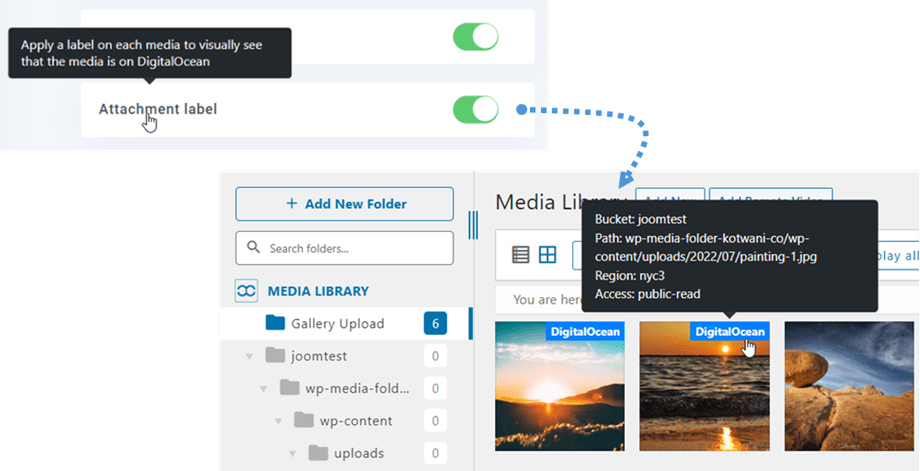
3- Attachment label: in case we have another Cloud Source like AWS we can enable this option so there is a label set on the media offloaded, it will be shown only on the media library.
So we just need to select what we want to do, and click on Synchronize media, and the offloading process will start.
If you enable the label option, the images uploaded to DigitalOcean will show the label.
How the Offloading Process Works
- A file is uploaded to WordPress.
- WP Media Folder automatically transfers that file to DigitalOcean Spaces.
- The file URL in WordPress is updated to point to the cloud version.
- The local server copy can optionally be removed.
- Visitors download the file directly from DigitalOcean instead of your web server.
This architecture provides several advantages:
- Reduced server load
- Faster file delivery
- Lower storage usage on hosting
- Automated synchronization
- Centralized media management
The process is automated, meaning you do not need to manually upload files to multiple systems. Everything happens in the background.
Secure Public vs Private File Delivery
Not all files should be publicly accessible. Some sites require protected downloads, especially for membership platforms, online courses, or premium digital products.
WP Media Folder allows you to configure how files are delivered.
Public Files
Public files are accessible through direct URLs. These are ideal for:
- Blog images
- Public downloads
- Product photos
- Marketing PDFs
These files can be cached by a CDN for faster global delivery.
Private Files
Private files require controlled access. Instead of exposing a permanent public URL, files can be delivered through time-limited secure links.
This is important for:
- Paid course videos
- Members-only documents
- Licensed software downloads
- Customer invoices
By separating public and private delivery methods, you improve security without sacrificing performance.
DigitalOcean Spaces supports controlled access permissions, allowing you to define whether files are publicly readable or restricted.
This is critical for compliance, data protection, and protecting digital assets from unauthorized sharing.
CDN and Bandwidth Optimization Benefits
One of the biggest advantages of using object storage is integration with a content delivery network.
What Is a CDN?
A CDN is a distributed network of servers located in multiple geographic regions. When a user requests a file, it is delivered from the closest available server location.
This reduces:
- Latency
- Download time
- Server strain
- Bandwidth usage on your origin server
Performance Improvements
When large files are delivered via DigitalOcean Spaces with CDN enabled:
- Users experience faster download speeds.
- Your WordPress hosting server remains responsive.
- Core web performance metrics improve.
- Search engines reward faster-loading pages.
Cost Efficiency
Instead of paying for expensive bandwidth overages on your hosting plan, file delivery is handled by DigitalOcean's infrastructure.
This can significantly reduce operational costs for:
- WooCommerce stores
- Media publishers
- Online education platforms
- Agencies managing client sites
The combination of object storage and CDN results in a performance-focused architecture built for growth.
Best Use Cases for Offloading Large WordPress Files
Not every site needs media offloading. But for certain scenarios, it becomes essential.
1. Video Hosting
If you host tutorial videos, product demos, or educational content, video files can quickly consume storage and bandwidth. Offloading keeps your site responsive.
2. Large Digital Downloads
Ebooks, design assets, software packages, and resource bundles often exceed typical upload sizes. Object storage handles these efficiently.
3. WooCommerce Product Media
High-resolution product images and downloadable products benefit from faster global delivery.
4. Backup Storage
Keeping backups in object storage improves redundancy and security.
5. Agencies Managing Multiple Sites
Agencies benefit from centralized media storage that reduces hosting upgrades and improves scalability across client projects.
6. Membership Platforms
Private, secure file access ensures only authorized users download premium content.
Chiamata a tutti i webmaster!
Risparmia tempo e aumenta la produttività con WP Media Folder. Organizza facilmente i file multimediali dei clienti, crea gallerie personalizzate e fornisci un'esperienza utente senza interruzioni.
Aggiorna subito i tuoi progetti web!
Build a Faster and More Scalable WordPress Media Infrastructure
Large file delivery is one of the most overlooked performance issues in WordPress. As media libraries grow, hosting servers struggle to handle storage, bandwidth, and traffic spikes. The result is slower performance, higher costs, and reduced reliability.
By combining DigitalOcean Spaces with WP Media Folder, you create a modern architecture that separates storage from application logic. Files are delivered faster, costs become predictable, and your WordPress server remains focused on running your site efficiently.
For media-heavy websites, online stores, membership platforms, and agencies, this is not just an optimization. It is a long-term scalability strategy.
If your site depends on large downloads, videos, or extensive image libraries, object storage with automated offloading is the next logical step toward performance, security, and sustainable growth.
Quando ti iscrivi al blog, ti invieremo un'e-mail quando ci saranno nuovi aggiornamenti sul sito in modo che tu non li perda.



Commenti