Produits WordPress
 Produits Joomla
 Support
 Actualités
 Connexion
Comment trier et filtrer les données de vos tables WordPress

La gestion des données structurées dans WordPress peut rapidement devenir complexe, surtout lorsqu'il s'agit d'annonces de produits, de tableaux de prix ou de grands ensembles de données. Sans les bons outils, les tableaux deviennent statiques, difficiles à parcourir et inefficaces tant pour les utilisateurs que pour les moteurs de recherche.
WP Table Manager fournit une solution complète à ce problème en vous permettant de créer des tables entièrement interactives avec des fonctions de tri, de filtrage et de recherche intégrées. Au lieu de dépendre d'un code personnalisé ou de fonctionnalités par défaut limitées, vous pouvez gérer tout cela via une interface intuitive directement dans WordPress.
Lorsque vos tableaux sont faciles à naviguer, les utilisateurs restent plus longtemps, interagissent davantage et trouvent les informations plus rapidement. Cela impacte directement les performances SEO en améliorant les signaux d'engagement et en rendant votre contenu plus structuré et accessible.
Dans ce guide, vous apprendrez exactement comment trier, filtrer et rechercher vos tableaux WordPress en utilisant WP Table Manager, ainsi que des cas d'utilisation réels tels que les catalogues de produits et les tableaux de prix.
Table des matières
- Comprendre ce que les tableaux WordPress peuvent faire par défaut
- Créer des tableaux dans WordPress vs WP Table Manager
- Tri des tableaux : du statique à l'interactif
- Filtrage des données : une fonctionnalité que WordPress ne fournit pas nativement
- Tableaux recherchables : amélioration de l'accessibilité des données
- Création de catalogues de produits avec des tableaux
- Création de tableaux de tarification avec une meilleure structure
- Meilleures pratiques pour des tableaux optimisés pour le SEO
- Prenez le contrôle complet de vos tableaux WordPress
Recherchez-vous une solution robuste de gestion de tables pour les sites Web clients ?
Des tableaux de tarification aux comparaisons de produits, ce plugin offre des fonctionnalités puissantes pour présenter les données de manière claire et conviviale.
Obtenez un avantage concurrentiel dès maintenant !
Comprendre ce que les tableaux WordPress peuvent faire par défaut
WordPress propose des méthodes de base pour créer des tableaux, principalement via l'éditeur de blocs ou en insérant du HTML manuellement. Ces options vous permettent de structurer les données en lignes et colonnes, ce qui est utile pour des cas d'utilisation simples comme de petites listes de prix ou des comparaisons de base.
Cependant, les tableaux natifs de WordPress sont statiques. Cela signifie :
- Les utilisateurs ne peuvent pas trier les colonnes
- Il n'existe pas de filtrage intégré
- La recherche dans les tableaux n'est pas disponible
- Les grands ensembles de données deviennent difficiles à parcourir
Pour de petites quantités de données, cela peut être suffisant. Mais dès que vos tableaux grandissent ou nécessitent une interaction, ces limitations deviennent un goulot d'étranglement.
C’est là qu’une solution dédiée comme WP Table Manager devient essentielle.
Créer des tableaux dans WordPress vs WP Table Manager
Créer un tableau dans WordPress implique généralement l'utilisation du bloc Table par défaut ou l'écriture de HTML. Bien que cela fonctionne pour des mises en page simples, cela manque de flexibilité et d'évolutivité.
Avec WP Table Manager, la création de tableaux devient nettement plus efficace.
Au lieu de structurer manuellement les lignes et les colonnes, vous obtenez une interface semblable à une feuille de calcul directement dans WordPress. Cela vous permet de :
- Ajouter et modifier les données visuellement
- Redimensionner les colonnes facilement
- Appliquer le formatage sans code
- Gérer de grands ensembles de données sans problèmes de performance
La différence principale réside dans le contrôle. Les tables natives de WordPress sont des structures statiques, tandis que WP Table Manager les transforme en systèmes de données dynamiques et gérables.
Tri des tableaux : du statique à l'interactif
Par défaut, les tables WordPress ne prennent pas en charge le tri. Si un utilisateur souhaite afficher les produits du prix le plus bas au plus élevé, il doit parcourir le tableau manuellement.
WP Table Manager introduit le tri basé sur les colonnes que les utilisateurs peuvent déclencher d'un seul clic.
Cela signifie :
- Les produits peuvent être triés par prix instantanément
- Les listes peuvent être réordonnées alphabétiquement
- Les données peuvent être organisées dynamiquement sans recharger la page
Cela transforme le tableau d'une présentation statique en un outil interactif. Pour le SEO, cela améliore l'engagement car les utilisateurs interagissent avec le contenu plutôt que de le consulter passivement.
Filtrage des données : une fonctionnalité que WordPress ne fournit pas nativement
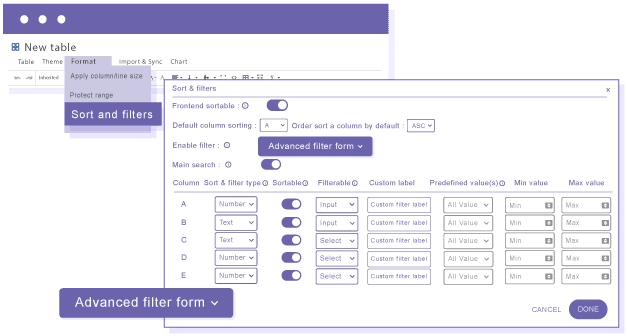
Le filtrage n'est pas disponible dans les tableaux WordPress standard. Sans cela, les utilisateurs doivent parcourir chaque ligne pour trouver les informations pertinentes.
WP Table Manager résout ce problème en vous permettant d'ajouter des filtres directement à vos tableaux.
Vous pouvez mettre en œuvre :
- Filtres déroulants pour les catégories
- Filtres texte pour les mots-clés
- Filtres de plage pour des valeurs comme le prix
Par exemple, dans un tableau de produits, les utilisateurs peuvent sélectionner une catégorie et réduire instantanément les résultats. Cela est particulièrement utile pour les grands ensembles de données où la navigation manuelle est inefficace.
Le filtrage améliore considérablement la convivialité et réduit les frictions, ce qui influence directement la durée pendant laquelle les utilisateurs restent sur votre page.
Tableaux recherchables : amélioration de l'accessibilité des données
WordPress n'offre pas de fonctionnalité de recherche intégrée dans les tableaux. Même si votre site dispose d'une fonction de recherche globale, elle ne cible pas efficacement les données spécifiques aux tableaux.
WP Table Manager inclut une recherche de tableau intégrée, permettant aux utilisateurs de trouver des entrées spécifiques instantanément.
Ceci est particulièrement utile pour :
- Catalogues de produits
- Tableaux de données techniques
- Grands graphiques comparatifs
Au lieu de faire défiler des dizaines de lignes, les utilisateurs peuvent saisir un mot-clé et voir immédiatement les résultats pertinents. Cela améliore à la fois l'expérience utilisateur et la performance perçue du site.
Création de catalogues de produits avec des tableaux
Créer des catalogues de produits en utilisant les tables natives de WordPress est possible, mais pas pratique à grande échelle.
Sans tri, filtrage ou recherche, les catalogues deviennent difficiles à parcourir à mesure qu'ils grandissent.
WP Table Manager vous permet de créer des tableaux de produits entièrement fonctionnels qui incluent :
- Noms des produits
- Images
- Tarifs
- Attributs
- Disponibilité
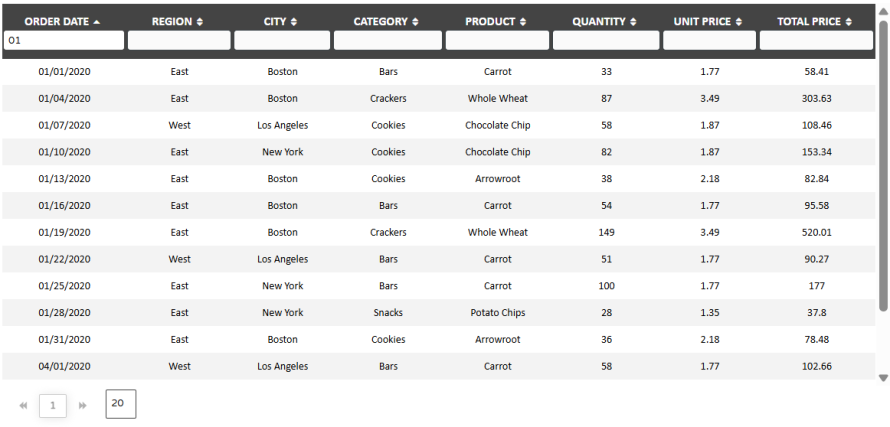
Les utilisateurs peuvent alors :
- Trier les produits par prix ou par nom
- Filtrer par catégorie ou attributs
- Rechercher des éléments spécifiques
Cela crée une expérience d'achat structurée directement dans votre contenu, ce qui complète les mises en page eCommerce traditionnelles.
Création de tableaux de tarification avec une meilleure structure
WordPress vous permet de créer des tableaux de prix manuellement, mais cela nécessite souvent un travail de conception personnalisé ou plusieurs blocs.
WP Table Manager comprend des thèmes intégrés conçus spécifiquement pour les tableaux de tarification. Ces thèmes offrent une mise en page structurée à la fois visuellement claire et facile à gérer.
Avec ces thèmes, vous pouvez :
- Comparer plusieurs plans côte à côte
- Mettre en évidence les fonctionnalités clés
- Présenter clairement les niveaux de prix

De plus, comme les données sont gérées sous forme de tableau, les mises à jour sont plus rapides et plus cohérentes que la modification manuelle de plusieurs éléments de conception.
Meilleures pratiques pour des tableaux optimisés pour le SEO
Que vous utilisiez les tableaux natifs de WordPress ou WP Table Manager, certaines pratiques amélioreront les résultats.
- Gardez vos tableaux structurés et faciles à lire
- Utilisez des en-têtes de colonne clairs et descriptifs
- Évitez la complexité inutile
- Assurez-vous que vos tableaux sont adaptés aux mobiles
- Conservez les données importantes au format texte plutôt que sous forme d'images
WP Table Manager facilite le suivi de ces pratiques en vous donnant un contrôle total sur la structure et le comportement du tableau.
Appel à tous les webmasters !
Améliorez les sites Web de vos clients avec WP Table Manager. Gérez et personnalisez facilement les tableaux, les graphiques et les feuilles de calcul, en fournissant aux clients des visualisations de données dynamiques et engageantes.
Améliorez vos services de conception Web dès aujourd'hui !
Prenez le contrôle complet de vos tableaux WordPress
Bien que WordPress propose des outils de base pour créer des tableaux, ils ne sont pas conçus pour la gestion interactive des données.
WP Table Manager comble cette lacune en introduisant des fonctionnalités avancées telles que le tri, le filtrage et la recherche, le tout dans une interface facile à utiliser.
Cela vous permet de dépasser le contenu statique et de créer des tableaux qui supportnent activement la navigation des utilisateurs et la prise de décision.
Que vous construisiez des catalogues de produits, des tableaux de prix ou des comparaisons de données, passer des tableaux natifs à WP Table Manager est une étape pratique vers une meilleure convivialité, évolutivité et performance SEO.
En améliorant la façon dont vos données sont présentées et accessibles, vous créez une base plus solide tant pour l'expérience utilisateur que pour la visibilité dans les moteurs de recherche.
Lorsque vous vous abonnez au blog, nous vous enverrons un e-mail lorsqu'il y a de nouvelles mises à jour sur le site afin que vous ne les manquiez pas.