워드프레스 제품
 주말라 제품
 지원
지원 뉴스
뉴스 로그인
로그인워드프레스 미디어 라이브러리 완전 가이드 (4가지 편리한 미디어 라이브러리 해킹 포함)

WordPress 미디어 라이브러리는 모든 웹사이트에서 가장 강력하면서도 종종 간과되는 부분 중 하나입니다. 업로드하는 모든 이미지, 비디오 및 문서는 그곳에 저장되어 귀하의 콘텐츠, 디자인, 그리고 궁극적으로 검색 순위를 조용히 지원합니다. 그러나 제대로 관리되지 않으면, 빠르게 혼란스럽고 느리며 비효율적인 시스템으로 변해 성능을 향상시키기보다 해칠 수 있습니다.
이미지를 찾기 위해 고생하거나, 사이트 로딩이 느리다는 것을 눈치채거나, 콘텐츠가 예상대로 순위에 오르지 않는 이유가 궁금하다면, 미디어 라이브러리가 문제의 일부일 수 있습니다. 좋은 소식은 몇 가지 간단한 전략으로 이를 잘 정리된 SEO 친화적인 자산으로 전환하여 사용자 경험과 사이트 성능을 모두 향상시킬 수 있다는 것입니다.
목차
혼란스러운 미디어 라이브러리에 작별 인사하세요.
WP Media Folder 를 사용하면 파일을 분류하고 클라우드 저장소와 폴더를 동기화하며 멋진 갤러리를 만들고 링크를 끊지 않고 이미지를 대체할 수 있습니다.
오늘날 미디어 워크플로우를 최적화하십시오
워드프레스 미디어 라이브러리란?
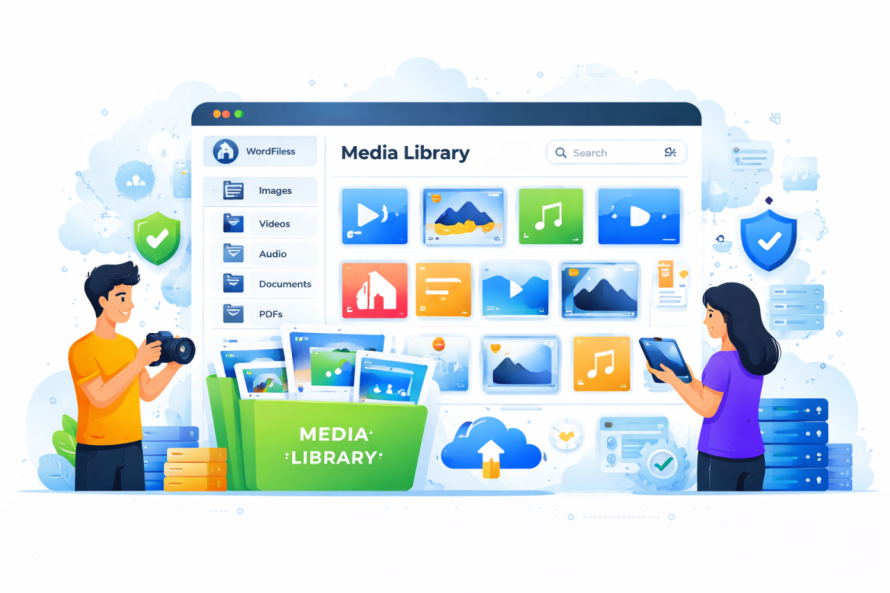
WordPress 미디어 라이브러리는 모든 미디어 파일이 저장되는 중앙 허브입니다. 여기에는 다음이 포함됩니다:
- 이미지 (JPEG, PNG, WebP)
- 비디오
- PDF 및 문서
- 오디오 파일
편집기나 미디어 라이브러리를 통해 미디어를 업로드할 때마다 WordPress가 여기에서 저장하고 관리합니다. 이 인터페이스를 통해 다음을 할 수 있습니다:
- 새 파일 업로드
- 파일 세부 정보 편집
- 대체 텍스트와 설명 추가
- 게시물 및 페이지에 미디어 삽입
단순한 저장 시스템처럼 보일 수 있지만, 웹사이트 구조와 성능에 훨씬 큰 역할을 합니다.
SEO와 성능을 위한 미디어 관리의 중요성
검색 엔진은 텍스트만 보는 것이 아니라 이미지, 파일 구조, 페이지 속도도 평가합니다. 부실한 미디어 관리로 인해 다음과 같은 문제가 발생할 수 있습니다:
- 느린 로딩 시간
- 누락되었거나 잘못된 이미지 데이터
- 중복 파일
- 정리되지 않은 콘텐츠
반면에, 잘 관리된 미디어 라이브러리는 다음을 할 수 있습니다:
- 페이지 속도 향상
- 검색 엔진이 귀하의 콘텐츠를 이해하도록 돕습니다
- 사이트 탐색을 더 쉽게 만듭니다
- 사용자 경험을 향상시킵니다
요약하면, 미디어 라이브러리를 최적화하는 것은 선택 사항이 아니라 고성능 워드프레스 사이트를 원한다면 필수입니다.
미디어 라이브러리가 사용자 경험에 미치는 영향

방문자의 관점에서 미디어는 모든 것입니다. 이미지는 주의를 끌고, 스토리텔링을 지원하며, 사이트를 시각적으로 매력적으로 만듭니다.
하지만 미디어가 최적화되지 않은 경우:
- 이미지가 느리게 로드될 수 있습니다
- 레이아웃이 깨질 수 있습니다
- 콘텐츠가 복잡하게 느껴질 수 있습니다
깨끗하고 잘 구조화된 미디어 라이브러리는 다음을 보장합니다:
- 이미지가 빠르게 로드됩니다
- 콘텐츠가 일관되게 표시됩니다
- 네비게이션이 직관적으로 느껴집니다
이는 사용자가 사이트에 머무는 시간과 행동을 취할지 여부에 직접적인 영향을 미칩니다.
검색 엔진을 위한 이미지 최적화
이미지 최적화는 미디어 라이브러리를 관리하는 가장 중요한 측면 중 하나입니다. 이는 고급 기술 지식이 필요하지 않으며; 그것'은 몇 가지 모범 사례를 지속적으로 따르는 것에 관한 것입니다.
1. 설명적인 파일 이름 사용
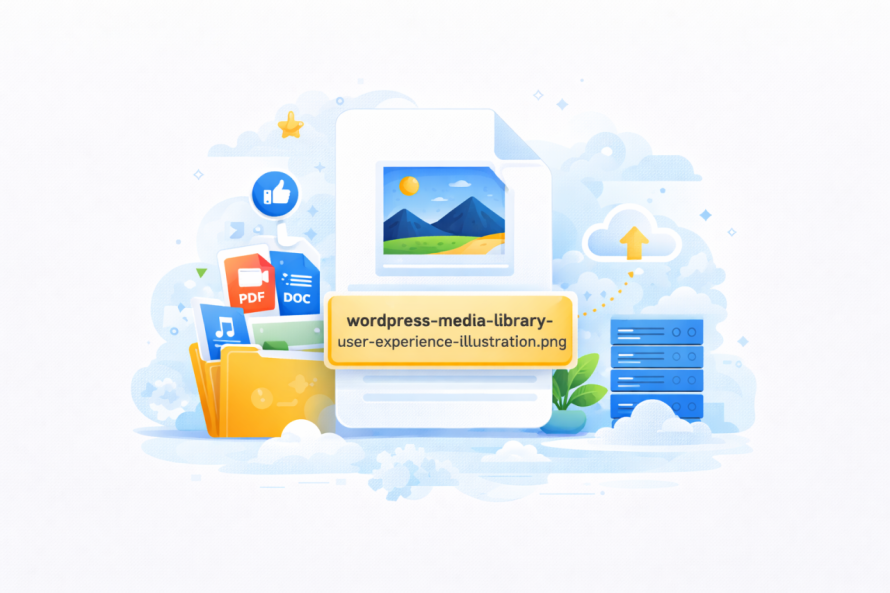
예를 들어 "IMG_1234.jpg,"와 같은 파일을 업로드하는 대신, 이미지를 명확히 설명하는 이름을 사용하십시오.
예시: vintage-1920s-dress-blue.jpg
이는 검색 엔진이 이미지가 무엇을 나타내는지 이해하는 데 도움이 됩니다.
2. 모든 이미지에 대체 텍스트 추가
Alt 텍스트는 이미지에 대한 짧은 설명입니다. 검색 엔진 및 접근성 도구에서 사용됩니다.
좋은 Alt 텍스트는 다음과 같아야 합니다:
- 이미지를 명확하게 설명하세요
- 관련 키워드를 자연스럽게 포함하세요
- 키워드 스터핑을 피하세요
예시: "블루 1920년대 빈티지 드레스, 레이스 디테일 포함"
3. 올바른 파일 형식 선택
다양한 포맷은 각각 다른 목적을 가집니다:
- JPEG: 사진에 가장 적합
- PNG: 투명성을 가진 그래픽에 가장 적합
- WebP: 최신 최적화에 가장 적합 (작은 크기, 높은 품질)
올바른 포맷을 사용하면 품질을 손상시키지 않으면서 파일 크기를 줄일 수 있습니다.
4. 업로드 전에 이미지 압축
큰 이미지가 웹사이트 속도를 저하시킵니다. 이미지를 압축하면 시각적 품질을 유지하면서 파일 크기를 줄일 수 있습니다.
다음이 개선됩니다:
- 페이지 속도
- 사용자 경험
- SEO 성능
5. 적절한 이미지 크기 사용
과도하게 큰 이미지를 업로드하고 워드프레스가 자동으로 크기를 조정하도록 하는 것은 비효율적입니다.
대신:
- 업로드하기 전에 이미지를 리사이즈하세요
- 테마 레이아웃에 맞게 크기를 조정하세요
이렇게 하면 불필요한 데이터 사용을 방지하고 로딩 속도를 높일 수 있습니다.
기본 미디어 라이브러리의 문제점
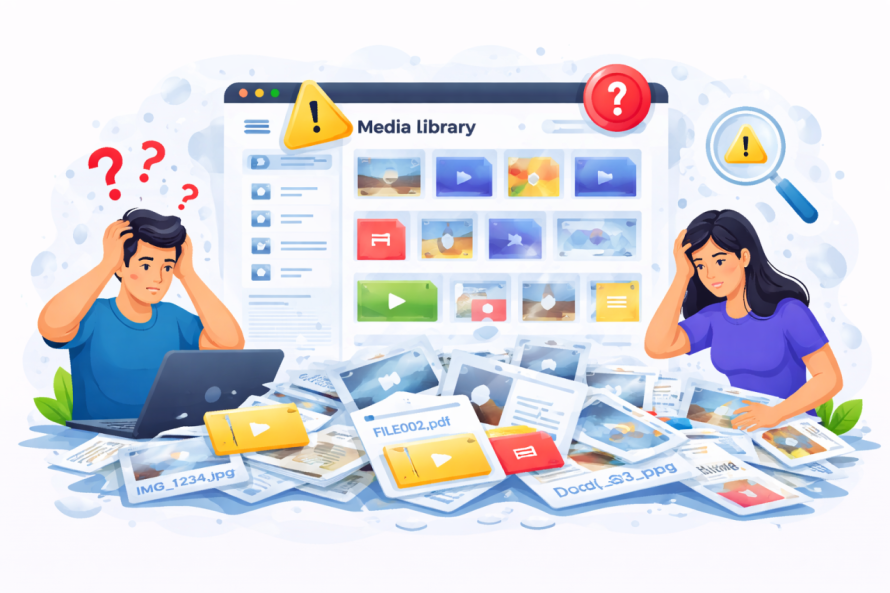
웹사이트가 성장함에 따라 기본 미디어 라이브러리를 관리하기 어려워질 수 있습니다.
일반적인 문제는 다음과 같습니다:
- 폴더 구조가 없음
- 찾기 어려운 파일
- 중복 업로드
- 조직화 부족
스마트한 도구로 조직 개선
이러한 제한을 극복하기 위해 많은 사이트 소유자는 다음과 같은 고급 미디어 관리 플러그인을 사용합니다 WP Media Folder.
이러한 유형의 도구는 다음을 허용합니다:
- 폴더 및 하위 폴더 만들기
- 파일 끌어다 놓기
- 미디어를 시각적으로 정리하기
- 외부 저장소와 동기화
끝없이 스크롤하는 대신, 컴퓨터의 파일 시스템처럼 미디어를 구조화할 수 있습니다.
4가지 유용한 미디어 라이브러리 팁
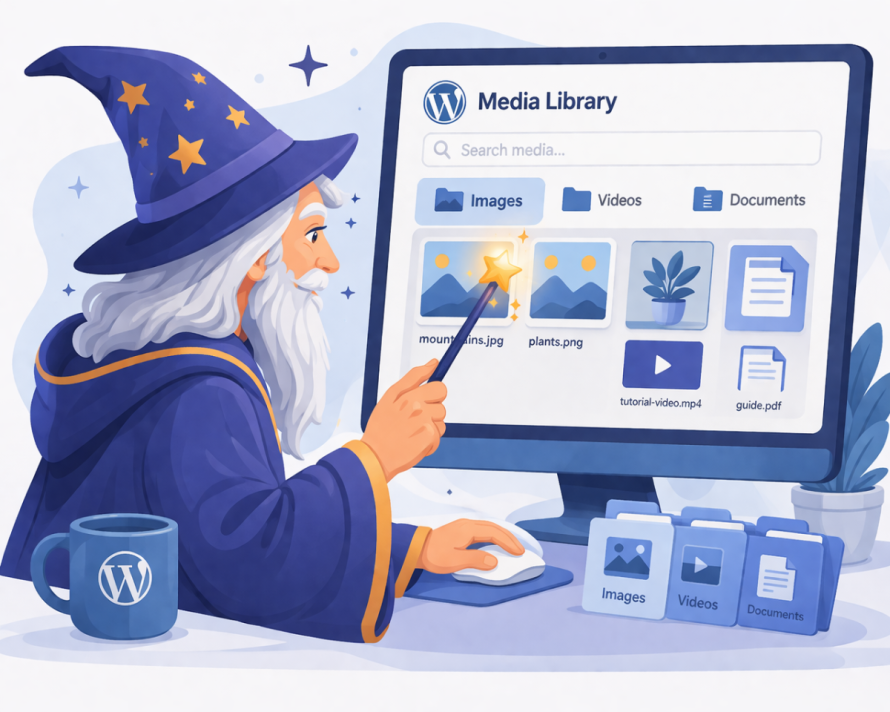
미디어 라이브러리를 개선하기 위해 즉시 적용할 수 있는 네 가지 실용적인 전략이 있습니다.
팁 #1: 파일을 논리적 폴더로 정리
미디어 라이브러리를 파일 캐비닛에 비유해 보세요. 폴더가 없으면 모든 것이 뒤섞입니다.
다음 기준으로 폴더를 만들세요:
- 콘텐츠 유형 (블로그, 제품, 배너)
- 카테고리 (패션, 액세서리, 프로모션)
- 날짜 또는 캠페인
이렇게 하면 훨씬 쉽게 할 수 있습니다:
- 파일을 빠르게 찾기
- 중복 방지
- 일관성 유지
팁 #2: 대량 이미지 편집 사용
이미지를 하나씩 편집하는 것은 시간이 많이 걸립니다. 대신 일괄 업데이트가 가능한 도구를 사용하세요.
다음과 같이 할 수 있습니다:
- 여러 이미지에 대체 텍스트를 추가하기
- 파일을 일괄적으로 이름 바꾸기
- 여러 이미지를 한 번에 최적화하기
수백 개에서 수천 개의 미디어 파일을 보유한 대형 웹사이트에 특히 유용합니다.
팁 #3: 사용되지 않은 미디어 제거
시간이 지나면서 미디어 라이브러리에 사용되지 않은 파일이 쌓입니다.
다음과 같은 문제:
- 저장 공간을 차지합니다
- 백업 속도를 저하시킵니다
- 혼란을 초래합니다
사용되지 않은 이미지를 정기적으로 검토하고 삭제하여 라이브러리를 깔끔하고 효율적으로 유지하세요.
팁 #4: 외부 스토리지 연결
사이트에서 대량의 미디어를 처리한다면 외부 스토리지 서비스를 연동하는 것을 고려하세요.
이를 통해 다음을 할 수 있습니다:
- 대용량 파일을 오프로드합니다
- 성능을 향상시킵니다
- 스토리지를 쉽게 확장하세요
일부 도구는 클라우드 스토리지와 직접 통합되어 이 과정을 원활하게 만듭니다.
미디어 라이브러리와 웹사이트 성능
미디어 파일은 웹 페이지에서 가장 무거운 요소인 경우가 많습니다. 최적화되지 않은 이미지가 로드 시간을 크게 늘릴 수 있습니다.
느린 웹사이트는 다음을 초래할 수 있습니다:
- 높은 이탈률
- 낮은 검색 순위
- 전환 감소
미디어 라이브러리를 최적화하면 다음을 보장합니다:
- 페이지 로드 속도가 빨라집니다
- 사용자가 더 오래 머무릅니다
- 검색 엔진이 귀하의 콘텐츠를 더 높게 순위 매깁니다
장기 미디어 관리 모범 사례
효율적인 미디어 라이브러리를 유지하려면 일관성이 핵심입니다.
다음 실천 사항을 따르세요:
- 업로드하기 전에 파일 이름을 항상 올바르게 지정하세요
- 즉시 대체 텍스트를 추가하세요
- 시작부터 폴더를 사용하세요
- 이미지를 정기적으로 최적화하세요
- 라이브러리를 주기적으로 감사하세요
작은 습관이 시간이 지남에 따라 큰 차이를 만듭니다.
실제 웹사이트에 적용되는 방법
콘텐츠가 많은 웹사이트—패션 전자상거래 스토어와 같은—에서는 미디어 관리가 더욱 중요합니다.
예를 들어:
- 제품 이미지가 빠르게 로드되어야 합니다
- 변형(색상, 사이즈)은 명확한 정리가 필요합니다
- 시각적 일관성은 브랜드 인식에 영향을 줍니다
구조화된 미디어 라이브러리는 사이트가 성장함에 따라 확장성을 유지하도록 보장합니다.
왜 WP Media Folder 돋보이는가
WP Media Folder 와 같은 도구는 위에서 논의한 모든 것을 제공함으로써 단순화합니다:
- 폴더 기반 인터페이스
- 드래그 앤 드롭 구성
- 클라우드 서비스와의 통합
- 더 빠른 미디어 관리 워크플로
WordPress 제한을 우회하는 대신, 자연스럽고 직관적인 방식으로 기능을 강화합니다.
모든 웹마스터를 불러드립니다!
WP Media Folder을(를) 사용하여 시간 절약하고 생산성을 높이세요. WP Media Folder. Effortlessly organize client media files, create custom galleries, and provide a seamless user experience.
지금 웹사이트 프로젝트를 업그레이드하세요!
미디어 라이브러리 제어하기
귀하의 미디어 라이브러리는 단순한 저장소를 넘어; 그것은' 웹사이트' 성능, SEO 및 사용자 경험의 핵심 부분입니다.
적절히 관리하면, 사이트에 도움이 됩니다:
- 더 빠르게 로드
- 더 높은 순위
- 정리된 상태 유지
- 효율적으로 확장
이 가이드의 전략을 적용하고 올바른 도구를 사용하여 WP Media Folder, 전체 웹사이트를 지원하는 강력한 자산으로 미디어 라이브러리를 변환할 수 있습니다.
그 결과는 더 빠르고, 더 깔끔하며, 더 전문적인 사이트로, 사용자와 검색 엔진 모두에게 더 나은 성능을 제공합니다.
블로그에 가입하면 사이트에 새로운 업데이트가 있을 때 이메일을 보내드리므로 업데이트를 놓치지 않을 것입니다.