WordPress 제품
 Joomla 제품
 Support
 News
News 登录
登录WP Media Folder 애드온의 새로운 갤러리 관리자

워드프레스 블로그가 있는 곳에는 이미지와 미디어가 따르기 마련이며, 이미지가 있는 곳에는 갤러리가 등장하는 것이 자연스럽습니다. 단지 이미지 그룹을 보여줄 때 공간을 절약하고 싶을 뿐이더라도, 갤러리는 미디어를 가장 돋보이게 표현할 수 있는 세련된 방법입니다.
WP Media Folder 갤러리 애드온은 WP Media Folder 을 기반으로 하여 이미지 갤러리 관리를 용이하게 해줍니다. WordPress 갤러리 관리자가 전반적인 업데이트를 통해 대대적으로 개선되었으며, 새로운 UX, 사용자 정의 가능한 갤러리, 그리고 블로그 어디에나 이미지 갤러리를 삽입할 수 있는 새로운 Gutenberg 블록이 포함되었습니다.
동영상으로 보는 WordPress 갤러리 관리자
복잡한 미디어 라이브러리와 작별하세요.
WP Media Folder 를 사용하면 파일을 분류하고, 클라우드 스토리지와 폴더를 동기화하고, 멋진 갤러리를 만들고, 링크를 깨뜨리지 않고 이미지를 교체할 수도 있습니다.
오늘 미디어 워크플로우를 최적화하세요
새로운 갤러리 관리자 UX 살펴보기
놓칠 수 없습니다. WP Media Folder Gallery Addon을 업데이트하는 즉시 완전히 새로운 UX가 여러분을 맞이합니다. Media 메뉴에서 Media Folder Galleries 로 이동하면 최신 버전에서 채택된 새롭고 미니멀한 디자인을 확인할 수 있습니다.
미니멀리즘 뒤에는 기능이 풍부한 갤러리 관리자가 숨어 있지만, 새로운 기능을 살펴보기 전에 먼저 둘러볼 필요가 있습니다. 사이드바에서는 처음부터 새 갤러리를 만들거나 기존 이미지 폴더를 완전한 갤러리로 자동 변환할 수 있습니다. 바로 아래에서 아무 갤러리나 클릭하여 편집을 시작할 수 있습니다.
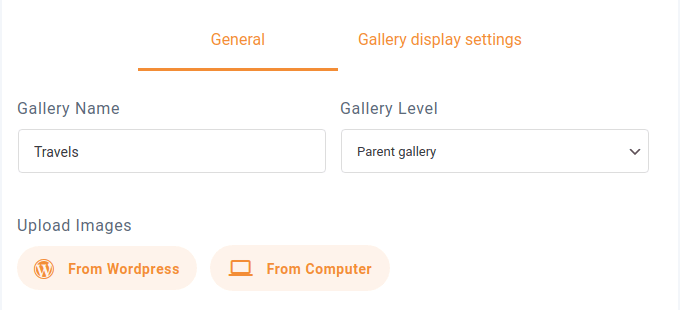
실제 갤러리 관리는 매우 간단합니다. 상단에서 이름과 갤러리 레벨을 지정할 수 있습니다. 갤러리는 디렉터리처럼 계층적으로 구성할 수 있습니다. 아래에서는 WordPress 이미지를 갤러리로 가져오거나 컴퓨터에서 새 이미지를 업로드할 수 있습니다.
나머지 공간은 갤러리가 차지합니다. WordPress 갤러리 관리자를 사용하면 이미지 위에 마우스를 올리고 설정 아이콘을 클릭하여 각 이미지를 개별적으로 편집할 수 있습니다. 실수로 갤러리에 이미지를 추가한 경우, 마찬가지로 마우스를 올리고 삭제 아이콘을 클릭하여 제거할 수 있습니다.
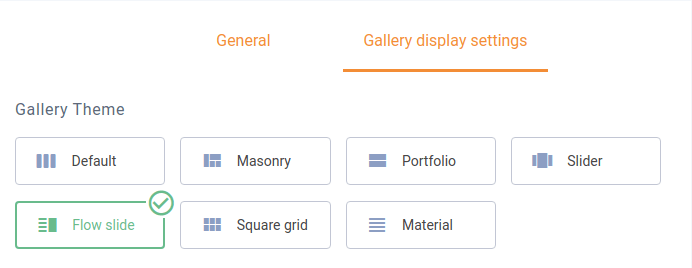
하지만 갤러리 관리자에 실제로 추가된 핵심 기능은 이 영역에 있지 않습니다. 상단의 갤러리 표시 설정 탭에서는 각 갤러리를 개별적으로 사용자 지정할 수 있습니다. 7가지 갤러리 테마 중 하나를 선택할 수 있습니다. ‘갤러리 관리자’라는 이름에 걸맞게, WP Media Folder Gallery Addon을 사용하면 아래에서 원하는 대로 갤러리를 세밀하게 조정할 수 있습니다.
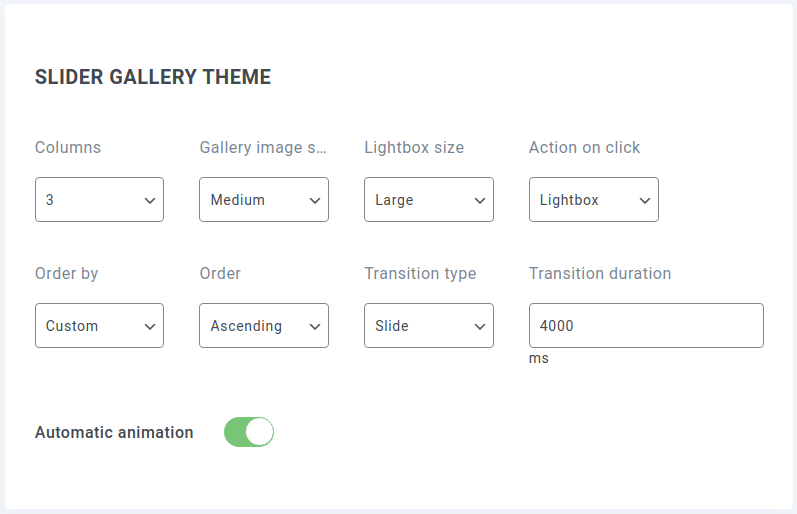
열 수, 이미지 크기 및 정렬, 라이트박스 동작과 같은 일부 옵션은 모든 테마에서 공통입니다. 그러나 예를 들어 슬라이더 테마에는 활용할 수 있는 테마별 옵션이 있습니다.
대부분의 경우 테마를 다시 사용할 때마다 동일한 설정을 적용하고 싶을 것입니다. WP Media Folder Gallery Addon의 설정을 사용하면 특정 테마에 대한 기본 설정을 정의할 수 있습니다. 이를 설정하고 준비해 두려면 WP Media Folder의 설정 페이지로 이동하세요.
갤러리 관리자의 설정은 Galleries Addon 섹션의 기본 설정 탭에 있습니다. 옵션에는 개별 갤러리를 만들 때 일반적으로 볼 수 있는 동일한 설정과 자동 애니메이션 같은 몇 가지 추가 옵션이 포함됩니다.
어디든 갤러리 삽입하기
갤러리 관리자 설정을 완료한 후에는 설정에서 바로 갤러리를 공유할 수 있습니다. 숏코드 탭에서는 갤러리의 설정을 지정하고 어디든 갤러리를 삽입할 수 있는 코드, 즉 숏코드를 얻을 수 있습니다.
설정은 갤러리 관리자에서 볼 수 있는 일반적인 항목들로, 갤러리와 테마 선택, 테마의 세부 사항 변경 등이 포함됩니다. 설정을 변경하면 페이지 하단의 숏코드도 함께 변경됩니다. 설정을 마치면 이 코드를 복사하여 WordPress 블로그의 원하는 위치에 붙여넣어 갤러리를 삽입할 수 있습니다.
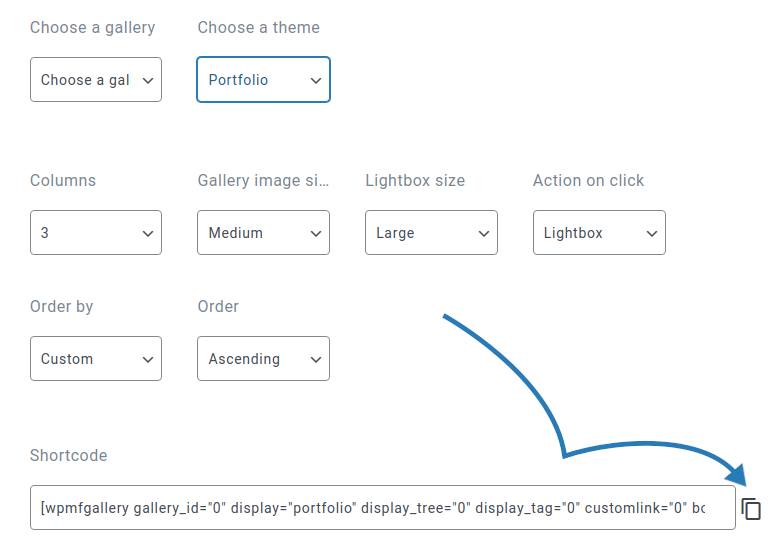
숏코드는 사이드바 메뉴에 쇼케이스 형태로 갤러리를 삽입하는 등 예상치 못한 위치에 갤러리를 넣고 싶을 때 이상적입니다. 하지만 게시물이나 페이지에 갤러리를 만들고 싶다면 더 쉬운 방법이 있습니다. 바로 갤러리 관리자의 완전히 새로운 구텐베르크 블록입니다.
구텐베르크 블록의 이름은 WPMF 갤러리 애드온입니다. 블록을 생성하면 갤러리를 선택하거나 새로 만들라는 메시지가 표시됩니다. 어떤 방법을 선택하든 갤러리를 선택하고 삽입 을 클릭하여 콘텐츠에 추가하세요.
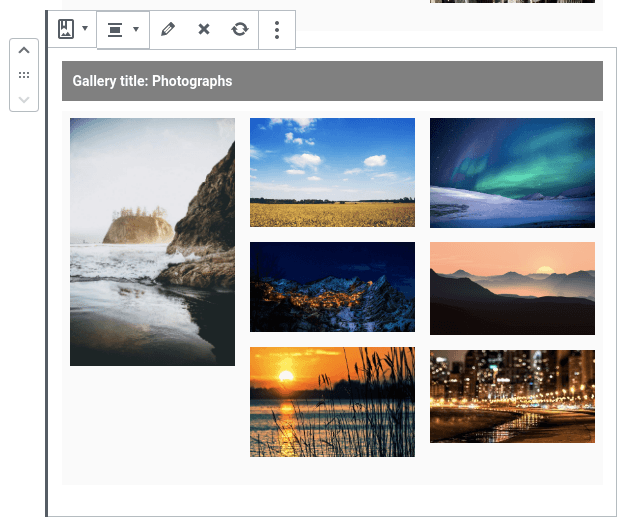
구텐베르크 블록의 가장 큰 장점은 갤러리 관리자를 그 안에 포함하고 있다는 것입니다. 블록 툴바에서 편집 아이콘을 클릭하여 구텐베르크 편집기에서 갤러리 이미지를 변경할 수 있습니다. 블록 설정에는 테마와 같은 기타 갤러리 관련 옵션과 테두리, 여백, 그림자 등의 블록 옵션이 포함되어 있습니다.
모든 웹마스터를 환영합니다!
WP Media Folder로 시간을 절약하고 생산성을 높이세요. 고객 미디어 파일을 손쉽게 정리하고, 사용자 지정 갤러리를 만들고, 원활한 사용자 경험을 제공하세요.
지금 웹사이트 프로젝트를 업그레이드하세요!
WP Media Folder Gallery Addon은 갤러리를 새로 발명하지는 않지만, 갤러리를 최상의 방식으로 표시할 수 있도록 더 쉽게 만들어 줍니다. 선택할 수 있는 7가지 테마와 이를 사용자 정의할 수 있는 무수한 방법을 갖춘 갤러리 관리자의 최신 업데이트는 갤러리에 이미지를 그 어느 때보다 쉽게 전시할 수 있게 해줍니다.
블로그를 구독하시면, 사이트에 새로운 업데이트가 있을 때 이메일을 보내드리므로 놓치지 않으실 수 있습니다.