워드프레스 제품
 주말라 제품
 지원
지원 뉴스
뉴스 로그인
로그인OneDrive 와 WP Media Folder통합: 미디어 라이브러리 동기화를 자동화

여러 플랫폼에 걸쳐 미디어 파일을 관리하면 특히 Microsoft 생태계 내에서 작업하는 팀의 경우 비효율적일 수 있습니다. 이미지, 문서 및 자산이 서로 다른 시스템에 존재하면 워크플로가 느려지고 일관성이 떨어집니다. 바로 이때 OneDrive 을 WordPress와 통합하면 전략적 이점을 얻을 수 있습니다.
귀하의 팀이 이미 Microsoft에 의존하고 있다면 OneDrive 파일 저장 및 협업을 위해, 이를 직접 WordPress 미디어 라이브러리에 연결하면 중앙 집중식 자동 워크플로가 생성됩니다. 와 WP Media Folder, 플랫폼 간 파일을 동기화하고, 구조를 유지하며, 콘텐츠 관리 및 게시 방식을 간소화할 수 있습니다.
혼란스러운 미디어 라이브러리에 작별 인사하세요.
WP Media Folder 를 사용하면 파일을 분류하고 클라우드 저장소와 폴더를 동기화하며 멋진 갤러리를 만들고 링크를 끊지 않고 이미지를 대체할 수 있습니다.
오늘날 미디어 워크플로우를 최적화하십시오
목차
왜 OneDrive 통합이 WordPress 팀에 중요한가
Microsoft 생태계에서 운영되는 기업의 경우, OneDrive 는 디지털 자산을 위한 주요 저장 계층인 경우가 많습니다. 마케팅 팀, 디자이너, 콘텐츠 관리자들은 파일을 업로드하고, 편집하며, 정리하기 위해 매일 이를 사용합니다. 그러나 WordPress에 콘텐츠를 게시할 때는 해당 파일들을 일반적으로 다운로드한 뒤 수동으로 다시 업로드해야 합니다.
이 중복은 여러 운영 비효율성을 초래합니다. 첫째, 버전 불일치 위험이 증가합니다. OneDrive 에서 업데이트된 파일이 워드프레스에 반영되지 않을 수 있어 사이트에 오래된 시각 자료나 문서가 표시될 수 있습니다. 둘째, 동일한 파일이 여러 위치에 존재하므로 중복 저장이 발생합니다. 셋째, 특히 대량 콘텐츠를 다루는 팀의 경우 게시 워크플로가 느려집니다.
OneDrive 을(를) WP Media Folder을 통해 WordPress와 통합함으로써 이러한 문제들이 해결됩니다. OneDrive 에 저장된 파일은 WordPress 미디어 라이브러리 내에서 직접 접근할 수 있어 마찰을 줄이고 일관성을 보장합니다. 이 접근 방식은 자동화와 중앙 집중식 데이터 접근이 확장성을 위해 핵심적인 현대 콘텐츠 운영과 일치합니다.
WP Media Folder 가 OneDrive 동기화를 처리하는 방법
WP Media Folder 은 OneDrive 을(를) 워드프레스 미디어 라이브러리에 직접 통합하여 대시보드를 떠나지 않고도 클라우드 파일을 탐색하고, 업로드하고, 관리할 수 있게 합니다. 동기화 외에도, 가장 큰 장점 중 하나는 연결 과정이 매우 간단하다는 점이며—비기술 사용자에게도 마찬가지입니다.
아래는 플러그인을 사용하여 OneDrive 계정을 워드프레스에 연결하는 방법에 대한 명확하고 구조화된 단계별 안내입니다.
단계별: OneDrive 를 WP Media Folder와 연결
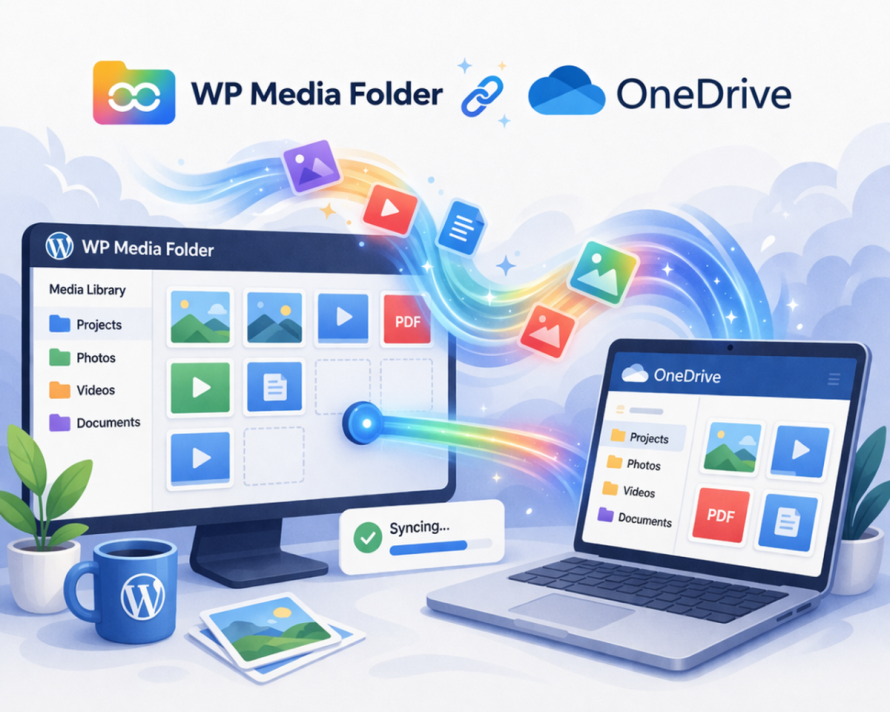
1. 필요한 확장 기능을 설치하고 활성화합니다
WordPress 환경에서 기본 플러그인 WP Media Folder 와 해당 클라우드 애드온이 모두 설치되고 활성화되어 있는지 확인하십시오. OneDrive 통합은 클라우드 확장의 일부입니다.
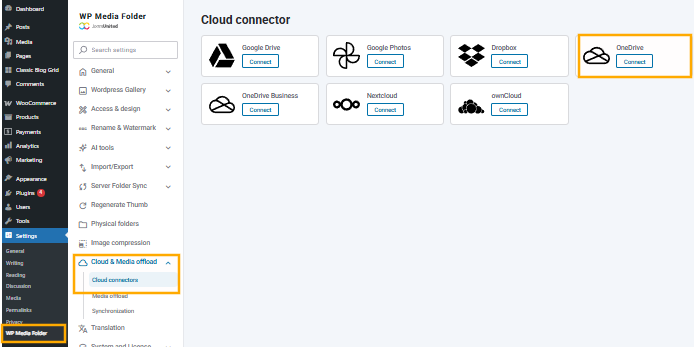
2. 클라우드 설정으로 이동합니다
WordPress 대시보드에서 다음으로 이동하십시오:
설정 > WP Media Folder > 클라우드 > OneDrive
이 섹션에는 클라우드 스토리지 제공업체와 관련된 모든 구성 옵션이 포함되어 있습니다.
3. OneDrive 연결을 생성합니다
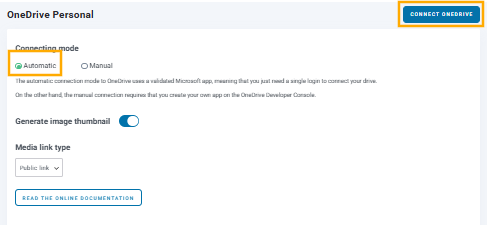
자동을 클릭한 다음 "Connect OneDrive" 버튼을 누르십시오. 이렇게 하면 Microsoft OneDrive와의 인증 프로세스가 시작됩니다.
Microsoft 로그인 화면으로 리디렉션됩니다. 여기서 다음을 수행해야 합니다:
- OneDrive 계정으로 로그인하세요
- WP Media Folder에서 요청한 권한을 부여하세요
이 권한을 통해 WP Media Folder 이 파일을 안전하게 읽고 관리할 수 있습니다.
4. 접근을 승인하고 WordPress로 돌아갑니다
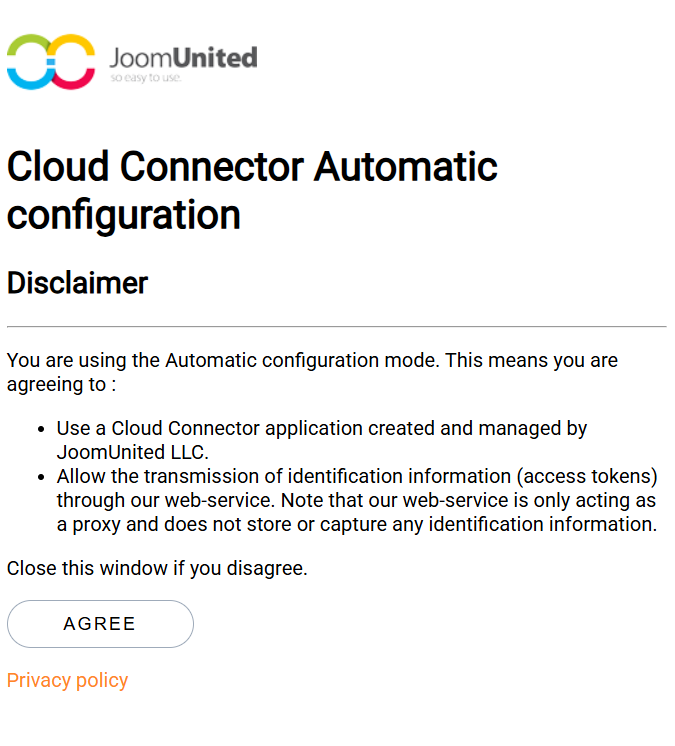
액세스를 승인하면 WordPress 관리자 패널로 다시 리디렉션됩니다. 이 시점에서 연결이 설정되고 활성화됩니다.
5. 미디어 라이브러리에서 OneDrive 에 접근합니다
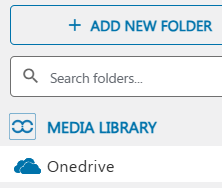
Media > Library로 이동하면 이제 OneDrive 를 소스로 볼 수 있습니다. 여기에서 다음을 할 수 있습니다:
- OneDrive 폴더를 탐색하세요
- 파일을 게시물/페이지에 직접 삽입
- 파일을 OneDrive에 다시 동기화하도록 업로드
실시간 vs 예약 동기화 동작
통합에서 가장 중요한 측면 중 하나는 동기화가 어떻게 처리되는가입니다. WP Media Folder 는 실시간 및 예약 동기화 동작을 모두 지원함으로써 이 영역에서 유연성을 제공합니다.
실시간 동기화는 OneDrive 에서 이루어진 모든 변경 사항이 WordPress에 즉시 반영되도록 보장합니다. 이는 전자상거래 운영이나 활발한 마케팅 캠페인과 같이 항상 최신 자산이 필요한 팀에 이상적입니다. 예를 들어, 디자이너가 OneDrive에서 제품 이미지를 업데이트하면, 업데이트된 버전이 WordPress에 즉시 제공됩니다.
반면에 예약 동기화는 정의된 간격으로 작동합니다. 이 접근 방식은 서버 부하를 줄이거나 지속적인 동기화가 필요하지 않은 대규모 라이브러리를 관리하는 데 유용합니다. 팀은 필요에 따라 동기화 작업을 시간별, 일별 또는 맞춤 간격으로 실행하도록 구성할 수 있습니다.
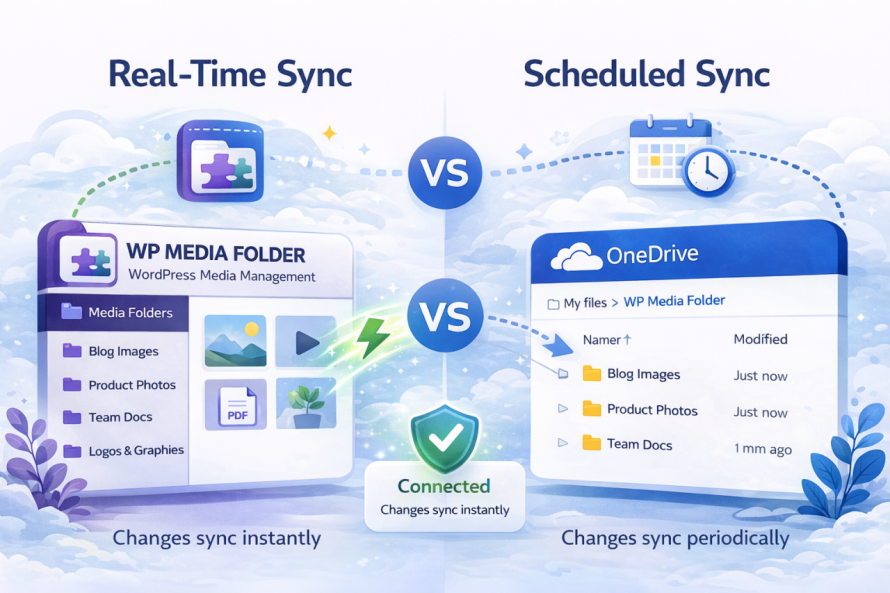
이러한 모드 중 선택은 운영 요구 사항에 따라 달라집니다. 실시간 동기화는 정확성과 즉시성을 우선시하고, 예약 동기화는 성능과 자원 최적화를 우선시합니다. WP Media Folder 은 팀이 워크플로에 따라 두 요소를 균형 있게 조정할 수 있도록 합니다.
폴더 권한 및 접근 제어
Microsoft OneDrive 와 같은 클라우드 스토리지를 WordPress와 통합할 때, 누가 미디어에 접근하고 수정할 수 있는지를 관리하는 것이 중요해집니다. OneDrive 이 자체 권한 시스템을 제공하지만, it's 동일하게 WordPress 자체 내에서 접근을 제어하는 것이 중요합니다. 바로 여기서 WP Media Folder 이 강력한 미디어 관리 레이어를 추가합니다.
WordPress 수준 폴더 권한 (핵심 장점)
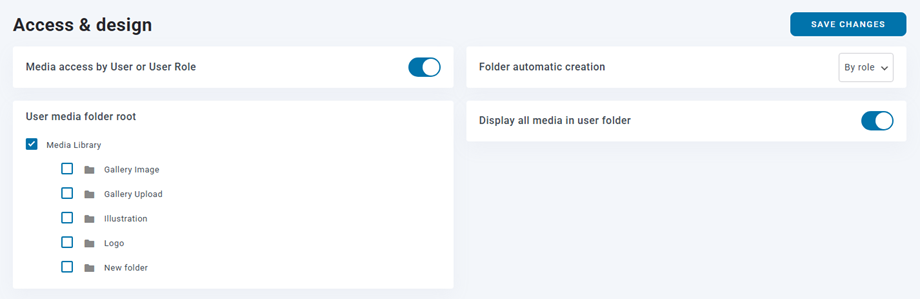
WP Media Folder 은 정의하도록 허용합니다 WordPress 내부에서 폴더 수준 권한을 직접, 독립적으로 OneDrive. 이는 사용자가 특정 폴더 내의 파일을 보기, 업로드, 편집 또는 관리할 수 있는 권한을 제어할 수 있음을 의미합니다.
단일 공유 미디어 풀을 갖는 대신, 책임에 따라 접근을 구분할 수 있습니다. 예를 들어:
- 마케팅 팀은 캠페인 관련 폴더에 접근할 수 있습니다
- 콘텐츠 편집자는 블로그 미디어만 관리할 수 있습니다
- 개발자 또는 관리자는 모든 폴더에 대한 전체 접근 권한을 유지합니다
이 구조는 혼란을 줄이고 무단 사용자의 실수로 인한 편집 또는 삭제를 방지합니다.
사용자 또는 역할별 권한 할당
권한은 두 가지 주요 방법으로 구성할 수 있습니다:
1. WordPress 사용자 역할별
관리자, 편집자, 저자 또는 사용자 정의 역할과 같은 역할을 기반으로 접근 규칙을 할당할 수 있습니다. 이는 팀 전체의 접근을 표준화하는 데 이상적입니다.
2. 개별 사용자별
보다 세밀한 제어를 위해 권한을 특정 사용자에게 적용할 수 있습니다. 이는 책임이 역할 정의를 엄격히 따르지 않는 상황에서 유용합니다.
각 폴더는 자체 구성을 가질 수 있어 미디어 라이브러리 전반에 걸쳐 매우 유연한 접근 제어를 가능하게 합니다.
자동 폴더 할당
또 다른 유용한 기능은 자동 폴더 할당입니다. WP Media Folder 는 사용자를 기반으로 폴더를 동적으로 생성하거나 할당할 수 있습니다. 예를 들어:
- 각 사용자는 자신만의 전용 미디어 폴더를 가질 수 있습니다
- 업로드된 파일은 자동으로 할당된 디렉터리에 저장됩니다
이렇게 하면 미디어 라이브러리가 정리되고 여러 사용자가 동시에 콘텐츠를 업로드할 때 충돌을 방지할 수 있습니다.
팀에게 중요한 이유
구조화된 권한이 없으면, 미디어 라이브러리는 빠르게 혼란스러워지고 파일이 덮어쓰여지거나, 잘못된 위치에 놓이거나, 잘못된 사용자에게 노출됩니다. WP Media Folder 는 모든 팀원이 자신의 역할에 관련된 자산만을 다루는 제어된 환경을 도입함으로써 이를 해결합니다.
일반적인 비즈니스 워크플로우
OneDrive 와 WordPress 간의 통합은 팀 전반의 효율성을 향상시키는 여러 실용적인 워크플로우를 가능하게 합니다.
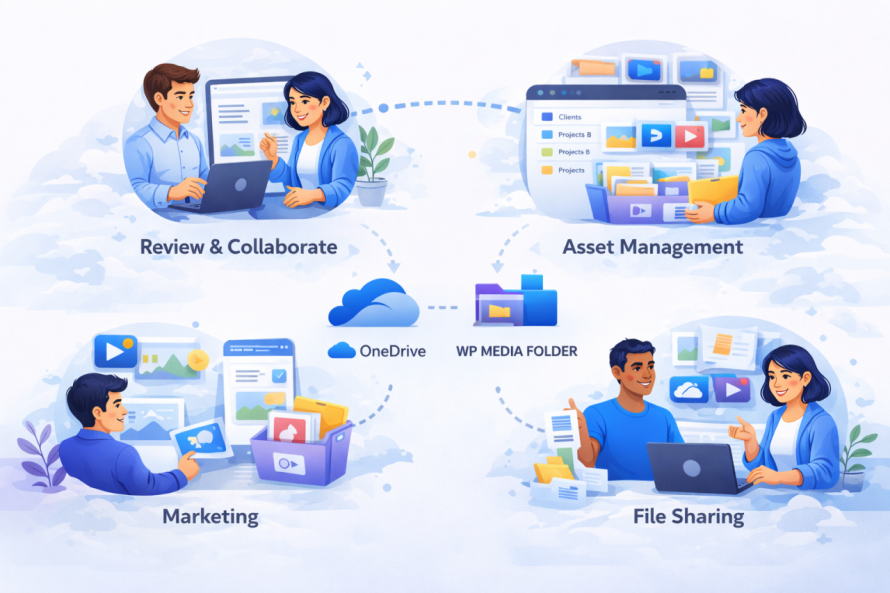
마케팅 팀을 위해 캠페인 자산을 OneDrive 에 저장하고 자동으로 WordPress에서 사용할 수 있습니다. 이는 새로운 캠페인이 시작될 때 필요한 이미지, 배너 및 문서가 이미 CMS 내에서 접근 가능함을 의미합니다. 수동 업로드나 파일 전송이 필요하지 않습니다.
콘텐츠 팀은 간소화된 편집 프로세스의 혜택을 누립니다. 작가와 편집자는 OneDrive에서 문서에 협업하고 자산을 마무리한 뒤, 플랫폼을 전환하지 않고 WordPress를 통해 직접 게시할 수 있습니다. 이는 컨텍스트 전환을 줄이고 콘텐츠 제작을 가속화합니다.
전자상거래 비즈니스를 위해 제품 이미지와 카탈로그는 OneDrive에서 중앙 관리될 수 있습니다. 제품 시각 자료의 업데이트는 WordPress와 동기화되어 스토어프런트 전반에 일관성을 보장합니다. 이는 대규모 재고를 보유한 매장에서 수동 업데이트가 시간 소모적일 때 특히 중요합니다.
또 다른 일반적인 워크플로는 원격 팀을 포함합니다. OneDrive 이 클라우드 기반이므로 팀 구성원은 어디서든 자산을 업로드할 수 있습니다. WP Media Folder 통합을 통해 해당 자산은 워드프레스에서 즉시 사용할 수 있게 되어 분산 작업 환경을 지원합니다.
보안 및 규정 준수 고려사항
클라우드 통합을 다룰 때 보안은 주요 관심사입니다. Microsoft 생태계의 일부인 OneDrive는 암호화, 신원 관리 및 규정 준수 인증과 같은 엔터프라이즈 수준 보안 기능을 포함합니다. 이를 워드프레스와 통합함으로써 조직은 이러한 보호를 미디어 워크플로에 확장할 수 있습니다.
WP Media Folder 은 보안 인증 프로토콜을 사용하여 OneDrive에 연결하며, 자격 증명이 노출되지 않도록 보장합니다. 시스템 간 데이터 전송은 암호화되어 가로채기 위험을 감소시킵니다.
컴플라이언스 관점에서 볼 때, 이 통합은 데이터 보호 규정을 준수해야 하는 조직에 유익합니다. 파일을 OneDrive 내에 보관하면 기업이 Microsoft'의 컴플라이언스 인프라스트럭처를 활용할 수 있으며, 여기에는 감사 로그와 접근 추적이 포함됩니다.
또한, 미디어 저장소를 중앙 집중화하면 데이터 파편화 위험이 감소합니다. 로컬 서버와 CMS 업로드에 파일이 흩어져 있는 대신, 모든 것이 제어된 환경을 통해 관리됩니다.
백업 및 복구 프로세스도 개선되었습니다. 파일이 OneDrive에 저장되어 있기 때문에 내장된 중복성 및 버전 기록의 혜택을 받습니다. 파일이 실수로 삭제되거나 수정되면 워드프레스 사이트에 영향을 주지 않고 복원할 수 있습니다.
모든 웹마스터를 불러드립니다!
WP Media Folder을(를) 사용하여 시간 절약하고 생산성을 높이세요. WP Media Folder. Effortlessly organize client media files, create custom galleries, and provide a seamless user experience.
지금 웹사이트 프로젝트를 업그레이드하세요!
미디어 운영을 간소화하고, 동기화하며, 확장하기
조각난 미디어 워크플로는 가장 효율적인 팀조차도 속도를 늦출 수 있습니다. OneDrive 를 WP Media Folder을 통해 WordPress와 통합함으로써, 기업은 자동화, 협업 및 확장성을 지원하는 통합 시스템을 얻을 수 있습니다.
이 접근 방식은 미디어 자산이 항상 최신이며, 접근 가능하고, 안전하도록 보장합니다. 중복된 프로세스를 제거하고 콘텐츠 관리를 최신 클라우드 기반 관행에 맞춥니다.
이미 OneDrive를 사용하고 있는 조직에게 이 통합은 디지털 운영을 최적화하기 위한 논리적인 단계입니다. 이는 효율성을 향상시킬 뿐만 아니라 콘텐츠 중심 환경에서 확장 가능한 성장을 위한 기반을 마련합니다.
구조화된 동기화 전략을 구현하고 WP Media Folder의 기능을 활용함으로써 팀은 미디어 라이브러리를 완전히 제어하고 보다 신뢰성 있고 효율적인 워크플로우를 구축할 수 있습니다.
블로그에 가입하면 사이트에 새로운 업데이트가 있을 때 이메일을 보내드리므로 업데이트를 놓치지 않을 것입니다.