 Sản phẩm WordPress
 Sản phẩm Joomla
 Hỗ trợ
 Tin tức
 Đăng nhập
Nhúng bảng và biểu đồ vào WordPress với Avada

Chỉ cần bốn cú nhấp chuột. Đó là tất cả những gì cần thiết để nhúng bảng hoặc biểu đồ vào bài viết và trang WordPress của bạn bằng trình tạo Avada Live: chỉ bốn cú nhấp chuột đơn giản. Sự WP Table Manager với Avada tiếp nối các tích hợp trước đó của chúng tôi với Elementor và Divi , cho phép bạn quản lý và chèn bảng tính, bảng biểu và hình ảnh trực quan vào themevà mẫu với sự dễ dàng chưa từng có.
Sử dụng Avada để thiết kế themes và mẫu của bạn rất dễ dàng, và việc thêm WP Table Manager phù hợp với quy trình làm việc của bạn. Bạn có thể sử dụng tích hợp mới để nhúng bất kỳ bảng nào, dù là những bảng bạn tạo từ đầu hay những bảng bạn nhập từ Google Drive, Office 365 hoặc các tệp Excel khác. Trong bài viết này, chúng tôi sẽ thấy việc quản lý hoặc nhúng bảng tính và biểu đồ trong trình chỉnh sửa Avada thật sự dễ dàng như thế nào.
Tìm kiếm giải pháp quản lý bảng mạnh mẽ cho khách hàng websites?
Từ bảng giá đến so sánh sản phẩm, plugin này cung cấp các tính năng mạnh mẽ để trình bày dữ liệu một cách rõ ràng và thân thiện với người dùng.
Nhận lợi thế cạnh tranh ngay bây giờ!
Nhúng các bảng WordPress vào themes của Avada
Avada không gì nếu không trực quan. May mắn là, việc chuyển đổi bảng tính của bạn thành các bảng WordPress cũng dễ dàng như vậy. Để chèn bảng vào các bài đăng hoặc trang WordPress của bạn, mở trình chỉnh sửa Avada và chèn một phần tử mới.
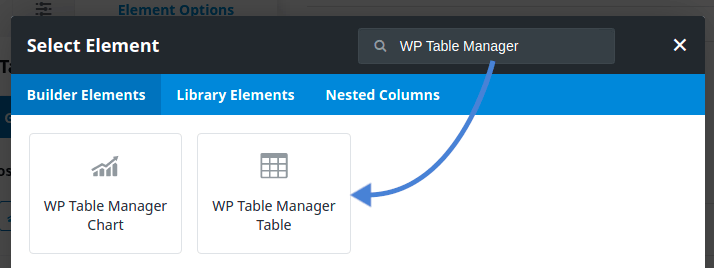
Thêm một phần tử chỉ cần bốn lần nhấp. Như thường lệ, các khối mới được đặt tên theo WP Table Manager plugin. Tìm kiếm WP Table Manager Bảng phần tử và nhấp vào nó để thêm vào bài viết hoặc trang của bạn. Dưới Chọn Bảng ở phía trái màn hình của bạn, có một WP Table Manager nút: nhấp vào nó.
Ngay khi bạn nhấp vào nút này, Avada sẽ mở trình duyệt bảng. Nhấp chuột thứ ba là chọn bảng tính mà bạn muốn chèn vào nội dung của mình. Trình quản lý này hoàn toàn hoạt động, vì vậy bạn thậm chí có thể tạo một bảng mới bằng cách sử dụng menu ở góc trên-trái.
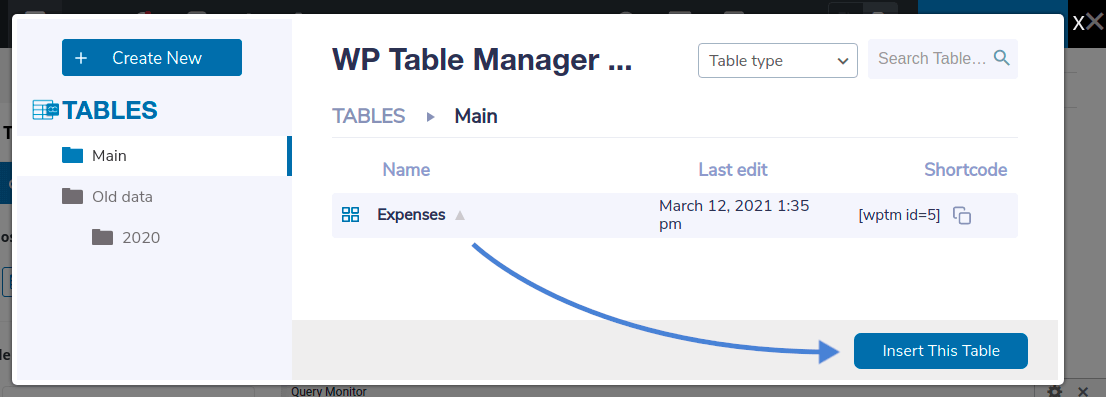
Cho dù bạn chọn một bảng hiện có hay tạo một bảng mới, lần nhấp thứ tư là nút ở góc dưới bên phải. Sau khi chọn bảng tính mà bạn muốn nhúng, nhấp vào Chèn Bảng Này và bạn sẽ thấy bảng mới của mình trong Avada theme. Bốn lần nhấp: thêm phần tử, chỉnh sửa, chọn bảng tính và chèn bảng.
Quản lý bảng từ Avada theme trình tạo
Trước đây, chúng tôi đã nói rằng trình duyệt bảng không chỉ là thẩm mỹ. Sau khi nhấp vào WP Table Manager Bảng phần tử trong Avada, bạn có thể sử dụng trình quản lý bảng như một trình chỉnh sửa hoàn chỉnh ngay từ trình tạo Live của Avada.
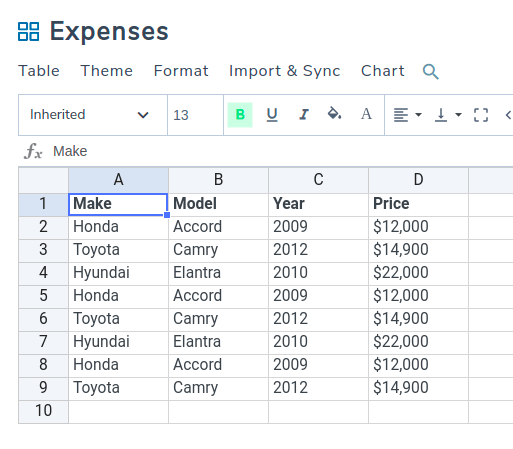
Thực tế, nếu bạn nhấp vào tên của một bảng's, bạn sẽ được đưa đến WP Table Manager's trình chỉnh sửa riêng. Nó's một trình chỉnh sửa đầy đủ chức năng, có nghĩa là bạn có thể chỉnh sửa dữ liệu, kiểu dáng và nhiều hơn nữa của bảng tính mà không cần rời khỏi trình tạo Live của Avada.
Bạn có thể tạo một bảng mới theo cùng cách. Sử dụng lightbox của WP Table Manager's để tạo một bảng tính mới từ góc trên-trái. Bạn sẽ lại ở trong trình chỉnh sửa bảng một lần nữa, nơi bạn có thể điền dữ liệu mới vào bảng tính và tùy chỉnh nó.
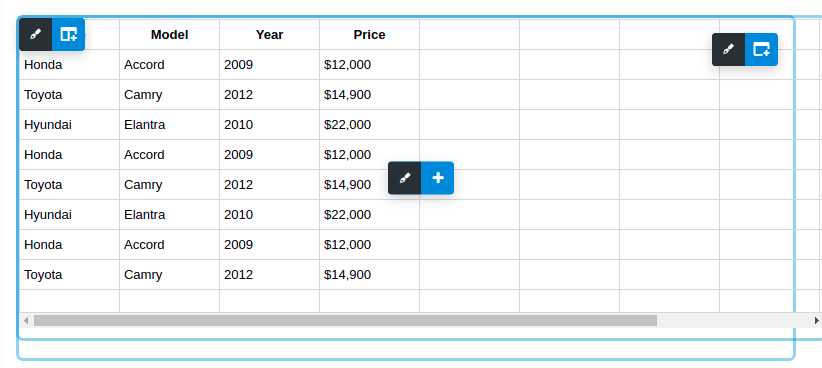
Tuyệt nhất là, khi bạn chèn bảng vào trình chỉnh sửa Avada, bạn sẽ nhận được bản xem trước trực tiếp dữ liệu của mình. Hãy tận dụng điều này; nếu bạn phát hiện lỗi trong dữ liệu bảng tính, hoặc muốn điều chỉnh kiểu dáng, không cần rời khỏi trình chỉnh sửa Avada: chỉ cần nhấp vào bảng và chỉnh sửa nó từ trình xây dựng.
Nhúng biểu đồ vào mẫu Avada
Tại sao phải kể một câu chuyện khi bạn có thể hiển thị nó? WP Table Manager liên quan đến nhiều hơn chỉ bảng tính và dữ liệu. WP Table Manager' biểu đồ cho phép bạn làm điều đó, và bạn có thể tận dụng các hình ảnh trực quan bạn tạo từ bảng để làm đẹp nội dung WordPress của mình với trình chỉnh sửa Avada nữa.
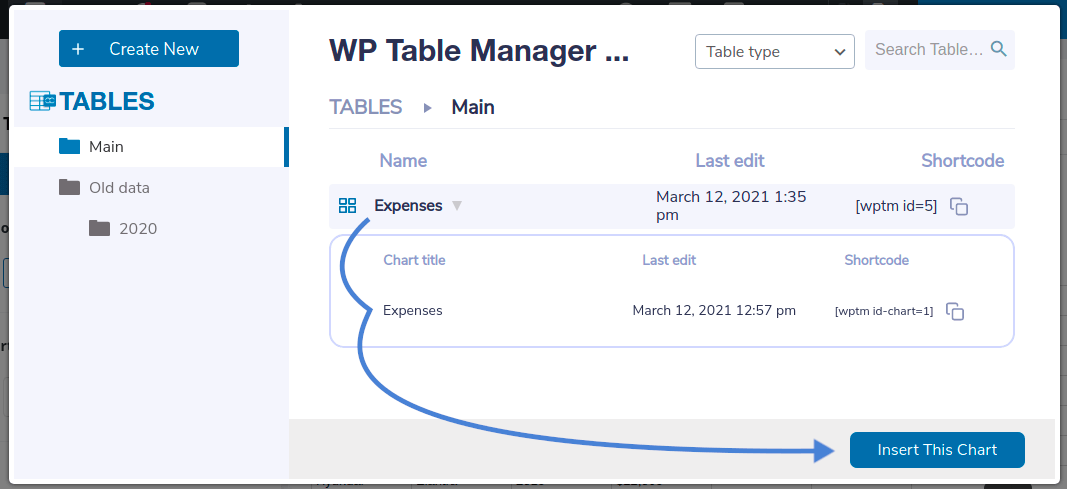
The flow is very similar to before. From the Avada Live builder, look for the WP Table Manager Biểu đồ element and click on it. Click on any spreadsheet in the browser to load its charts. Click on any visualization to select it, and then press the Chèn Biểu Đồ Này nút để thêm nó vào trình tạo Avian Live.
Nếu chưa có biểu đồ nào hoặc bạn muốn tạo biểu đồ mới, hãy nhấp vào trình quản lý bảng để tải lại trình chỉnh sửa bảng. Từ đây, bạn có thể tạo biểu đồ như bình thường bằng Biểu đồ . Hãy nhớ chọn dữ liệu bạn muốn thêm vào biểu đồ trước, rồi mới tạo hình ảnh trực quan.
Chỉnh sửa biểu đồ từ Avada Live builder
Khi bạn đang ở đây, hãy nhớ rằng bạn đang sử dụng trình chỉnh sửa đầy đủ chức năng của WP Table Manager. Điều đó có nghĩa là khi chèn các biểu đồ, dù là mới hay đã có, bạn có thể chỉnh sửa chúng ngay từ trình xây dựng Avada Live.
Tất cả các công cụ mà bạn có thể sử dụng trong trình chỉnh sửa biểu đồ WP Table Manager đều có sẵn ở đây. Bạn có thể thay đổi phạm vi dữ liệu hiển thị trong biểu đồ, thay đổi màu sắc và kích thước, và hơn nữa.

Không cần phải thay đổi quy trình làm việc của bạn để bắt đầu làm việc với bảng, bảng tính và biểu đồ trong Trình tạo Adava Live. Nhúng và chỉnh sửa dữ liệu và kiểu dáng của bạn mà không bao giờ rời khỏi theme trình chỉnh sửa. Mọi thứ chỉ cách bạn bốn cú nhấp chuột.
Gọi tất cả quản trị web!
Nâng cao khách hàng của bạn websites với WP Table Manager. Dễ dàng quản lý và tùy chỉnh các bảng, biểu đồ và bảng tính, cung cấp cho khách hàng các hình ảnh dữ liệu động và hấp dẫn.
Nâng cấp dịch vụ thiết kế web của bạn ngay hôm nay!
Bạn có quan tâm đến WP Table Manager? Nếu bạn muốn tìm hiểu thêm về trình chỉnh sửa bảng và biểu đồ và cách bạn có thể thêm nó vào quy trình làm việc Avada của mình để làm phong phú các bài đăng và trang WordPress của bạn, hãy nhấp đây.
Khi bạn đăng ký theo dõi blog, chúng tôi sẽ gửi cho bạn một email khi có bản cập nhật mới trên trang web để bạn không bỏ lỡ chúng.




Bình luận