ผลิตภัณฑ์ WordPress
 ผลิตภัณฑ์ Joomla
 สนับสนุน
 ข่าวสาร
 เข้าสู่ระบบ
วิธีถ่ายโอนไฟล์มีเดียของ WordPress ไปยัง Vultr Object Storage โดยใช้ WP Media Folder

เมื่อเว็บไซต์ WordPress เติบโตขึ้น รูปภาพ วิดีโอ และไฟล์ทั้งหมดที่จัดเก็บไว้บนเซิร์ฟเวอร์โฮสติ้งของคุณอาจเริ่มทำให้ระบบช้าลงและใช้พื้นที่มาก ซึ่งจะทำให้การสำรองข้อมูลมีขนาดใหญ่ขึ้นและค่าใช้จ่ายในการโฮสติ้งสูงขึ้นในระยะยาว วิธีแก้ปัญหาที่ยืดหยุ่นกว่าคือการย้ายไฟล์มีเดียเหล่านี้ออกจากเซิร์ฟเวอร์หลักของคุณและจัดเก็บไว้ในที่เก็บข้อมูลแบบอ็อบเจ็กต์บนคลาวด์ และการใช้ Vultr Object Storage ร่วมกับ WP Media Folder จะทำให้กระบวนการนี้ง่ายขึ้น มีประสิทธิภาพมากขึ้น และประหยัดค่าใช้จ่าย ในขณะที่ยังคงจัดการทุกอย่างได้ง่ายภายใน WordPress.
Instead of forcing your WordPress server to store and deliver every file, media is offloaded to a dedicated cloud storage system built for scalability. WP Media Folder then integrates this storage directly into your WordPress media library, so everything still feels native and easy to manage.
In this article, we will break down exactly how this integration works, why it improves performance, and how you can set it up correctly using the official WP Media Folder Vultr integration workflow.
สารบัญ
- Why Offload WordPress Media to Object Storage
- WP Media Folder and Vultr Integration Overview
- Media URL Rewriting and Delivery
- Performance and Hosting Load Reduction
- Vultr as a Cost-Effective Cloud Alternative
- Ideal Scenarios for Using Vultr Object Storage
- Best Practices for Implementation
- Conclusion: Improve WordPress Performance with Cloud Media Offloading
บอกลาคลังสื่อที่รก.
WP Media Folder ให้คุณจัดหมวดหมู่ไฟล์ ซิงค์โฟลเดอร์กับที่เก็บข้อมูลบนคลาวด์ สร้างแกลเลอรีที่น่าทึ่ง และแม้แต่การแทนที่รูปภาพโดยไม่ทำลายลิงก์
ปรับปรุงขั้นตอนการทำงานของสื่อของคุณวันนี้
Why Offload WordPress Media to Object Storage

When WordPress runs on traditional hosting, all media files are stored locally. This creates several long-term issues:
- Storage fills up quickly
- Backups become slow and heavy
- Hosting costs increase with storage upgrades
- Server performance decreases under high traffic
Every time a page loads, the server must retrieve images and files while also handling WordPress logic, database queries, and plugins. This combination creates unnecessary strain.
Offloading media solves this by separating file storage from website hosting. Instead of serving files from your WordPress server, they are served from a cloud storage system designed specifically for scalability and high availability.
The result is:
- เวลาในการโหลดหน้าเว็บที่เร็วขึ้น
- Reduced server CPU and disk usage
- Smaller backups
- More stable performance under traffic spikes
From an SEO perspective, faster websites tend to rank better because search engines prioritize user experience and loading speed.
Vultr Object Storage Overview
Vultr Object Storage is a scalable cloud storage service designed to store large amounts of unstructured data such as images, videos, and backups.
Unlike traditional hosting storage, object storage is built to:
- Handle massive file libraries
- Scale automatically without server upgrades
- Deliver files efficiently over the internet
- Reduce dependency on your main hosting environment
One of its main advantages is cost efficiency. Compared to other cloud providers, Vultr is often positioned as a more affordable alternative while still offering reliable performance and S3-compatible storage architecture.
This makes it particularly attractive for WordPress websites that need cloud-level scalability without enterprise-level pricing.
WP Media Folder and Vultr Integration Overview
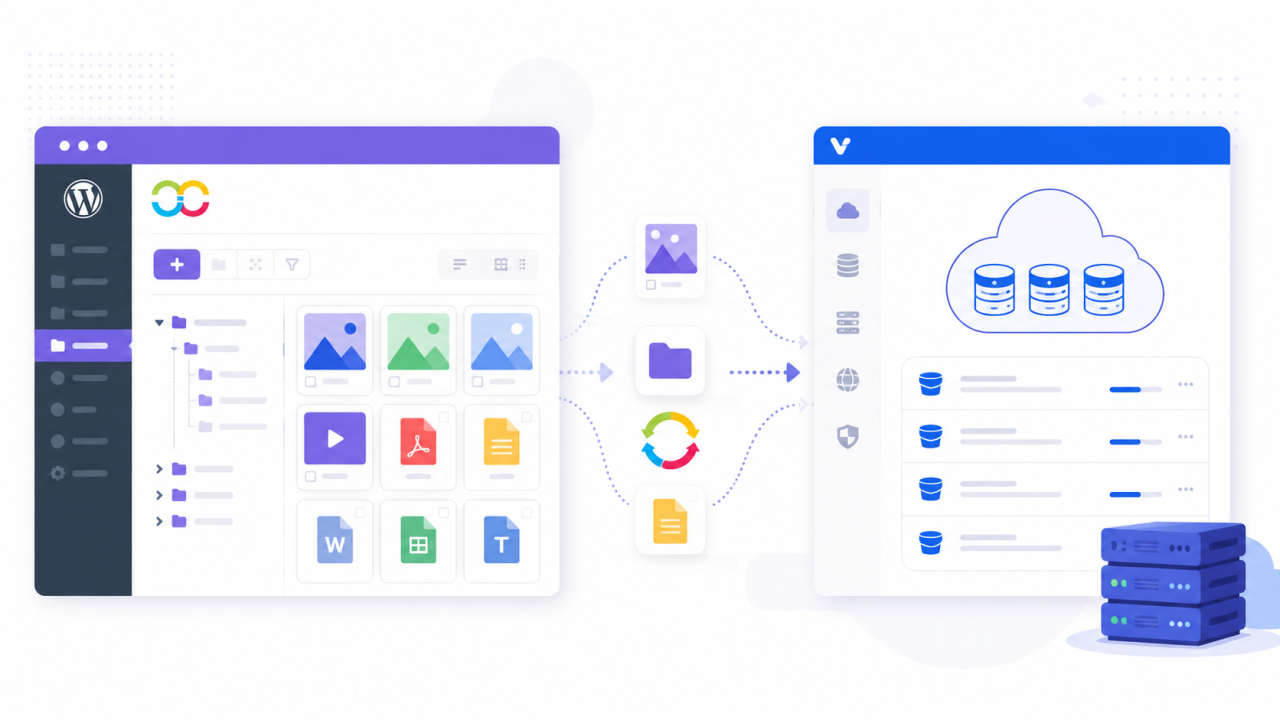
JoomUnited WP Media Folder is a WordPress plugin that enhances media management by adding folders, organization tools, and cloud storage integrations.
For Vultr integration, WP Media Folder does not simply "upload to cloud storage." Instead, it uses a structured cloud synchronization system through its Cloud Addon.
This integration allows WordPress to:
- Upload media directly to Vultr Object Storage
- Sync existing media libraries
- Rewrite media URLs automatically
- Keep everything manageable inside the WordPress dashboard
The key advantage is that users do not need to manually handle cloud storage logic. Everything is controlled from inside WordPress.
Step 1: Create Vultr Object Storage
Before connecting WordPress, you must first set up storage in Vultr:
- Log in to your Vultr account
- Navigate to Object Storage
- Create a new storage instance
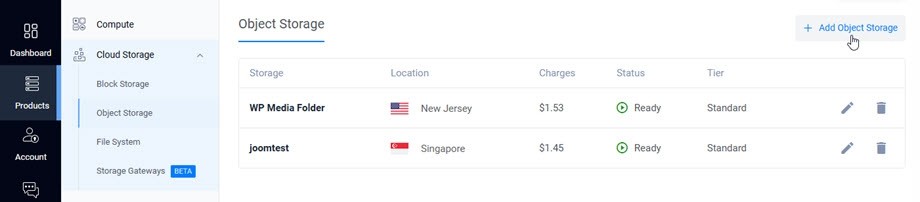
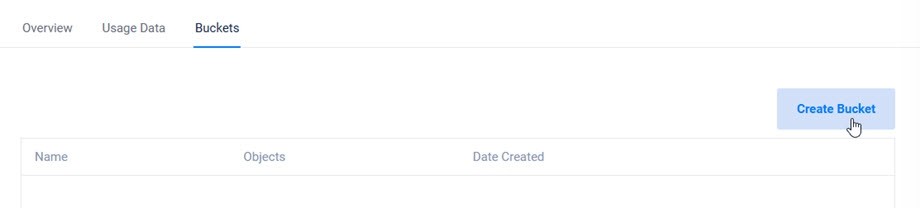
4. Create a bucket (this is where files will be stored)
The bucket acts as a container for all media files uploaded from WordPress.
Step 2: Generate S3-Compatible Credentials
Vultr Object Storage uses an S3-compatible system. You must generate:
- รหัสการเข้าถึง
- รหัสลับสำหรับการเข้าถึง
- Endpoint URL
These credentials allow external applications like WordPress to securely connect to your storage bucket.
The endpoint is especially important because it defines the exact region and route where files will be stored and retrieved.
Step 3: Install WP Media Folder Cloud Addon
To enable Vultr integration, you must install the WP Media Folder Cloud Addon.
This addon extends the core plugin and enables cloud storage connections.
Without it, WP Media Folder will only manage local media and will not support external storage providers like Vultr.
Step 4: Connect WP Media Folder to Vultr
Inside WordPress, go to:
Settings > WP Media Folder > Cloud & Media offload > Media offload > choose Vultr.
Then use the credentials that we got before from Vultr to fill the data:
- Enter Access Key and Secret Key
- Paste the Vultr endpoint
- Select your bucket
- Save settings
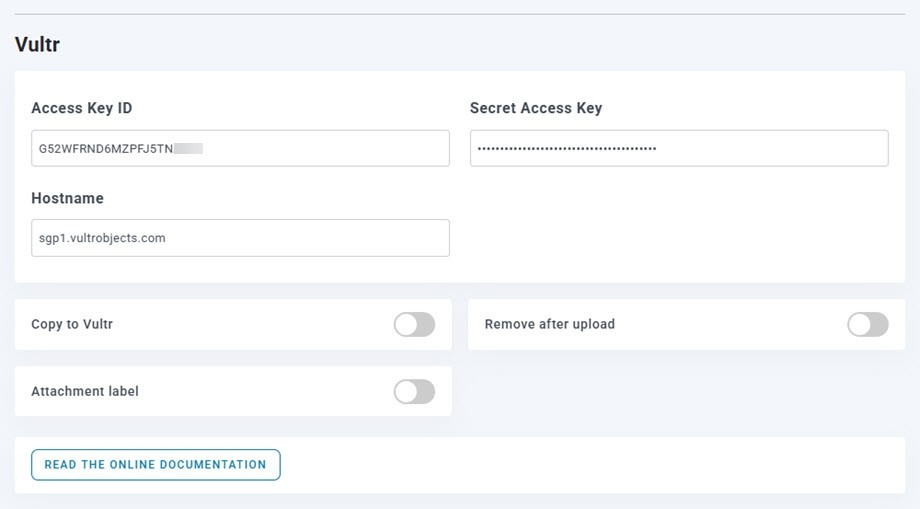
Once saved, the plugin will test the connection automatically.
If everything is configured correctly, WordPress will confirm that the storage bucket is accessible.
Step 5: Media Upload and Synchronization Workflow
After successful connection, WP Media Folder changes how media uploads behave.
New uploads
Any new file uploaded to WordPress is automatically:
- Sent to Vultr Object Storage
- Removed from local storage (depending on configuration)
- Linked via cloud URL
Existing media
Older files can be:
- Synced to Vultr in bulk
- Migrated gradually
- Kept locally if needed
This flexibility allows you to migrate without downtime.
Media URL Rewriting and Delivery
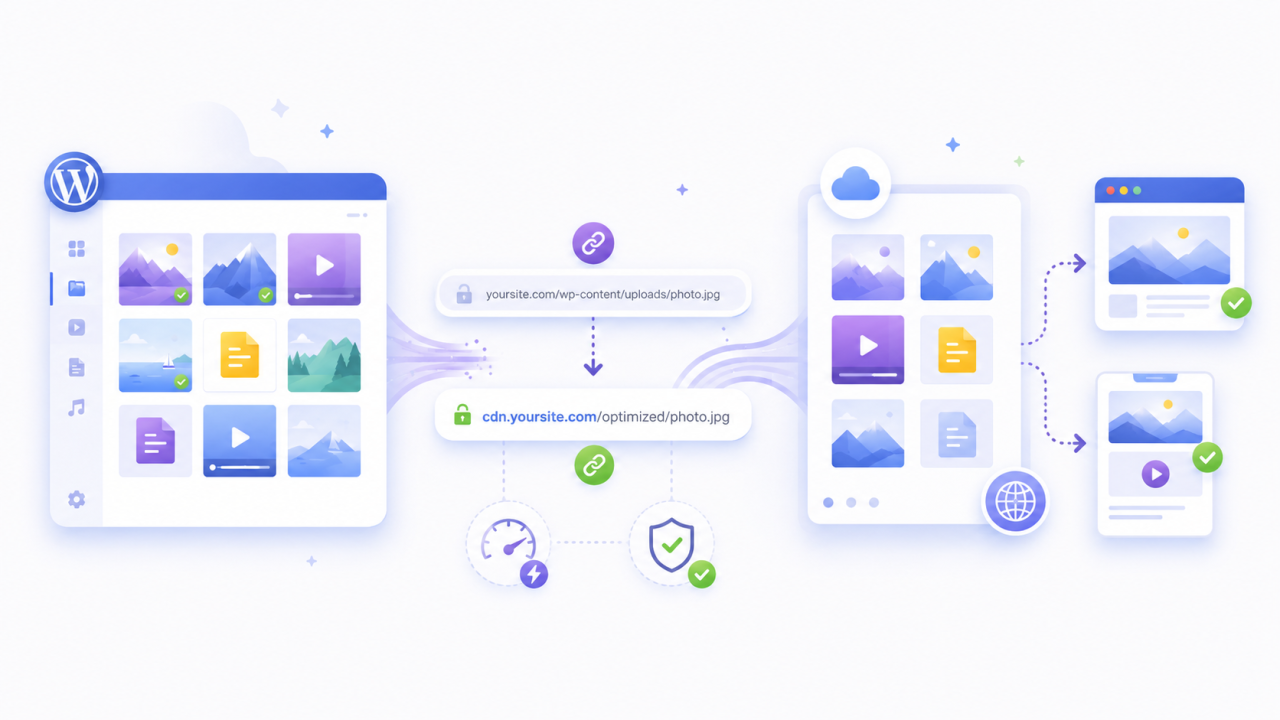
Once files are stored in Vultr, WordPress needs to update how they are served.
WP Media Folder automatically rewrites media URLs so that:
- Don't load from your hosting server
- Files are loaded directly from Vultr Object Storage
To visitors, everything looks unchanged. Images still appear normally inside your website.
However, behind the scenes, media is now delivered from the cloud.
This improves performance because your server no longer handles file delivery.
Performance and Hosting Load Reduction
Offloading media has a direct impact on server performance.
By removing media delivery from your WordPress hosting environment:
- Server CPU usage decreases
- Disk I/O is reduced
- Page load times improve
- Backups become lighter and faster
This is especially important for websites with large media libraries such as blogs, online stores, portfolios, or news platforms.
It also improves scalability, allowing your website to handle traffic spikes without performance degradation.
Vultr as a Cost-Effective Cloud Alternative
One of the key advantages of using Vultr is pricing efficiency.
Compared to many major cloud providers, Vultr Object Storage offers:
- Lower storage costs
- Predictable pricing
- Scalable capacity without complex billing tiers
This makes it a strong option for WordPress users who want cloud infrastructure without enterprise-level expenses.
When combined with WP Media Folder, it becomes a complete media offloading solution that is both affordable and easy to manage.
Ideal Scenarios for Using Vultr Object Storage
This setup is especially useful for:
- High-traffic blogs
- E-commerce stores with large product catalogs
- Media-heavy websites (images, galleries, portfolios)
- Educational platforms with downloadable content
- International websites serving global audiences
For global websites, cloud storage improves consistency by reducing dependency on a single physical server location.
Best Practices for Implementation
To ensure a smooth setup:
Start by uploading new media to Vultr first before migrating existing files. This reduces risk and allows testing.
Always verify URL rewriting after configuration to ensure no broken images.
Avoid migrating during peak traffic hours.
Monitor performance improvements using speed testing tools before and after setup.
เรียกผู้ดูแลเว็บทุกคน!
ประหยัดเวลาและเพิ่มประสิทธิภาพด้วย WP Media Folder จัดระเบียบไฟล์สื่อของลูกค้าได้อย่างง่ายดาย สร้างแกลเลอรีที่กำหนดเอง และมอบประสบการณ์ผู้ใช้ที่ราบรื่น
อัปเกรดโครงการเว็บไซต์ของคุณตอนนี้!
Conclusion: Improve WordPress Performance with Cloud Media Offloading
Offloading WordPress media to Vultr Object Storage using JoomUnited WP Media Folder is a practical way to improve performance, reduce hosting costs, and scale your website efficiently.
By separating media storage from your main server, you eliminate unnecessary load and create a more stable architecture. WP Media Folder simplifies the entire process by handling connection, synchronization, and URL rewriting directly inside WordPress.
For growing websites or media-heavy projects, this approach is one of the most effective ways to improve both performance and long-term scalability without increasing technical complexity.
เมื่อคุณสมัครสมาชิกบล็อก เราจะส่งอีเมลถึงคุณเมื่อมีการอัปเดตใหม่บนไซต์เพื่อให้คุณไม่พลาด.