ผลิตภัณฑ์ WordPress
 ผลิตภัณฑ์ Joomla
 สนับสนุน
 ข่าวสาร
 เข้าสู่ระบบ
วิธีซิงโครไนซ์สื่อ Dropbox ของคุณกับไลบรารีสื่อของ WordPress

การจัดการไฟล์สื่อข้ามแพลตฟอร์มต่าง ๆ สามารถกลายเป็นภาระหนักได้อย่างรวดเร็ว—โดยเฉพาะหากคุณ'กำลังจัดการปริมาณภาพ วิดีโอ หรือเอกสารจำนวนมาก นั่น'คือเหตุผลที่เจ้าของเว็บไซต์หลายคนกำลังมองหาวิธีการซิงโครไนซ์สื่อ Dropbox กับไลบรารีสื่อของ WordPress เพื่อทำให้การจัดเก็บข้อมูลเป็นระเบียบและเพิ่มประสิทธิภาพการทำงานโดยรวม โดยการเชื่อมต่อสองแพลตฟอร์มนี้ คุณสามารถรวมศูนย์ทรัพยากรของคุณในขณะที่ทำให้เว็บไซต์ WordPress ของคุณเบาและเป็นระเบียบ.
หากคุณเหนื่อยกับการอัปโหลดไฟล์ด้วยตนเองหรือการจัดการที่เก็บสื่อกระจัดกระจาย คู่มือนี้จะพาคุณผ่านทุกอย่างที่คุณต้องรู้ ตั้งแต่การทำความเข้าใจประโยชน์จนถึงการตั้งค่าการซิงโครไนซ์ขั้นตอนต่อขั้นตอน อ่านต่อเพื่อเรียนรู้วิธีทำให้การจัดการสื่อของคุณง่ายขึ้น.
- เชื่อมต่อ Dropbox โดยตรงกับ WordPress: เชื่อมบัญชี Dropbox ของคุณกับไลบรารีสื่อเพื่อให้ไฟล์สามารถจัดการจากที่เดียวโดยไม่ต้องอัปโหลดด้วยตนเอง.
- ทำให้โฟลเดอร์ซิงค์กัน: เลือกการซิงโครไนซ์อัตโนมัติเพื่อให้แน่ใจว่าการอัปเดตใน Dropbox จะสะท้อนในโฟลเดอร์ของ WordPress.
- ทำให้การจัดการสื่อเป็นระเบียบและรวดเร็ว: นำเข้า จัดระเบียบ เปลี่ยนชื่อ และใช้ไฟล์คลาวด์ภายใน WordPress เพื่อประหยัดเวลาและรักษาโครงสร้างสินทรัพย์ให้เป็นระเบียบ.
สารบัญ
ทำไมการซิงค์ Dropbox กับ WordPress ถึงสำคัญ?
การซิงโครไนซ์ Dropbox กับไลบรารีสื่อของ WordPress ของคุณสร้างวิธีที่มีประสิทธิภาพและขยายได้มากขึ้นในการจัดการไฟล์สื่อของคุณ แทนที่จะพึ่งพาเซิร์ฟเวอร์ของเว็บไซต์ของคุณเพียงอย่างเดียว การบูรณาการนี้ช่วยให้คุณจัดระเบียบการจัดเก็บ ปรับปรุงประสิทธิภาพ และทำให้กระบวนการทำงานของคุณง่ายขึ้น.
- ลดภาระเซิร์ฟเวอร์: การจัดเก็บไฟล์สื่อใน Dropbox ช่วยลดภาระบนโฮสติ้ง WordPress ของคุณ ซึ่งสามารถปรับปรุงประสิทธิภาพของเว็บไซต์ได้ โดยเฉพาะสำหรับไซต์ที่มีเนื้อหาขนาดใหญ่หรือมีสื่อจำนวนมาก
- ทำให้การจัดการไฟล์ง่ายขึ้น: คุณไม่จำเป็นต้องอัปโหลดไฟล์ด้วยตนเองทีละไฟล์อีกต่อไป. ด้วยการซิงโครไนซ์, สื่อของคุณจะเข้าถึงได้โดยอัตโนมัติใน WordPress, ทำให้การจัดการไฟล์มีประสิทธิภาพมากขึ้น.
- เพิ่มประสิทธิภาพการทำงาน: โดยการเชื่อมต่อทั้งสองแพลตฟอร์ม, คุณสามารถจัดการ, แก้ไข, และเข้าถึงไฟล์ในที่เดียวได้. สิ่งนี้ช่วยลดงานที่ทำซ้ำและเร่งกระบวนการสร้างเนื้อหา.
- เพิ่มความสามารถในการขยาย: เมื่อเว็บไซต์ของคุณเติบโต ไลบรารีสื่อของคุณก็จะเพิ่มขึ้น การใช้ Dropbox ทำให้คุณมีพื้นที่จัดเก็บที่ยืดหยุ่นซึ่งสามารถขยายได้โดยไม่กระทบต่อประสิทธิภาพของเว็บไซต์ของคุณ
- เปิดการเข้าถึงระยะไกล: เนื่องจาก Dropbox เป็นระบบคลาวด์ คุณสามารถเข้าถึงและจัดการไฟล์ของคุณจากทุกที่ ซึ่งเป็นประโยชน์อย่างยิ่งสำหรับทีมหรือบุคคลที่ทำงานจากระยะไกล
ประโยชน์ของการรวมสื่อ Dropbox

การรวม Dropbox กับไลบรารีสื่อของ WordPress ของคุณเปลี่ยนแปลงวิธีที่คุณจัดการ, เข้าถึง, และทำงานร่วมกันบนไฟล์สื่อ. ด้วยแนวทางที่มีโครงสร้างมากขึ้นและใช้คลาวด์, คุณสามารถจัดการความต้องการสื่อที่เพิ่มขึ้นได้โดยไม่เสียประสิทธิภาพหรือประสิทธิผล.
การจัดเก็บศูนย์กลาง
การรวมศูนย์ไฟล์สื่อของคุณใน Dropbox ทำให้คุณจัดการทุกอย่างจากตำแหน่งเดียว. แทนที่จะกระจายไฟล์ไปยังอุปกรณ์หรือแพลตฟอร์มต่างๆ, คุณสามารถเก็บ, อัปเดต, และจัดระเบียบไฟล์เหล่านั้นในระบบเดียวที่เชื่อมต่อโดยตรงกับ WordPress.
การตั้งค่านี้ช่วยลดความสับสนและประหยัดเวลาเมื่อค้นหาไฟล์เฉพาะ ไม่ว่าคุณ'กำลังจัดการรูปภาพ วิดีโอ หรือเอกสาร ระบบจัดเก็บศูนย์กลางจะทำให้สอดคล้องและทำให้การจัดการสื่อเป็นระเบียบง่ายขึ้น.
สำรองข้อมูล & ความปลอดภัย
หนึ่งในข้อได้เปรียบที่ใหญ่ที่สุดของการใช้ Dropbox คือระบบสำรองข้อมูลที่เชื่อถือได้ ไฟล์สื่อของคุณจะถูกจัดเก็บโดยอัตโนมัติในคลาวด์ ลดความเสี่ยงของการสูญเสียข้อมูลสำคัญเนื่องจากปัญหาเซิร์ฟเวอร์หรือการลบโดยบังเอิญ.
นอกจากนี้ Dropbox ยังมีคุณลักษณะความปลอดภัยในตัว รวมถึงการจัดเวอร์ชันไฟล์และตัวเลือกการกู้คืน ซึ่งหมายความว่าคุณสามารถกู้คืนเวอร์ชันก่อนหน้าของไฟล์เมื่อจำเป็น ให้การปกป้องเพิ่มเติมและความอุ่นใจเมื่อจัดการสื่อสำคัญ.
การเข้าถึงที่เร็วขึ้น
ด้วยการรวม Dropbox การเข้าถึงไฟล์สื่อของคุณจึงเร็วและมีประสิทธิภาพมากขึ้น คุณสามารถใช้ไฟล์โดยตรงในแดชบอร์ด WordPress โดยไม่ต้องอัปโหลดซ้ำหลายครั้ง ซึ่งช่วยเร่งกระบวนการทำงานของคุณ.
สิ่งนี้ยังช่วยลดเวลาในการโหลดระหว่างการสร้างเนื้อหา เนื่องจากไฟล์ได้ถูกจัดระเบียบและพร้อมใช้งานแล้ว ดังนั้นคุณจึงสามารถมุ่งเน้นการผลิตเนื้อหาได้มากขึ้น แทนที่จะเสียเวลาในการค้นหา หรือย้ายไฟล์.
การทำงานร่วมกันอย่างง่าย
Dropbox ทำให้การทำงานร่วมกันง่ายขึ้นมาก โดยเฉพาะเมื่อทำงานกับทีม ผู้ใช้หลายคนสามารถเข้าถึง อัปโหลด และจัดการไฟล์พร้อมกันได้โดยไม่ทำให้การทำงานของกันและกันเสียหาย.
นี่มีประโยชน์เป็นพิเศษสำหรับทีมที่ประกอบด้วยนักออกแบบ นักพัฒนา และผู้สร้างเนื้อหา ทุกคนสามารถอยู่บนหน้าเดียวกันได้ ทำให้การสื่อสารราบรื่นขึ้นและกระบวนการผลิตเนื้อหามีประสิทธิภาพมากขึ้น.
บอกลาคลังสื่อที่รก.
WP Media Folder ให้คุณจัดหมวดหมู่ไฟล์ ซิงค์โฟลเดอร์กับที่เก็บข้อมูลบนคลาวด์ สร้างแกลเลอรีที่น่าทึ่ง และแม้แต่การแทนที่รูปภาพโดยไม่ทำลายลิงก์
ปรับปรุงขั้นตอนการทำงานของสื่อของคุณวันนี้
ขั้นตอนต่อขั้นตอนซิงค์ Dropbox กับ WordPress (WP Media Folder)
มีปลั๊กอินมากมายที่พร้อมใช้งานเพื่อเพิ่มประสิทธิภาพให้กับไลบรารีสื่อของ WordPress, แต่หนึ่งในตัวเลือกที่ได้รับความนิยมและทรงพลังที่สุดคือ WP Media Folder. ปลั๊กอินนี้ถูกออกแบบให้ก้าวไกลกว่าระบบการจัดการสื่อเริ่มต้นโดยนำเสนอคุณลักษณะขั้นสูงเช่นการจัดระเบียบโฟลเดอร์, การค้นหาอัจฉริยะ, และการรวมคลาวด์อย่างราบรื่น—ทำให้เหมาะสำหรับทั้งผู้เริ่มต้นและผู้ใช้ระดับสูง.
สิ่งที่ทำให้มันยิ่งทรงพลังมากขึ้นคือความสามารถในการรวมเข้ากับหลายแพลตฟอร์มคลาวด์ รวมถึง Dropbox, Google Drive, OneDrive, และ Amazon S3. ซิงโครไนซ์ Dropbox ของคุณ สื่อกับ WordPress Media Library แบบเรียลไทม์ ทำให้คุณสามารถจัดการไฟล์โดยตรงจากแดชบอร์ดของคุณโดยไม่ต้องสลับแพลตฟอร์ม.
ก่อนเริ่มกระบวนการซิงโครไนซ์, ตรวจสอบให้แน่ใจว่าปลั๊กอิน WP Media Folder ได้รับการติดตั้งและเปิดใช้งานบนเว็บไซต์ WordPress ของคุณ. เมื่อมัน'พร้อม, คุณสามารถดำเนินการเชื่อมต่อบัญชี Dropbox ของคุณโดยใช้สองวิธีที่มีให้เลือก, การเชื่อมต่ออัตโนมัติสำหรับการตั้งค่าอย่างรวดเร็ว, หรือการเชื่อมต่อด้วยตนเองหากคุณต้องการกำหนดค่าด้วยข้อมูลประจำตัว API.
ซิงค์ Dropbox กับ WordPress อย่างอัตโนมัติ
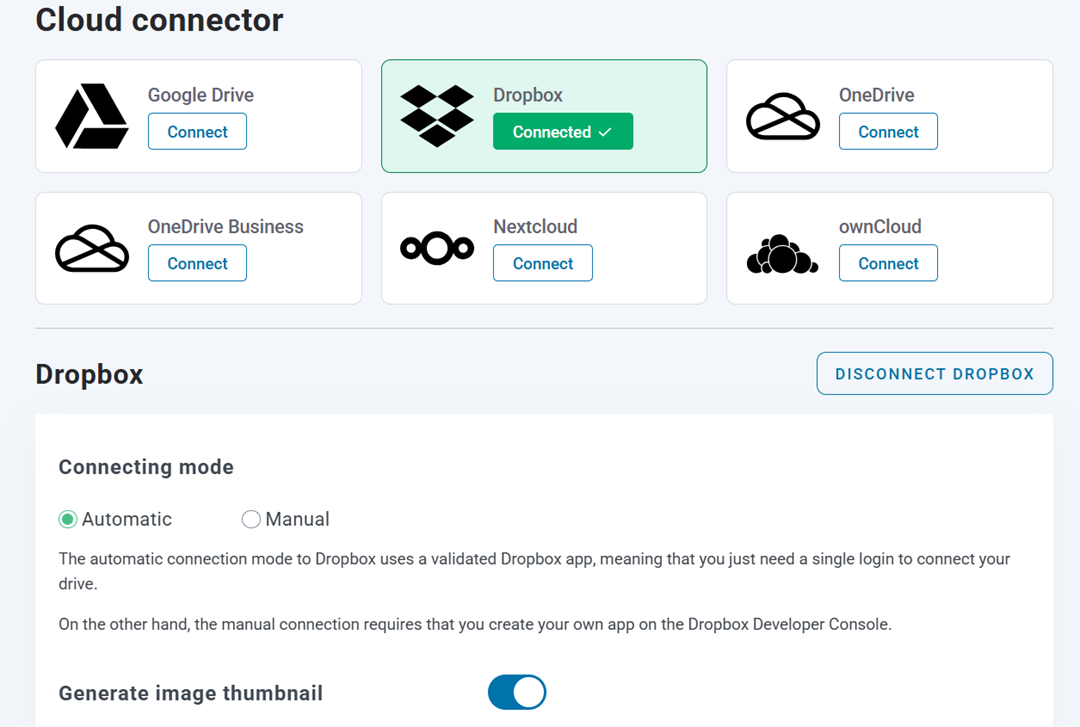
เพื่อเชื่อมต่อ Dropbox อย่างรวดเร็ว ไปที่ การตั้งค่า → WP Media Folder → คลาวด์ & การถ่ายโอนสื่อ → ตัวเชื่อมต่อคลาวด์ → Dropbox จากแดชบอร์ด WordPress ของคุณ. ก่อนเริ่มต้น, ตรวจสอบให้แน่ใจว่าบัญชี JoomUnited ของคุณได้เชื่อมโยงไว้ในการตั้งค่าทั่วไปแล้ว, เนื่องจากจำเป็นสำหรับการเชื่อมต่ออัตโนมัติ. เมื่อทุกอย่างพร้อมแล้ว, เพียงคลิกที่ "เชื่อมต่อ Dropbox" bปุ่ม.
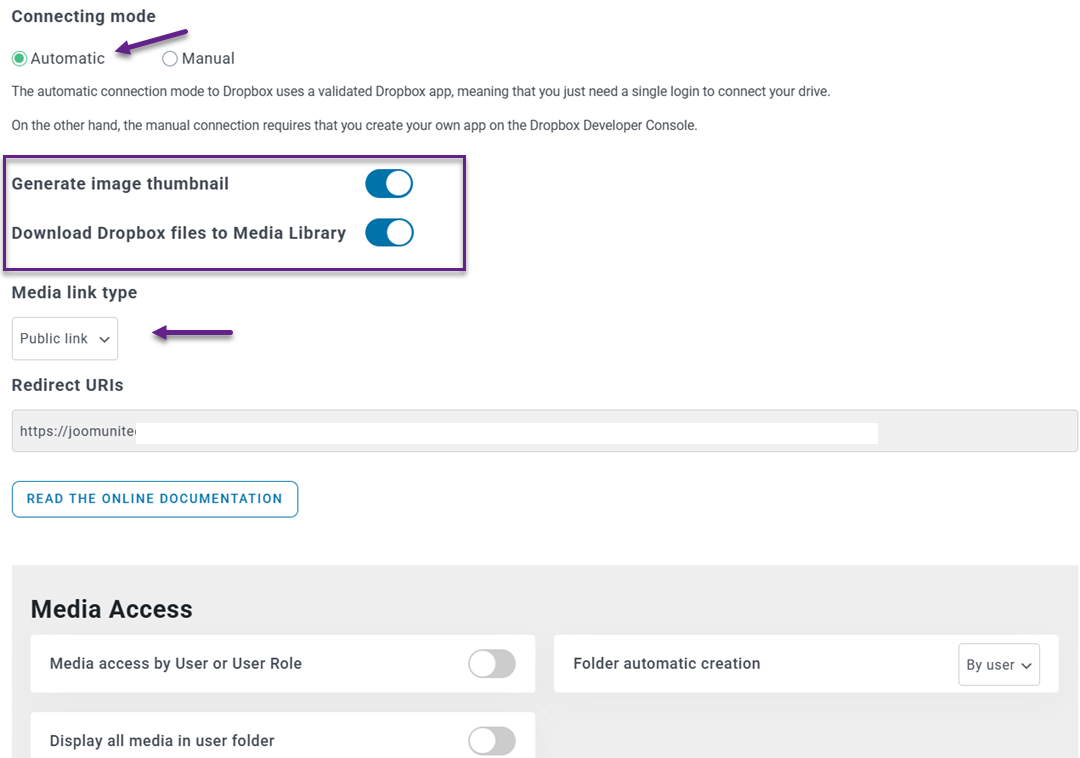
คุณจะถูกเปลี่ยนเส้นทางไปยัง Dropbox เพื่อให้สิทธิ์การเข้าถึง—เพียงทำตามคำแนะนำและอนุมัติการเชื่อมต่อ.
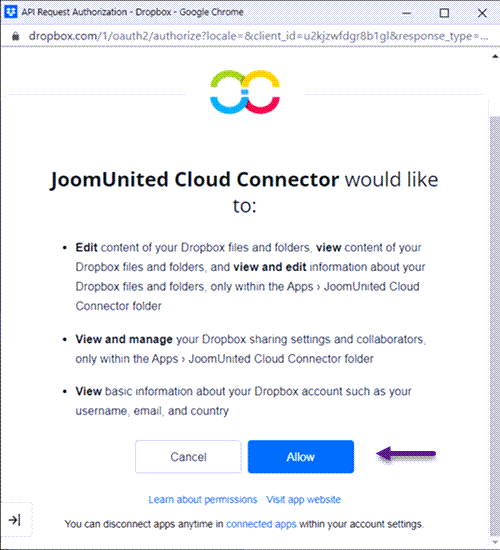
หลังจากนั้น บัญชีของคุณจะเชื่อมต่อโดยทันที ทำให้คุณสามารถเริ่มซิงค์สื่อได้โดยไม่ต้องตั้งค่าซับซ้อนใดๆ.
ซิงค์ Dropbox กับ WordPress ด้วยตนเอง
หากคุณต้องการตั้งค่าด้วยตนเอง, คุณ'จะต้องกำหนดค่าการเชื่อมต่อโดยใช้ข้อมูลประจำตัว API. ก่อนหน้านั้น, ตรวจสอบให้แน่ใจว่าคุณได้ติดตั้ง WP Media Folder Cloud Addon แล้ว, เนื่องจากการรวม Dropbox ถูกจัดให้ผ่านส่วนขยายนี้ (ซึ่งยังรองรับ Google Drive, OneDrive, และ Amazon S3).
ขั้นแรก คุณต้องสร้างแอป Dropbox เพื่อรับคีย์แอปและซีคร็ทของคุณ ไปที่ Dropbox Developers หน้าและสร้างแอปใหม่ เลือกประเภทแอป เช่น "Dropbox API", แล้วเลือก "Full Dropbox" (เพื่อซิงค์กับบัญชีทั้งหมดของคุณ) หรือ "App Folder" (เพื่อเก็บไฟล์ในโฟลเดอร์เฉพาะ) หลังจากตั้งชื่อแอป Dropbox จะสร้างข้อมูลรับรองที่คุณต้องการ.
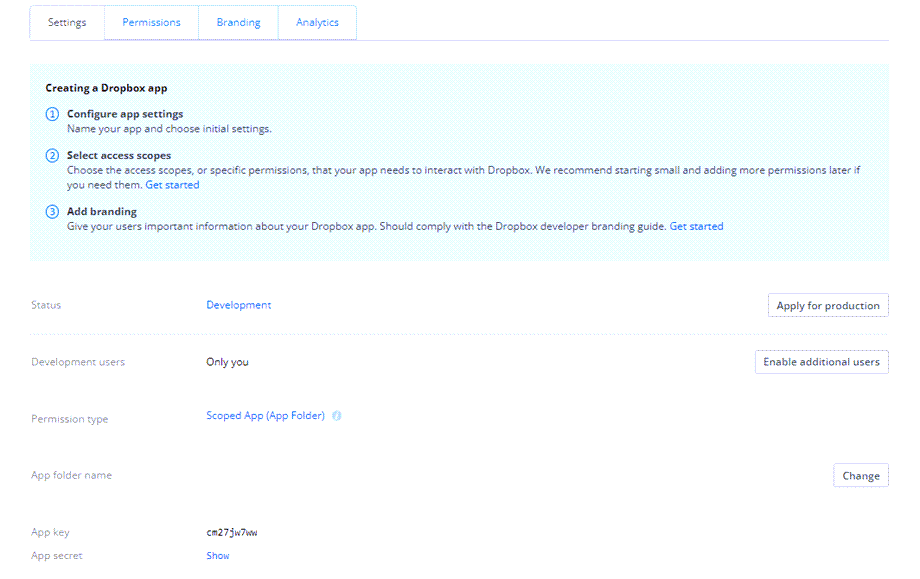
ต่อไป, ในส่วนของ OAuth 2, คัดลอก URL การเปลี่ยนเส้นทางที่ให้ไว้ใน WP Media Folder การตั้งค่า Dropbox และวางลงในการกำหนดค่าแอป Dropbox ของคุณ เมื่อเสร็จแล้ว, กลับไปที่แดชบอร์ด WordPress ของคุณ, ไปที่ การตั้งค่า → WP Media Folder → คลาวด์ & Media Offload → ตัวเชื่อมต่อคลาวด์ → Dropbox, แล้วใส่ App Key และ App Secret ของคุณ.
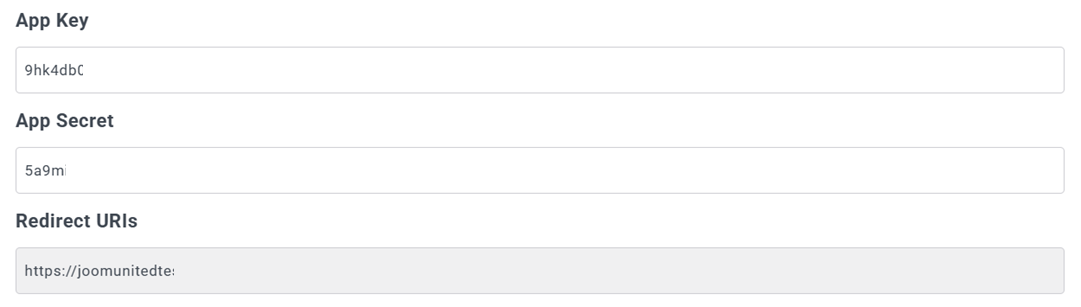
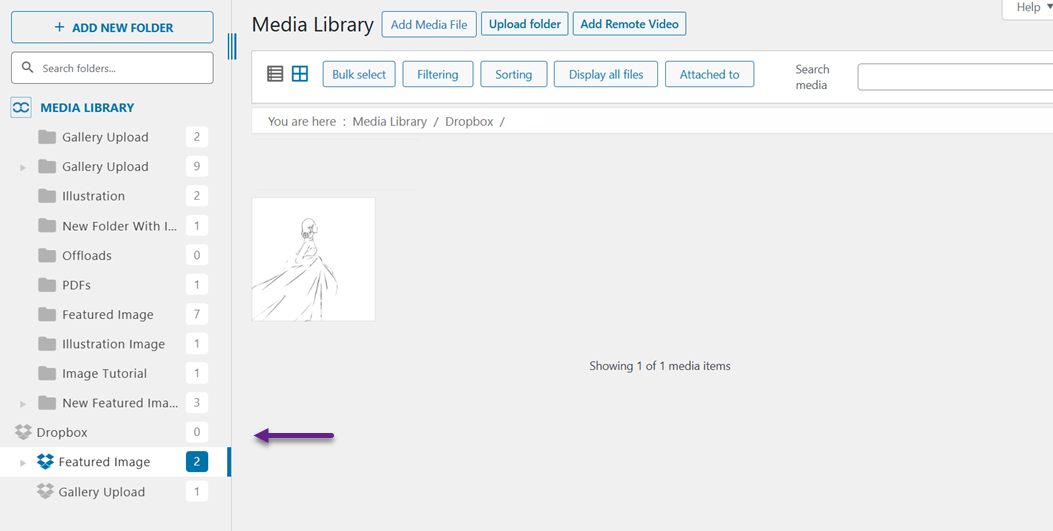
หลังจากบันทึกการกำหนดค่าแล้ว ให้คลิกที่ "เชื่อมต่อ Dropbox" ปุ่ม, จากนั้นทำการอนุญาตโดยให้การเข้าถึง. เมื่อเชื่อมต่อสำเร็จแล้ว คุณจะสามารถสร้างโฟลเดอร์และจัดการไฟล์ในทั้ง Dropbox และ WordPress, โดยการเปลี่ยนแปลงจะถูกซิงโครไนซ์โดยอัตโนมัติระหว่างสองแพลตฟอร์ม.
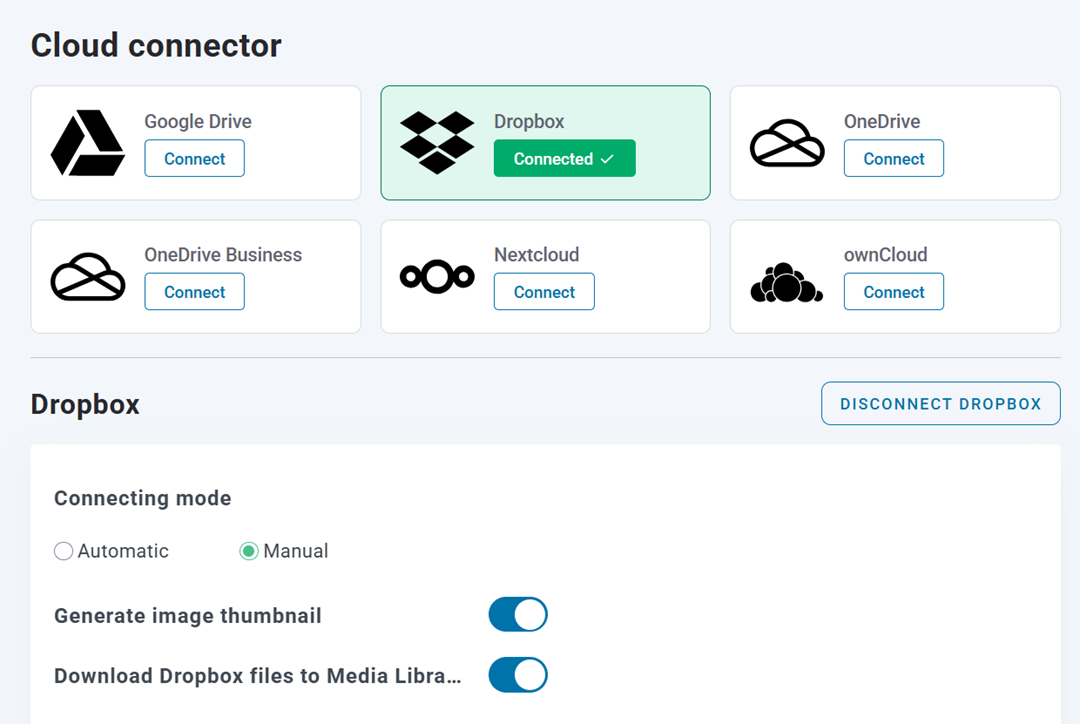
หลังจากนั้น บัญชีของคุณจะเชื่อมต่อโดยทันที ทำให้คุณสามารถเริ่มซิงค์สื่อได้โดยไม่ต้องตั้งค่าซับซ้อนใดๆ.
แนวทางปฏิบัติที่ดีที่สุดสำหรับการจัดการสื่อ

เพื่อให้ได้ประโยชน์สูงสุดจากการบูรณาการระหว่าง Dropbox และ WordPress การจัดระเบียบสื่อของคุณอย่างเหมาะสมเป็นสิ่งสำคัญ ไลบรารีสื่อที่มีโครงสร้างดีไม่เพียงแต่ช่วยประหยัดเวลา แต่ยังทำให้กระบวนการทำงานของคุณราบรื่นยิ่งขึ้น โดยเฉพาะเมื่อไฟล์ของคุณเพิ่มจำนวนเรื่อย ๆ.
ใช้โครงสร้างโฟลเดอร์ที่ชัดเจน
เริ่มต้นด้วยการสร้างโครงสร้างโฟลเดอร์ที่เรียบง่ายและมีตรรกะใน Dropbox ตัวอย่างเช่น คุณสามารถจัดกลุ่มไฟล์ตามประเภทเนื้อหา ชื่อโครงการ หรือวันที่เผยแพร่ ทำให้ทุกอย่างง่ายต่อการค้นหา.
โครงสร้างที่ชัดเจนช่วยให้คุณหลีกเลี่ยงความสับสนเมื่อต้องจัดการสื่อจำนวนมาก อีกทั้งยังทำให้ทีมของคุณเข้าใจได้ง่ายว่ไฟล์ถูกเก็บไว้ที่ไหนโดยไม่ต้องอธิบายเพิ่มเติม.
ใช้การตั้งชื่ออย่างสม่ำเสมอ
ใช้ชื่อไฟล์ที่สอดคล้องและอธิบายได้ชัดเจนเพื่อให้คุณสามารถระบุไฟล์ได้อย่างรวดเร็วโดยไม่ต้องเปิดไฟล์ ตัวอย่างเช่น แทนการใช้ชื่อสุ่มเช่น "IMG1234," ให้ใช้ชื่อที่อธิบายเนื้อหา เช่น "blog-banner-seo-tips."
การตั้งชื่อที่สอดคล้องยังช่วยเพิ่มการค้นหาใน Dropbox และ WordPress อีกด้วย นิสัยง่าย ๆ นี้สามารถประหยัดเวลาได้มาก โดยเฉพาะเมื่อคุณ'ทำงานกับไฟล์หลายร้อยไฟล์.
จัดระเบียบตามหมวดหมู่
การจัดกลุ่มไฟล์เป็นหมวดหมู่ช่วยให้ห้องสมุดสื่อของคุณมีโครงสร้างที่เป็นระเบียบ คุณสามารถจัดระเบียบตามวัตถุประสงค์ เช่น รูปภาพบล็อก, ภาพสินค้า, หรือสื่อการตลาด.
สิ่งนี้ทำให้การกรองและค้นหาไฟล์เมื่อจำเป็นง่ายขึ้น นอกจากนี้ยังช่วยรักษาความสอดคล้องในการใช้สื่อของคุณทั่วทั้งเว็บไซต์.
ทำความสะอาดไฟล์ที่ไม่ได้ใช้
เมื่อเวลาผ่านไป ห้องสมุดสื่อของคุณอาจเต็มไปด้วยไฟล์ที่ไม่ได้ใช้หรือไฟล์ซ้ำ การตรวจสอบและลบไฟล์เหล่านี้เป็นประจำช่วยให้การจัดเก็บของคุณสะอาดและมีประสิทธิภาพ.
การทำความสะอาดไฟล์ที่ไม่ได้ใช้ยังช่วยปรับปรุงประสิทธิภาพและทำให้การจัดการสินทรัพย์ที่เหลือของคุณง่ายขึ้น ห้องสมุดสื่อที่เป็นระเบียบนำไปสู่กระบวนการทำงานที่เร็วขึ้นและมีประสิทธิภาพมากขึ้น.
เรียกผู้ดูแลเว็บทุกคน!
ประหยัดเวลาและเพิ่มประสิทธิภาพด้วย WP Media Folder จัดระเบียบไฟล์สื่อของลูกค้าได้อย่างง่ายดาย สร้างแกลเลอรีที่กำหนดเอง และมอบประสบการณ์ผู้ใช้ที่ราบรื่น
อัปเกรดโครงการเว็บไซต์ของคุณตอนนี้!
สรุป
การซิงโครไนซ์สื่อจาก Dropbox กับห้องสมุดสื่อของ WordPress สามารถทำให้วิธีการจัดการไฟล์ของคุณง่ายขึ้นอย่างมาก โดยเฉพาะเมื่อเว็บไซต์ของคุณเติบโตต่อเนื่อง การรวมสองแพลตฟอร์มนี้ไม่เพียงลดภาระเซิร์ฟเวอร์เท่านั้น แต่ยังสร้างกระบวนการทำงานที่มีประสิทธิภาพ เป็นระเบียบ และขยายได้สำหรับการจัดการสื่อของคุณ.
เพื่อทำให้กระบวนการง่ายยิ่งขึ้น คุณสามารถใช้เครื่องมือเช่น WP Media Folder เพื่อเชื่อมต่อ Dropbox กับ WordPress อย่างราบรื่นและจัดการทุกอย่างโดยตรงจากแดชบอร์ดของคุณ หากคุณกำลังมองหาวิธีทำให้การจัดการสื่อของคุณเป็นระบบและเพิ่มประสิทธิภาพการทำงาน ตอนนี้เป็นเวลาที่เหมาะสมที่สุดที่จะ เริ่มใช้ WP Media Folder และเพิ่มประสิทธิภาพการทำงานของคุณ.
เมื่อคุณสมัครสมาชิกบล็อก เราจะส่งอีเมลถึงคุณเมื่อมีการอัปเดตใหม่บนไซต์เพื่อให้คุณไม่พลาด.