Продукты WordPress
 Продукты Joomla
 Поддержка
 Новости
 Вход
ВходКак управлять и редактировать таблицы WordPress с помощью Elementor

Создание таблиц в WordPress раньше было сложным процессом. Многие владельцы сайтов сталкивались с жестко заданными макетами, ограниченными возможностями настройки и инструментами, которые плохо адаптировались к современному дизайну. Если вы хотели получить визуально привлекательный и адаптивный дизайн, вам часто приходилось прибегать к сложным настройкам или ручному кодированию.
Сегодня ситуация кардинально изменилась. Благодаря таким инструментам, как Elementor и продвинутым плагинам для таблиц, вы можете создавать, управлять и редактировать таблицы визуально, не обладая техническими знаниями. Современные решения позволяют делать это быстрее и с гораздо лучшими результатами, будь то демонстрация цен, сравнение товаров или организация структурированных данных.
Содержание
- Почему таблицы важны на современных сайтах WordPress
- Введение в управление таблицами с помощью Elementor
- Начало работы с WP Table Manager
- Встраивание таблиц в Elementor
- Адаптивность таблиц
- Редактирование таблиц в режиме реального времени
- Создание динамических и интерактивных таблиц
- Вариант использования 1: Таблицы цен
- Вариант использования 2: Таблицы сравнения
- Вариант использования 3: Диаграммы данных и структурированная информация
- Оптимизация таблиц для поисковых систем
- Улучшение пользовательского опыта с помощью таблиц
- Советы по организации рабочего процесса для эффективного управления таблицами
- Создавайте более интеллектуальные таблицы в WordPress
Почему таблицы важны на современных сайтах WordPress

Таблицы — один из наиболее эффективных способов представления структурированной информации. Они помогают пользователям быстро просматривать контент и принимать решения быстрее. Это особенно важно для:
- Страницы с ценами, где ясность информации влияет на конверсию
- Сравнение товаров, где различия должны быть очевидны
- Представление данных там, где важна читаемость
Грамотно разработанная таблица улучшает как пользовательский опыт, так и понимание поисковыми системами. Четкая структура, единообразное форматирование и адаптивное поведение — все это способствует повышению эффективности результатов поиска.
Ищете надежное решение для управления таблицами на сайтах клиентов?
От таблиц цен до сравнений продукции, этот плагин предлагает мощные функции для представления данных в ясном и удобном для пользователя виде.
Получите конкурентное преимущество сейчас!
Введение в управление таблицами с помощью Elementor
Elementor широко известен своими возможностями визуального создания страниц. Однако, когда дело доходит до таблиц, его встроенные функции ограничены. Именно здесь WP Table Manager .
WP Table Manager расширяет функциональность Elementor, позволяя создавать сложные таблицы и вставлять их непосредственно в ваши дизайны с помощью специальных виджетов. Вместо создания таблиц вручную, вы управляете ими из централизованного интерфейса и отображаете их в любом месте вашего сайта.
Основные преимущества использования WP Table Manager с Elementor
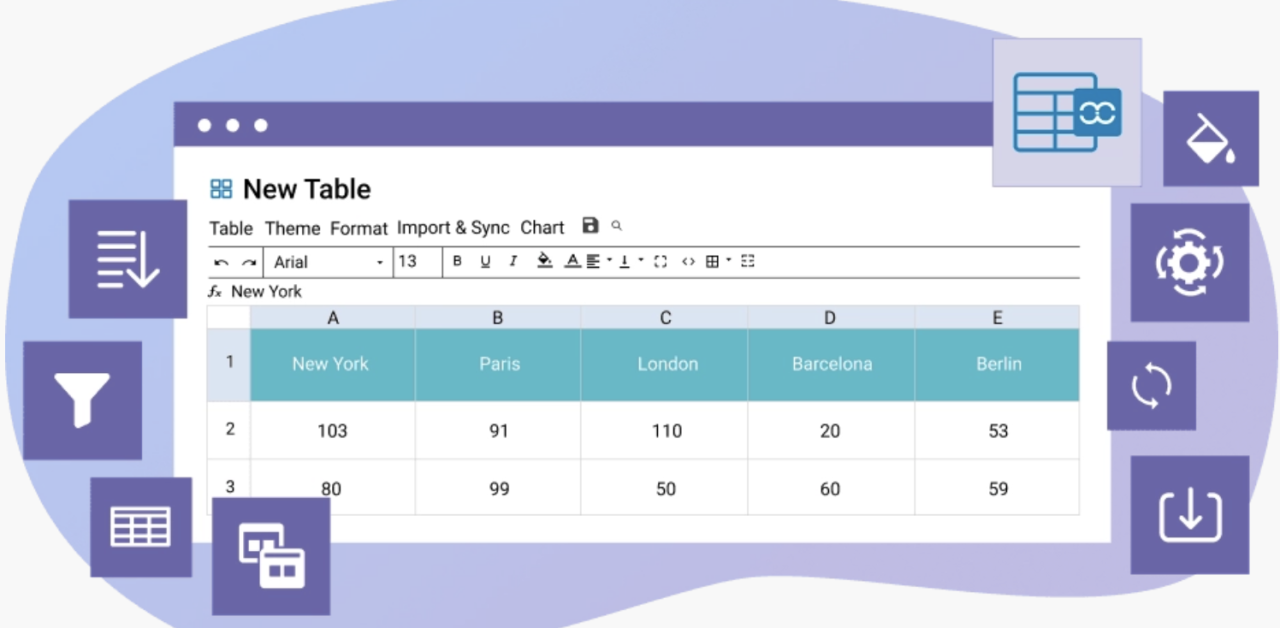
- Визуальное создание таблиц без программирования
- Интерфейс редактирования, похожий на электронные таблицы
- Бесшовная интеграция с виджетами Elementor
- Адаптивный дизайн для мобильных устройств
- Расширенные параметры форматирования и оформления
Такое сочетание дает вам полный контроль над внешним видом и поведением ваших таблиц.
Начало работы с WP Table Manager
Перед встраиванием таблиц в Elementor необходимо их создать и настроить.
Шаг 1: Установите и активируйте плагин
Скачайте и установите WP Table Manager от JoomUnited. После активации в панели управления WordPress появится новый раздел, посвященный управлению таблицами.
Шаг 2: Создайте свою первую таблицу
Для этого перейдите в wp-admin > WP Table Manager и нажмите + Создать новую. Вы также можете упорядочить таблицу по категориям.
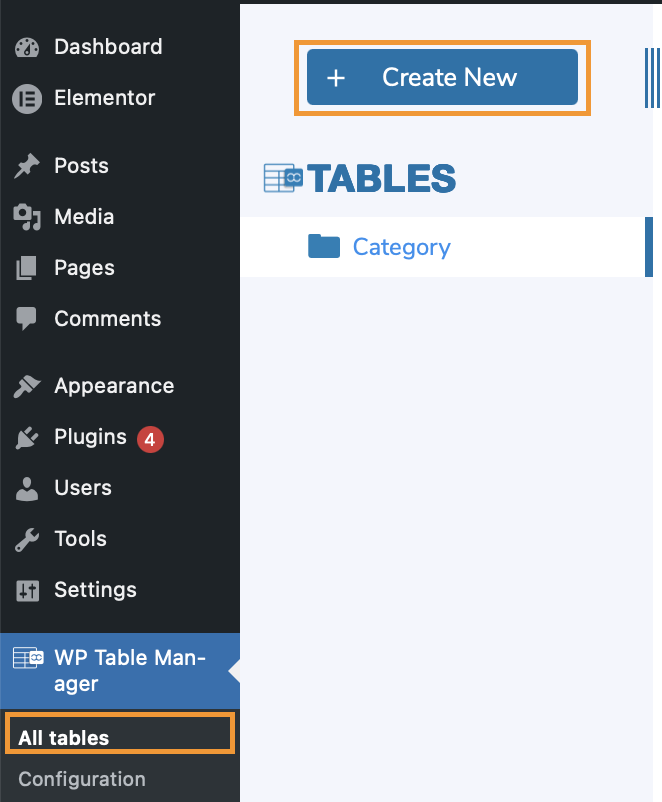
В этом примере мы используем обычную таблицу, поскольку таблицы базы данных также можно создавать.
В интерфейсе плагина вы можете:
- Добавить строки и столбцы
- Вводите данные непосредственно в ячейки
- Форматирование текста, цветов и границ
- Вставьте изображения или ссылки
Интерфейс работает аналогично электронной таблице, что делает его интуитивно понятным для любого пользователя.
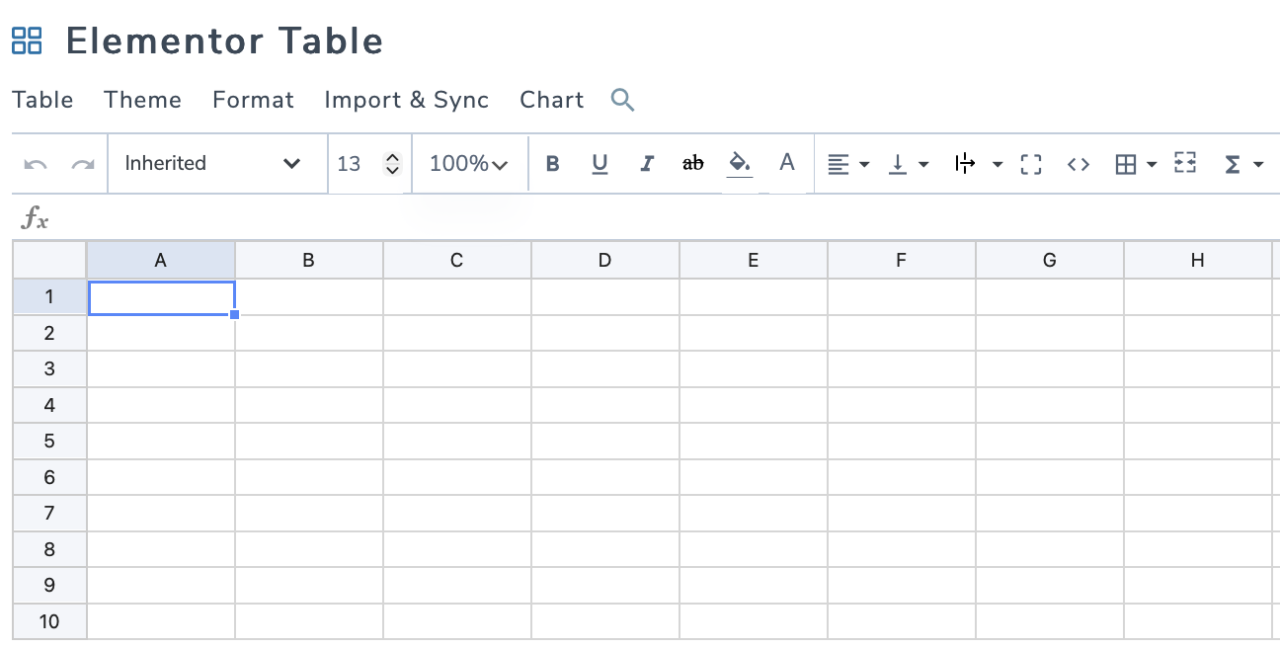
Шаг 3: Организуйте свои таблицы
Вы можете создать несколько таблиц и организовать их по категориям. Это полезно, если ваш сайт содержит данные разных типов, например, цены, наличие товаров или сравнения.
Встраивание таблиц в Elementor
Как только ваша таблица будет готова, следующим шагом будет добавление её на страницы.
Пошаговое руководство
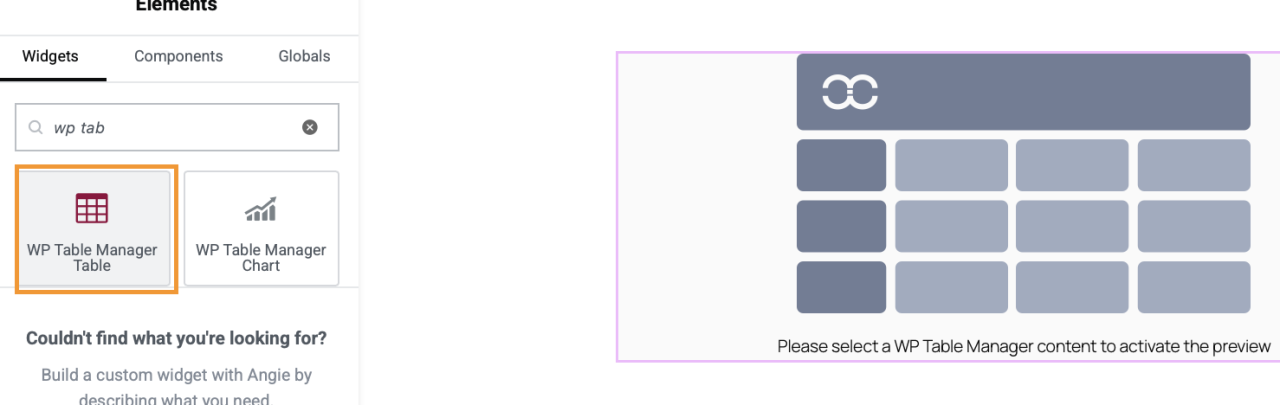
- Откройте свою страницу и отредактируйте её с помощью Elementor
- Найдите виджет WP Table Manager
- Перетащите виджет в свой макет
- Выберите созданную вами таблицу
- Настройка параметров дисплея
Вот и всё. Ваша таблица мгновенно появится в вашем дизайне.
Адаптивность таблиц
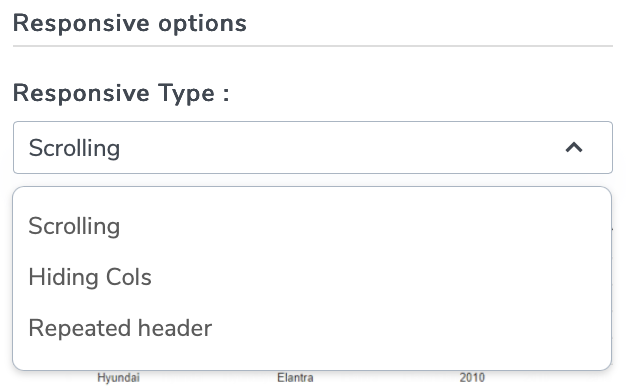
Поскольку у нас есть WP Table Managerможно выбрать 3 параметра разделе «Формат > Адаптивные параметры».
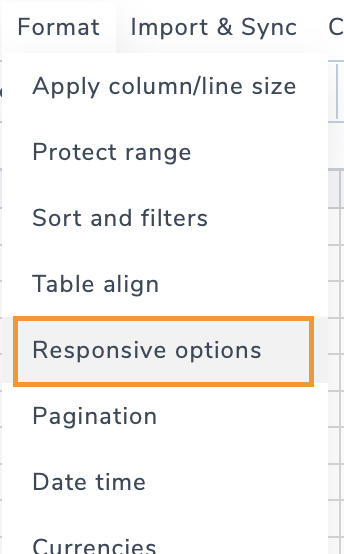
Мы увидим опции «Скрыть определенные столбцы», «Добавить прокрутку»и «Повторить заголовок».
Редактирование таблиц в режиме реального времени
Одним из главных преимуществ использования плагина для централизованного управления таблицами является редактирование в режиме реального времени.
При обновлении таблицы в WP Table Manager:
- Изменения автоматически отображаются на всех страницах
- Нет необходимости редактировать каждую страницу по отдельности
- Данные остаются согласованными по всему сайту
Это особенно полезно для динамического контента, такого как цены или наличие товаров.
Создание динамических и интерактивных таблиц
Статические таблицы полезны, но динамические таблицы выводят возможности на новый уровень.
С помощью WP Table Managerвы можете:
- Включить сортировку по столбцам
- Добавить функцию поиска
- Фильтрация данных по категориям
- Выделите важные строки
Эти функции улучшают удобство использования и делают ваш контент более интерактивным.
Вариант использования 1: Таблицы цен
Таблицы цен — одно из наиболее распространенных применений.
Почему они важны
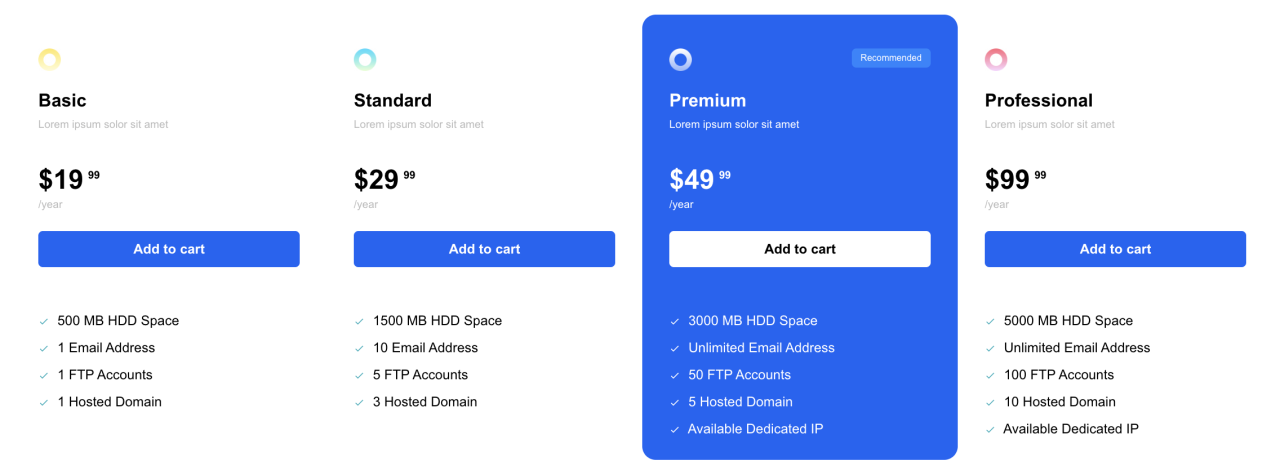
Понятная таблица цен помогает пользователям быстро сравнивать тарифные планы и быстрее принимать решения. Плохо структурированная система ценообразования может привести к путанице и потере конверсий.
Передовые методы
- Сохраняйте согласованность столбцов
- Выделите самый популярный план
- Используйте четкие обозначения и описания
- Избегайте беспорядка
С помощью WP Table Managerвы можете создавать таблицы цен, которые будут одновременно функциональными и визуально привлекательными, используя шаблон, специально разработанный для таблиц цен.
Вариант использования 2: Таблицы сравнения
Таблицы сравнения необходимы для оценки товаров или услуг.
Типичные сценарии
- Сравнение характеристик продукции
- Оценка планов обслуживания
- Показаны плюсы и минусы
Советы по составлению эффективных сравнительных таблиц
- Сосредоточьтесь на ключевых различиях
- Для большей наглядности используйте галочки или значки
- Сделайте макет простым
- Обеспечьте удобство чтения на мобильных устройствах
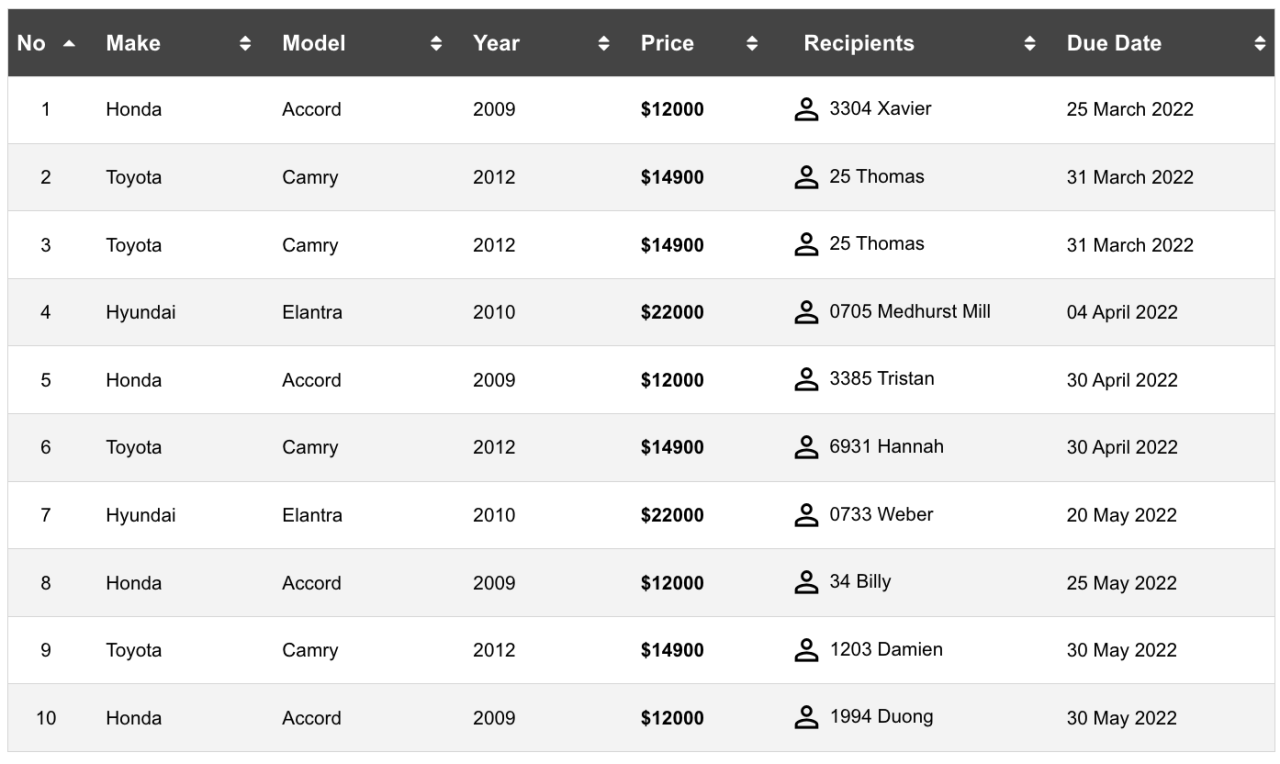
Эти таблицы помогают пользователям принимать обоснованные решения, не перегружая их информацией, и вы можете начать использовать темы таблиц из WP Table Manager.
Вариант использования 3: Диаграммы данных и структурированная информация
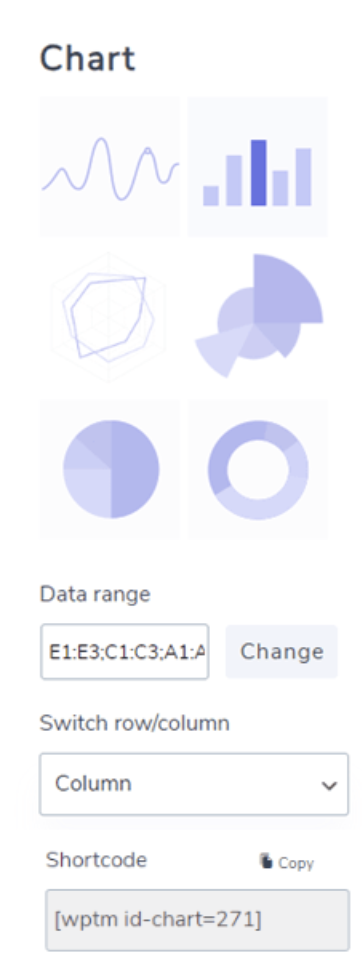
Таблицы также идеально подходят для отображения структурированных данных, таких как:
- Статистика
- Отчеты
- Инвентаризационные списки
В сочетании с Elementor вы можете стратегически размещать эти таблицы в своем контенте, чтобы подкрепить ваше сообщение.
Оптимизация таблиц для поисковых систем
Поисковые системы полагаются на структуру для понимания контента. Таблицы могут улучшить этот процесс при правильном использовании.
Ключевые стратегии оптимизации
- Используйте описательные заголовки
- Поддерживайте порядок и согласованность данных
- Избегайте излишнего оформления, скрывающего содержимое
- Обеспечьте быструю загрузку
Таблицы, созданные с помощью WP Table Manager имеют четкую структуру, которую поисковые системы могут легче интерпретировать.
Улучшение пользовательского опыта с помощью таблиц
Хорошая таблица – это не только данные, но и удобство использования.
Улучшить читаемость
- Эффективно используйте пространство
- Примените единообразное форматирование
- Выделите ключевую информацию
Поддерживать согласованность
- Используйте один и тот же стиль для всех таблиц
- Правильно выровняйте текст и цифры
- Используйте цвета минимально
Эти небольшие улучшения существенно влияют на то, как пользователи взаимодействуют с вашим контентом.
Советы по организации рабочего процесса для эффективного управления таблицами
Для повышения эффективности процесса: создавайте шаблоны для повторяющихся типов таблиц
- Используйте категории для организации таблиц
- Обновление данных из единого источника
- Тестовые таблицы на нескольких устройствах
Эти методы помогают поддерживать единообразие и сокращать объем ручного труда.
Внимание всем вебмастерам!
Улучшите веб-сайты своих клиентов с помощью WP Table Manager. Легко управляйте и настраивайте таблицы, диаграммы и электронные таблицы, предоставляя клиентам динамичную и привлекательную визуализацию данных.
Улучшите свои услуги веб-дизайна сегодня!
Создавайте более интеллектуальные таблицы в WordPress
Управление таблицами в WordPress больше не должно быть сложным. С помощью Elementor и WP Table Managerвы можете создавать структурированные, адаптивные и визуально привлекательные таблицы без технических сложностей.
Сочетая простоту использования с мощными функциями, эта система позволяет обрабатывать все — от простых списков данных до сложных таблиц цен и сравнений. При правильном использовании таблицы не только улучшают удобство использования вашего сайта, но и способствуют повышению его позиций в поисковой выдаче.
Грамотно структурированная стратегия использования таблиц может значительно улучшить общее впечатление от контента, сделав ваш веб-сайт более организованным, профессиональным и эффективным.
Когда вы подпишетесь на блог, мы будем отправлять вам электронное письмо, когда появятся новые обновления на сайте, чтобы вы не пропустили их.