Продукты WordPress
 Продукты Joomla
 Поддержка
 Новости
 Вход
ВходДобавляйте и редактируйте галереи изображений как профессионал в Elementor

Хотя использование Elementor очень помогает при создании страницы или записи, также верно, что нам может потребоваться больше инструментов, чтобы сделать его работу идеальной, одним из этих инструментов, о которых важно упомянуть, будет менеджер галереи, который может позволить нам улучшить и без того мощный конструктор страниц, давайте посмотрим, насколько легко добавлять и редактировать галереи с WP Media folder прямо в Elementor.
С такими замечательными инструментами, как менеджер галереи и интеграция со всеми основными конструкторами страниц, WP Media Folder позволяет нам создавать действительно потрясающие галереи, а также упорядочивать нашу медиатеку всего несколькими кликами!
В этом уроке мы будем создавать галерею с нуля, используя Менеджер Галереи и напрямую из Elementor.
Содержание
Создайте галерею WordPress с WP Media Folder
Прежде всего, мы увидим, насколько легко создать галерею, используя дополнение Gallery для WP Media Folder .
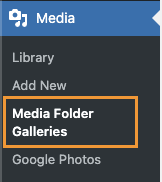
Этот менеджер галерей можно найти после установки WP Media Folder и дополнения Gallery Addon в разделе «Медиатека» > «Галереи в папках медиафайлов».
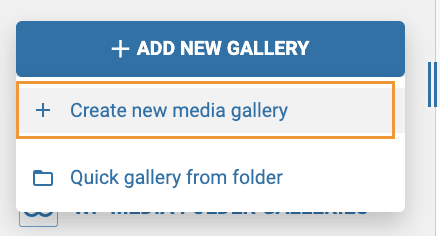
На этом экране нам нужно навести курсор на + Добавить новую галерею и нажать на + Создать новую медиа галерею.
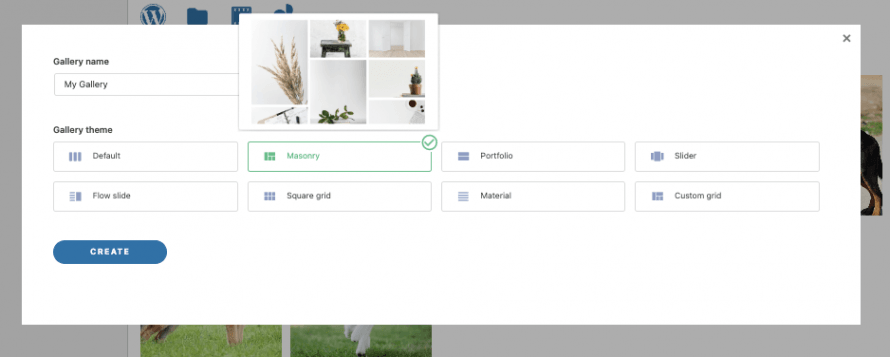
Это откроет модальное окно, где мы можем ввести название галереи и выбрать тему.
Пока мы назовем ее "Моя Галерея" и оставим тему по умолчанию.
Это приведет нас к панели создания галереи с множеством опций для настройки и построения нашей галереи, сначала мы добавим изображения в нашу галерею.
Мы увидим множество вариантов добавления медиафайлов в галерею, основные из которых — добавление из медиатеки или загрузка непосредственно из файлового менеджера компьютера. Рассмотрим оба варианта.
Прежде всего, у нас есть Библиотека Медиа - опция, представляющая собой иконку WordPress, нажмите на неё.

Нажав сюда, вы откроете медиатеку. Вы заметите, что в моей медиатеке есть папки. Это благодаря WP Media Folder , который позволяет мне наилучшим образом упорядочить все мои медиафайлы с помощью папок и фильтров. Подробнее об этом можно прочитать здесь , но это тема для другой публикации ;)
Теперь, чтобы добавить изображения, всё, что нам нужно сделать здесь, это перейти в папку с медиа, куда мы добавили изображения, которые хотим добавить, и выбрать изображения, используя клавишу Ctrl + клик, чтобы выбрать их, и, наконец, нажать на Импорт Изображений.
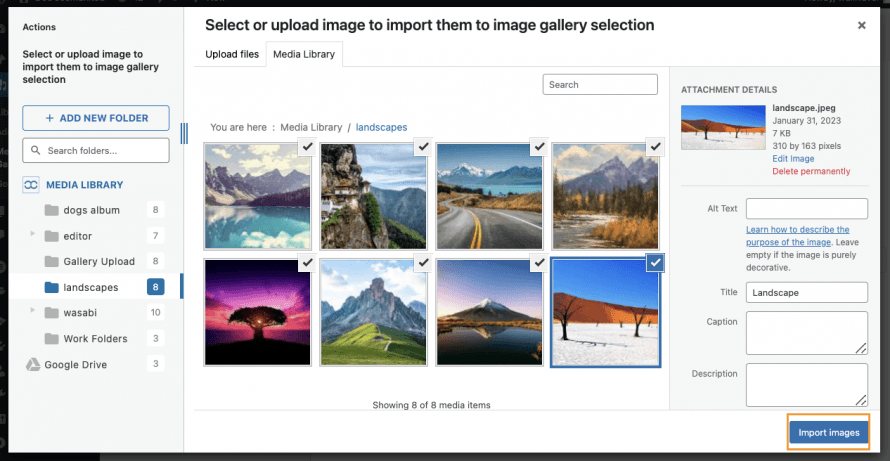
Это добавит все выбранные изображения в Менеджер Галереи, позволяя нам использовать и настраивать их.
Теперь давайте рассмотрим возможность загрузки изображений непосредственно из проводника файлов. Для этого щелкните значок папки.

После этого ваш проводник откроется мгновенно, позволяя вам перемещаться внутри ваших папок и выбирать изображения, которые вы хотите добавить в Галерею.
Выберите изображения, которые вы хотите загрузить, и затем нажмите Открыть.
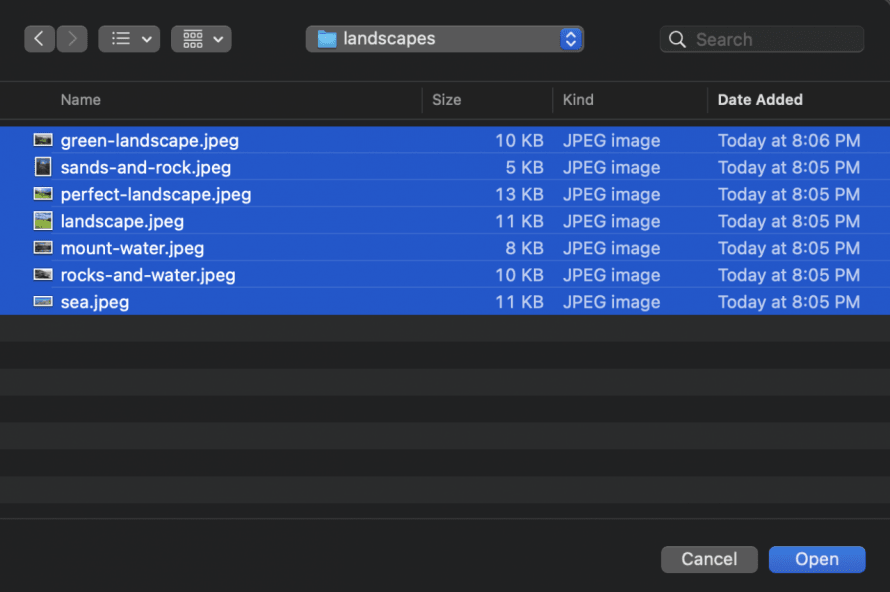
После этого мы должны быть готовы! Теперь у нас есть все изображения в нашем диспетчере галереи, готовые к использованию для нашей галереи.
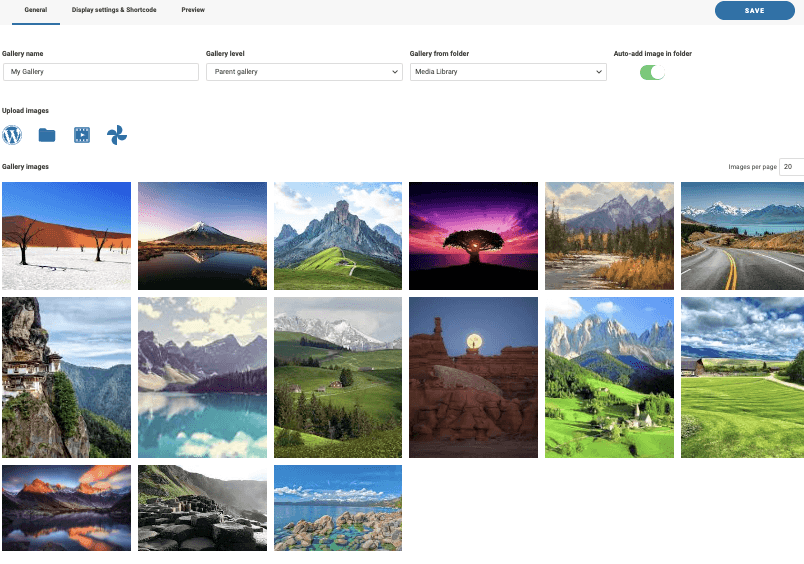
Теперь, когда все изображения на месте, давайте проверим настройки галереи. Для этого перейдите на вторую вкладку « Настройки отображения и шорткод».

В первом случае мы видим, что у нас есть 8 галерей, каждая галерея со своими собственными настройками.
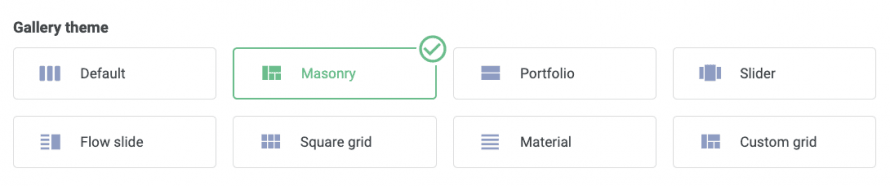
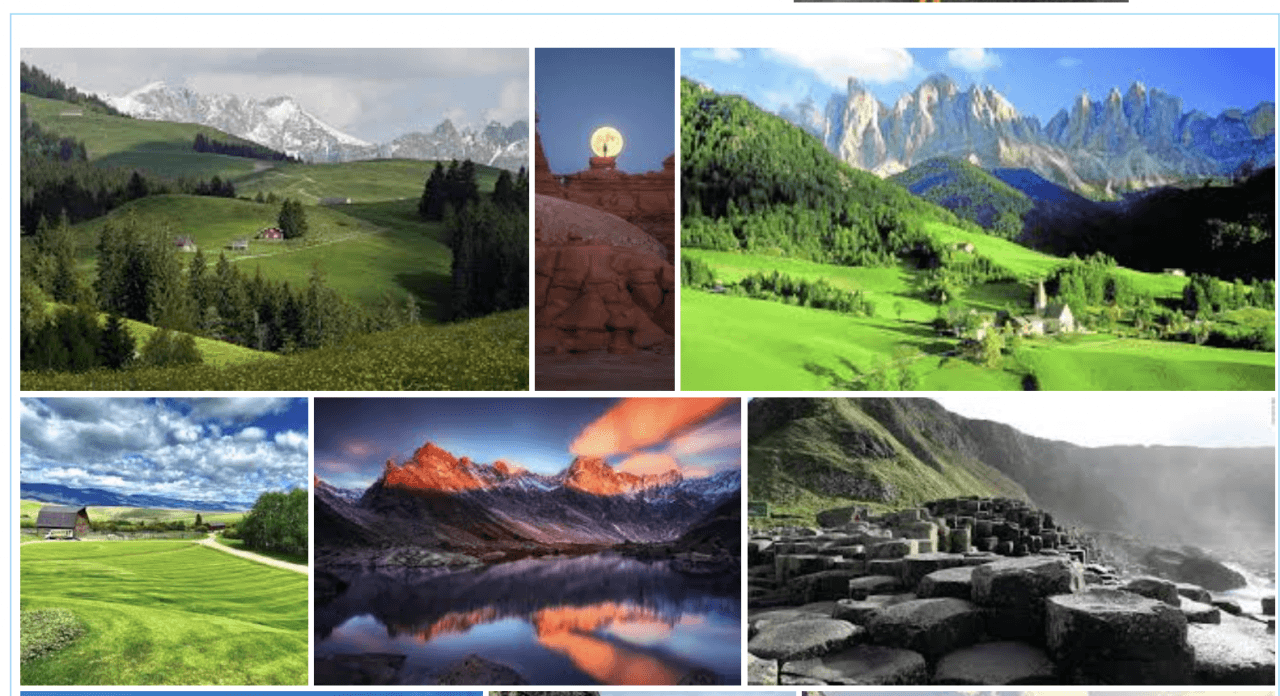
Давайте посмотрим на Masonry. Это классическая стена со множеством изображений, показанных в разных размерах, как мы можем видеть на «Предварительный просмотр» .
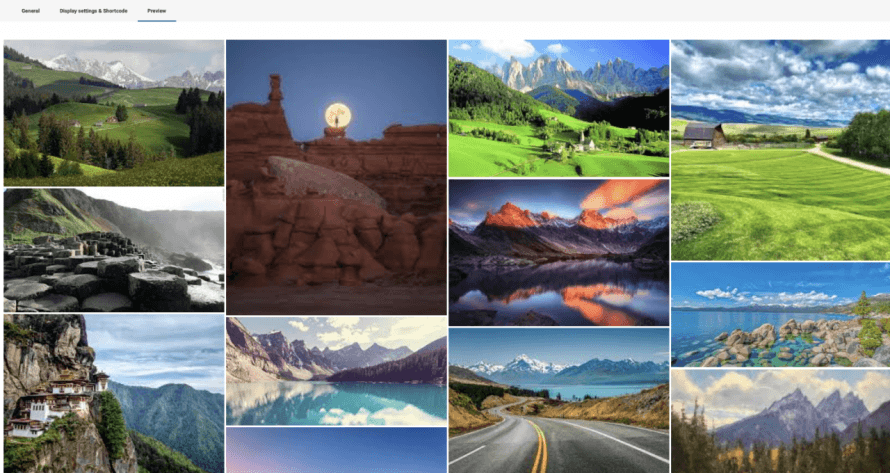
В настройках мы можем выбрать между всеми доступными опциями, например, размер изображений и макет masonry , давайте отредактируем его с текущего вертикального на горизонтальный и сделаем изображения меньше.
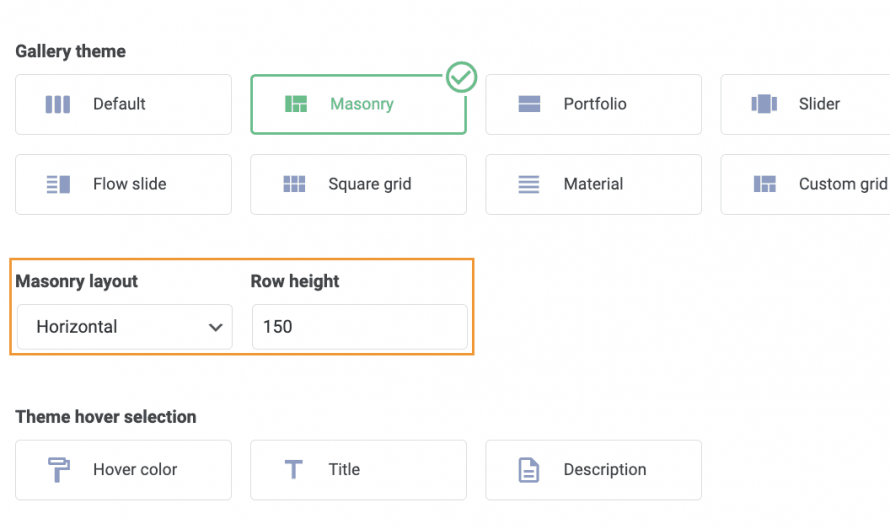
Теперь проверяем предварительный просмотр вкладки, чтобы подтвердить, как это выглядит сейчас.
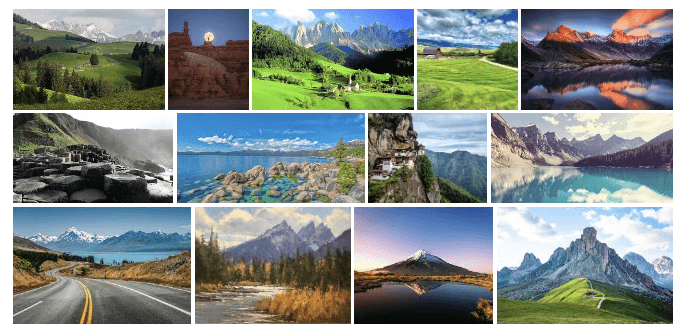
Как вы видите, действительно хороший инструмент с удивительными функциями, поскольку он позволяет нам вносить изменения и проверять, как это выглядит, с помощью нескольких кликов и за несколько секунд! Создание галереи никогда не было таким простым!
Добавление галерей WordPress в Elementor
Теперь, когда мы рассмотрели, как создать галерею с помощью WP Media Folder , давайте посмотрим, как добавить ее в наши записи или страницы с помощью Elementor.
Чтобы сделать это, перейдите на свою страницу или запись (или создайте ее) и нажмите на Редактировать с помощью Elementor , чтобы загрузить конструктор страниц.
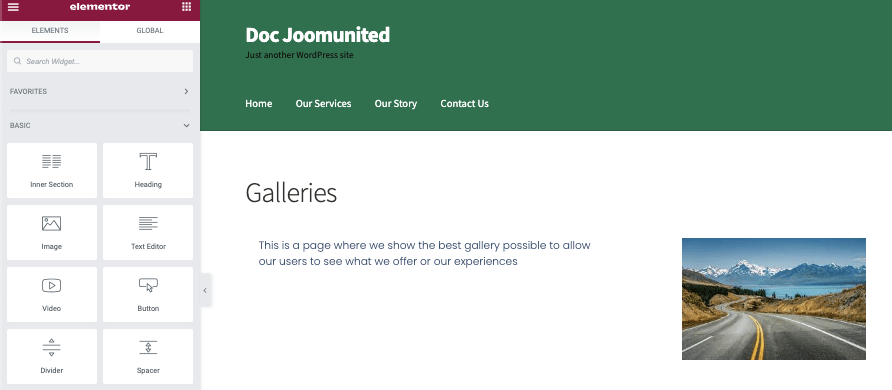
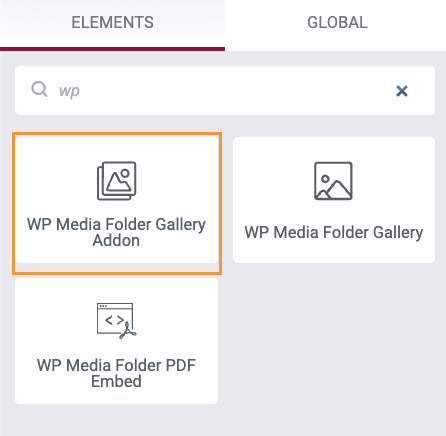
В редакторе найдите WP Media Folder блок Галереи дополнения и добавьте его в свой контент.
Будет загружен блок, информирующий нас о том, что блок Галереи дополнения добавлен.
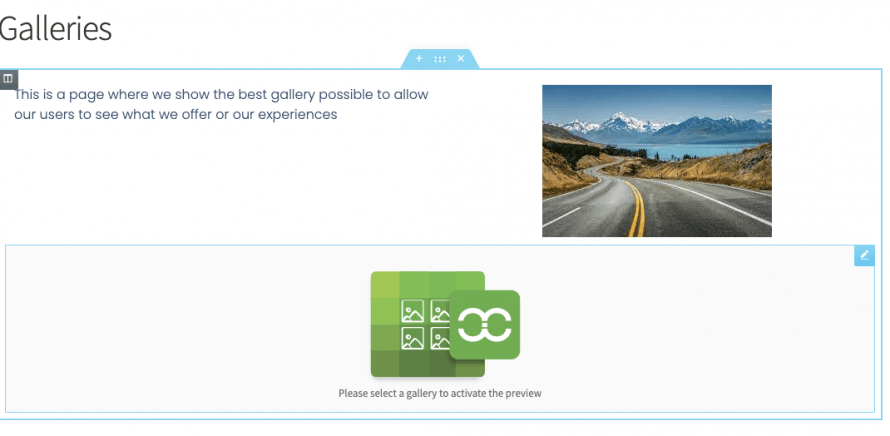
На левой вкладке мы сможем выбрать галерею, которую хотим, и также сможем настроить ее.
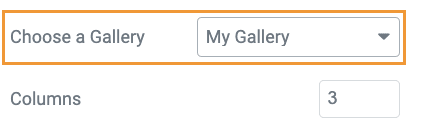
Для начала выберем галерею, которую мы создали в разделе «Выберите галерею».
Галерея, которую мы создали ранее, автоматически загрузится в конструкторе страниц под блоками.
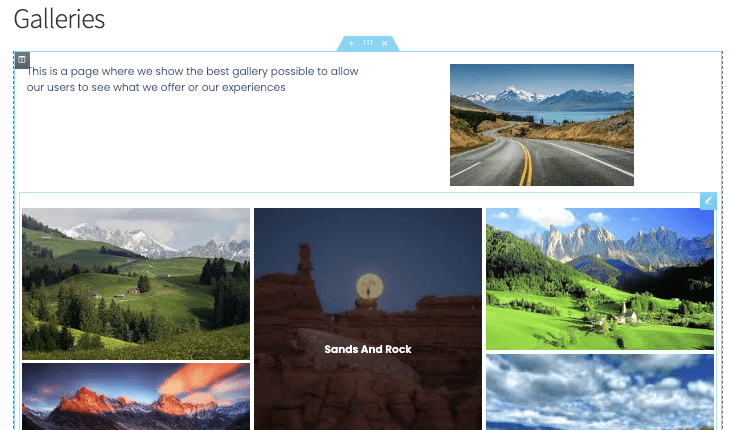
Здесь показана тема Masonry , которую мы выбрали в менеджере галереи, давайте проверим все доступные опции в темах, которые можно выбрать прямо из настроек блока.
Masonry
Очень хорошая тема, которая идеально подходит почти для каждой страницы, позволяя нам показывать много изображений.
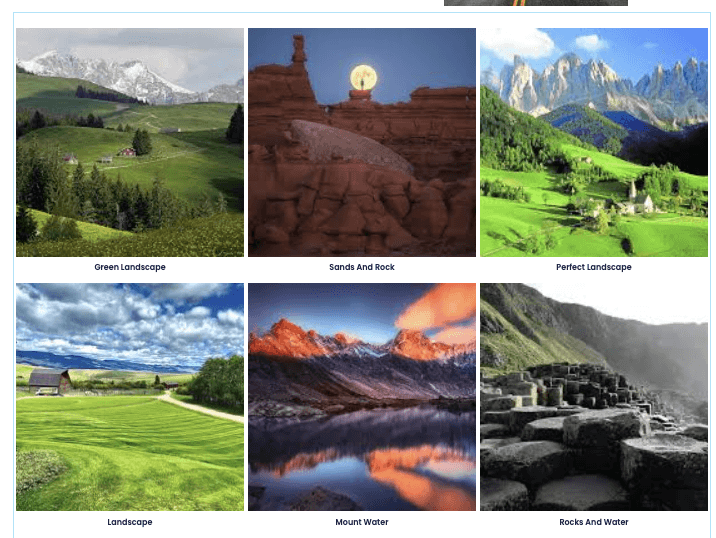
По умолчанию
Эта тема позволяет нам показывать изображения классическим способом с названием изображения тоже.
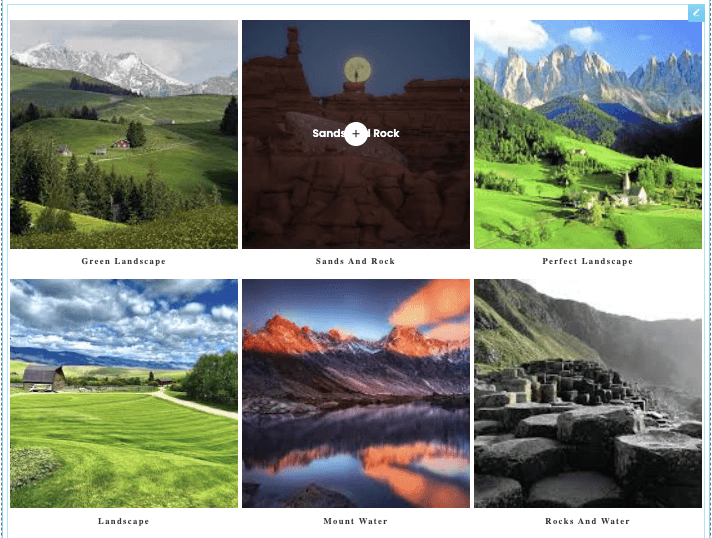
Портфолио
Это позволяет нам отображать наши изображения подобно теме по умолчанию, но используя другой шрифт, идеально подходящий для демонстрации искусства.
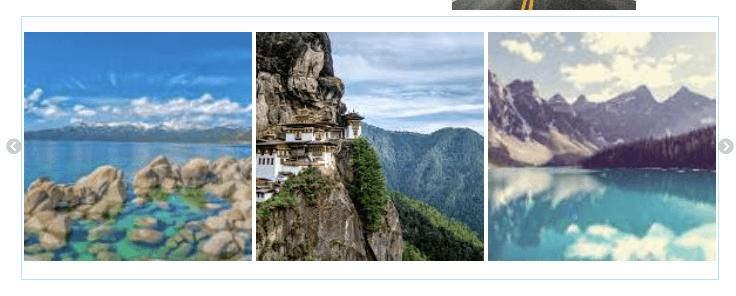
Слайдер
Классический слайдер, который позволяет нам сфокусировать несколько изображений на слайде.
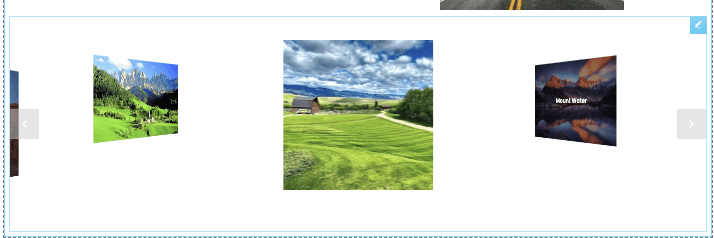
Поток слайдов
Похоже на тему Слайдер, но с другой анимацией, фокусируясь на одном изображении за слайд, но позволяя просматривать другие изображения.
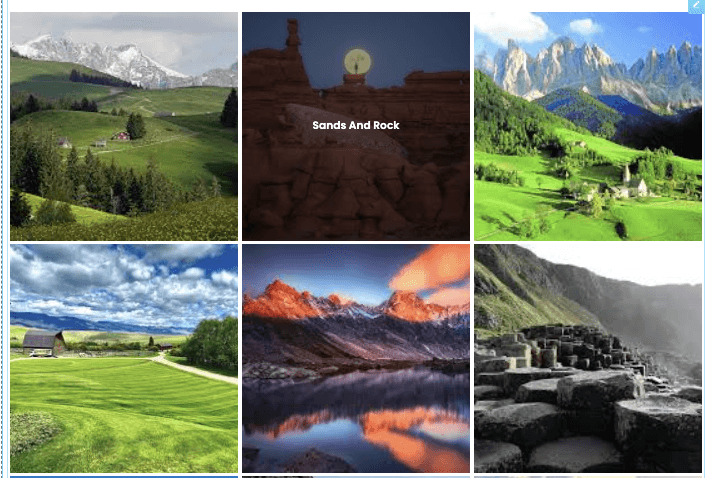
Квадратная сетка
Классическая галерея с квадратными изображениями, которая показывает название изображения при наведении на них.
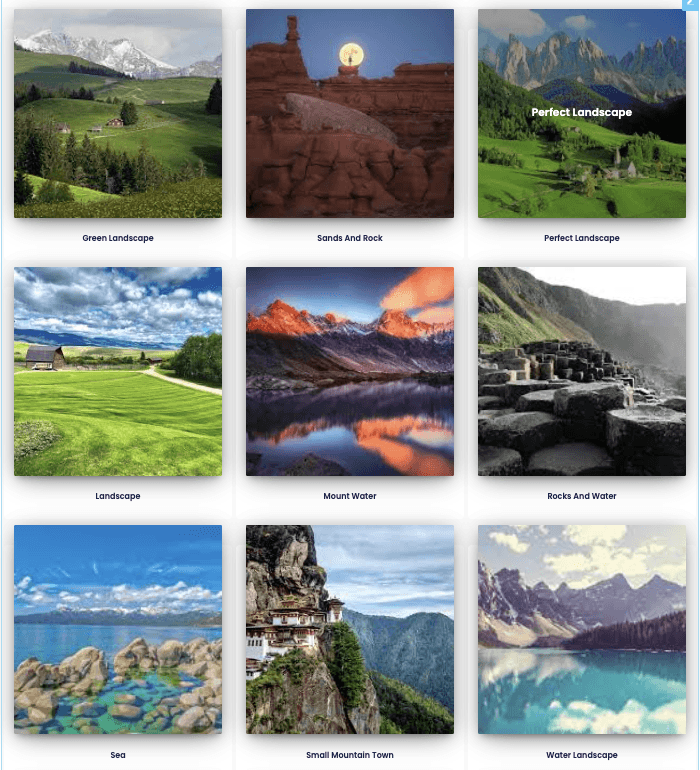
Материал
Очень классная тема, которая позволяет нам отображать квадратные изображения с красивой тенью и названиями.
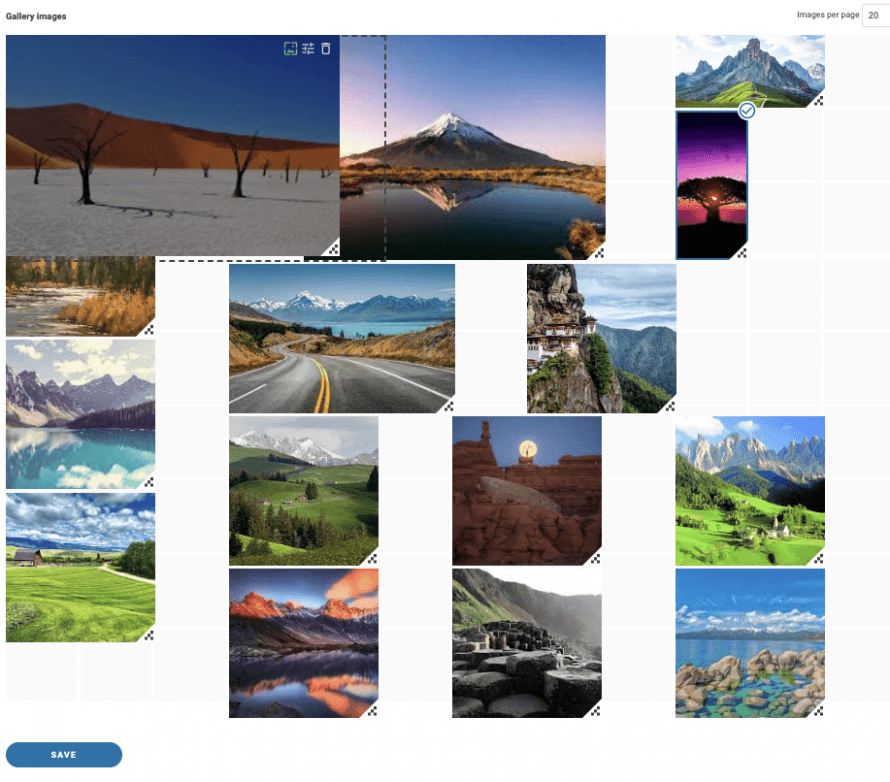
Пользовательская сетка
Сеточная тема, которая позволяет изменять размер изображений, чтобы они выглядели так, как мы хотим, является лучшим вариантом, когда мы хотим создать галерею с нашими собственными размерами изображений. Давайте посмотрим, как это работает в Диспетчере галерей быстро.
Теперь давайте посмотрим доступные опции в левом меню для всех галерей.
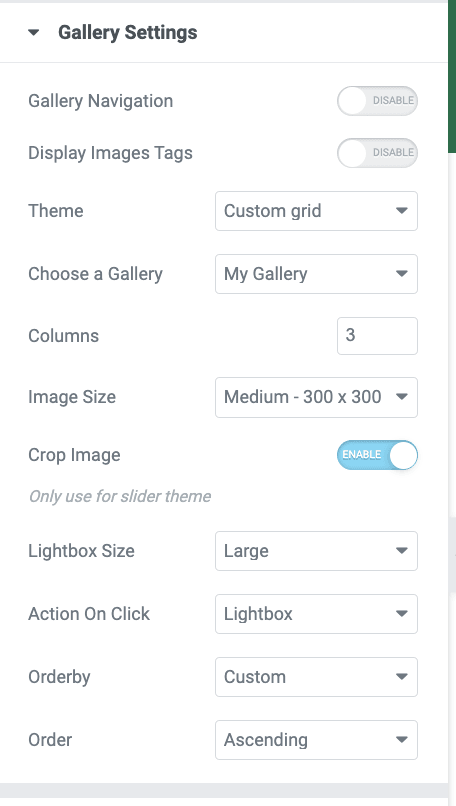
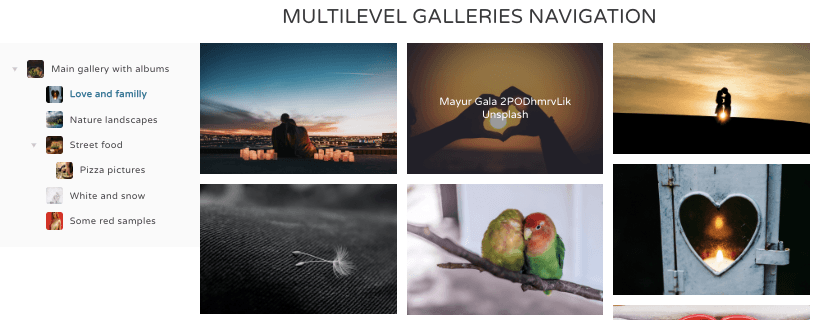
Прежде всего, у нас есть Навигация по галерее, включение этой опции позволит использовать навигационные галереи, доступные в WP Media Folder дополнении к галерее, которое позволяет использовать родительские галереи и подгалереи , вы можете посмотреть рабочий пример здесь
В качестве второго варианта у нас есть Отображение тега изображения, полезно, когда у нас есть много изображений в галерее и мы хотим разрешить нашим пользователям фильтровать их во внешнем интерфейсе, используя систему тегов из WP Media Folder.

Затем у нас есть селектор темы , который позволяет нам выбирать между доступными темами (которые мы показали ранее) и также будет показывать конкретные настройки в зависимости от выбранной темы, такие как макет и, например, продолжительность перехода слайдера.
Мы можем продолжать проверять и найдем Выберите галерею вариант, который позволит нам выбрать между всеми галереями, которые мы создали в нашем менеджере галереи.
Размер изображения, эта опция позволяет нам выбирать между всеми доступными размерами изображений, позволяя нам настроить изображения так, чтобы они выглядели и подходили идеально для нашего контента.
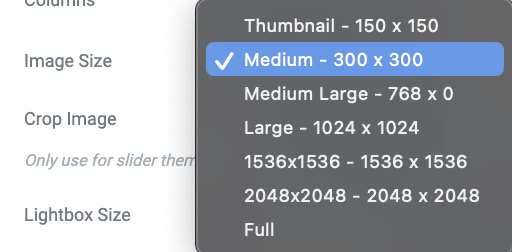
Опция Размер LightBox позволит нам, как и размер изображения, выбрать размер лайтбокса, который будет отображаться, если мы выберем его в качестве действия при нажатии.
У нас также будет Действие при клике , которое позволит нам выбрать между показом лайтбокса, являющегося более крупной версией изображения, переходом на другую страницу или просто бездействием при клике на изображение.
И последняя опция - это настройки сортировки, где мы сможем увидеть и выбрать, как мы хотим отображать наши изображения в галерее.
Конечно, помимо этого, у нас будут настройки для добавления отступа между изображениями, изменения цвета при наведении, добавления границы и тени.
Как вы видите, действительно легко использовать Elementor, чтобы точно настроить наши галереи WP Media Folder и сделать их подходящими для нашей страницы!
Создание быстрых галерей с помощью медиапапок
В качестве дополнительной темы мы покажем, как создавать галереи, используя папки, созданные WP Media Folder , за несколько секунд.
Эта функция также позволит нам автоматически добавлять изображения в галерею, когда они добавляются в папку.
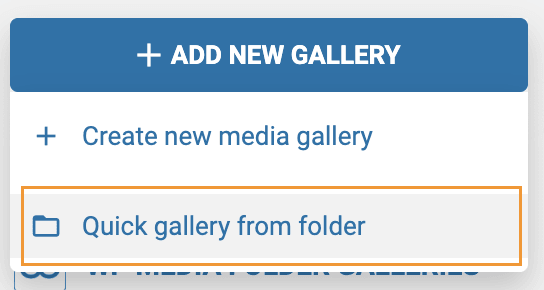
Прежде всего, перейдите к Галерее папок с медиафайлами в разделе Библиотека медиафайлов где мы создали галерею ранее, на этой странице наведите указатель мыши на + Добавить новую галерею кнопку, а затем нажмите на Создать галерею из папки.
Будет отображен проводник папок, где мы можем выбрать папку, которую мы будем использовать.
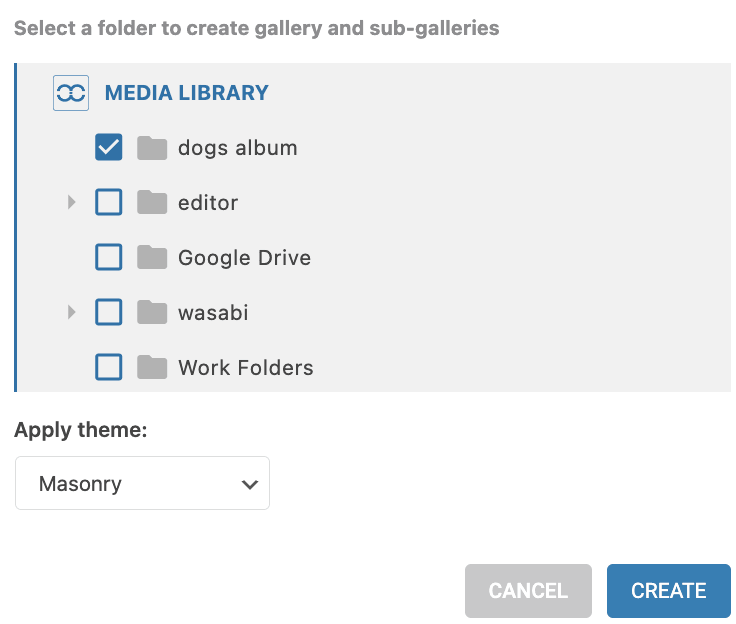
После нажатия на Создать, изображения внутри папки будут автоматически загружены в галерею, что позволит нам создать галерею всего за несколько секунд!
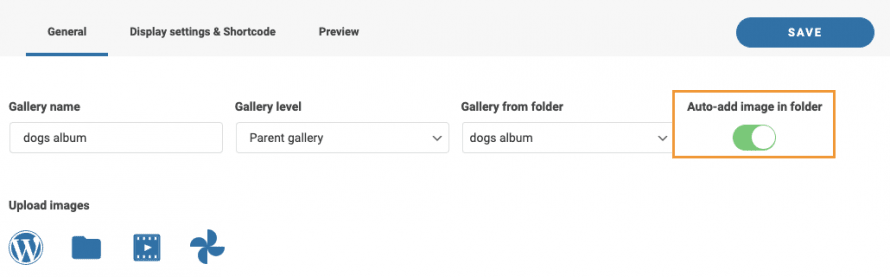
Мы также сможем автоматически добавлять изображения, когда они добавляются в библиотеку медиафайлов в ту же папку, которую мы только что выбрали, экономя наше время на посещение менеджера галереи и добавление изображения вручную.
Чтобы использовать эту опцию, Автоматическое добавление изображений в папку должно быть включено, доступно в правом верхнем углу чуть ниже кнопки Сохранить .
И магия совершена! Папки, которые также являются изображениями, отображаются автоматически во внешнем интерфейсе, чего еще мы можем просить? :)
Начните использовать WP Media Folder с вашим любимым конструктором
У нас также есть видео, объясняющее все шаг за шагом, чтобы вы могли увидеть плагин в действии, проверьте!
Плагин с удивительными функциями, который позволит нам не только создавать галереи, но и организовывать наши медиафайлы, импортировать из Google Фото и также выгружать их!
Совместим со всеми основными конструкторами, что позволит нам организовать и показать наши медиафайлы наиболее профессиональным способом всего за несколько шагов, так чего вы ждете? Перейти сюда и получить сейчас!
Когда вы подпишетесь на блог, мы будем отправлять вам электронное письмо, когда появятся новые обновления на сайте, чтобы вы не пропустили их.