WordPress 製品
 Joomla製品
 Support
 News
News Login
LoginWP Media Folder AIで既存のメディアライブラリを一括処理する方法(手作業なし!)

既存のメディアライブラリを一括処理すれば、何時間もの手作業を節約できます。特に、WordPressサイトにすでに何百、何千もの画像が含まれている場合はなおさらです。多くのサイト運営者は、メディアライブラリが効率的に管理できなくなるほど大きくなるまで、altテキスト、タイトル、説明を1つずつ追加するのにどれだけの時間が費やされているかに気づいていません。.
AIを活用したバッチ処理により、各画像を手動で編集する必要はもうありません。さらに、ライブラリ全体で一貫したメタデータを自動生成できるため、わずか数クリックでSEO、アクセシビリティ、整理整頓を改善できます。.
- AIによる一括処理では、何百、何千もの画像のタイトル、代替テキスト、キャプション、説明文を一度に生成できるため、手作業にかかる時間を大幅に節約できます。.
- 一貫性があり、SEOに適したメタデータは、画像検索の可視性、アクセシビリティ、そしてメディアライブラリ全体の整理を向上させます。.
- WP Media Folder AI を使ったシンプルな一括ワークフローで、設定を構成し、画像を一括処理し、ライブラリが成長しても最適化された状態を保てます。.
目次
メディアライブラリを一括処理することが重要な理由
ウェブサイトが成長するにつれて、メディアライブラリも大きくなります。最初は数十枚の画像でも、すぐに数百、数千のファイルに増え、そのすべてに適切なメタデータが必要になります。一括処理がなければ、これらの画像の管理は繰り返しが多く、時間がかかり、拡張が困難になります。.
- 手作業の時間を大幅に削減: 画像ライブラリが大きい場合、altテキスト、タイトル、説明を1枚ずつ編集すると数日かかることがあります。一括処理なら、すべてを1つのワークフローで更新できます。
- 画像間でメタデータの一貫性を保ちます: 手動編集では、名前や説明が不統一になりがちです。一括AI処理はすべての画像に同じルールとコンテキストを適用し、一貫性のあるプロフェッショナルなメタデータを生成します。
- SEO パフォーマンスを向上: 検索エンジンは、視覚的なコンテンツを理解するために画像メタデータに依存しています。すべての画像に最適化された代替テキストとタイトルがあれば、画像検索や全体的なランキングでサイトの可視性が向上します。
- 大規模なメディアライブラリでも簡単に拡張可能: 数百枚でも数千枚でも、一括処理なら作業量を増やすことなく一貫した最適化を実現します。成長中のウェブサイトやコンテンツ量の多いプラットフォームに最適です。
画像を手動で管理する際の課題
画像を1つずつ 管理する方法は、サイトにファイルが少ししかない場合には機能するかもしれません。しかし、メディアライブラリが大きくなるにつれて、手動での編集はすぐに反復的で時間のかかる作業となり、一貫性が損なわれ、メンテナンスがより困難になります。
時間のかかる編集
各画像に手動でタイトル、代替テキスト、説明を追加するのは、多くの人が思っている以上に時間がかかります。1枚の画像を編集するのに1分かかるとしても、数百、数千のファイルを更新するとなると、数時間、場合によっては数日かかることもあります。これは、コンテンツの作成やウェブサイトの改善など、より重要な作業に集中したいときに特に悩ましい問題です。.
時間が経つにつれて、この繰り返し作業はワークフローを遅らせ、他のプロジェクトを遅延させる可能性があります。サイトを効率的に最適化する代わりに、メディアライブラリで同じ作業を繰り返すことに多くの時間を費やすことになります。.
画像メタデータの不一致
画像を手動で編集すると、メタデータに一貫性がなくなりがちです。詳細な代替テキストを含む画像もあれば、ファイル名や短い説明しかない画像もあります。この一貫性のなさは、メディアライブラリを整理されていない、プロフェッショナルに見えないものにしてしまいます。.
SEOとアクセシビリティの観点からも、一貫性のないメタデータはギャップを生み出します。検索エンジンやスクリーンリーダーはこの情報に依存して画像を解釈するため、説明が欠けていたり一貫性がなかったりすると、 画像最適化
大規模ライブラリにおけるスケーラビリティの低さ
手動での画像管理は、単純にスケールしません。小規模なウェブサイトでは機能しても、メディアライブラリが数百、数千のファイルに成長すると手に負えなくなります。画像が増えれば増えるほど、すべてを最適化された状態に保つことが難しくなります。.
サイトが成長し続けるにつれて、作業負荷もそれに応じて増加します。自動化されたソリューションがなければ、大規模なライブラリ全体で正確なメタデータを維持することは非現実的になり、画像情報が古くなったり、欠落したり、一貫性がなくなったりします。.
AIでWordPressの画像を強化しましょう。.
WP Media Folder Image AI は、画像の最適化、altテキストの生成、SEOの改善、ファイルの圧縮をワンクリックで自動的に行うお手伝いをします。
インテリジェントな自動化でメディアワークフローをアップグレードしましょう。
WP Media Folder AI が自動化するものは?

手動での画像管理が抱える課題——編集の遅さ、一貫性のないメタデータ、拡張性の低さ——に対処すると、大規模なメディアライブラリでは手動のアプローチが実用的でないことが明らかになります。ここで自動化が不可欠となります。特に、WordPressのメディアマネージャーで何時間も費やすことなく、数百、数千もの画像を最適化したい場合にはなおさらです。.
WP Media Folder AI は、人工知能を活用してメディアライブラリ全体の画像メタデータを自動生成する WordPress プラグインの機能です。画像を1つずつ編集する代わりに、AI が各ファイルを分析し、画像の内容と指定したコンテキストに基づいて、タイトル、代替テキスト、キャプション、説明などの重要なフィールドを入力します。
その一括処理機能により、 WP Media Folder AI は以下が可能です:
- 画像タイトルを自動生成 – 一般的なファイル名を、関連性のある説明的なタイトルに置き換えます。
- SEOに優しいaltテキストを追加 – 画像の内容に基づいてaltテキストを生成し、検索での表示とアクセシビリティを向上させます。
- キャプションと説明を一括生成 – 手動で入力することなく、メタデータフィールドを自動的に埋めます。
- 複数の画像を一度に処理 – 大規模な画像グループにメタデータを単一のワークフローで適用します。
これらの繰り返し作業を自動化することで、 WP Media Folder AIは、整理されていない画像ライブラリを完全に最適化されたものへと変換するお手伝いをします—手動作業は一切不要です。.
ステップバイステップ: WP Media Folder AIで古い画像を一括処理する方法
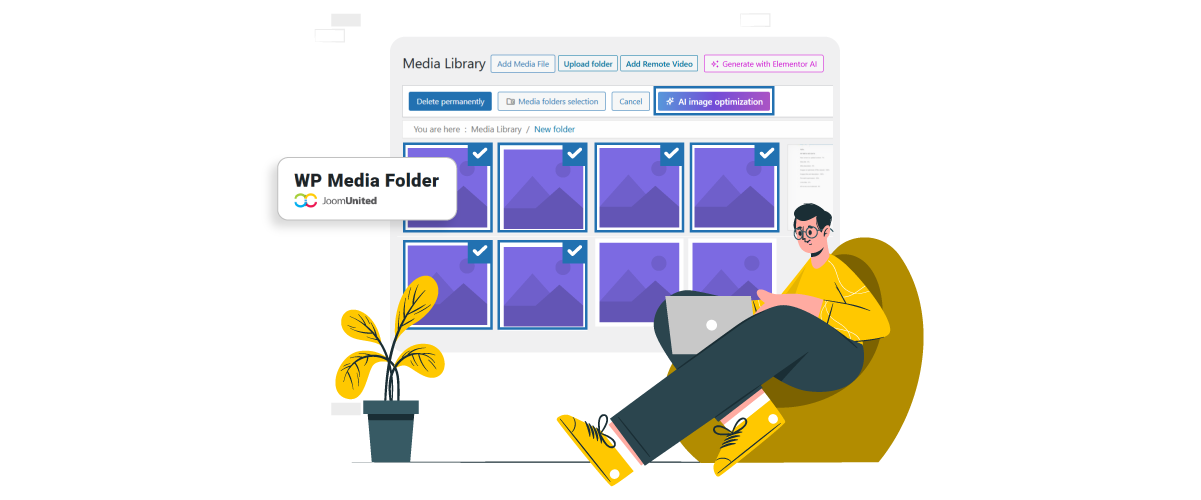
WP Media Folder AIを使用して既存の画像を一括処理するのは簡単です。AI設定を構成したら、1つのワークフローで複数の画像にわたって一貫したメタデータを生成できます。.
WP Media Folder AI設定を構成する
一括処理を実行する前に、AI設定を構成して、生成されるメタデータがウェブサイトのコンテンツと一致するようにする必要があります。これらの設定では、AIが画像を分析する方法、生成されるフィールド、説明に使用される言語を制御します。.
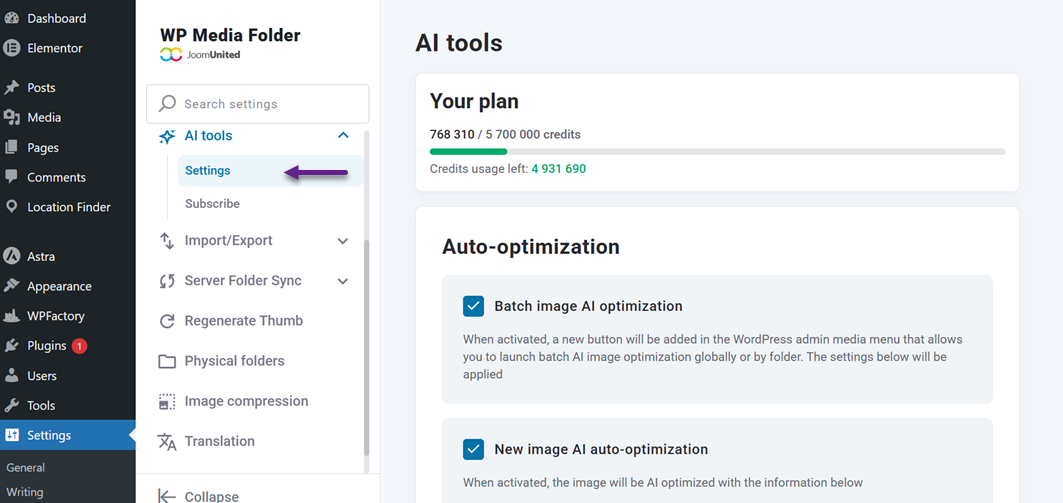
これらのオプションには、WordPressダッシュボードの 設定 > WP Media Folder > AIツール からアクセスできます。このセクションはすべてのAI機能のメインコントロールパネルとして機能し、メディアライブラリ全体でメタデータがどのように作成されるかを調整できます。
生成するメタデータフィールドを選択
AI設定内で、AIに自動生成させたいメタデータフィールドを選択します。一般的なオプションには、画像タイトル、代替テキスト、キャプション、説明文などがあります。.
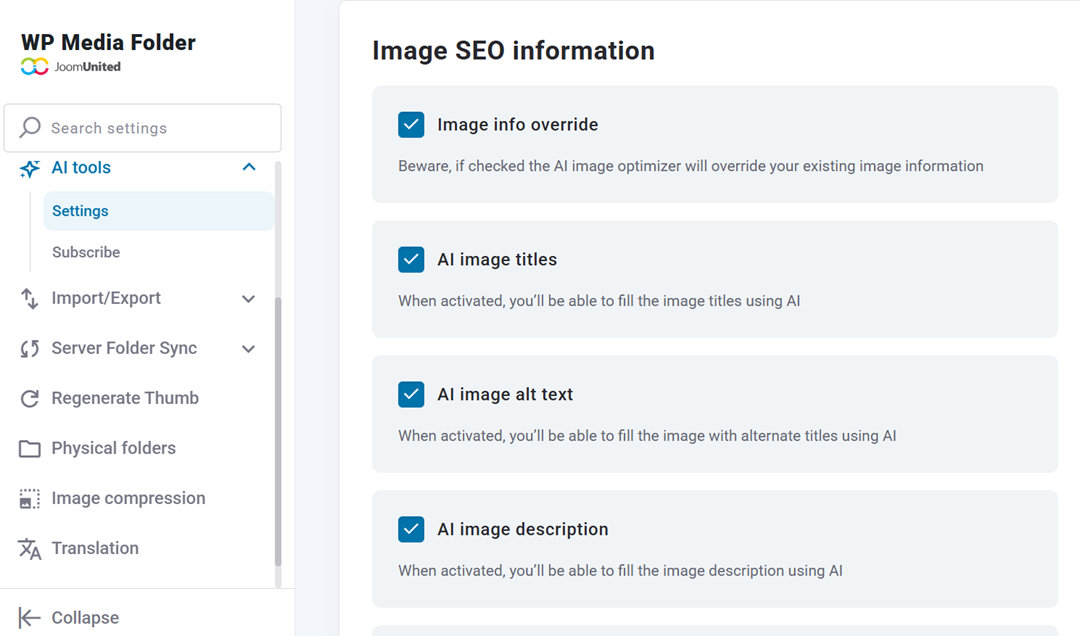
これらのフィールドを有効にすると、AIが画像の重要なSEO属性とアクセシビリティ属性を自動入力できます。また、古いメタデータを置き換えて、古いファイル間でも一貫性を保つことができます。.
言語とコンテンツコンテキストを設定する
WP Media Folder AIでは、画像の説明方法を導くコンテキストを定義できます。通常、これにはウェブサイトのニッチを反映したシステムプロンプトやトピックを設定します。.
メタデータ生成に使用する言語も選択できます。これは、特にサイトが特定のオーディエンスや地域を対象としている場合に、AIがより関連性の高い説明を生成するのに役立ちます。例えば、このように。.
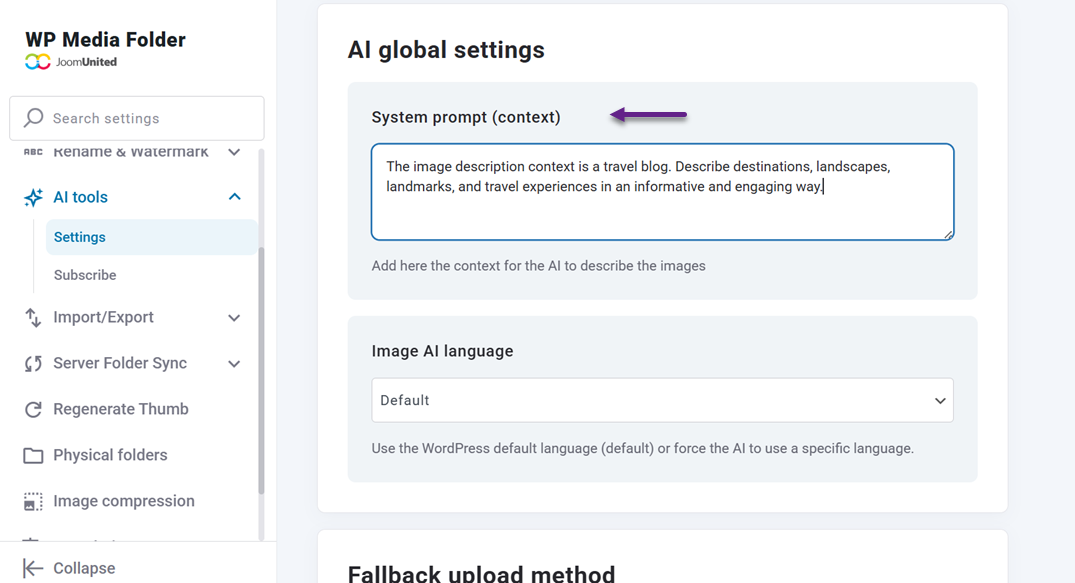
一括処理する画像を選択
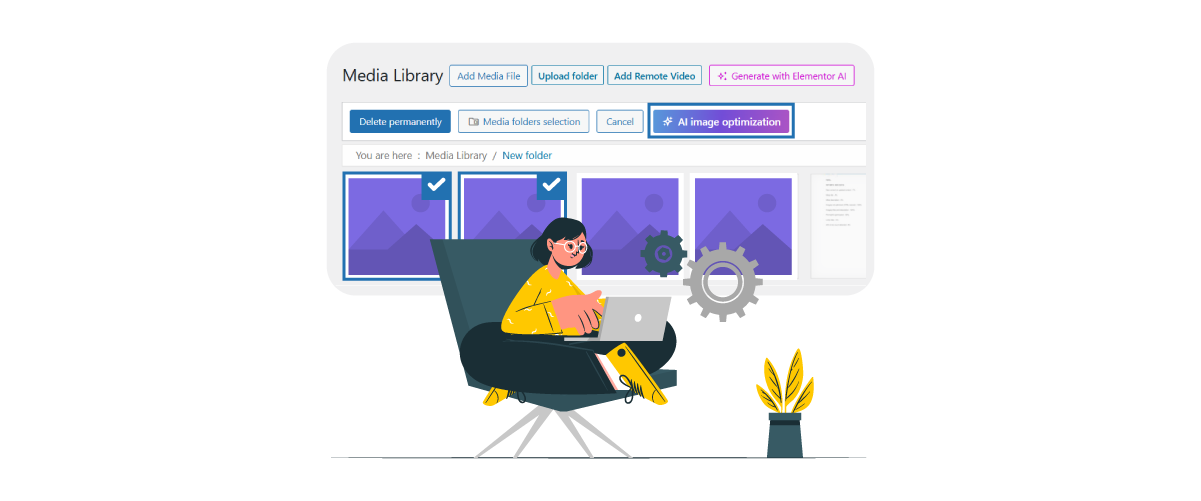
AI設定の準備ができたら、 メディア > ライブラリ に移動し、一括選択モードに切り替えます。そこから、複数の画像を一度に選択できます。
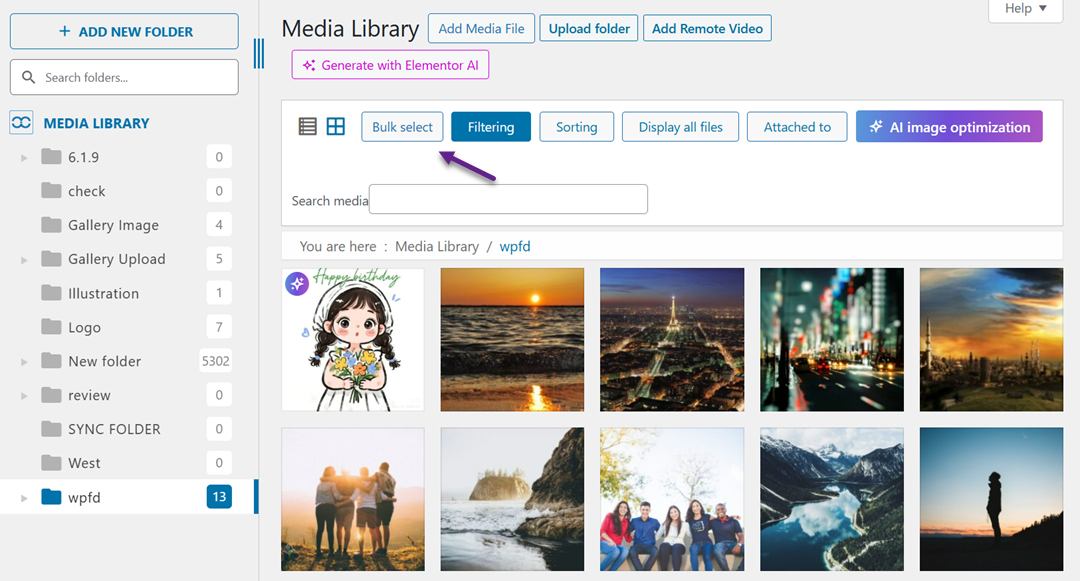
特定の画像グループを選択することも、ライブラリのより広い範囲に処理を適用することもできます。選択したすべてのファイルは、先に設定したAI構成に従います。.
AIメタデータ生成を実行する
画像を選択したら、AI最適化プロセスを開始し、 「AI画像最適化」をクリックします。 プラグインは各画像を分析し、タイトル、代替テキスト、キャプション、説明を自動的に生成します。
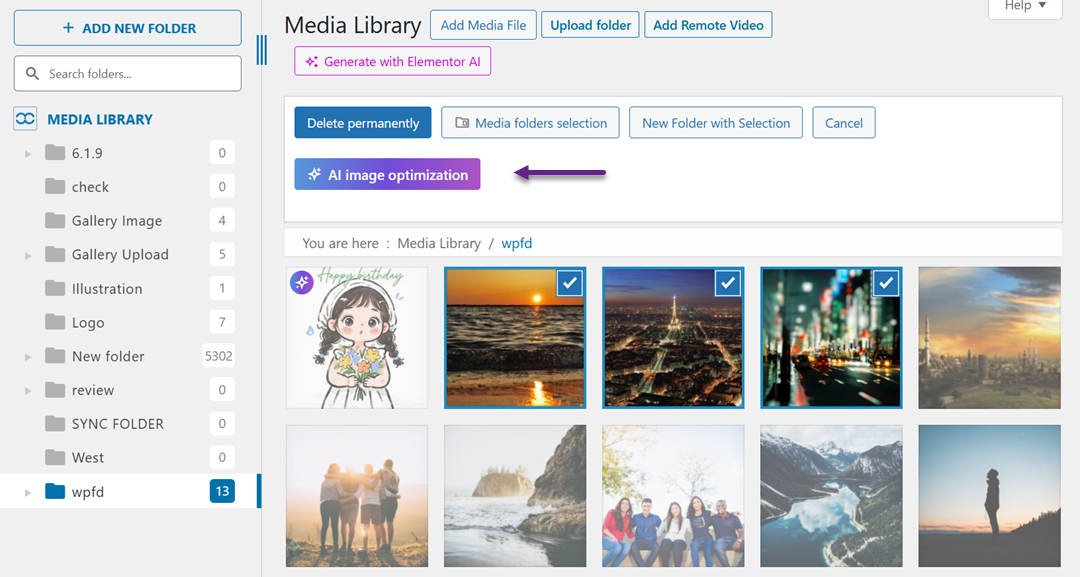
この処理は通常、複数の画像であっても数秒しかかからないため、大規模なメディアライブラリにとって高速なソリューションとなります。.
結果を確認して調整する
処理が完了すると、生成されたメタデータがメディアライブラリに自動的に表示されます。各画像のフィールドは、AI分析と設定内容に基づいて入力されます。.
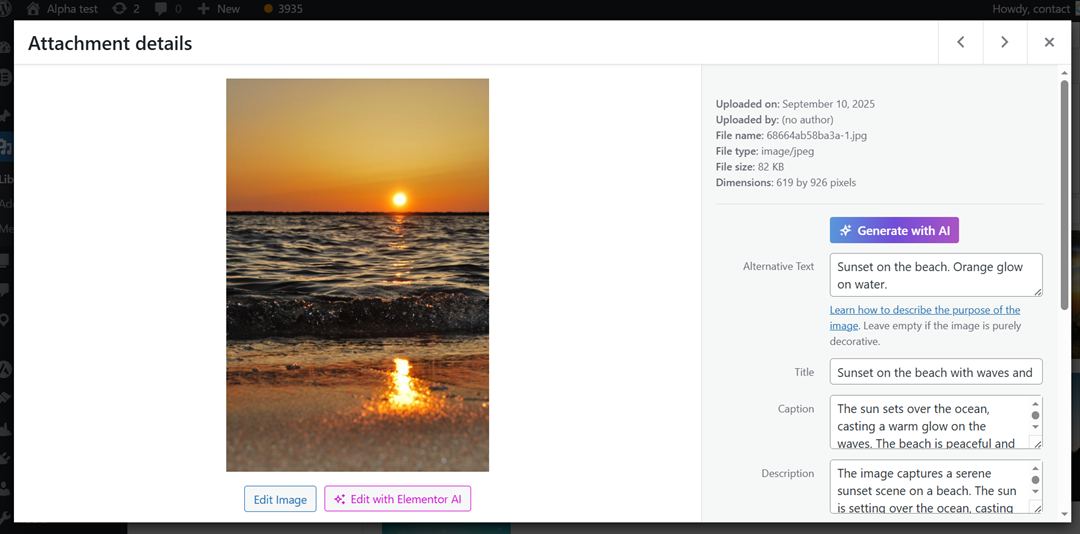
必要に応じて、任意のフィールドを手動で編集することもできます。この最終確認ステップにより、公開前にメタデータが正確でコンテンツと一致していることが保証されます。.
一括メディア処理のベストプラクティス
AIでメディアライブラリを一括処理すると大幅な時間短縮になりますが、少しの準備が大きな違いを生みます。いくつかの簡単なベストプラクティスに従うことで、生成されたメタデータが正確で一貫性があり、ウェブサイトの目標に沿ったものになるようにできます。.
これらの手順により、後で不要な編集を避け、AIがメディアライブラリ全体で最高の結果を提供できるようになります。.
AIを実行する前に画像を確認する
一括処理を開始する前に、最適化する予定の画像を確認してください。重複したファイル、古いファイル、現在のコンテンツ戦略に合わない画像を削除します。これにより、AIが不要になったファイルのメタデータを生成するのを防ぐことができます。.
簡単なクリーンアップも、結果の精度を向上させます。メディアライブラリに関連する画像のみが含まれていると、AIはウェブサイトのコンテンツを真に反映したメタデータの生成に集中できます。.
明確なメタデータルールを設定する
AIを実行する前に、コンテキストと言語の設定を定義します。これには、生成するメタデータフィールド(タイトル、代替テキスト、キャプション、説明など)の選択や、明確なコンテンツの方向性の設定が含まれます。.
たとえば、あなたのサイトが旅行に関するものであれば、AIはそのテーマに合った説明文を生成する必要があります。明確なルールは、AIがすべての画像に対して一貫性のある関連性の高いメタデータを生成するのに役立ちます。.
メディアをバッチで処理する
非常に大規模なメディアライブラリをお持ちの場合は、一度にすべてを処理するのではなく、画像を小さいバッチに分けて処理することをおすすめします。そうすることでワークフローを管理しやすくなり、結果を段階的に確認できます。.
バッチ処理は、エラーが見落とされるリスクも軽減します。画像の各グループを確認し、必要に応じて調整してから、次のバッチに進むことができます。.
処理後のパフォーマンスを監視する
一括処理が完了したら、画像のパフォーマンスを監視します。メタデータが正確に見えるか、また 画像SEO やアクセシビリティの指標が時間の経過とともに改善されるかを確認します。
必要に応じて、特定の画像を調整したり、今後のバッチ処理に向けてAI設定を変更したりできます。この継続的な監視により、ウェブサイトの成長に合わせてメディアライブラリが最適化された状態を維持できます。.
すべてのウェブマスターの皆様へ!
手作業による画像処理の時間を何時間も節約できる WP Media Folder Image AI。画像を自動最適化し、altテキストを生成、SEOを強化して、クライアントに軽量で高速に読み込まれるサイトを提供します。
今すぐ画像ワークフローを大幅に効率化しましょう!
まとめ
WP Media Folder AIを使用して既存のメディアライブラリを一括処理することは、手作業なしで何千もの画像を整理および最適化する最速の方法の1つです。タイトル、代替テキスト、説明を1つずつ編集するのに何時間も費やす代わりに、AIに頼って、わずか数ステップでライブラリ全体にわたって一貫性のあるSEOに優しいメタデータを生成できます。.
メディアライブラリが大きくなり、手動での最適化が現実的でなくなった場合、 WP Media Folder AI はシンプルで拡張性のあるソリューションを提供します。メタデータの自動生成とバッチ処理により、画像を整理された状態でアクセスしやすく保ち、最小限の手間で完全に最適化できます。.
ブログを購読すると、サイトに新しい更新があったときにメールでお知らせしますので、見逃すことはありません。.