WordPress उत्पाद
 Joomla उत्पाद
 सहायता
 News
News Login
LoginWordPress मीडिया लाइब्रेरी फ़ोल्डर में अपनी फ़ाइलें कैसे व्यवस्थित करें

अव्यवस्थित WordPress मीडिया लाइब्रेरी में स्क्रॉल करना किसी कबाड़ की दराज़ में खोजने जैसा लगता है। आप जानते हैं कि वह परफेक्ट प्रोडक्ट फ़ोटो या क्लाइंट PDF कहीं वहीं है, लेकिन उसे जल्दी से ढूँढना किस्मत की बात है। और जितनी देर आप इसे ठीक करने में लगाएँगे, उतनी ही साइट का सुस्त प्रदर्शन और SEO पर पड़ने वाला असर और बिगड़ता जाएगा।.
WP Media Folder इसे बेहतर बनाएं। इसे अपनी मीडिया लाइब्रेरी को एक सुपरचार्ज्ड फ़ाइल सिस्टम देने जैसा समझें—जो आपके दिमाग की तरह काम करता है, फ़ोल्डर, टैग और फ़िल्टर के साथ। आइए जानें कि अपने वर्कफ़्लो को अव्यवस्थित से उत्कृष्ट में कैसे बदलें।
विषय-सूची
Say goodbye to messy media library.
WP Media Folder आपको फ़ाइलों को वर्गीकृत करने, क्लाउड स्टोरेज के साथ फ़ोल्डर सिंक करने, शानदार गैलरी बनाने और लिंक तोड़े बिना छवियों को बदलने की सुविधा देता है।
आज ही अपने मीडिया वर्कफ़्लो को अनुकूलित करें
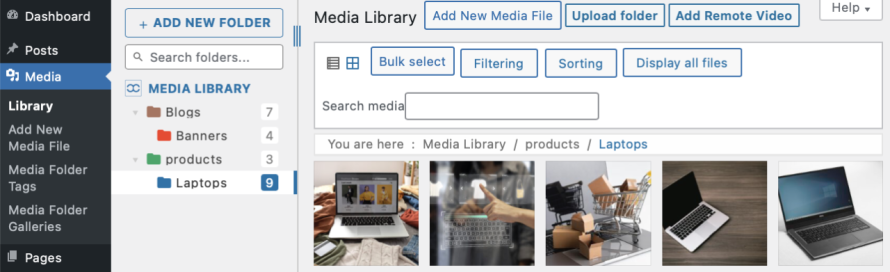
अपनी फ़ाइलें आसानी से खोजने के लिए मीडिया फ़ोल्डर
WordPress का डिफ़ॉल्ट "सब कुछ एक ढेर में" दृष्टिकोण अराजक है। यहाँ बताया गया है कि एक ऐसा फ़ोल्डर सिस्टम कैसे बनाएं जो टिके रहे:
सरल से शुरू करें, फिर विशिष्ट पर जाएं
सामग्री-केंद्रित फ़ोल्डर
ब्लॉग > गाइड > फीचर्ड इमेज
shop > category page banners
क्लाइंट पोर्टल > अनुबंध
दिनांक या प्रोजेक्ट आधारित
2024 Q2 > कैंपेन > ईमेल न्यूज़लेटर
क्लाइंट प्रोजेक्ट्स > acme रीब्रांड > एसेट्स
लेकिन आप पूछ सकते हैं, क्यों? तो आइए कुछ कारण देखें:
गति: 30 स्क्रॉल के बजाय 3 क्लिक में फ़ाइलें खोजें।
टीम-अनुकूल: मीडिया एक्सेस के साथ फ़ोल्डर अनुमतियाँ असाइन करें ताकि हमारी टीम या ग्राहक केवल वही देखें जो उन्हें चाहिए।
समझदारी से काम करें, कठिन नहीं
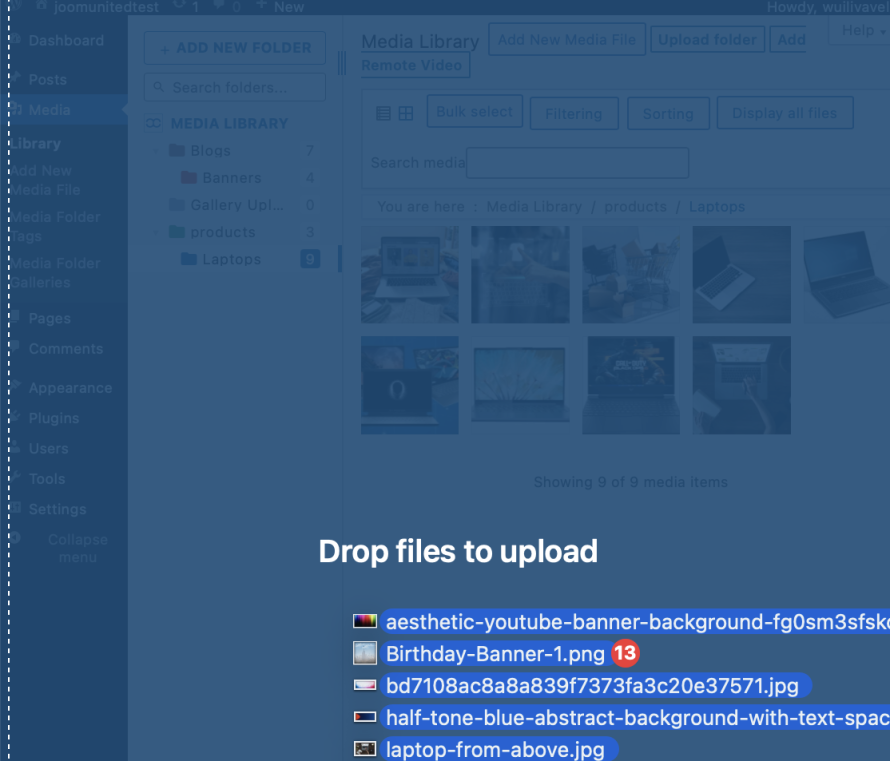
ड्रैग और ड्रॉप बल्क मैजिक: 50 उत्पाद छवियों को चुनें और उन्हें एक ही बार में समर कलेक्शन में डाल दें।
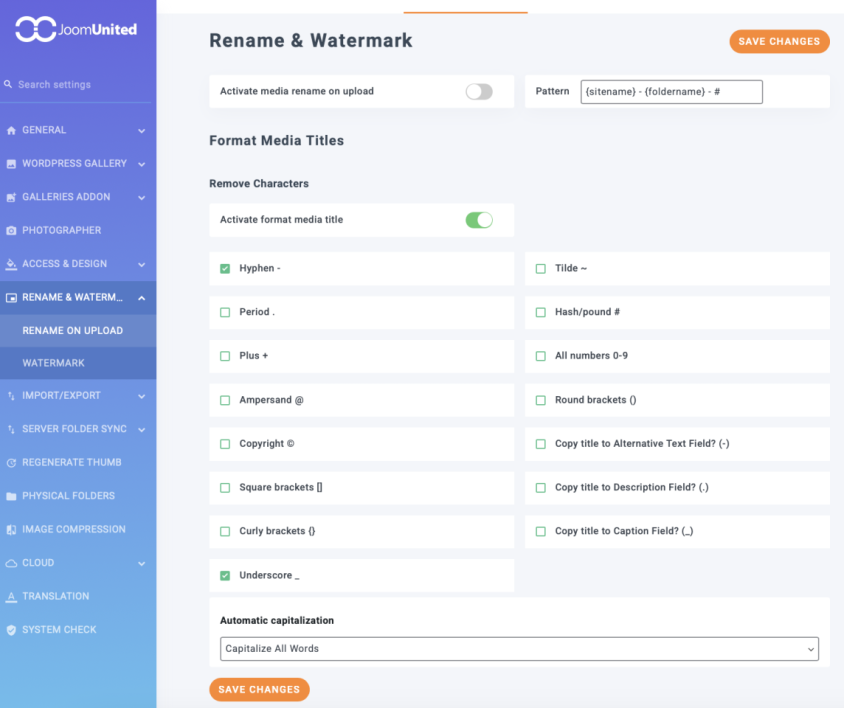
Automatic rename: Turn random image names into a predefined pattern to make them readable.
विशिष्ट फ़ाइल प्रकारों को वश में करना (छवियाँ, PDFs, वीडियो)
छवियाँ:
Set better image names (you can use the renaming on upload for this): You could notice that yoursite-product-title, keeping in mind that yoursite and product are variables that will depend on the actual product information, is better than IMG-1344.PNG.
ALT Text Matters: Describe the image and include keywords in a natural way, for example, "barista pouring latte art" vs "coffee shop".
PDFs:
रंग कोड: अत्यावश्यक अनुबंधों के लिए लाल फ़ोल्डर और प्रकाशित व्हाइटपेपर के लिए हरा असाइन करें। उदाहरण के तौर पर, इससे आपको व्यवस्थित रहने और यह जानने में मदद मिलनी चाहिए कि क्या जल्दी से जांचना है।
वर्णनात्मक नाम: ऐसे शीर्षक उपयोग करें जिन्हें आप फ़ाइलें देखते समय पहचान सकें, उदाहरण के लिए, "file.pdf" के बजाय "analytics-report-may"।
वीडियो:
लंबे समय तक इसे साफ़ रखें
त्रैमासिक "मीडिया डिटॉक्स" दिवस निर्धारित करें
ज़ॉम्बी फ़ाइलें: अप्रयुक्त छवियों को खोजें, WP Media Folder आपको उन्हें फ़िल्टर करने की अनुमति देगा।
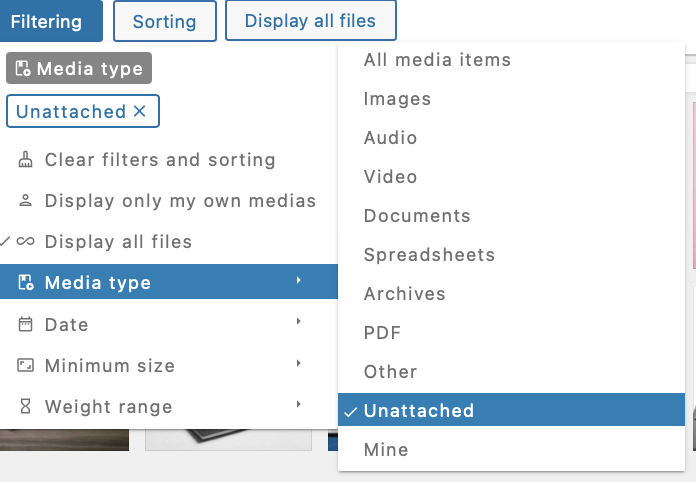
डुप्लिकेट मर्ज करें: ग्राफिक्स और एसेट्स को एक मास्टर फ़ोल्डर में संयोजित करें।
पुराने को आर्काइव करें: 2022 के हॉलिडे बैनर को हटाने के बजाय archive > retired में डालें (इसके लिए आप फ़िल्टर का उपयोग कर सकते हैं)।
Shortcuts Are Your Best Friend
अपने "Go-To" फ़ोल्डरों के लिए एक रंग का उपयोग करें: अपने सोशल मीडिया > टेम्पलेट्स के लिए एक विशिष्ट रंग का उपयोग करें ताकि आप उन्हें जल्दी से ढूंढ सकें।
फ़िल्टर FTW: पुरानी या विशिष्ट प्रकार की फ़ाइलों को जल्दी से खोजने और उनके साथ क्या करना है यह परिभाषित करने के लिए फ़िल्टर का उपयोग करें।
SEO और प्रदर्शन की अनिवार्यताएँ
जल्दी नाम बदलें: अपलोड करने से पहले WP Media Folder टूल का उपयोग करके फ़ाइल नाम ठीक करें। "SEO-अनुकूल" बाद में "जल्दी ठीक करने" से बेहतर है।
धार्मिक रूप से बैकअप लें: बड़ी सफाई से पहले UpdraftPlus या किसी अन्य बैकअप प्लगइन का उपयोग करें। एक गलत क्लिक आपका दिन बर्बाद नहीं करना चाहिए।
बड़ी फ़ाइलों को क्लाउड में संग्रहीत करें: अपनी मीडिया लाइब्रेरी को इन सेवाओं से जोड़ने के लिए क्लाउड ऐडऑन का उपयोग करें जैसे Google Drive, OneDrive, या यहाँ तक कि Linode या AWS ( WP Media Folder में क्लाउड के साथ उपलब्ध अन्य सभी विकल्पों का ज़िक्र न करते हुए) अपनी मीडिया को ऑफ़लोड करने और उन्हें सीधे क्लाउड से सर्व करने के लिए, उनके CDN का उपयोग करके अपने सर्वर स्टोरेज को बचाएँ!
सभी वेबमास्टर्स को आमंत्रण!
समय बचाएं और उत्पादकता बढ़ाएं WP Media Folder के साथ। ग्राहक मीडिया फ़ाइलों को सहजता से व्यवस्थित करें, कस्टम गैलरी बनाएं, और एक सहज उपयोगकर्ता अनुभव प्रदान करें।
अपने वेबसाइट प्रोजेक्ट्स को अभी अपग्रेड करें!
अव्यवस्थित WordPress मीडिया लाइब्रेरी को न कहें
एक व्यवस्थित मीडिया लाइब्रेरी केवल सौंदर्यशास्त्र के बारे में नहीं है—यह घंटों की निराशा बचाने और आपकी साइट को आपके लिए अधिक मेहनत करने देने के बारे में है। WP Media Folderके साथ, आप केवल फ़ाइलें व्यवस्थित नहीं कर रहे हैं; आप एक ऐसा सिस्टम बना रहे हैं जो स्केल करता है।.
अपलोड में डूबना बंद करने के लिए तैयार हैं? आज ही WP Media Folder को आज़माएँ। आपकी मानसिक शांति (और आपके साइट विज़िटर) आपको धन्यवाद देंगे।
जब आप ब्लॉग की सदस्यता लेते हैं, तो साइट पर नए अपडेट होने पर हम आपको ई-मेल भेजेंगे ताकि आप उन्हें मिस न करें।.