वर्डप्रेस उत्पाद
 जूमला उत्पाद
 समर्थन
 समाचार
 लॉगिन
लॉगिनवर्डप्रेस के फ्रंटएंड से HTML टेबल को कैसे संपादित करें

वर्डप्रेस में टेबल को मैनेज करना आमतौर पर तब आसान होता है जब कंटेंट को संभालने वाला आप अकेले व्यक्ति हों। हालांकि, चीजें तब जटिल हो जाती हैं जब कई उपयोगकर्ताओं को डेटा अपडेट करने की आवश्यकता होती है, या जब आप वर्डप्रेस बैकएंड तक पहुंच दिए बिना संपादन की अनुमति देना चाहते हैं। यहीं पर फ्रंटएंड टेबल एडिटिंग आधुनिक वेबसाइटों के लिए एक शक्तिशाली समाधान बन जाता है।.
WP Table Manager allows users to manage tables like a spreadsheet while also enabling controlled editing from the frontend. This means teams, clients, or contributors can update table data without accessing the WordPress admin dashboard, making workflows faster, safer, and more collaborative.
In this article, we will explore how WP Table Manager enables frontend table editing, how to configure it securely, and how it can be used in real-world scenarios such as collaborative editing and user-submitted data management.
सामग्री की तालिका
- What is Frontend Table Editing in WordPress
- Why WP Table Manager is Ideal for Frontend Table Editing
- How WP Table Manager Enables Frontend Editing
- Enabling Frontend Editing in WP Table Manager
- Secure Table Management Without Backend Access
- Use Cases for Frontend Table Editing with WP Table Manager
- Advantages of Using WP Table Manager for Frontend Editing
- Best Practices for WP Table Manager Frontend Editing
- WP Table Manager as a Complete Table Management Solution
- Simplify WordPress Table Editing with Frontend Control
क्लाइंट वेबसाइटों के लिए एक मजबूत टेबल प्रबंधन समाधान ढूंढ रहे हैं?
कीमत टेबल्स से उत्पाद तुलना तक, यह प्लगइन डेटा को स्पष्ट और उपयोगकर्ता-मित्री तरीके से प्रस्तुत करने के लिए शक्तिशाली सुविधाएँ प्रदान करता है।
अब प्रतिस्पर्धी बढ़त प्राप्त करें!
What is Frontend Table Editing in WordPress

Frontend table editing refers to the ability to modify table content directly from the visible website interface instead of the WordPress backend.
Traditionally, WordPress users must:
- Log in to the admin dashboard
- Open the table inside a plugin or editor
- Make changes manually
- Save and preview updates
With frontend editing enabled through WP Table Manager, users can:
- Click directly on table cells
- Update values instantly
- Save changes without leaving the page
- Work in a simplified interface
This creates a much smoother experience for teams and non-technical users.
Why WP Table Manager is Ideal for Frontend Table Editing
JoomUnited WP Table Manager is designed to handle both backend structure and frontend usability in a single system.
Unlike basic table plugins, it provides a structured data environment that supports:
- Spreadsheet-style editing
- Advanced table formatting
- Controlled data updates
- Frontend display via shortcodes
- User role management for editing permissions
This combination makes it one of the most practical solutions for websites that need live table updates without compromising structure or safety.
How WP Table Manager Enables Frontend Editing
Frontend editing in WP Table Manager works by connecting backend table data with a controlled frontend interface.
Instead of exposing the entire WordPress admin system, the plugin allows only specific table elements to be editable on the frontend.
Core concept
- Tables are created and structured in the backend
- Tables are displayed on the frontend using embedded elements
- Editing permissions define who can modify data
- Changes are saved back to the original table structure
This ensures that users only interact with the data they are allowed to change.
Enabling Frontend Editing in WP Table Manager
To enable frontend editing, WP Table Manager uses permission-based configuration combined with table display settings.
Step 1: Create your table in the backend
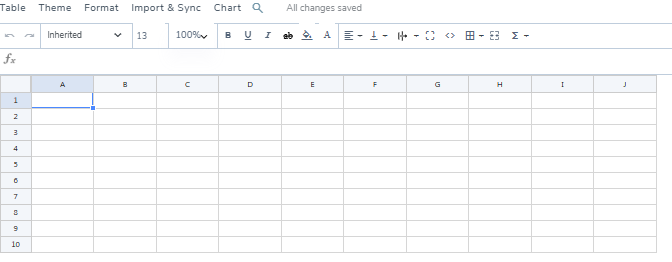
Inside WP Table Manager, you create a table using its spreadsheet-style interface. This allows you to define:
- Columns (e.g., price, name, status)
- Rows (data entries)
- Formatting rules
- Data types
At this stage, everything is controlled from the backend.
Step 2: Publish the table on the frontend
Once the table is ready, it can be displayed on any page using a shortcode or block integration from Page Builders.
This makes the table visible on the live website while still being connected to its backend structure.
Step 3: Enable frontend editing permissions
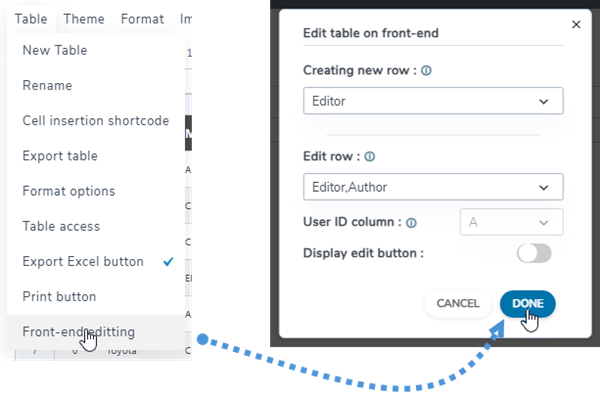
WP Table Manager allows you to define who can edit tables from the frontend.
You can assign permissions based on user roles such as:
- Administrator (full control)
- Editor (can modify content)
- Contributor (limited editing access)
- Guest users (view-only access)
This ensures secure management of data without exposing the WordPress backend.
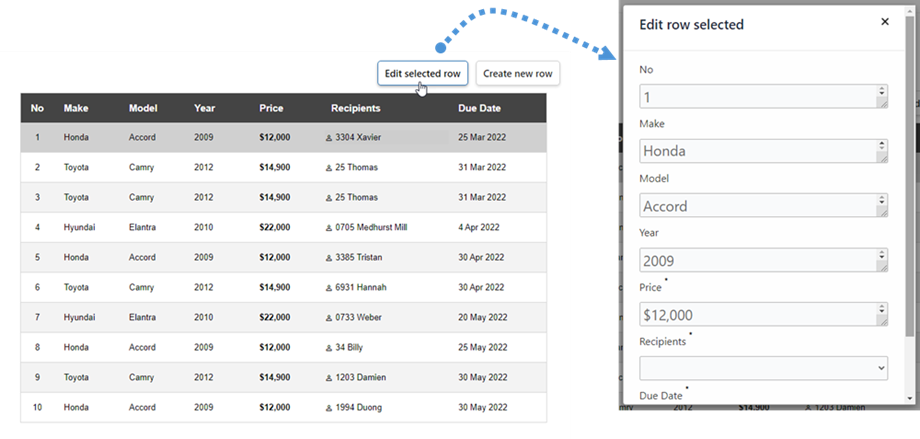
Step 4: Edit directly from the frontend
Once enabled, authorized users can:
- Click on table cells
- Modify values directly
- Save changes instantly
- See updates reflected immediately
This removes the need to access WordPress admin panels entirely.
Secure Table Management Without Backend Access
One of the most important advantages of WP Table Manager is that it allows frontend editing without compromising security.
Instead of giving users full admin access, the plugin limits interactions to only the table itself.
Security model includes:
- Role-based access control
- Table-level permissions
- Restricted editing scope
- Safe update validation
This makes it suitable for business environments where multiple users need access to data but should not access system settings.
Use Cases for Frontend Table Editing with WP Table Manager
Frontend editing becomes especially powerful when used in real-world workflows where multiple users interact with data.
1. User-submitted data management
Websites can allow users to submit or update structured data such as:
- Business listings
- Service directories
- Member information
- इवेंट शेड्यूल
Instead of manually updating entries in the backend, users can update their own data directly from the frontend interface.
2. Collaborative team editing
Teams can manage shared tables in real time without backend access.
Examples include:
- Marketing teams updating campaign data
- Sales teams adjusting pricing tables
- Operations teams maintaining inventory lists
This improves workflow efficiency and reduces dependency on technical staff.
3. Dynamic pricing tables
Businesses that frequently update prices or availability can use frontend editing to:
- Update pricing instantly
- Adjust service details
- Modify product availability
This eliminates delays caused by backend editing workflows.
4. Internal dashboards and reporting
Organizations can use WP Table Manager for internal systems such as:
- Performance tracking tables
- KPI dashboards
- Operational reports
- Internal databases
Frontend editing allows teams to update records without touching WordPress configuration.
Advantages of Using WP Table Manager for Frontend Editing
Using WP Table Manager for frontend table editing provides several long-term advantages:
Faster content updates
Users can update data instantly without navigating the backend.
Reduced training requirements
Non-technical users can manage tables easily using a visual interface.
Improved workflow efficiency
Multiple users can collaborate without conflicts or delays.
Lower risk of system errors
Users are restricted to table-level editing only.
Centralized data control
All changes remain within WP Table Manager's structured system.
Best Practices for WP Table Manager Frontend Editing
To ensure optimal performance and safety:
- Define clear user roles before enabling editing
- Keep table structures simple and consistent
- Avoid unnecessary columns or complex nesting
- Regularly review editing permissions
- Use backups for critical tables
These practices ensure long-term stability and scalability.
WP Table Manager as a Complete Table Management Solution
What makes WP Table Manager stand out is that it not only offers frontend editing as an add-on feature. Instead, it integrates it into a complete table management system.
This means users can:
- Build tables in a structured backend environment
- Publish them on the frontend
- Allow controlled editing when needed
- Maintain full control over data integrity
This combination makes it suitable for both simple websites and complex data-driven platforms.
सभी वेबमास्टर्स को बुला रहे हैं!
अपने क्लाइंट की वेबसाइटों को WP Table Manager के साथ बेहतर बनाएं। आसानी से टेबल, चार्ट और स्प्रेडशीट को प्रबंधित और कस्टमाइज़ करें, क्लाइंट को डायनामिक और आकर्षक डेटा विज़ुअलाइजेशन प्रदान करें।
आज ही अपनी वेब डिज़ाइन सेवाओं को अपग्रेड करें!
Simplify WordPress Table Editing with Frontend Control
Frontend table editing is a powerful capability for modern WordPress websites, especially when using a structured tool like WP Table Manager.
By allowing users to edit tables directly from the frontend, WP Table Manager simplifies workflows, improves collaboration, and reduces reliance on backend access. At the same time, its role-based permissions ensure that data remains secure and well-structured.
For websites that rely on dynamic tables such as pricing, directories, reports, or internal dashboards, WP Table Manager provides a complete and scalable solution that bridges the gap between usability and control.
जब आप ब्लॉग की सदस्यता लेते हैं, तो हम आपको एक ईमेल भेजेंगे जब साइट पर नए अपडेट होंगे ताकि आप उन्हें न चूकें।.