WordPress products
 Joomla products
 Support
 Ειδήσεις
 Σύνδεση
Συνδυάστε το Dropbox Sync + τον Έλεγχο Πρόσβασης στο WP File Download για Ασφαλή Συνεργασία Ομάδας

Η διαχείριση αρχείων στο WordPress μπορεί να γίνει δύσκολη καθώς οι ομάδες δημιουργούν, ενημερώνουν και μοιράζονται όλο και περισσότερα έγγραφα. Η αποθήκευση κάθε αρχείου απευθείας στο hosting του WordPress μπορεί επίσης να αυξήσει τις απαιτήσεις αποθηκευτικού χώρου και το φόρτο του διακομιστή, ειδικά όταν τα αρχεία κατεβαίνουν συχνά. WP File Download προσφέρει μια πιο ευέλικτη προσέγγιση συνδυάζοντας τη διαχείριση αρχείων του WordPress με εξωτερικό αποθηκευτικό χώρο και ελέγχους πρόσβασης. Με το πρόσθετο Dropbox, οι ομάδες μπορούν να συγχρονίζουν αρχεία και φακέλους μεταξύ του Dropbox και του WP File Download, ενώ ο Έλεγχος Πρόσβασης βοηθά στον περιορισμό της πρόσβασης σε συγκεκριμένα αρχεία και κατηγορίες.
Dropbox Sync is particularly useful for teams that collaborate on documents in Dropbox but need to make those files available through their WordPress website. For externally hosted files that don't require synchronization, Add Remote File offers a simpler alternative by connecting files through a direct external URL.
- Synchronize Dropbox files with WordPress automatically: Connect Dropbox to WP File Download to keep shared documents and folder structures aligned between your cloud storage and WordPress download library.
- Restrict files by WordPress user or role: Set permissions on individual files or categories so only authorized team members can view, download, upload, edit, or manage sensitive documents.
- Build a secure, scalable collaboration hub: Organize documents by team, client, or project, test access with each user role, and update permissions as staff and file-security requirements change.
Table of content
Why Combine Dropbox Sync and Access Control?

Teams often need to solve two file management requirements at the same time, keeping shared files synchronized and controlling who can access them.
Dropbox Sync addresses the first requirement by connecting WP File Download with a Dropbox account. Files and folders sync between the two platforms, so teams can keep frequently updated resources in Dropbox while making them available through WordPress.
Access Control addresses the second requirement by allowing administrators to define which users or user groups can access files and categories. Together, these features can help teams:
- Keep files synchronized: Changes made to synchronized files and folders can be reflected between Dropbox and WP File Download.
- Reduce WordPress storage requirements: The main files remain stored in Dropbox rather than being managed as regular files on the WordPress hosting server.
- Support team collaboration: Team members can continue uploading, updating, and organizing files in Dropbox.
- Control file access: Administrators can restrict access to specific files or categories based on WordPress users and permissions.
- Keep WordPress file management organized: Synchronized Dropbox content can be structured within WP File Download categories.
How Dropbox Sync Works in WP File Download

WP File Download connects your WordPress file library to Dropbox through its Dropbox add-on, keeping files and folders synchronized between both platforms. Instead of maintaining separate copies, your team can continue managing shared files in Dropbox while making them available through WP File Download.
The integration supports a connected workflow where you can manage files, folders, and changes from either side. Key aspects of Dropbox Sync include:
- Two-way synchronization: Files added, updated, or removed in Dropbox appear in the corresponding WP File Download category, and changes made in WP File Download sync back to Dropbox.
- Root folder and categories: WP File Download uses a root folder in Dropbox as the main synchronization location. WP File Download synchronizes folders and subfolders under this root folder, keeping the file structure organized across both platforms.
- Direct Dropbox management: Teams can manage synchronized files directly from Dropbox, including through the Dropbox desktop application. Changes then appear in WP File Download without repeatedly downloading and re-uploading files.
Ψάχνετε για μια ισχυρή λύση διαχείρισης αρχείων για ιστοτόπους πελατών;
WP File Download είναι η απάντηση. Με προηγμένες λειτουργίες όπως κατηγορίες αρχείων, περιορισμούς πρόσβασης και διαισθητικό περιβάλλον χρήσης.
Εντυπωσιάστε τους πελάτες σας με κορυφαία οργάνωση αρχείων!
Set Up Dropbox Sync in WP File Download
Setting up Dropbox Sync requires the WP File Download Dropbox add-on and a connected Dropbox account. Follow the steps below to configure the integration and start synchronizing your files.
Step 1: Install the WP File Download Dropbox Add-on
Dropbox integration is available through the WP File Download Dropbox add-on, which you must install and activate separately from the main WP File Download plugin. Once the add-on is active, the Dropbox connection options will become available in the WP File Download configuration settings.
Step 2: Create a Dropbox App
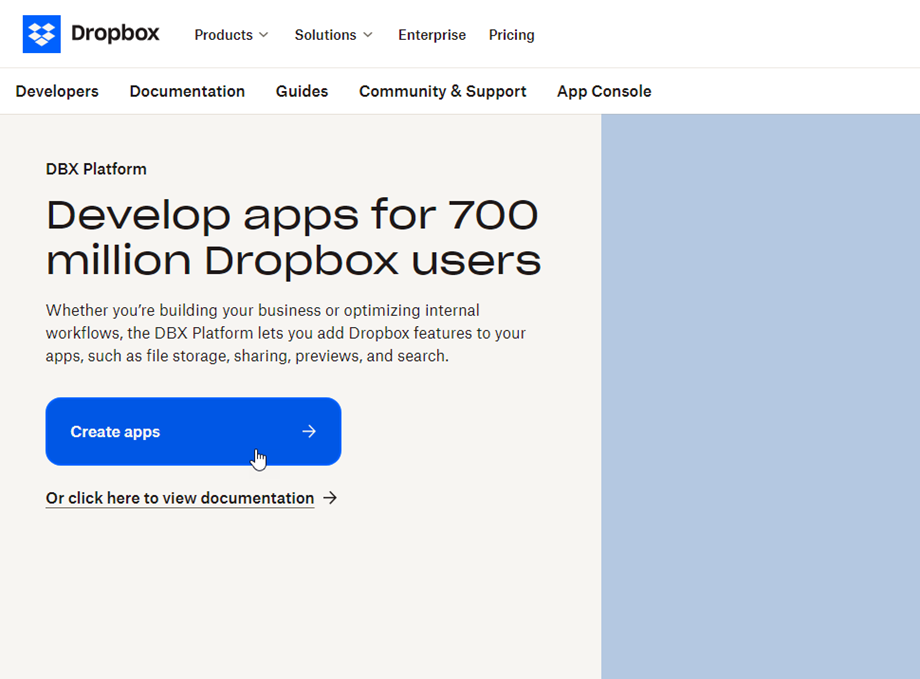
To connect WP File Download to your Dropbox account in Manual Mode, first create a Dropbox app. Go to the Dropbox Developer Console and create a new app.
When creating the app, select Dropbox API, choose Full Dropbox or App folder, and enter an app name.
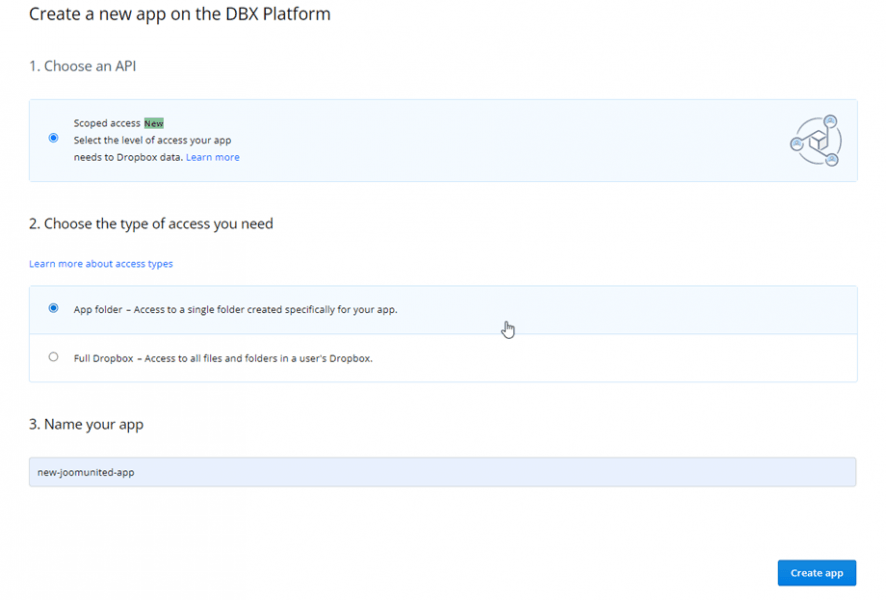
With Full Dropbox, you can add the file categories from WP File Download as folders at the root of your Dropbox account. This option is useful if you want to manage the synchronized files directly from your main Dropbox structure. Alternatively, select App folder to store all synchronized files and folders under a dedicated Dropbox app folder.
Once you create the app, Dropbox will provide an App Key and App Secret. Keep these credentials handy, as you will need them later to connect the custom Dropbox app to WP File Download.
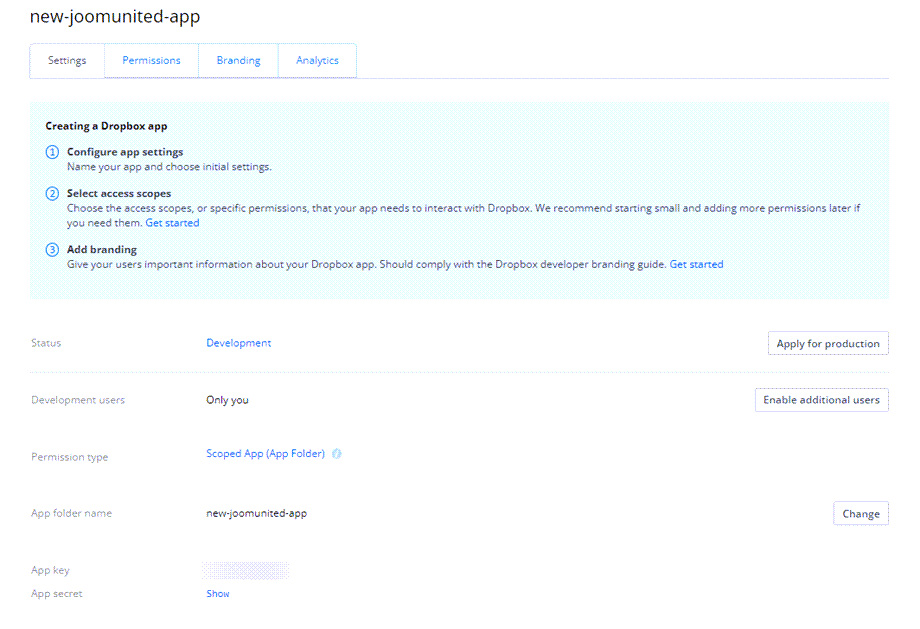
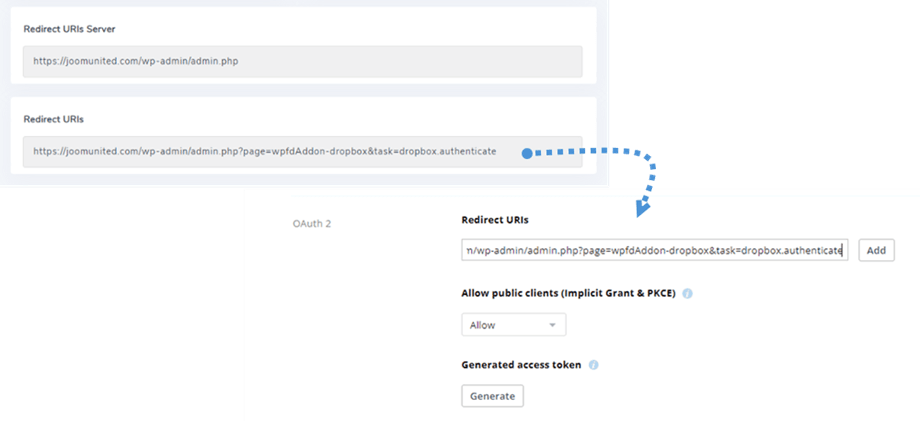
Next, go to the OAuth 2 section of your Dropbox app. Copy the Redirect URL shown in the WP File Download Dropbox settings and paste it into the Redirect URLs field in Dropbox, then click Add.
After adding the redirect URL, make sure the required permissions are enabled in the Permissions tab. These permissions let the Dropbox app access and sync the files used by WP File Download.
Step 3: Connect Dropbox to WP File Download
Once your Dropbox app is ready, go to WP File Download > Configuration > Cloud Connection > Dropbox. WP File Download provides two connection methods, depending on whether you want to use the built-in connector or a custom Dropbox app.
Automatic Mode
Automatic Mode provides the simplest way to connect Dropbox without creating a custom app. In Dropbox settings, click Connect Dropbox and follow the prompts to grant WP File Download access to your Dropbox account.
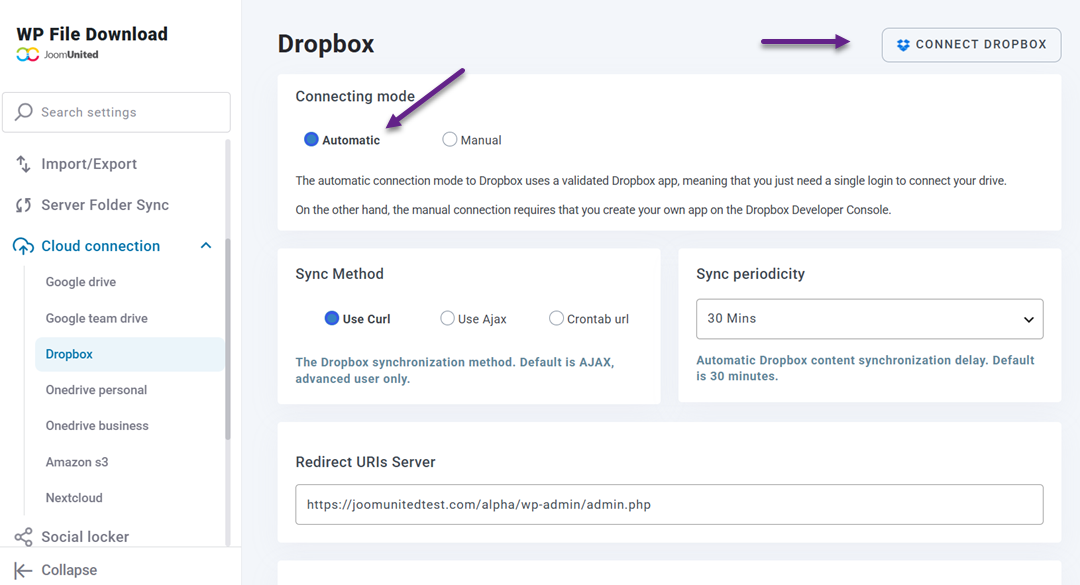
Once authorization is complete, your Dropbox account will connect to WP File Download and be ready for synchronization.
Manual Mode
Manual Mode allows you to connect WP File Download using a custom Dropbox app. Enter the App Key and App Secret from your Dropbox app in WP File Download > Configuration > Cloud Connection > Dropbox. Save the configuration, then click the Dropbox connection button and authorize the app when prompted.
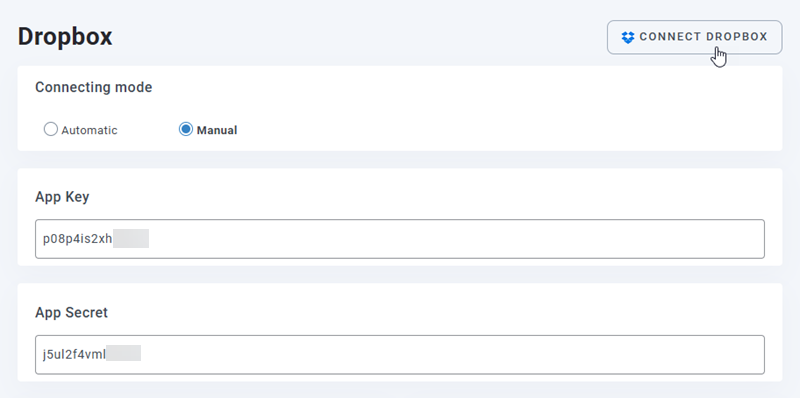
If you selected Full Dropbox when creating the app, you can choose a root folder for the synchronized files after connecting your Dropbox account. For a first-time connection, make sure at least one folder already exists in your Dropbox account so you can select it as the root folder.
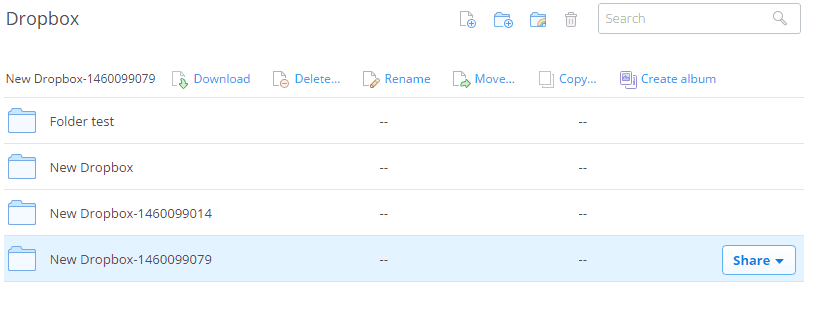
Step 4: Start Managing and Syncing Files
Once the Dropbox connection is configured, you can start managing your synchronized files and folders from WP File Download and Dropbox.
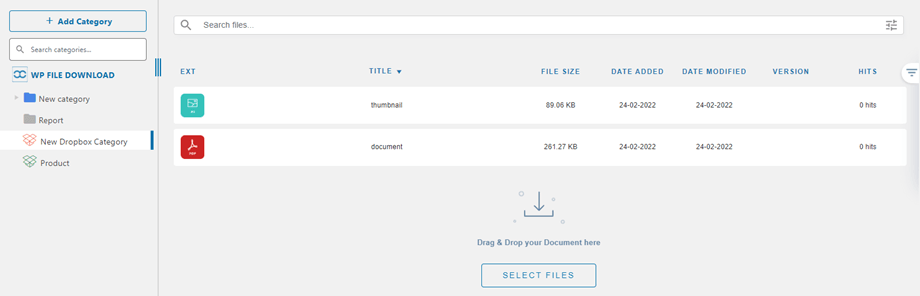
If you selected a root folder during the connection, you can sync the files and folders in that location with the corresponding WP File Download category. Changes to synchronized files then appear in both Dropbox and WP File Download, helping you keep your WordPress file library up to date while continuing to manage shared files in Dropbox.
Κάλεσμα σε όλους τους webmasters!
Βελτιώστε τους ιστότοπους των πελατών σας με το WP File Download. Δημιουργήστε ασφαλή και προσαρμόσιμα αποθετήρια αρχείων, επιτρέποντας στους πελάτες να έχουν εύκολη πρόσβαση και να διαχειρίζονται τα αρχεία τους.
Αναβαθμίστε τις υπηρεσίες σχεδιασμού ιστού σας σήμερα!
Control Access to Synchronized Files

Synchronizing files with Dropbox makes team file management easier, but synchronization alone does not determine who can access those files through your WordPress website. With WP File Download's access control options, you can restrict access to synchronized files and categories based on your WordPress users and roles.
Manage User and Role Permissions
WP File Download allows you to manage access permissions for files and categories in your WordPress file library. This lets you decide which users or user roles can view or access specific synchronized resources.
For example, you can organize synchronized Dropbox content into different WP File Download categories and assign access according to the type of information they contain:
- Public resources: Available to website visitors or a broader audience.
- Team documents: Restricted to logged-in team members.
- Customer resources: Accessible only to specific users or customer-related roles.
- Internal documents: Limited to authorized employees or administrators.
This approach allows you to keep the file storage and collaboration workflow in Dropbox while using WordPress permissions to control access to the resources exposed through your website.
Protect Files During Team Collaboration
Access control matters most when teams use Dropbox to manage files that shouldn't be available to every website visitor. A synchronized folder may contain internal documents, customer materials, reports, or other resources intended for specific users.
By applying access restrictions to the corresponding WP File Download files or categories, you can separate file collaboration from file accessibility. Team members can keep updating shared resources through the Dropbox workflow, while WordPress controls who can access them.
For example, an internal marketing team could synchronize its campaign documents from Dropbox to a restricted WP File Download category. Team members with the appropriate WordPress permissions can access the files, while unauthorized visitors cannot access them.
The key benefit is that teams do not have to choose between convenient file collaboration and controlled access. Dropbox can remain the workspace for managing shared files, while WP File Download provides the access control layer for files displayed through WordPress.
Dropbox Sync Use Case: Internal Team Collaboration

Dropbox Sync is particularly useful for internal teams that regularly create, update, and organize shared files. Instead of asking team members to upload the latest version of every document to WordPress, the team can continue managing its working files in Dropbox while synchronizing the relevant folder with WP File Download.
For example, a marketing team could maintain a Campaign Resources folder in Dropbox containing presentations, product images, campaign briefs, and other shared materials. When team members add or update files, those changes sync to the corresponding WP File Download category. This setup is useful when:
- Team members already use Dropbox as their primary workspace.
- Documents are updated frequently.
- Multiple people need to add or edit shared resources.
- You need the latest version available through WordPress.
- Some files should only be accessible to specific WordPress users or roles.
For example, an internal company portal could have separate WP File Download categories for Marketing, Sales, and Management. Each category can be connected to the appropriate Dropbox folder, while access permissions determine which WordPress users can access each collection.
This allows the team to keep its familiar Dropbox-based collaboration workflow without requiring administrators to manually maintain duplicate files in WordPress. At the same time, WP File Download provides a structured file library and access control layer for files shared through the website.
Remote Files as an Alternative to Dropbox Sync

Not every externally hosted file needs two-way synchronization. If a file is already hosted on another server or storage service and doesn't need frequent updates, WP File Download's Add Remote File feature offers a simpler alternative to Dropbox Sync. Instead of synchronizing a folder, you can add an individual file using its direct URL while keeping it managed within your WordPress file library.
How Remote Files Work
Remote Files let you add an externally hosted file to WP File Download without uploading the file to your WordPress server. The file remains at its original location, while WP File Download stores the information needed to make it available through your file library.
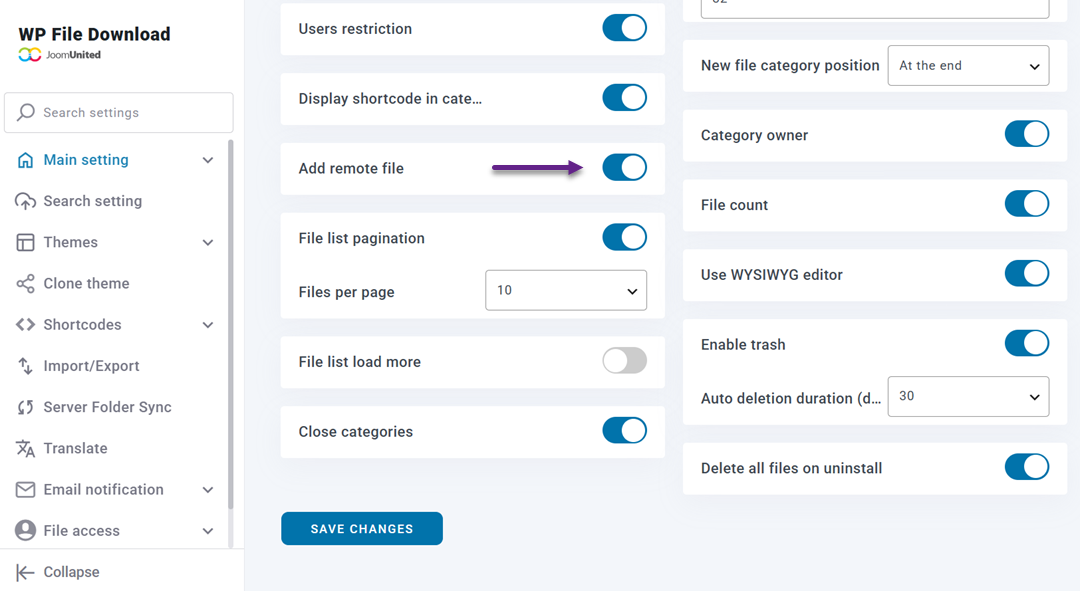
After enabling the feature, go to WP File Download > WP File Download, scroll down, and click Add Remote File.
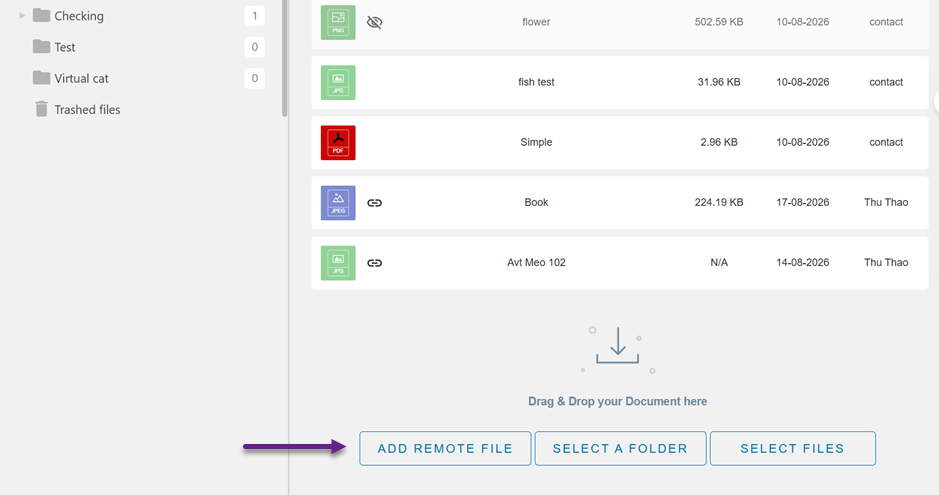
You can then provide the required file information:
- Title: the name displayed for the file in your WordPress file library.
- Remote URL: the direct URL of the externally hosted file.
- File Type: the format of the file, such as JPG, HTML, MP3, or another supported type.
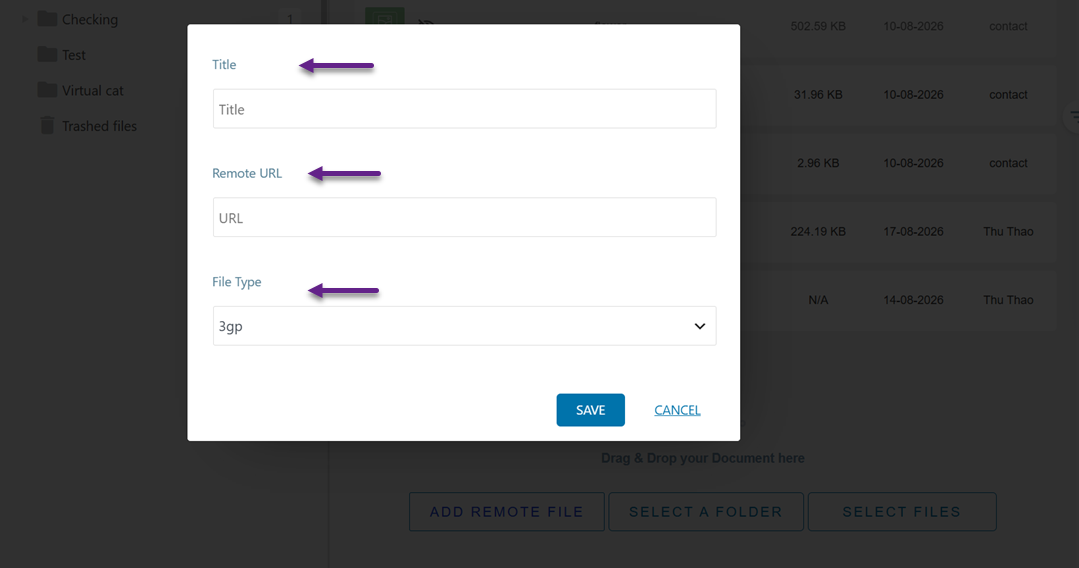
Unlike Dropbox Sync, you add Remote Files individually using a direct URL. They don't establish two-way synchronization between an external folder and a WP File Download category.
This makes Remote File a straightforward option when you only need to make an existing external resource available through your WordPress file management workflow.
When to Use Remote Files
Remote Files are best suited to resources that are static, externally hosted, or rarely changed. They can be useful when you don't need to move the original files to Dropbox or WordPress hosting. Common examples include:
- Static resources: Files that rarely need to be updated.
- Large archives: Large downloadable files that you prefer to keep on external storage.
- Files hosted on external servers: Resources that already have a direct URL outside your WordPress hosting.
- CDN-hosted resources: Files served from external infrastructure that you want to include in your WordPress file library.
- Legacy files: Existing resources on an older server that do not need to be migrated to WordPress.
The key difference is the workflow: use Dropbox Sync for actively managed files that need synchronization, and use Remote File for individual external files that simply need to be accessible through WordPress.
Συμπέρασμα
Combining Dropbox Sync and access control in WP File Download gives teams a practical way to manage and share files through WordPress while keeping their primary file storage in Dropbox. With two-way synchronization, teams can continue adding and updating files in Dropbox while keeping their WordPress file library in sync. Access Control then adds another layer of control by restricting synchronized files and categories to the appropriate WordPress users and roles.
For files that don't require synchronization, Add Remote File offers a complementary option to connect individual resources hosted on external servers through direct URLs. With WP File Download, teams can choose between Dropbox Sync and Remote File based on how they manage their files, while keeping resources organized and access controlled within WordPress.
Όταν εγγραφείτε στο blog, θα σας στέλνουμε ένα e-mail όταν υπάρχουν νέες ενημερώσεις στον ιστότοπο, ώστε να μην τις χάσετε.